

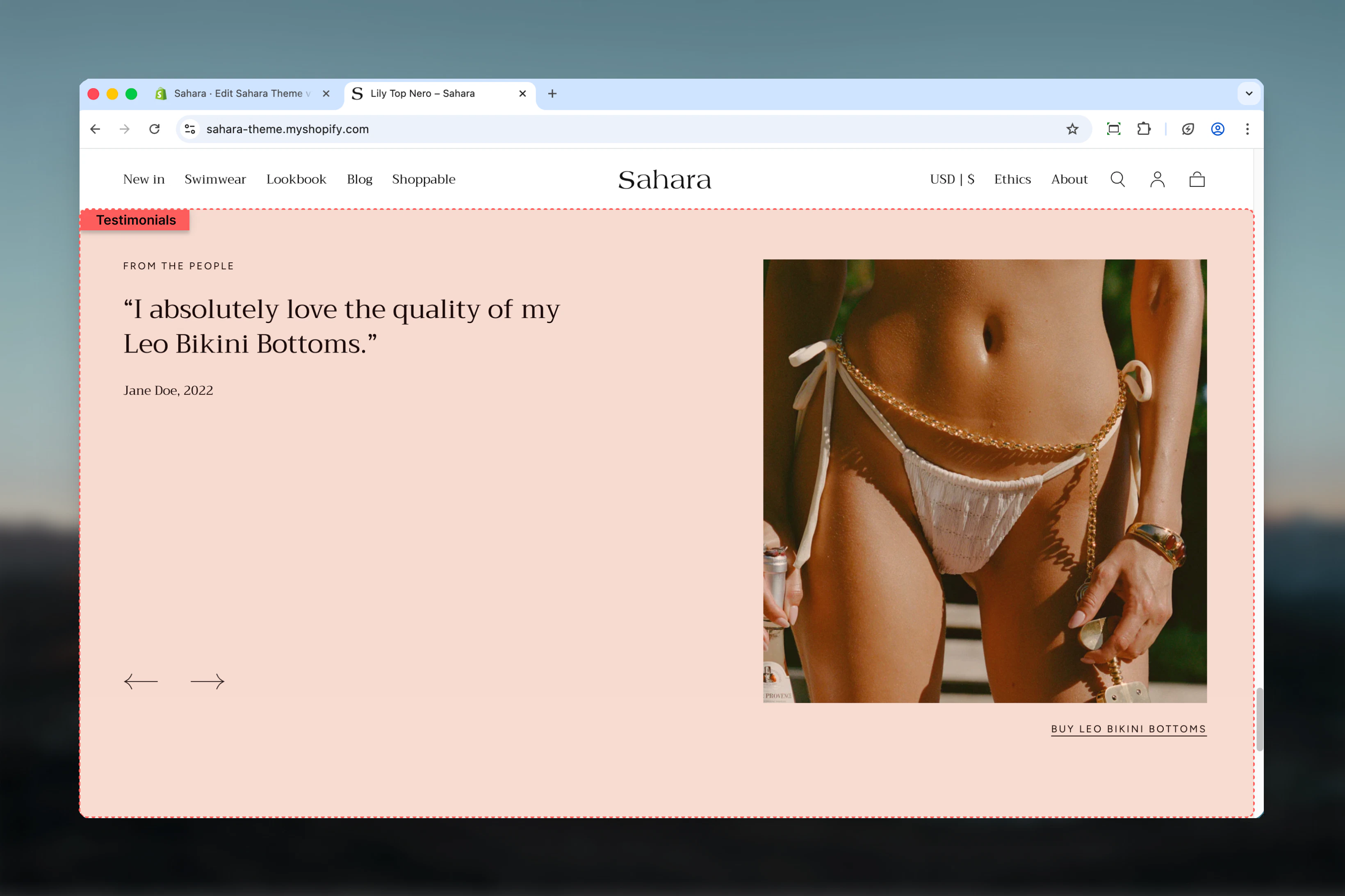
What this section controls
This section controls customer testimonial displays with the following capabilities:- Multiple testimonial slides with quotes and attribution
- Image positioning (left, right, or no image)
- Narrow or full-width content layouts
- Autoplay carousel functionality
- Optional clickable links on testimonials
- Section-level heading and styling
How the Testimonials section works
The section uses testimonial blocks where each block represents one customer review. When multiple testimonials are added, they automatically form a carousel that can rotate manually or automatically. The image position setting determines whether a featured image appears alongside the testimonials.Getting started
1
Open Theme Customizer
From Shopify admin, access the Theme Customizer.
2
Add Testimonials section
Add the Testimonials section to your page or template.
3
Add testimonial blocks
Click “Add block” and select “Testimonial” to add customer reviews.
4
Configure content
Add quotes, author names, and optional images for each testimonial.
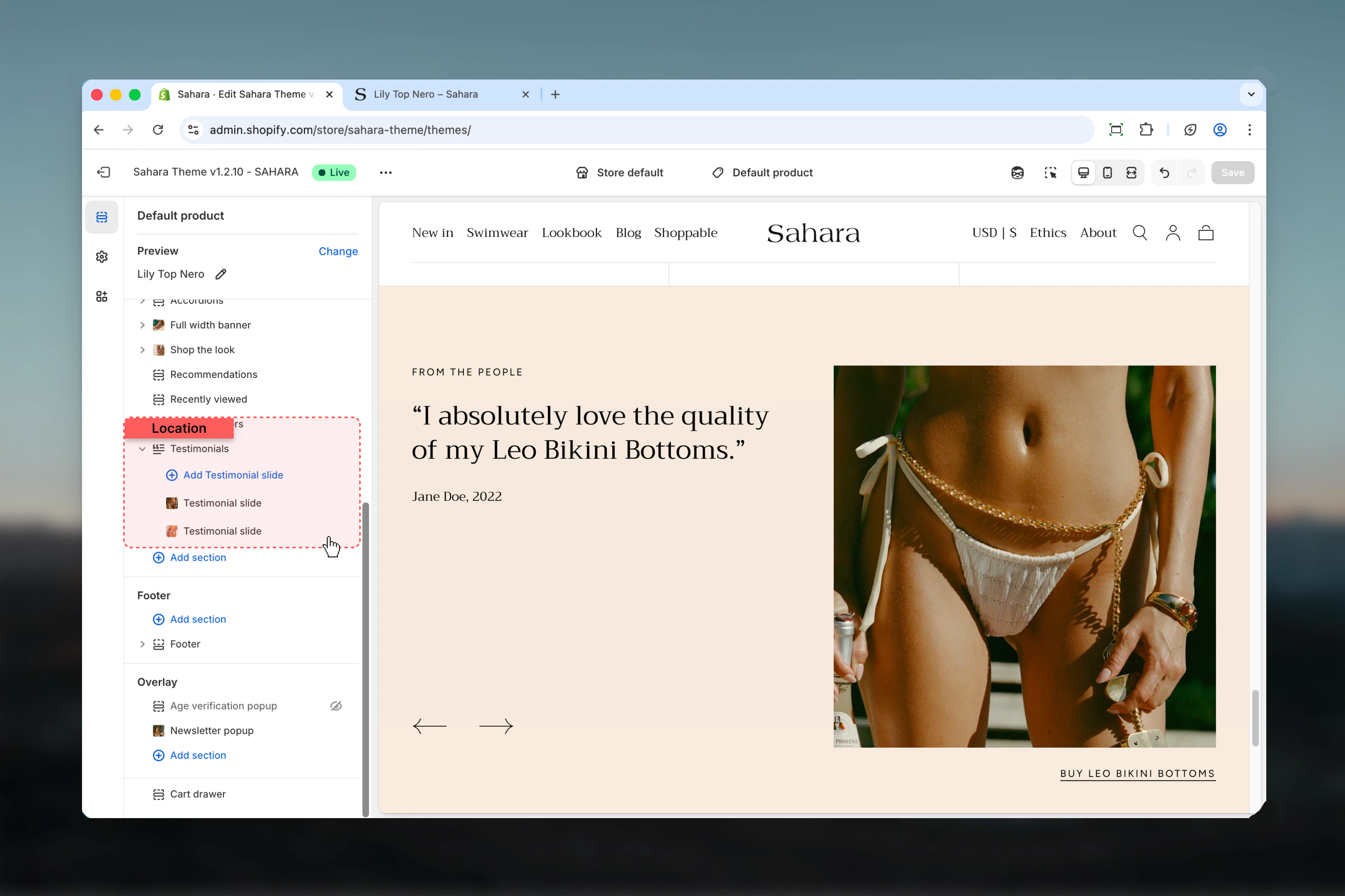
Section settings
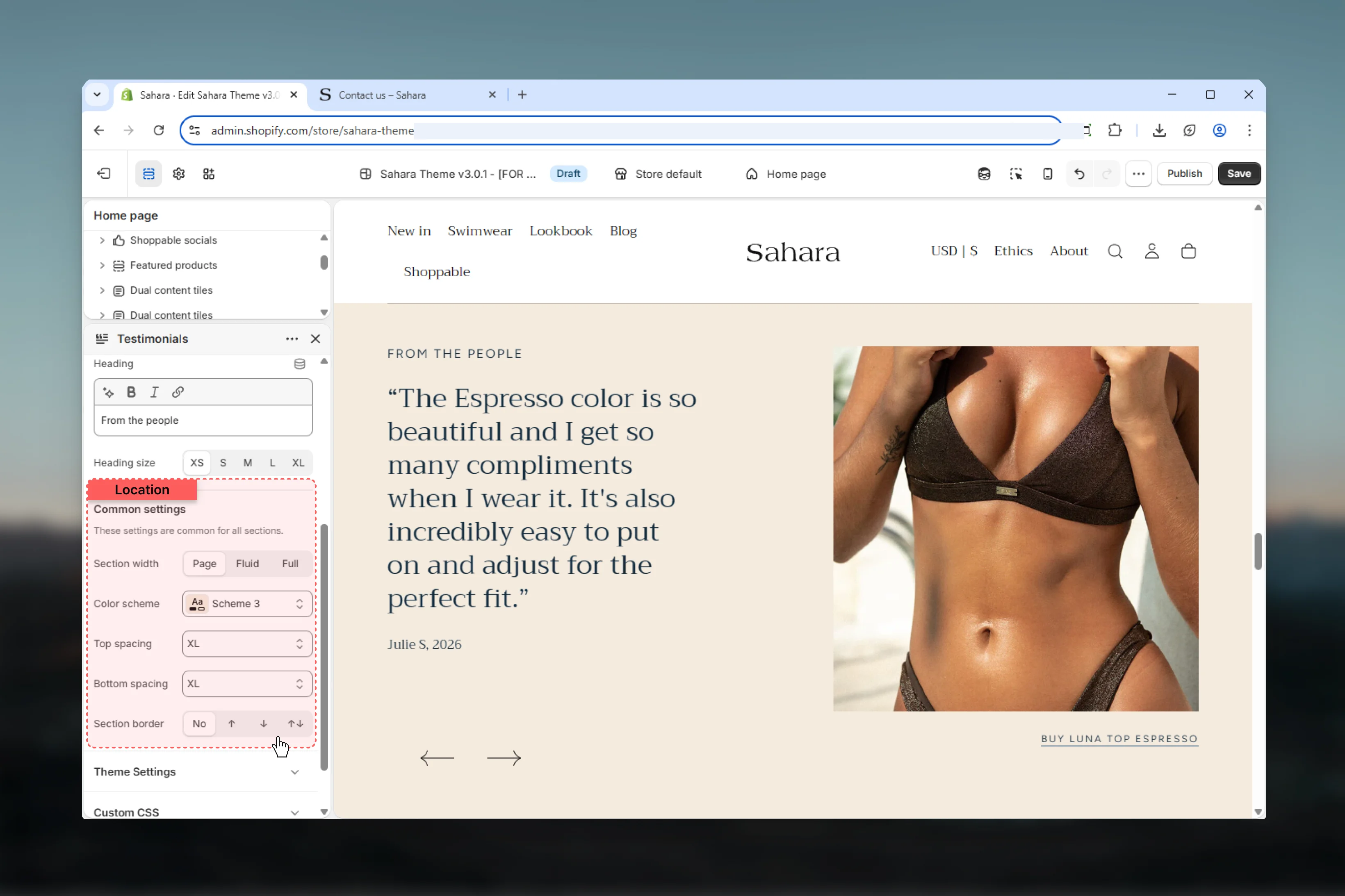
- Layout
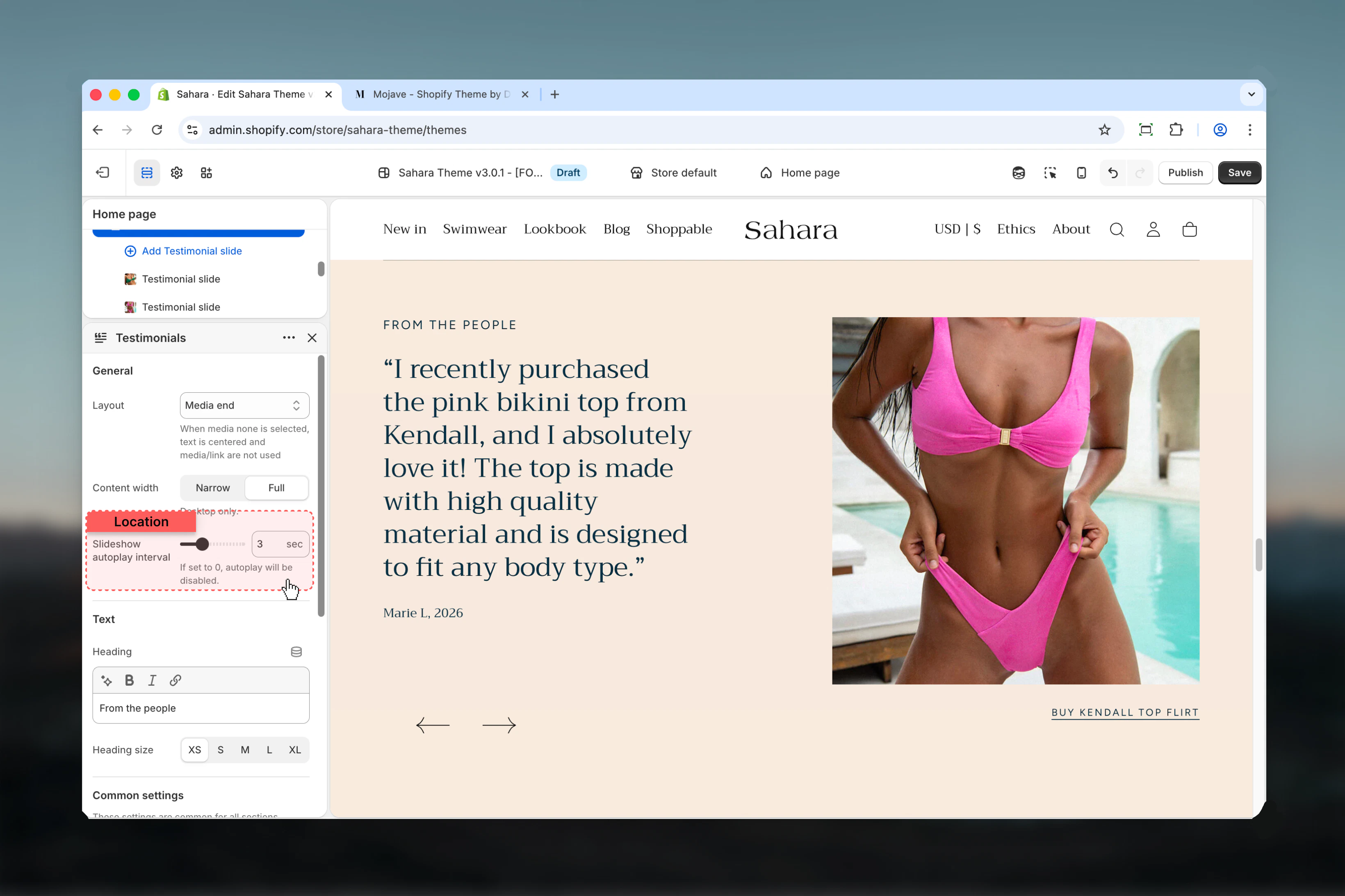
- Carousel
- Content
- Styling
Layout
Controls the position of the featured image relative to testimonial content.Image left
Image left
Featured image appears on the left side, testimonials on the right.When to use:
- When image is equally important as testimonials
- Left-to-right reading flow emphasis
- Desktop-friendly balanced layouts
Image right
Image right
Featured image appears on the right side, testimonials on the left (default).When to use:
- Standard testimonial layouts
- When content should be read first
- Maintaining left-aligned text focus
No image
No image
No featured image displayed, testimonials use full width.When to use:
- Text-focused testimonial sections
- When individual testimonial images are sufficient
- Minimal, clean designs
- Mobile-optimized displays
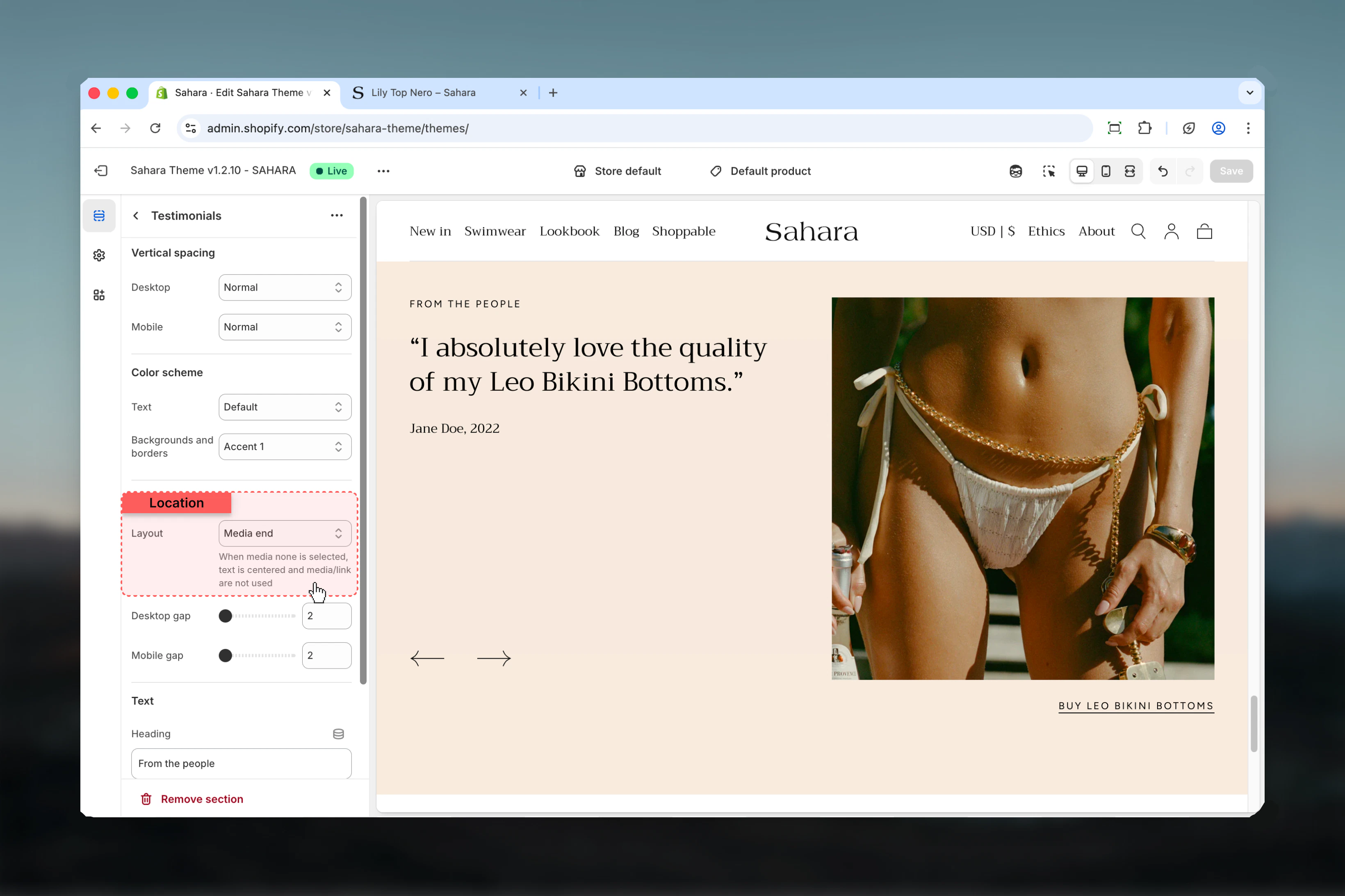
Content width
Controls the maximum width of testimonial text content.Narrow
Narrow
Content constrained to a narrow column for better readability (default).When to use:
- Longer testimonial quotes
- Improving text readability
- Creating visual focus on content
Full
Full
Content uses the full available width.When to use:
- Short, concise testimonials
- Maximizing screen space
- When using “No image” layout
Block settings
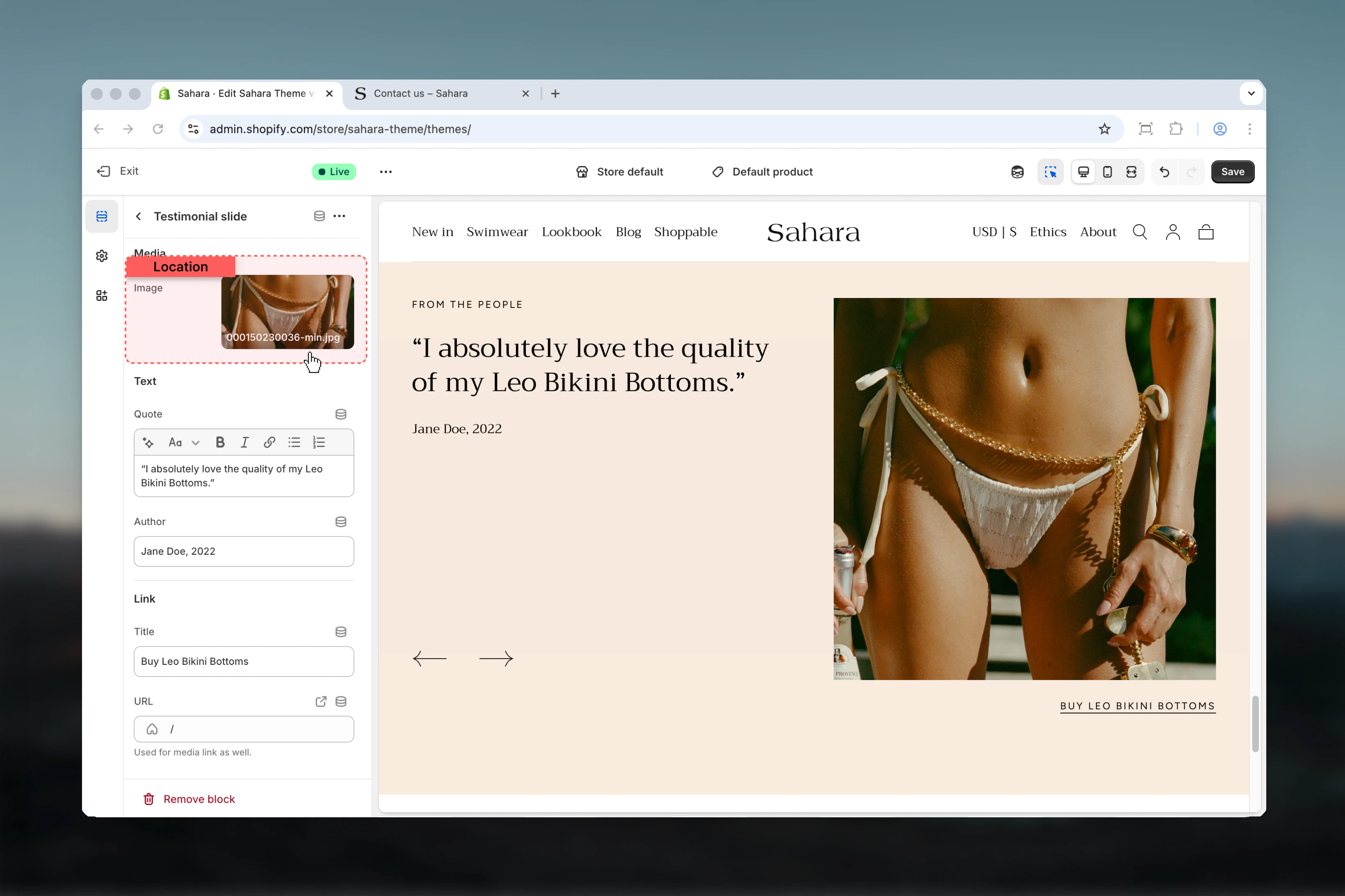
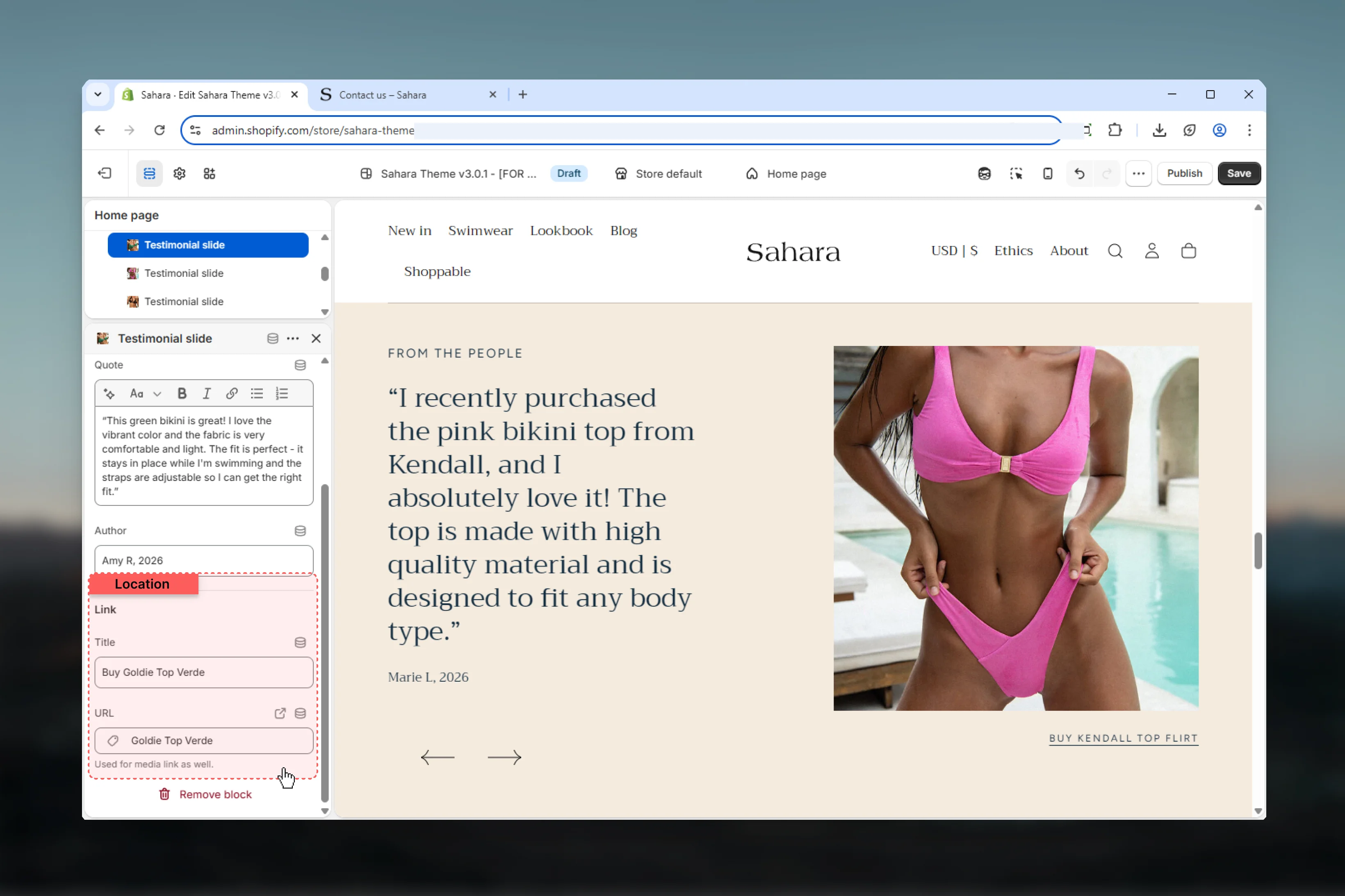
Each testimonial block represents one customer review or quote.- Media
- Text
- Link
Image
Upload an image for this specific testimonial.Testimonial images
Testimonial images
Common image uses:
- Product photos related to the review
- Customer photos (with permission)
- Lifestyle imagery matching testimonial context
- Brand or logo images for B2B testimonials
- Square or portrait orientations work best
- High resolution (at least 500px)
- Consistent styling across all testimonials
- Properly optimized for web
This is the image shown in the carousel slide, separate from the section’s featured image.
Best practices
Authentic content
Use real customer testimonials with permission. Authenticity builds trust more than polished marketing copy.
Optimal count
Display 3-6 testimonials for best results. Too few lacks credibility, too many reduces impact.
Specific feedback
Choose testimonials that mention specific products, features, or benefits rather than generic praise.
Timing matters
Set autoplay to at least 4-5 seconds for testimonials with 30+ words to ensure readability.
Strategic placement
Place testimonials near conversion points: product pages, checkout, or below hero sections.
Consistent attribution
Use consistent author format across all testimonials (Name + Year, Name + Location, etc.).
Visual consistency
If using testimonial images, maintain consistent styling, sizing, and quality across all slides.
Mobile optimization
Consider using “No image” layout for mobile-heavy sites to maximize testimonial readability.
Common use cases
Product page validation
Product page validation
Display 2-3 testimonials specific to the product with “No image” layout. Use product photos as testimonial images. Link testimonials to full review page. Disable autoplay for reading control.
Landing page trust builder
Landing page trust builder
Show 3 testimonials with “Image left” layout and full section width. Use customer photos (with permission) or lifestyle imagery. Add verified customer labels to author names.
About page credibility
About page credibility
Use “No image” layout with narrow content width focusing entirely on quotes. Display 4-6 testimonials with longer, detailed feedback. Remove product links for cleaner presentation.
Campaign-specific reviews
Campaign-specific reviews
Select 3-4 testimonials related to specific campaign or collection. Use custom featured image matching campaign theme. Set autoplay to 4 seconds with product links.
Related sections
Trust indicators
Display trust badges and guarantees
Product recommendations
Show recommended products based on behavior