

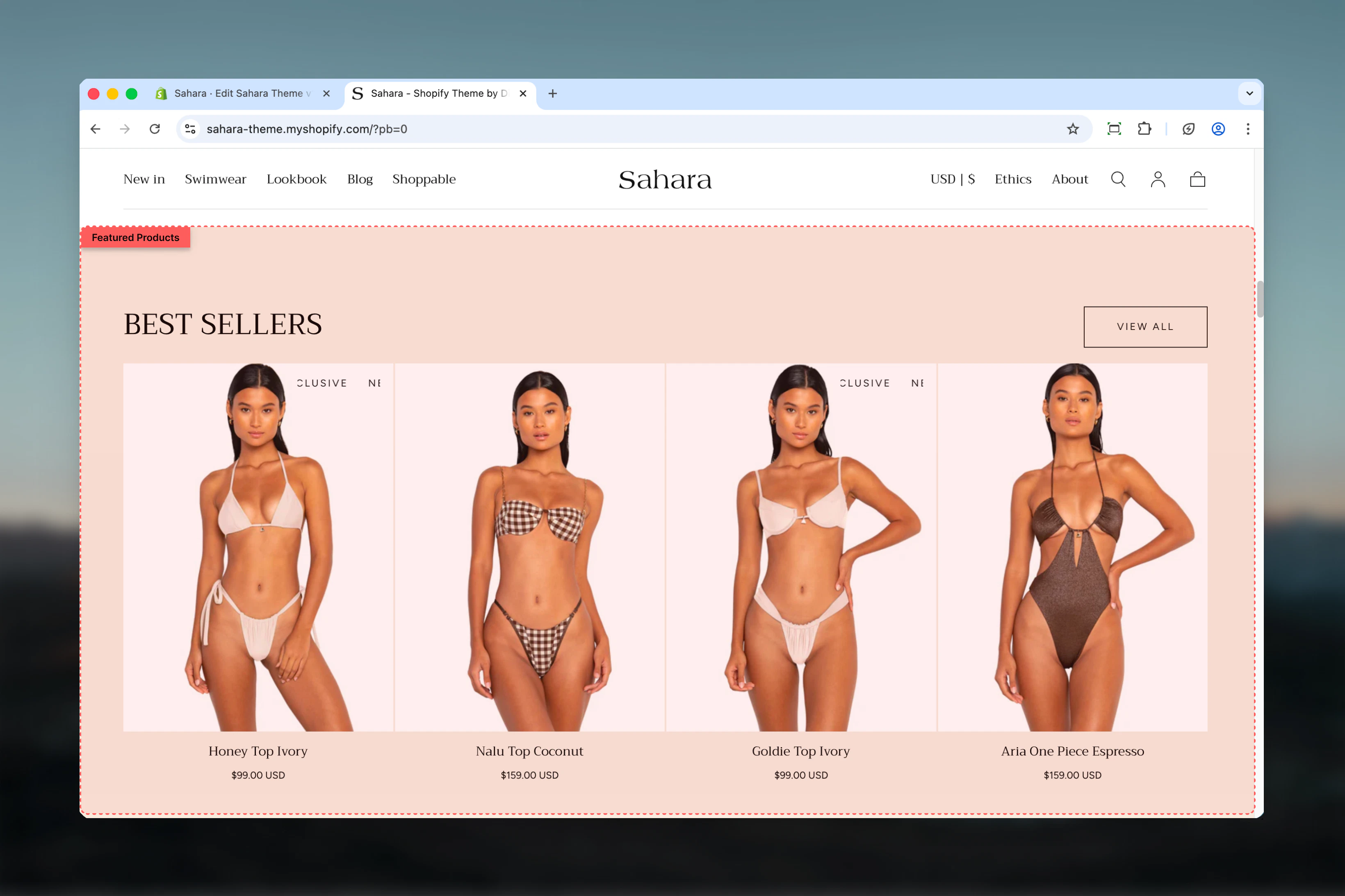
What this section controls
This section controls product showcase displays with the following capabilities:- Manual product selection or automatic collection loading
- Two layout options for heading and button positioning
- Configurable product count from 4 to 12 items
- Section-level button for viewing full collection
- Display control for unavailable products
How the Featured products section works
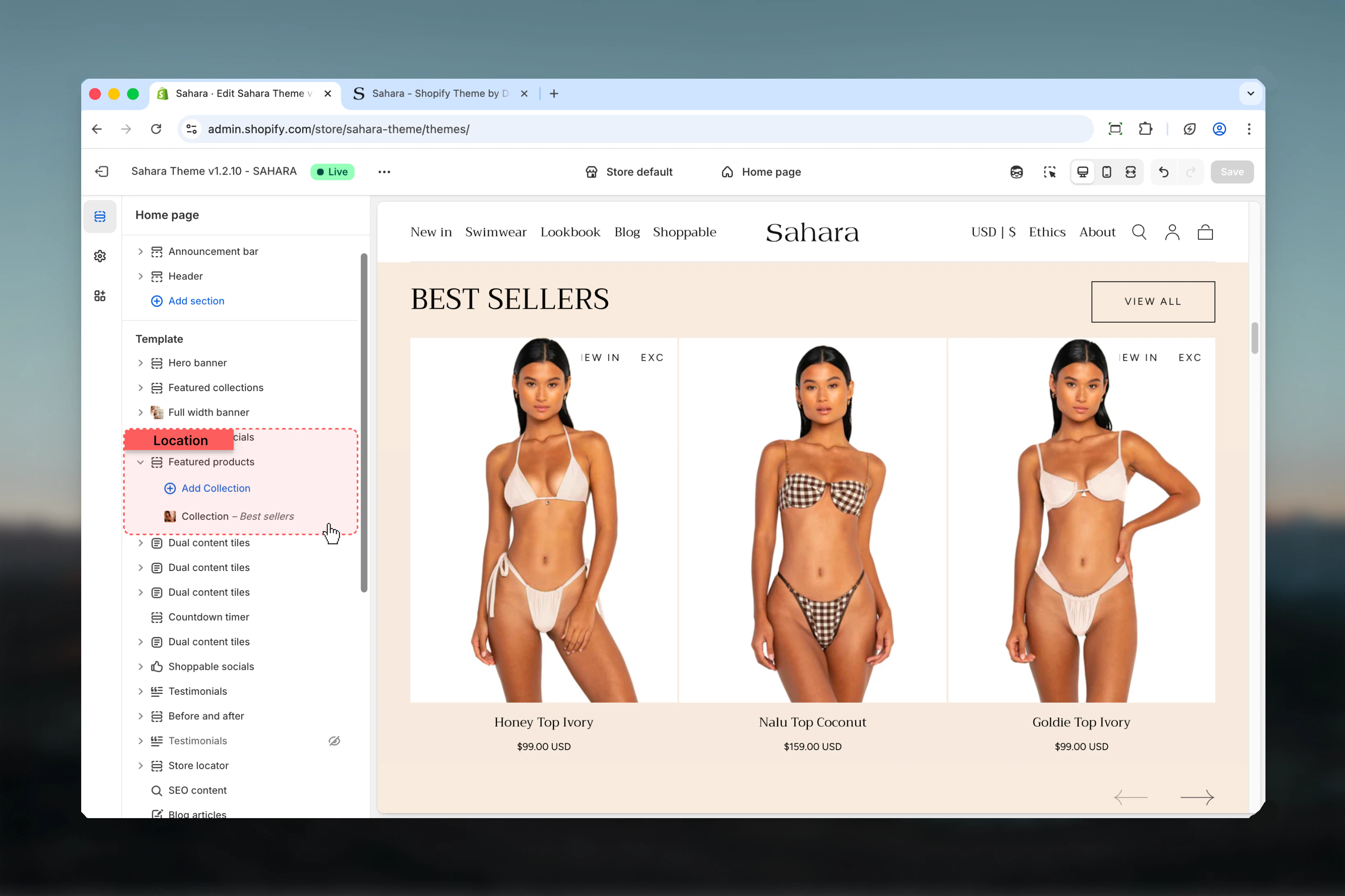
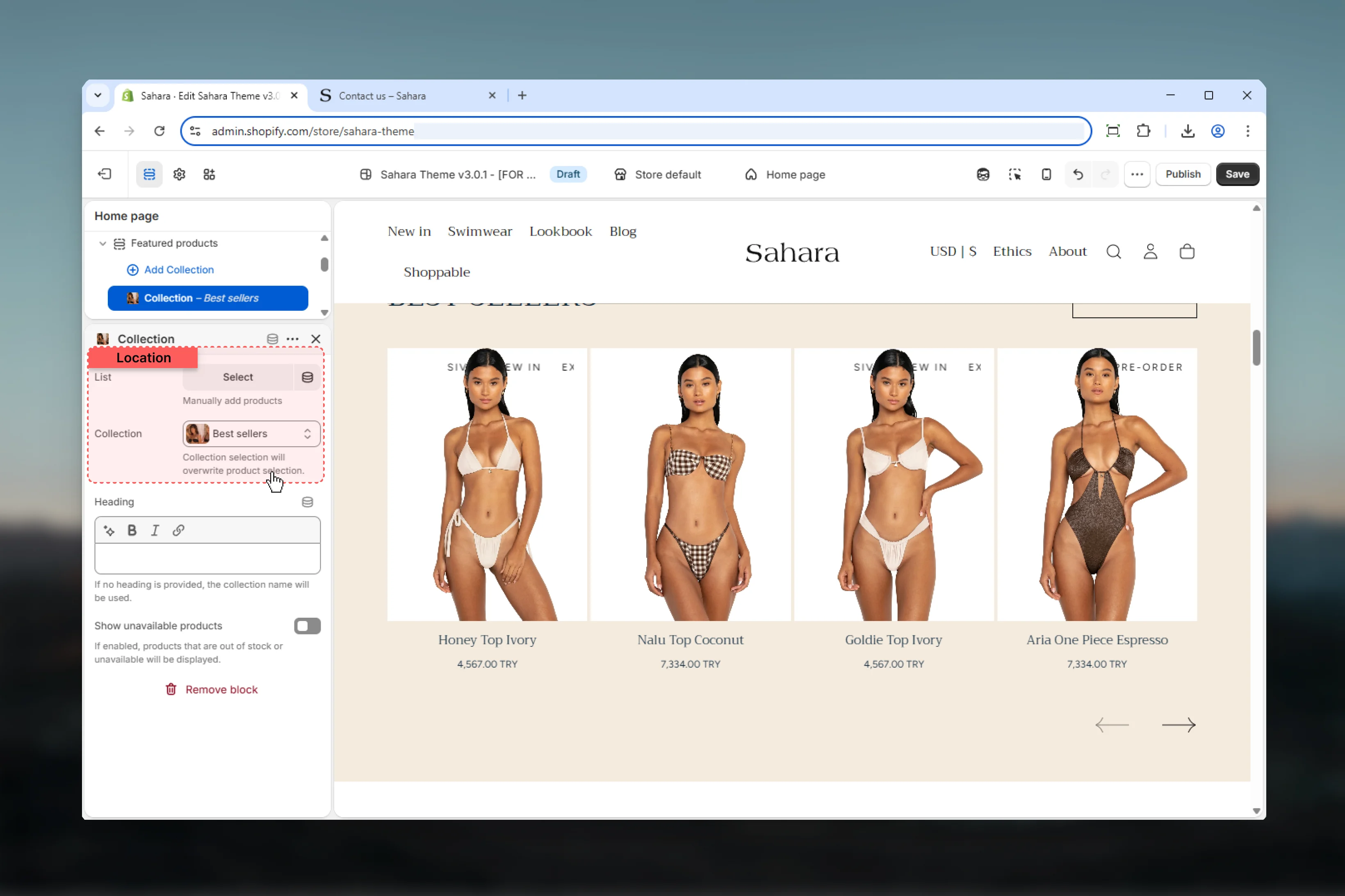
The section uses collection blocks to define product sources. You can either manually select specific products or choose a Shopify collection. When a collection is selected, it automatically overrides any manual product selections, keeping the display updated with the latest collection contents.Getting started
1
Open Theme Customizer
From Shopify admin, access the Theme Customizer.
2
Add Featured products section
Add the Featured products section to your page or template.
3
Add collection block
Click “Add block” and select “Collection” to define your product source.
4
Select products or collection
Either manually select products or choose a Shopify collection.
Section settings
- Layout & Content
- Products
- Styling
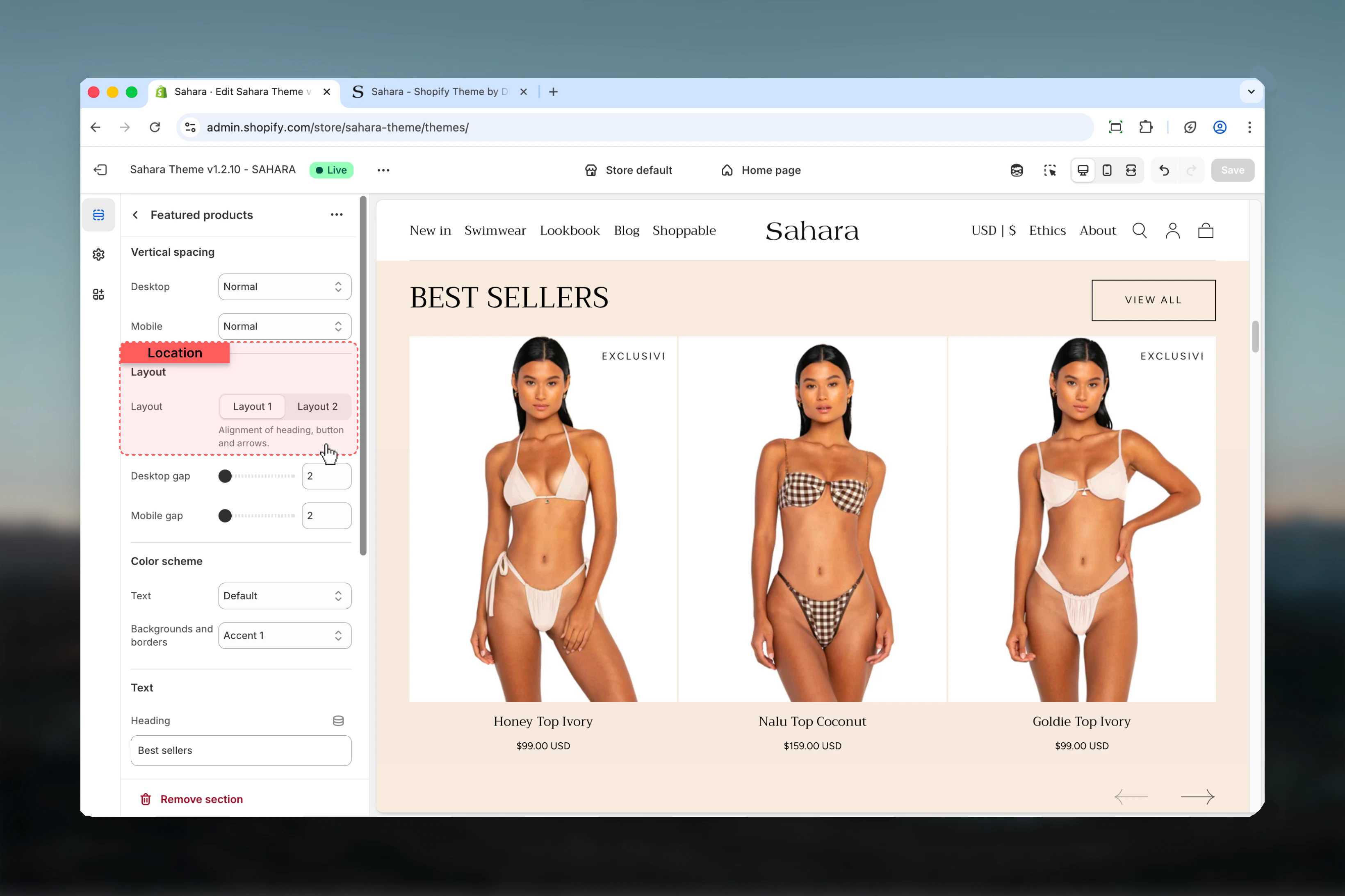
Layout
Controls the positioning of the section heading and button.Layout 1
Layout 1
Heading aligned to the start (left), button aligned to the end (right).When to use:
- Standard product sections with clear hierarchy
- When the button is secondary to the heading
- Desktop-friendly layouts with horizontal balance
Layout 2
Layout 2
Heading and button both centered, with button displayed at the section bottom.When to use:
- Centered page designs
- When creating visual symmetry
- Promotional sections with equal emphasis on heading and action
Heading
Main section heading text supporting rich text formatting (bold, italic, links).Heading size
Controls the visual size of the heading.Available options: XS, S, M, L, XL (default)Choose smaller sizes for secondary sections and larger sizes for primary homepage features.Button settings
Block settings
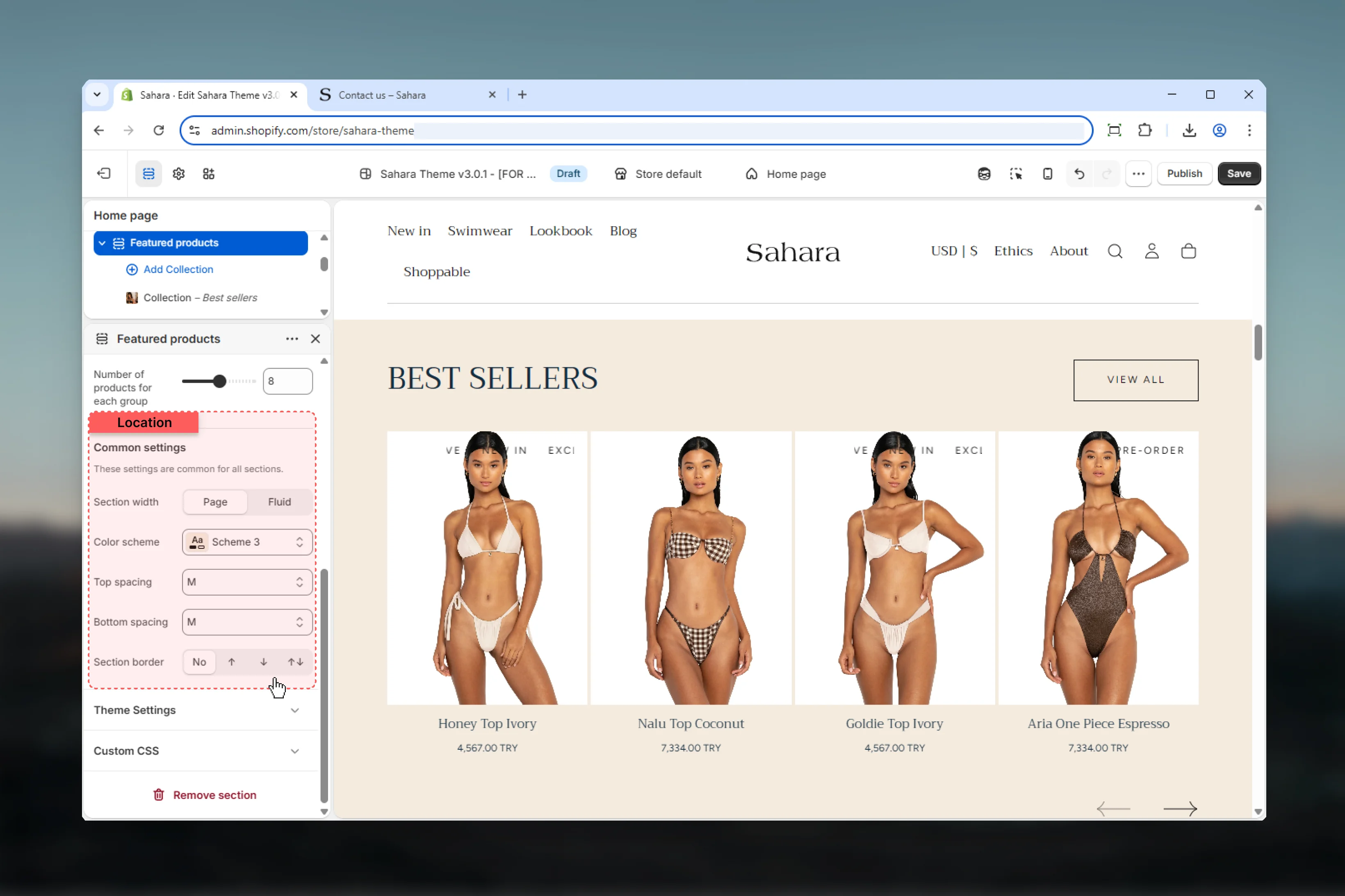
Each collection block defines a product source and configuration.- Product source
- Block settings
Products (Manual selection)
Manually select up to 12 specific products to display.When to use manual selection
When to use manual selection
Best for:
- Curated product sets for campaigns
- Specific product combinations (e.g., outfit bundles)
- Promotional displays with hand-picked items
- Temporary seasonal showcases
Collection
Select a Shopify collection to automatically display its products.Collection vs manual selection
Collection vs manual selection
When a collection is selected, it overrides any manual product selections.Collection benefits:
- Automatically updates when collection contents change
- Respects collection sorting rules
- Easier to maintain long-term
- Scales with inventory changes
- New arrivals sections (auto-updated)
- Bestsellers (dynamic sorting)
- Seasonal categories
- Standard collection preview sections
Best practices
Use collections
Prefer collection selection over manual picks for automatic updates and easier long-term maintenance.
Optimize count
Limit to 8 products or fewer on mobile-heavy stores to reduce scrolling and improve load times.
Clear headings
Use descriptive headings that clarify the product selection (“New This Week” vs. “Featured Products”).
Strategic placement
Place on homepage, collection pages, or landing pages for maximum visibility and engagement.
Consistent styling
Match section color schemes with your overall theme design for visual coherence.
Button clarity
Use action-oriented button text (“Shop Collection”, “View All”) instead of generic labels.
Common use cases
Homepage new arrivals
Homepage new arrivals
Use a “New Arrivals” collection with 8 products. Set layout to 1 (heading left, button right). Enable button linking to the full collection page. This automatically updates as new products are added.
Seasonal promotion
Seasonal promotion
Manually select 8-12 seasonal products. Use layout 2 (centered) for promotional emphasis. Set custom heading like “Summer Essentials 2024”. Use filled button style for maximum visibility.
Bestsellers showcase
Bestsellers showcase
Select your “Bestsellers” or “Popular” collection. Set to 8 products with layout 1. Leave heading empty to use collection name. This creates a dynamic display that updates based on sales data.
Category preview
Category preview
On a landing page, use collection block to preview a category. Set to 4-6 products with compact layout. Add button linking to full collection for deeper browsing.
Coming soon preview
Coming soon preview
Manually select upcoming products. Enable “Show unavailable products” to display pre-order or coming soon items. Use custom heading explaining launch date or availability.
Related sections
Featured collections
Display multiple collections in grid or carousel format
Product recommendations
Show AI-powered product recommendations