

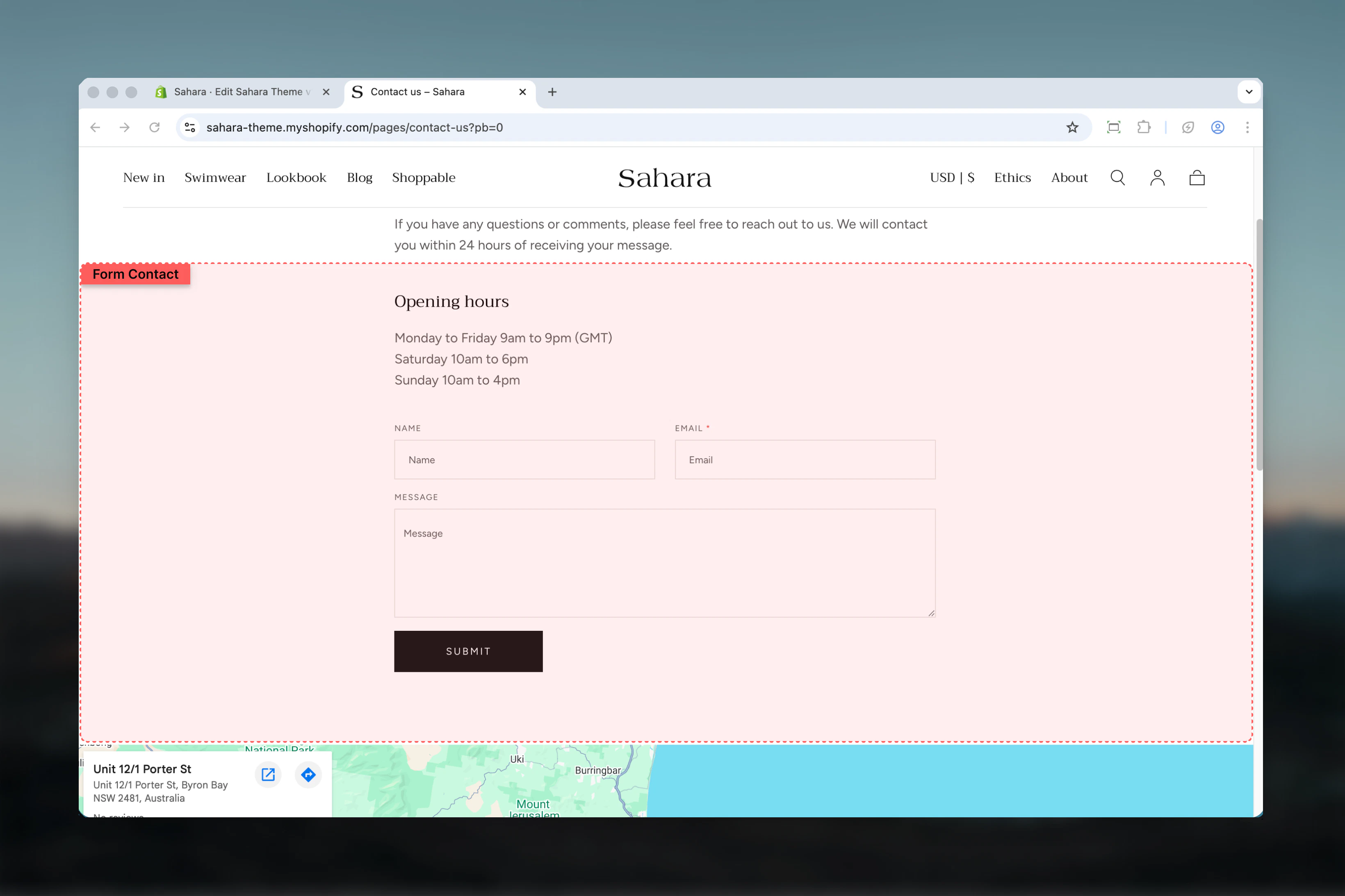
What this section controls
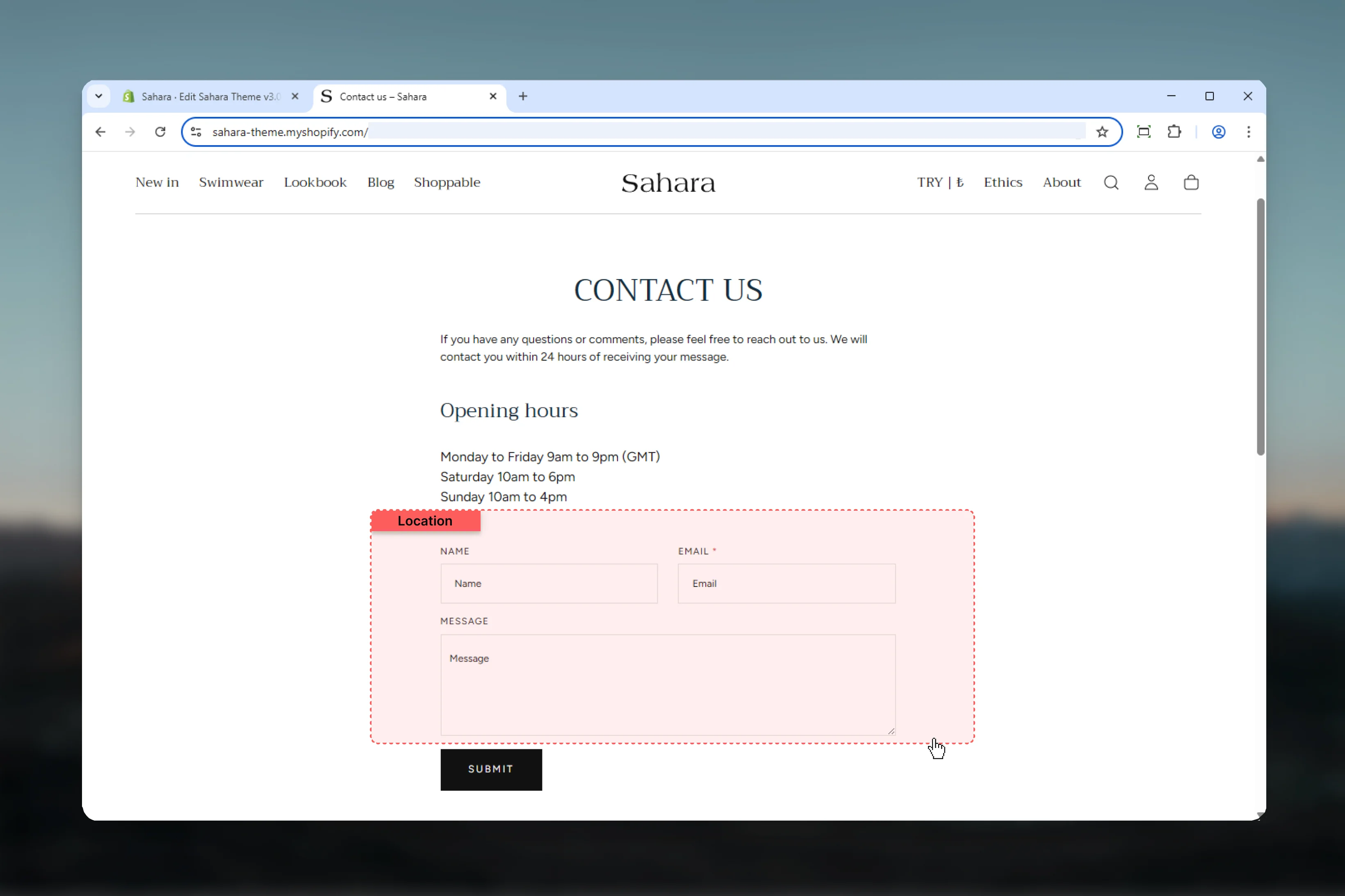
This section controls contact form displays with the following capabilities:- Pre-configured contact form with three standard fields
- Name field (optional, auto-fills for logged-in customers)
- Email field (required, auto-fills for logged-in customers)
- Message/body field (textarea for longer messages)
- Form submission handling with success/error messaging
- Customer data auto-population for logged-in users
- Narrow, focused layout optimized for form completion
How the Contact form works
The Contact form section uses Shopify’s built-in contact form functionality: Form fields:- Name - Text input, optional, auto-completes with customer name if logged in
- Email - Required text input with email validation, auto-completes if customer logged in
- Message - Large textarea for customer message or inquiry
- Customer fills out form
- Form validates required fields (email)
- Upon successful submission:
- Displays success message
- Sends email to store owner’s notification address
- Form content sent to Shopify admin customer contact records
- If errors occur:
- Displays error messages
- Preserves form data for correction
Getting started
1
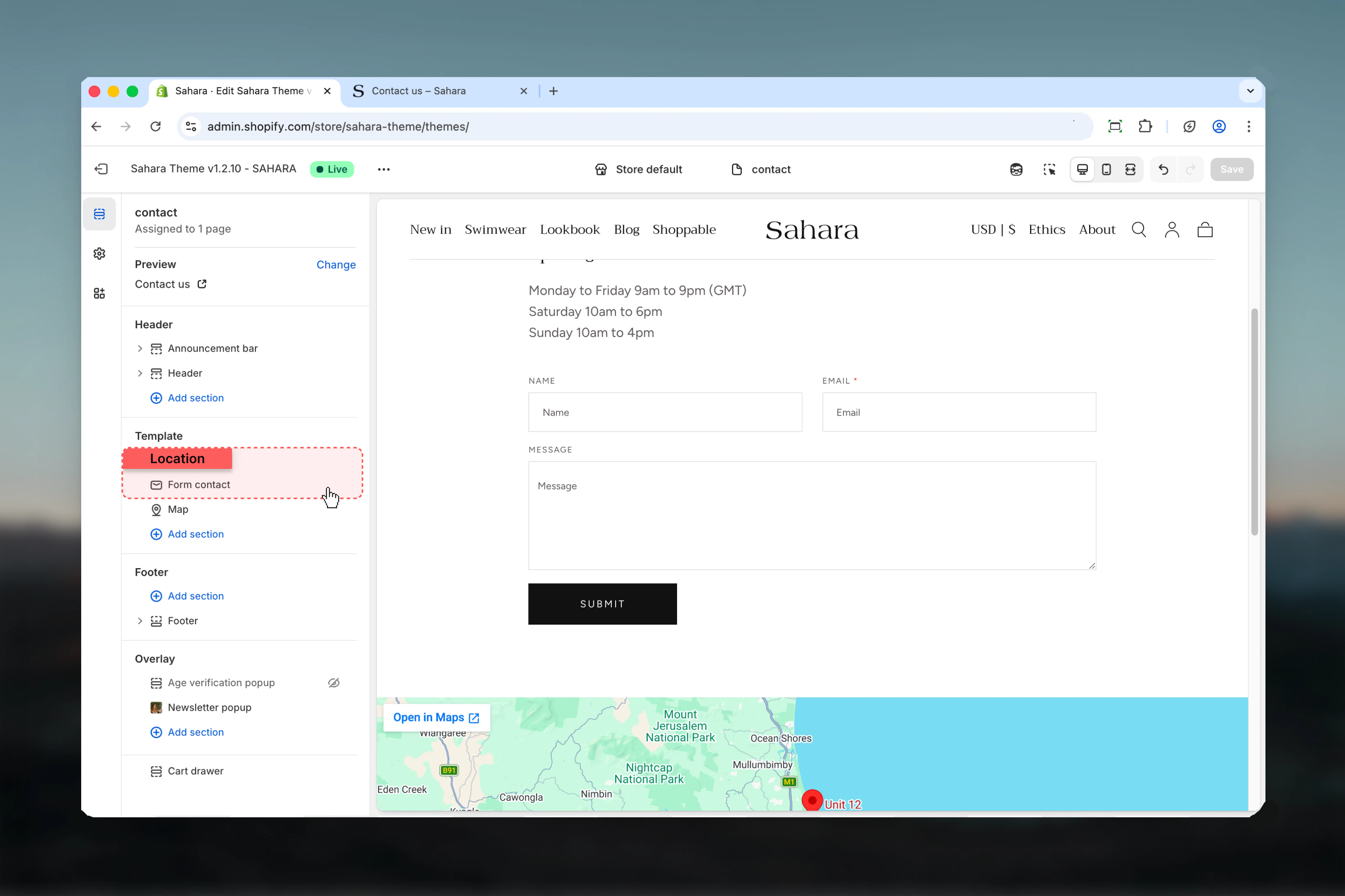
Open Theme Customizer
From Shopify admin, access the Theme Customizer.
2
Navigate to Contact page
In left sidebar, click Pages > Contact or add section to your contact page template.
3
Add Contact form section
If not already present, add the Contact form section to the page.
4
Configure layout
Adjust section width, color scheme, and spacing settings.
5
Test submission
Preview and test form submission to verify email delivery.
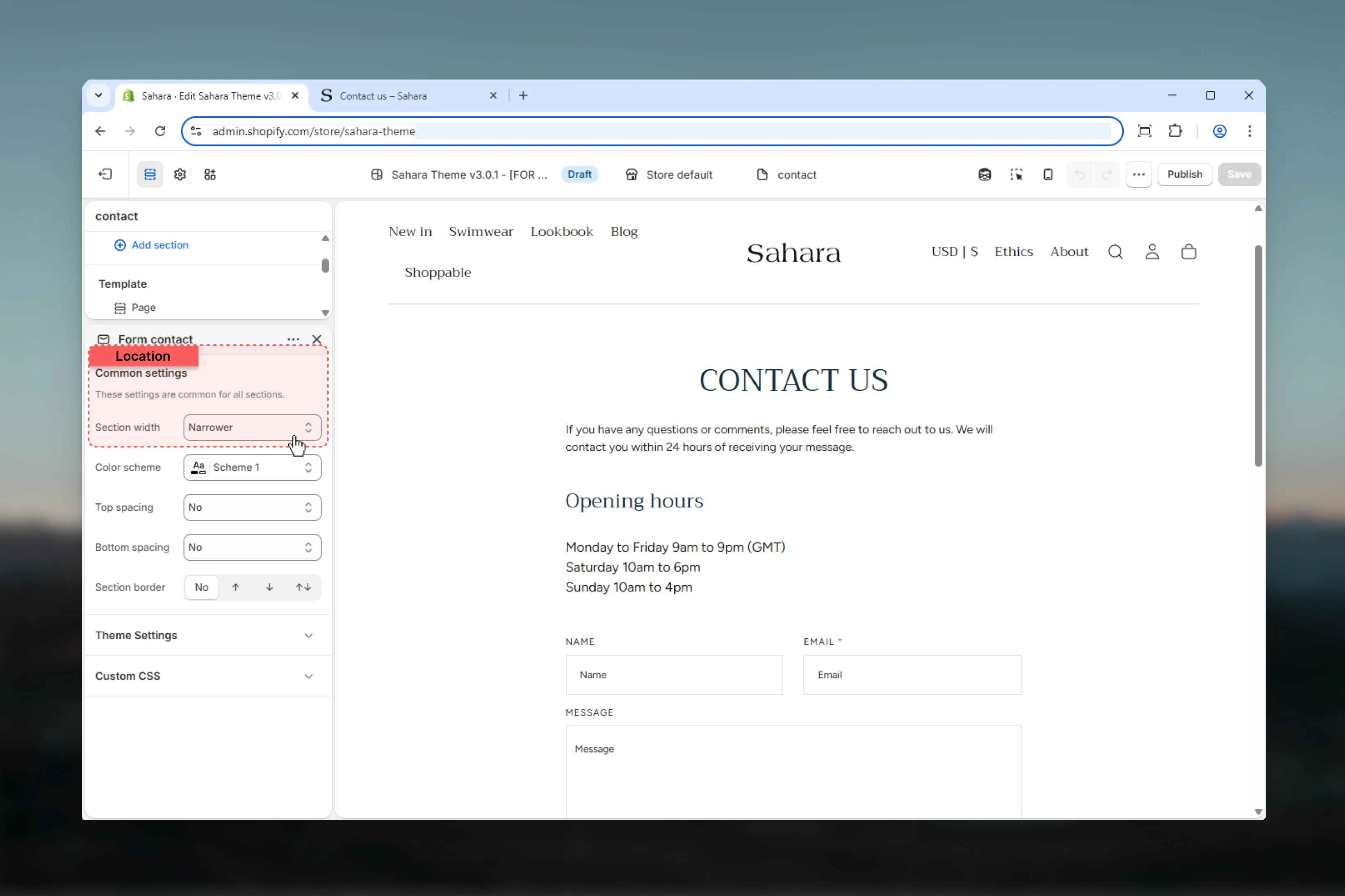
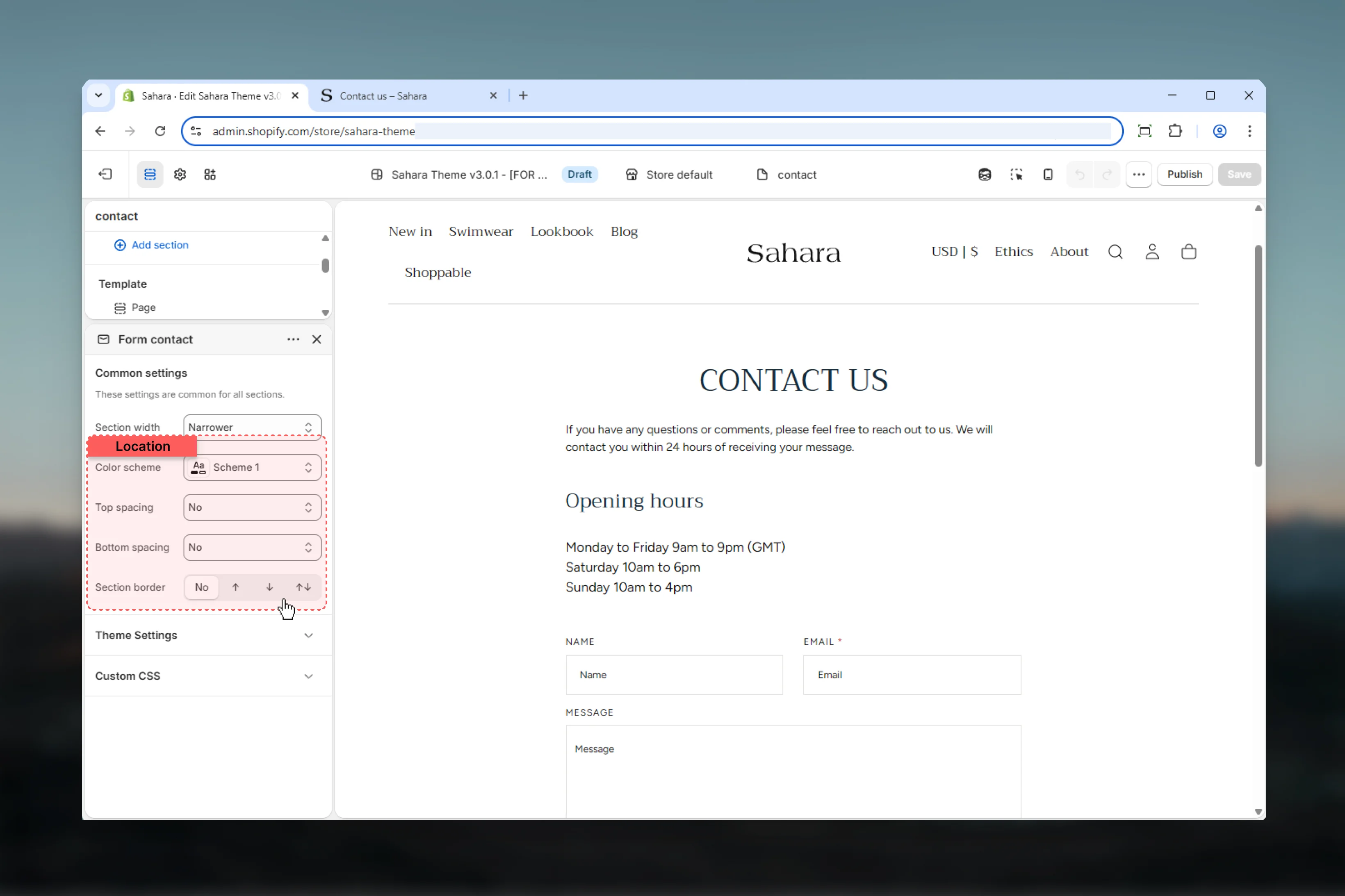
Section settings
- Layout
- Styling
Section width
Controls the maximum width of the contact form.Narrower
Narrower
Most compact width, highly focused (default).Best for:
- Maximum form focus
- Minimal distractions
- Higher completion rates
- Standard contact pages
Narrow
Narrow
Moderately narrow width, balanced.Best for:
- Slightly more spacious layout
- Pages with additional content
- Balanced appearance
Page
Page
Standard page container width.Best for:
- Matching other page sections
- Multi-column layouts
- Additional context alongside form
Fluid
Fluid
Wider container utilizing more screen space.Best for:
- Wide screen displays
- Forms with extensive content
- Custom designs
Form fields
The Contact form includes three pre-configured fields:Name field
Name field
Type: Text input
Required: No
Auto-fill: Yes (for logged-in customers)Customer’s name. Optional field that auto-completes with
Required: No
Auto-fill: Yes (for logged-in customers)Customer’s name. Optional field that auto-completes with
customer.name for logged-in users.Input attributes:autocomplete="name"for browser auto-fill- Full-width on mobile, half-width on desktop (shares row with email)
Email field
Email field
Type: Email input (required)
Required: Yes
Auto-fill: Yes (for logged-in customers)
Validation: Email formatCustomer’s email address. Required field with email validation. Auto-completes with
Required: Yes
Auto-fill: Yes (for logged-in customers)
Validation: Email formatCustomer’s email address. Required field with email validation. Auto-completes with
customer.email for logged-in users.Input attributes:autocomplete="email"for browser auto-fillspellcheck="false"to prevent unwanted correctionsautocapitalize="off"for proper email formattingaria-required="true"for accessibility
- Displays validation error if email format invalid
- Shows required field error if left empty
- Preserves entered value on error for correction
Message field
Message field
Type: Textarea
Required: No
Auto-fill: NoLarge text area for customer’s message, inquiry, or feedback.Input attributes:
Required: No
Auto-fill: NoLarge text area for customer’s message, inquiry, or feedback.Input attributes:
- Multi-line text input (textarea)
- Full-width across all devices
- Expandable height for longer messages
Form submission
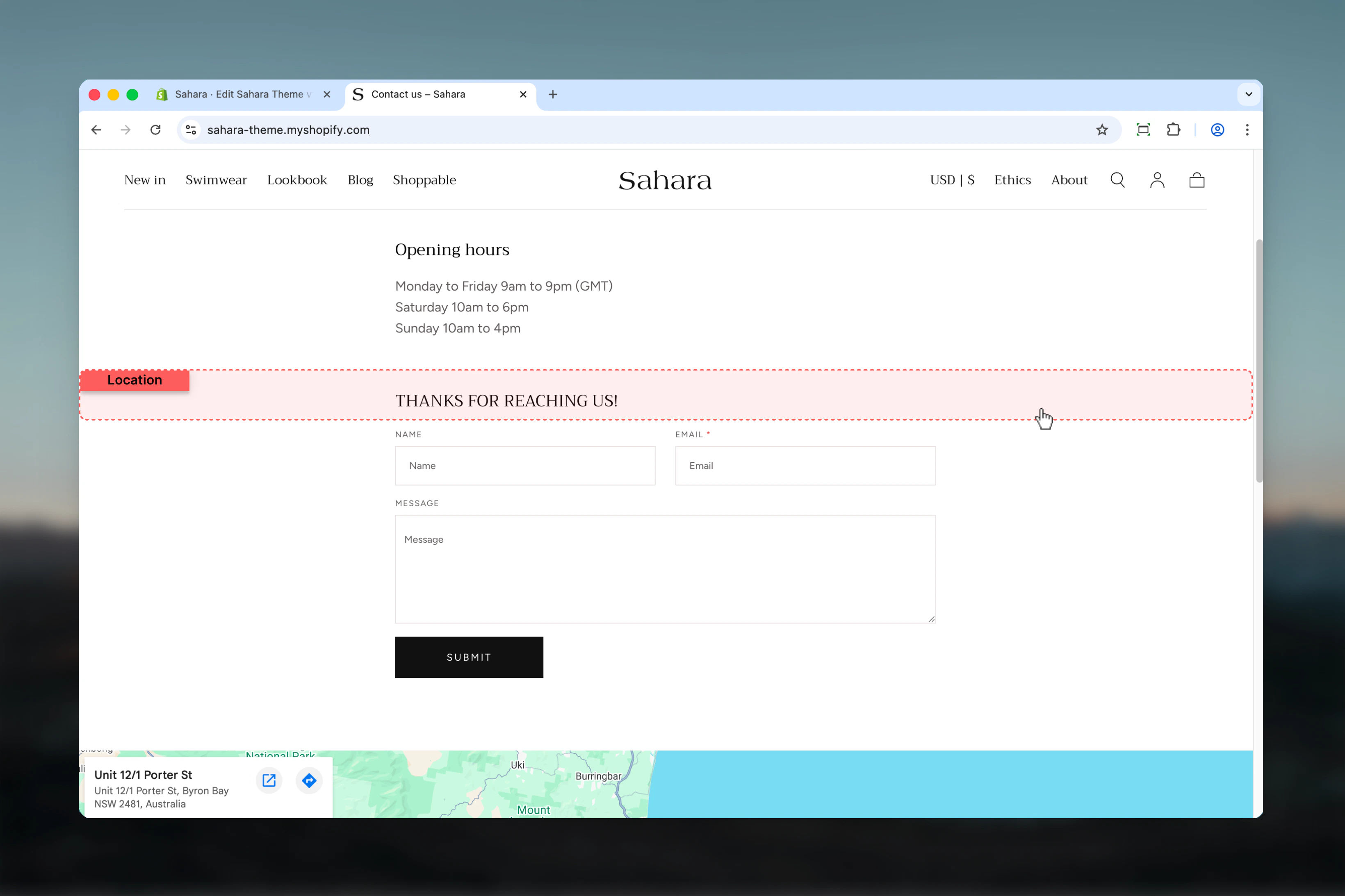
Success state
When form is submitted successfully:-
Success message displayed:
“Thanks for contacting us. We’ll get back to you as soon as possible.”
(Translation key:contact.form.success) -
Email sent:
Form contents delivered to store’s customer notification email address (configured in Shopify Settings > Notifications) -
Customer record:
If customer logged in, inquiry added to their customer record in Shopify admin
Error handling
When form submission fails or validation errors occur:-
Error display:
Red error message shown above form -
Field preservation:
Customer’s entered data preserved for correction -
Common errors:
- “Email address is required”
- “Email is invalid”
- Connection/server errors
Best practices
Narrow width
Use Narrower (default) or Narrow width for better form completion rates and reduced distractions.
Page placement
Place directly below Page banner section with no top spacing for cohesive contact page layout.
Clear heading
Use Page banner section heading to introduce the form: “Get in Touch”, “Contact Us”, “How Can We Help?”.
Email verification
Test form submission to verify emails arrive at your notification address before going live.
Success confirmation
Consider adding text in Page banner description setting customer expectations: “We typically respond within 24 hours.”
Mobile optimization
Form automatically stacks fields vertically on mobile for optimal usability on small screens.
Accessibility
Email field includes proper ARIA attributes and required field indicators (*) for screen readers.
Color contrast
Ensure color scheme provides sufficient contrast for input fields and text readability.
Common use cases
Standard contact page
Standard contact page
Page banner with heading “Contact Us” and description “Have questions? We’re here to help.” Contact form below with Narrower width, default color scheme, no top spacing.
Support inquiry page
Support inquiry page
Page banner heading “Customer Support” with FAQ search enabled. Contact form below with Narrow width for balance with search functionality. Message placeholder guidance: “Describe your issue…”
Custom order requests
Custom order requests
Page banner heading “Custom Order Inquiry” with description explaining custom order process. Contact form with Page width to accommodate additional content. Clear call-to-action in banner.
Partnership inquiries
Partnership inquiries
Page banner heading “Partner With Us” with business partnership description. Contact form with Narrower width, professional color scheme (scheme-2 or scheme-3), standard spacing.
General inquiries
General inquiries
Page banner heading “Get In Touch” with multi-channel contact info (email, phone, hours). Contact form below as primary method with Narrower width and M bottom spacing.
Related sections
Page banner
Page header banners for contact pages
Rich text
Additional contact information and policy text
Email configuration
Configure notification email
Configure notification email
Contact form submissions are sent to your store’s customer notification email address.To configure:
- Go to Shopify Admin > Settings > Notifications
- Scroll to Staff notification email section
- Set Customer contact email address
- Save changes
This email address receives all contact form submissions from your store.
Notification email content
Notification email content
Email includes:
- Customer’s name (if provided)
- Customer’s email address
- Message content
- Submission timestamp
- Customer information (if logged in)