

What this controls
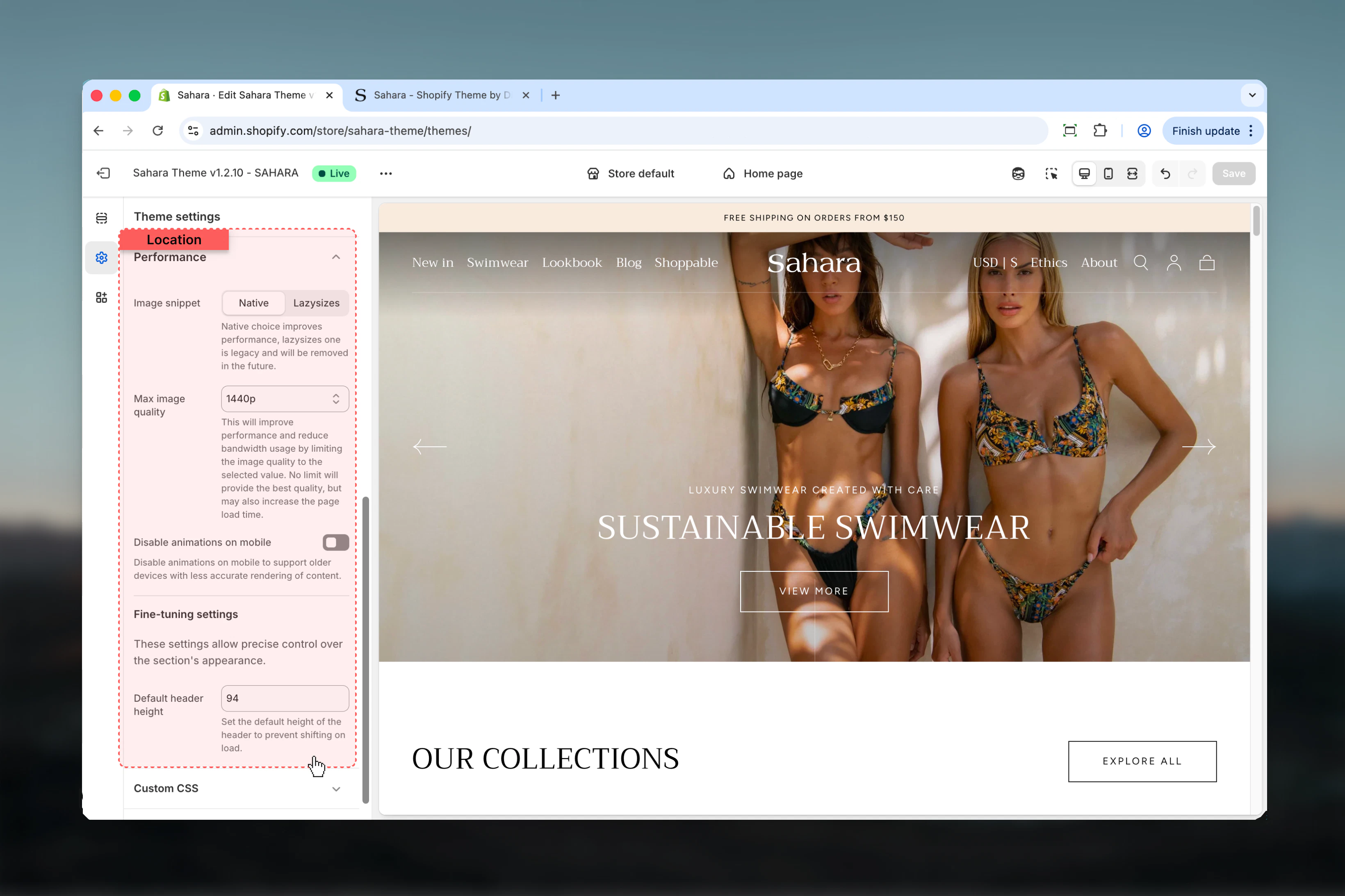
Performance settings optimize your store’s loading speed and rendering behavior. Control image compression for faster loads, disable animations on mobile for better compatibility, and fine-tune layout calculations for custom header configurations.How it works
Three optimization layers:- Image Optimization: Compress images for faster loading vs preserve maximum quality
- Animation Control: Disable motion effects on mobile for older device support
- Fine Tuning: Adjust header height for accurate full-height section calculations
These settings affect Core Web Vitals scores, which impact SEO rankings and user experience.
Getting started
1
Open Theme Customizer
From Shopify admin → Online Store → Themes → Customize
2
Access performance settings
Click Theme settings → Select Performance
3
Choose image optimization
Select Optimized (faster) or Best detailed (higher quality)
4
Configure mobile animations
Enable/disable animations on mobile devices
5
Test and measure
Use Google PageSpeed Insights to verify improvements
Location
Path: Theme settings → Performance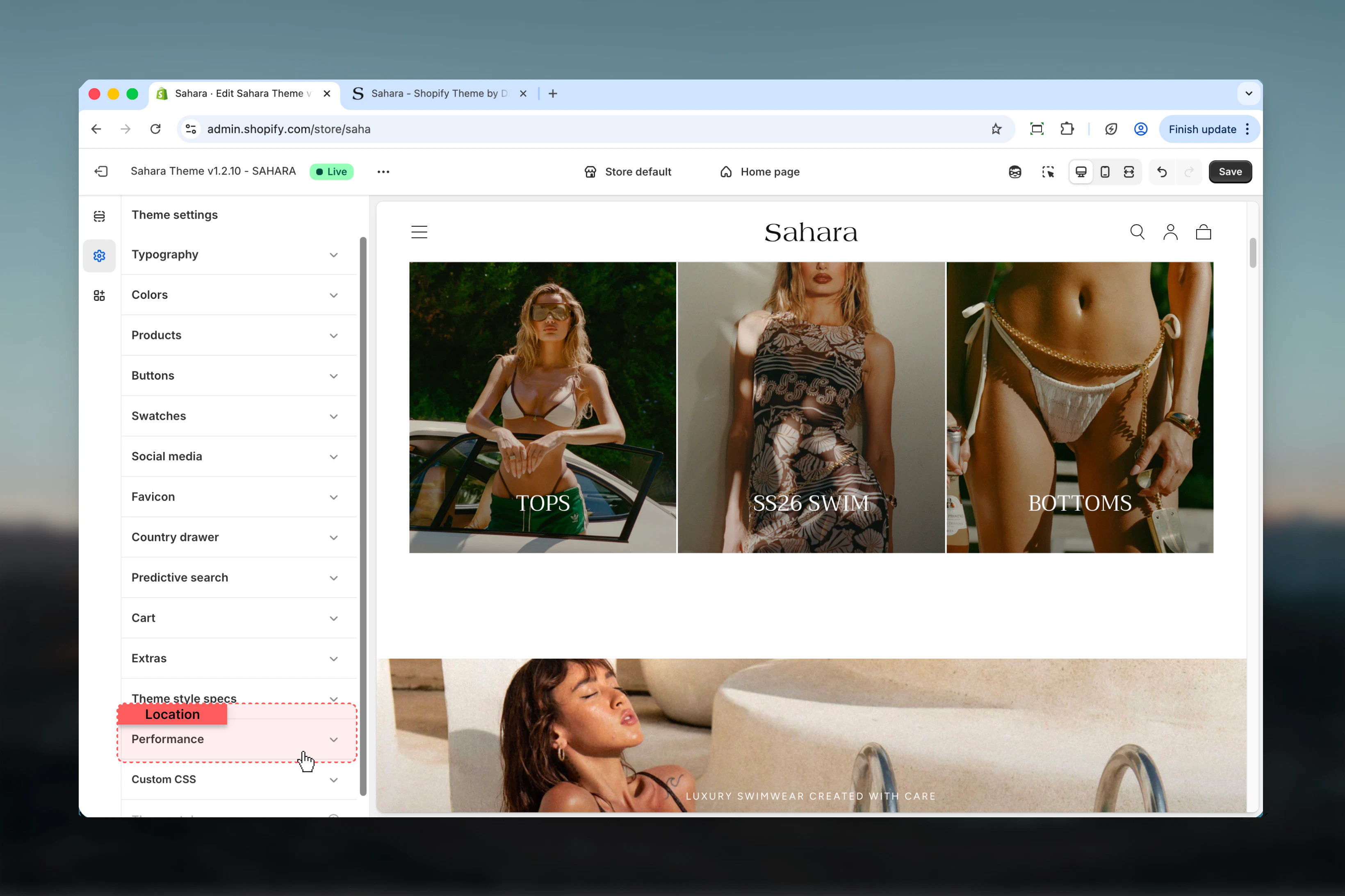
Settings
- Image Optimization
- Animations
- Fine Tuning
Image Optimization
Choose between image compression for speed or original quality for detail.Options:- Optimized: Compressed images, faster loading (recommended)
- Best detailed: Original quality, larger files
Optimized vs Best detailed
Optimized vs Best detailed
Optimized (Recommended for Most Stores):Benefits:
- 30-50% smaller file sizes (e.g., 500KB → 200KB)
- 20-30% faster page loads
- Better Core Web Vitals scores (LCP, FID)
- Lower bandwidth costs
- Better mobile experience
- Improved SEO (page speed is ranking factor)
- Slight quality reduction (usually imperceptible)
- Fine details may be softer
- Heavy compression artifacts if source images are already compressed
- Most e-commerce stores
- Mobile-first audiences
- International traffic (slower connections)
- Large product catalogs (100+ products)
- Performance-focused brands
- Maximum image quality (original uploaded quality)
- Fine details preserved
- No compression artifacts
- Best for high-resolution product photography
- 2-3x larger file sizes (e.g., 200KB → 600KB)
- 20-30% slower page loads
- Poor mobile performance on slow connections
- Higher bandwidth costs
- Lower Core Web Vitals scores
- Luxury brands where image quality is critical
- Jewelry stores (fine detail matters)
- Art/photography sales (quality is product)
- Textile/fabric stores (texture detail important)
- Audiences with fast connections only
Performance impact analysis
Performance impact analysis
Page Load Time Impact:Example Product Page (10 images):Optimized:
- Total image size: ~2MB
- LCP (Largest Contentful Paint): 1.5s
- Full page load: 3.0s
- Mobile 4G load: 5.0s
- Total image size: ~6MB
- LCP: 3.0s
- Full page load: 6.0s
- Mobile 4G load: 12.0s
- 1s delay = 7% reduction in conversions
- Best detailed adds 3s = ~20% conversion drop
- Only use if image quality truly increases sales
- LCP: Good (under 2.5s)
- CLS: Good (proper dimensions)
- FID: Good (faster image processing)
- LCP: Needs improvement (over 2.5s)
- May affect mobile usability score
- Lower PageSpeed Insights score
Decision framework
Decision framework
Use Optimized If:Performance Priority:
- Page speed is top concern
- Targeting mobile users (60%+ of traffic)
- International audience with varied connection speeds
- Want better SEO (Core Web Vitals matter)
- Apparel/fashion (general)
- Electronics
- Home goods
- Beauty products (bottles/packaging)
- Books, media
- High-volume sales
- Impulse purchases
- Browse-heavy stores
- Image quality directly impacts purchase decision
- Product details are complex and intricate
- Photography is primary sales tool
- Luxury brand positioning
- Fine jewelry (details matter)
- Art prints/photography (quality is product)
- High-end watches (intricate details)
- Luxury textiles (fabric texture visible)
- Custom/handmade items (craftsmanship details)
- Desktop-primarily audience
- Fast connection markets only
- Users who zoom in on images
Image optimization best practices
Image optimization best practices
Regardless of Setting, Upload Properly:Image Requirements:
- Minimum 2000px wide for product images
- JPG for photos, PNG for graphics/transparency
- sRGB color space
- Don’t pre-compress before uploading
- Shoot in good lighting
- Use consistent white balance
- Avoid over-sharpening (compression amplifies artifacts)
- Center important details (compression affects edges more)
- Enable Optimized
- Test on mobile device (4G connection)
- Check PageSpeed Insights score
- Visually inspect product images (zoom in)
- If quality is unacceptable, switch to Best detailed
- Re-test performance
- Use fewer images per page (if speed is critical)
- Lazy load images below the fold
- Use progressive JPEGs (loads blurry then sharp)
Best practices
-
Use Optimized images for most stores
30-50% file size reduction with minimal quality loss. Better performance = higher conversions. -
Test with PageSpeed Insights
Measure impact before/after changes. Target 90+ on mobile for best SEO. -
Keep animations enabled for modern audiences
Most users (60%+) have devices that handle animations smoothly. Disable only if targeting older devices. -
Don’t touch header height unless customizing
Default 94px works for standard Sahara. Only adjust if you’ve modified header CSS. -
Prioritize mobile performance
60-70% of traffic is mobile. Optimize for mobile-first, desktop will follow. -
Consider your product type
Jewelry/art needs Best detailed. Fashion/electronics can use Optimized. -
Monitor Core Web Vitals
Google Search Console shows real-world performance. Aim for “Good” ratings. -
Test image quality after optimization
Visually inspect product images on mobile. If quality is unacceptable, switch to Best detailed. -
Balance quality and speed
Conversion rate drops 7% per second of load time. Weigh quality vs speed for your market. -
Use optimized images + disable animations for maximum speed
If targeting emerging markets or older devices, combine both for best performance.
Common use cases
Standard e-commerce store
Standard e-commerce store
Settings:
- Image optimization: Optimized
- Disable animations on mobile: Unchecked (animations work)
- Default header height: 94px (default)
- Optimized images for fast loading without sacrificing quality
- Animations for modern polished UX
- Default header height works without customization
Luxury/high-end store
Luxury/high-end store
Settings:
- Image optimization: Best detailed
- Disable animations on mobile: Unchecked (animations work)
- Default header height: 94px (default)
- Maximum image quality for fine details and premium presentation
- Smooth animations reinforce luxury positioning
- Accept slower load times for quality
Mobile-first / emerging markets
Mobile-first / emerging markets
Settings:
- Image optimization: Optimized
- Disable animations on mobile: Checked (animations off)
- Default header height: 94px (default)
- Maximum performance for slower connections
- No animations for older devices (common in emerging markets)
- Fast, functional experience prioritized
Custom-designed store
Custom-designed store
Settings:
- Image optimization: Optimized
- Disable animations on mobile: Unchecked (animations work)
- Default header height: Custom value (measure actual header)
- Custom header CSS requires adjusted height value
- Optimized images unless custom photography demands quality
- Animations match custom design intent
- Measure header height with browser inspector
- Set exact pixel value
- Test full-height sections
Related settings
- Products - Product images affected by optimization
- Layout - Header height interacts with layout calculations
- Features - Back-to-top button animation affected by mobile animation setting
Need help? Test your store with Google PageSpeed Insights before and after changes. Measure real impact on Core Web Vitals and adjust accordingly. Most stores should use Optimized images and keep animations enabled.