

What this controls
Product settings determine how products appear on collection pages, search results, and product grids throughout your store. These global settings ensure consistent presentation while allowing flexibility for different product types.How it works
Sahara’s product system has four main components:- Product Cards: Layout and image display settings
- Swatches: Color/variant visualization on cards
- Quick Add: Add to cart directly from collection pages
- Badges: Visual indicators (Sale, New, etc.)
Settings here apply to product cards globally. Individual sections may have additional card-specific options.
Getting started
1
Open Theme Customizer
From Shopify admin → Online Store → Themes → Customize
2
Access product settings
Click Theme settings → Select Products
3
Configure card layout
Choose image ratio and layout density
4
Enable swatches
Turn on color swatches for variant visualization
5
Set quick add behavior
Choose how customers add products from collections
Location
Path: Theme settings → Products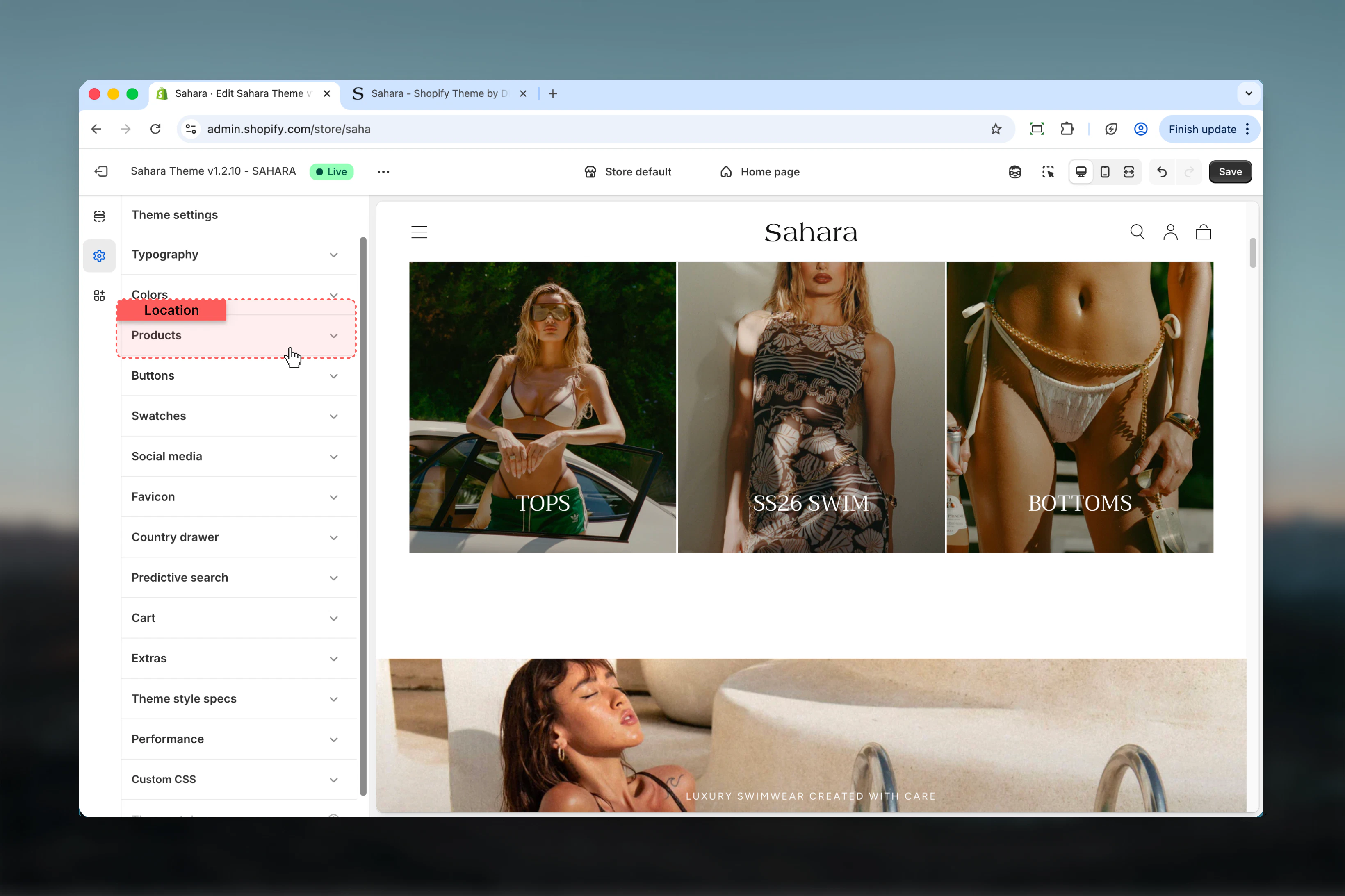
Settings
- Card Layout
- Swatches & Variants
- Quick Add
- Badges
- Advanced
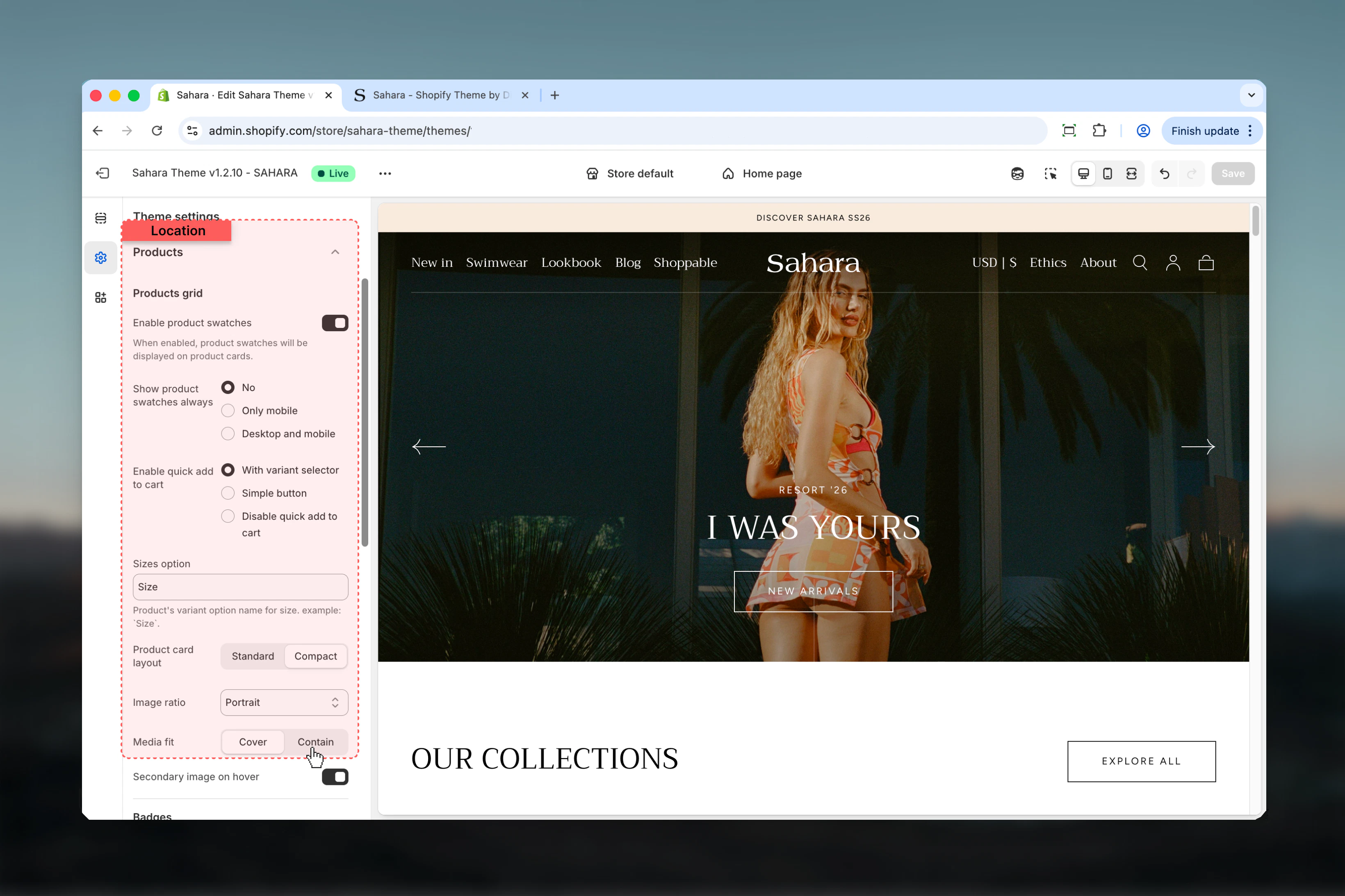
Card Product Layout
Controls spacing and density of content within product cards.Options:- Standard: Comfortable spacing, full product information
- Compact: Tighter spacing, shows more products per screen
Standard vs Compact comparison
Standard vs Compact comparison
Standard Layout:
- Generous padding around content
- Larger product titles
- More breathing room
- Better for premium/luxury positioning
- Shows 3-4 products per row (desktop)
- Reduced padding
- Smaller text elements
- Maximizes products visible
- Better for large catalogs
- Shows 4-5 products per row (desktop)
- Premium or luxury brand
- Detailed product information needed
- Products have long titles
- Want spacious, uncluttered feel
- Large product catalog (100+ products)
- Need to show many products per screen
- Minimal product information
- Fashion/fast-fashion store
Card Product Image Ratio
Forces consistent aspect ratio across all product card images.Options:- Adapt to image: Uses original image proportions (auto height)
- Square: 1:1 ratio (100%)
- Portrait: 3:4 ratio (136.54%) - Default
Choosing the right image ratio
Choosing the right image ratio
Adapt to Image (Auto):
- Pros: Shows entire image, no cropping
- Cons: Inconsistent grid, ragged bottom edges
- Best for: Mixed product types, editorial stores
- Requires: Consistent photography across products
- Pros: Clean, modern grid; works on Instagram-style feeds
- Cons: May crop tall products
- Best for: Products that photograph well from above
- Examples: Jewelry, watches, shoes (top-down), food
- Pros: Fits most product photography; vertical space for tall items
- Cons: May crop very wide products
- Best for: Apparel, accessories, bottles, packaged goods
- Examples: Clothing, cosmetics, electronics, books
- Square: Minimum 1000×1000px
- Portrait: Minimum 1000×1365px
- Always upload 2× resolution for retina displays
Image ratio by product type
Image ratio by product type
Fashion/Apparel:
- Recommended: Portrait (3:4)
- Shows full garment
- Allows model shots
- Recommended: Square (1:1)
- Clean, Instagram-ready
- Product centered
- Recommended: Adapt to image
- Mixed product sizes
- Lifestyle photography varies
- Recommended: Square (1:1)
- Product-focused shots
- Consistent sizing
- Recommended: Portrait (3:4)
- Bottle/package oriented
- Vertical emphasis
Card Product Media Object Fit
Controls how images fill the aspect ratio container.Options:- Cover: Fills entire space, may crop edges
- Contain: Shows entire image, may have empty space
Cover vs Contain behavior
Cover vs Contain behavior
Cover (Default):
- Behavior: Image fills entire container, crops overflow
- Effect: No white space, full-bleed images
- Best when: Images slightly taller/wider than ratio
- Caution: May cut off text or important details
- Behavior: Shows entire image, adds space if needed
- Effect: White/background-color bars (letterboxing)
- Best when: Exact image ratio match is critical
- Caution: Creates empty space on cards
- For Cover: Center important elements, leave crop margin
- For Contain: Ensure consistent aspect ratios in photography
- Test both settings with your actual product photos
Card Product Image Hover
Shows secondary product image on hover.Default: Disabled (false)Hover image best practices
Hover image best practices
Effective Second Images:
- Back view: If first is front (apparel)
- Alternate angle: Side or detail shot
- In-use shot: Product being worn/used
- Color variant: Show different colorway
- Close-up: Detail of texture/material
- Random unrelated image
- Same image from slightly different angle
- Lower quality than primary image
- Different product entirely
- Upload as 2nd image in product media
- Same aspect ratio as primary
- Consistent across all products (or disable feature)
- Apparel stores (front/back views)
- Products with interesting details
- Multiple angles add value
- Single-angle products
- Inconsistent photography
- Mobile-first audience (hover doesn’t work)
Best practices
-
Choose portrait image ratio for most stores
Portrait (3:4) works for 80% of product types. Square for jewelry/accessories, Auto for mixed catalogs. -
Enable hover images for apparel
Front/back views significantly reduce product page visits and increase conversion for fashion. -
Use “With variant selector” quick add
Best balance of speed and accuracy for multi-variant products. Increases add-to-cart by 15-25%. -
Keep swatches on hover for clean cards
Unless you have many color options (7+), hover-only swatches keep cards uncluttered. -
Match swatch shape to button shape
If buttons are squared, use square swatches. If rounded, use circle swatches. -
Limit badges to 1-2 types
Too many badges create visual noise. Prioritize Sale and Sold Out badges. -
Use transparent badges for minimal aesthetic
Square/Round badges for promotional emphasis. Test visibility on your product photography. -
Ensure consistent photography
Forced image ratios (Square/Portrait) require consistent product photography. Budget for reshoot if needed. -
Test on actual products
Preview settings with real product images, not placeholders. Images impact how settings look. -
Consider mobile-first
Quick add and swatches should work well on mobile - that’s where most browsing happens.
Common use cases
Fashion/apparel store
Fashion/apparel store
Settings:
- Card layout: Standard
- Image ratio: Portrait (3:4)
- Media fit: Cover
- Hover image: Enabled
- Swatches: Enabled, always visible on mobile
- Quick add: With variant selector
- Badge style: Transparent or Round
- Swatch shape: Circle
Jewelry/accessories store
Jewelry/accessories store
Settings:
- Card layout: Standard
- Image ratio: Square (1:1)
- Media fit: Cover
- Hover image: Enabled (close-up detail)
- Swatches: Enabled, hover only
- Quick add: Simple button (single-variant often)
- Badge style: Square (New, Limited)
- Swatch shape: Square
Large catalog store
Large catalog store
Settings:
- Card layout: Compact
- Image ratio: Square (1:1)
- Media fit: Cover
- Hover image: Disabled
- Swatches: Enabled, always visible
- Quick add: With variant selector
- Badge style: Square (Sale emphasis)
- Swatch shape: Square
Luxury/minimal store
Luxury/minimal store
Settings:
- Card layout: Standard
- Image ratio: Adapt to image
- Media fit: Contain
- Hover image: Enabled (subtle alternate view)
- Swatches: Disabled
- Quick add: Disabled
- Badge style: Transparent
- Swatch shape: N/A
Related settings
- Colors - Badge colors defined in color schemes
- Buttons - Quick add button styling
- Layout - Grid spacing affects product cards
- Common Settings - Section-level product grid options
Need help? Test product card settings with real products and images. What looks good with placeholders may need adjustment with actual photography.