

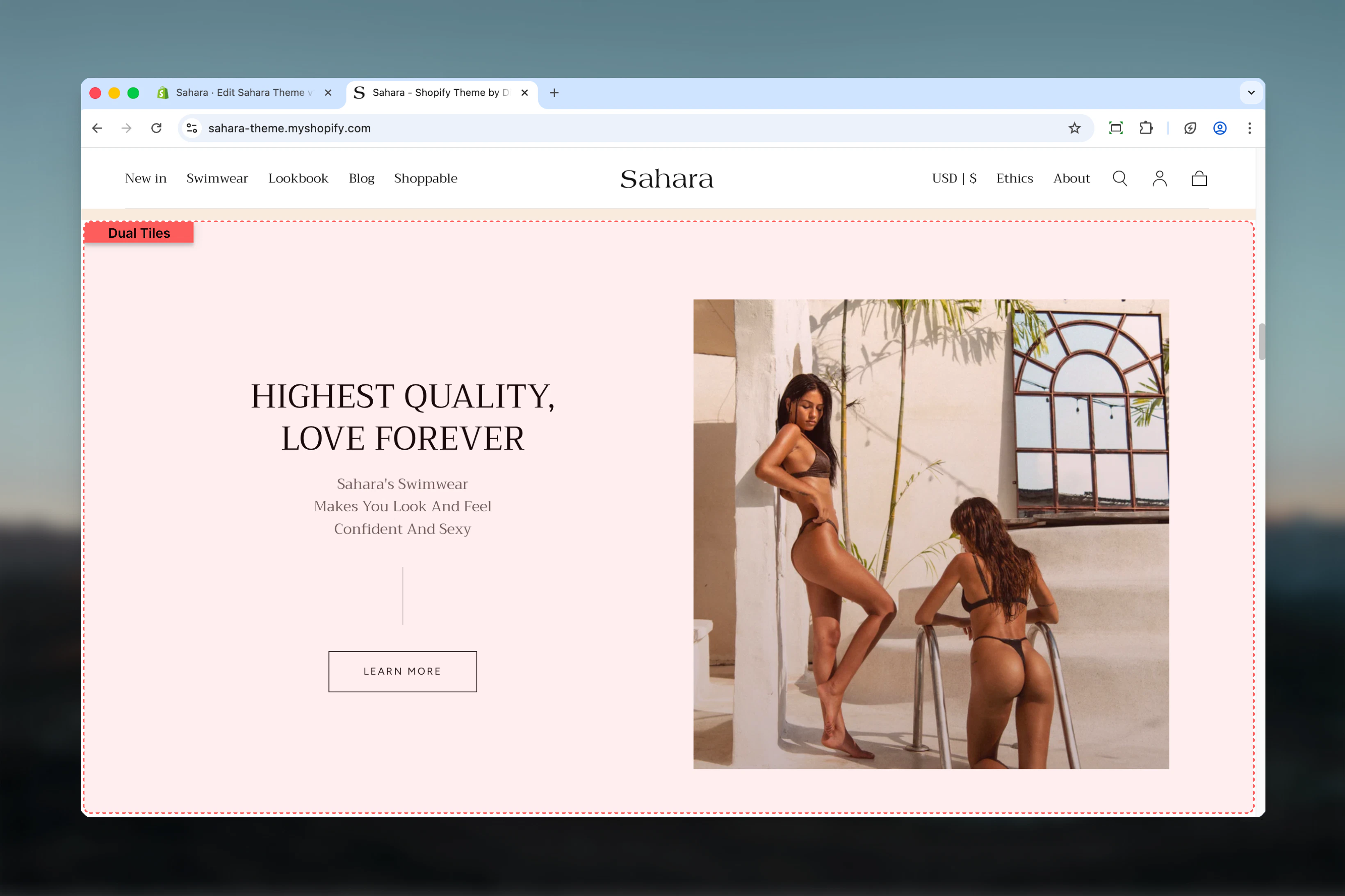
What this section controls
This section controls dual-tile layouts with the following capabilities:- Two side-by-side content tiles (maximum 2 blocks)
- Flexible tile sizing (full, half, large, small)
- Configurable gap spacing between tiles
- Desktop and mobile-specific media and positioning
- Independent content alignment per tile
- Rich text, buttons, and video support
- Per-tile color schemes and padding controls
How Dual tiles works
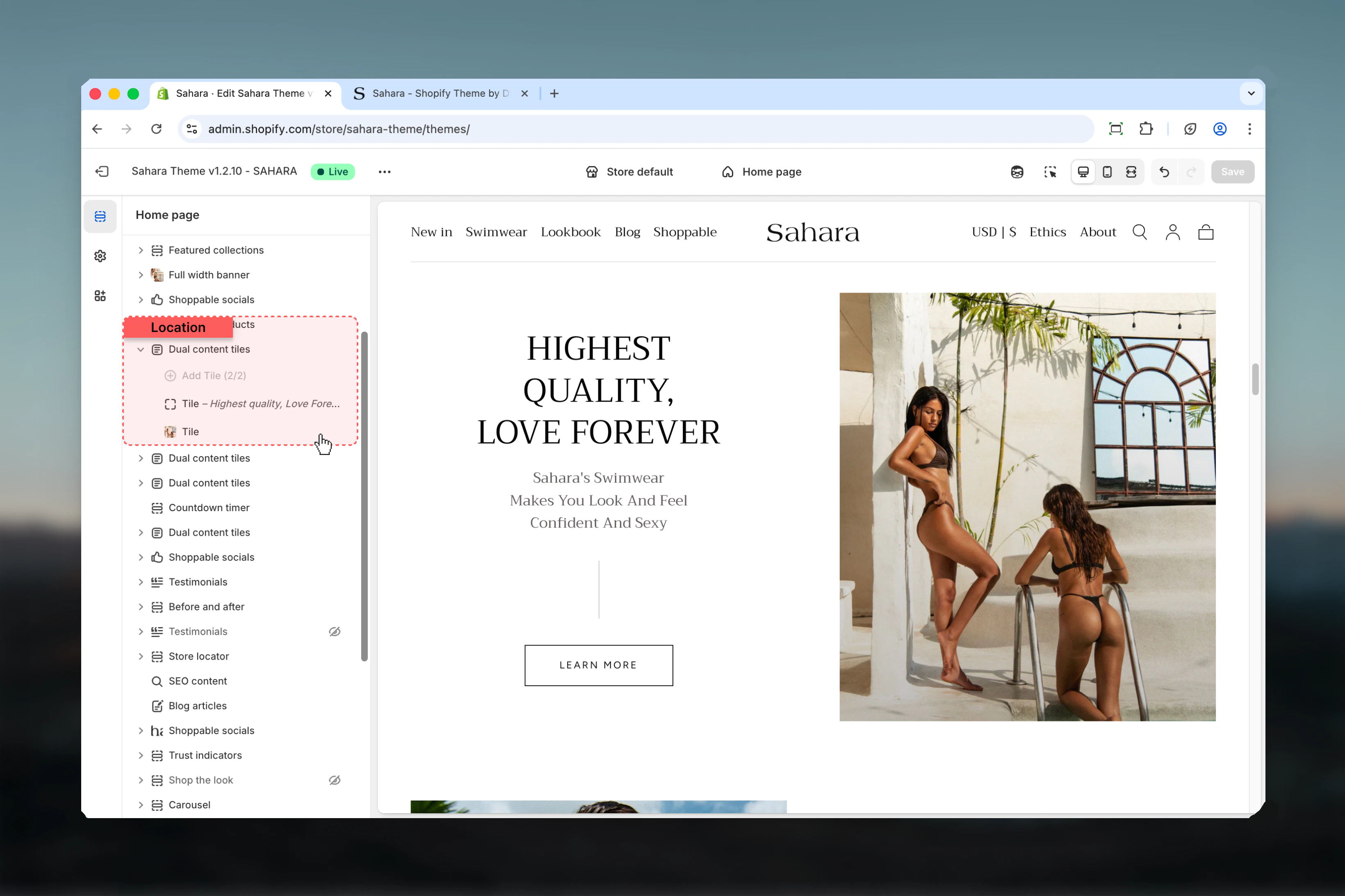
The Dual tiles section uses a block-based system:- Section supports maximum 2 Tile blocks
- First tile size determines layout proportions
- Second tile automatically adjusts to complement first
- Each tile configured independently with its own media, text, and styling
- Responsive behavior with mobile-specific ordering and sizing
Getting started
1
Open Theme Customizer
From Shopify admin, access the Theme Customizer.
2
Add Dual tiles section
Add the section to your page or template.
3
Add tile blocks
Click “Add block” and select “Tile” to create content areas (add 2 tiles).
4
Configure block size
Set first block size to control tile proportions (half, large, small, full).
5
Add content
For each tile, add heading, text, media, and optional button.
Section settings
- Layout
- Styling
Block size
Controls the width proportions of the two tiles.Full
Full
First tile takes full width, second tile full width below.Best for:
- Stacked layout
- Vertical storytelling
- Mobile-first designs
Half
Half
Both tiles equal width, 50/50 split (default).Best for:
- Balanced content
- Equal emphasis
- Symmetrical layouts
Large
Large
First tile takes approximately 66%, second tile 33%.Best for:
- Primary/secondary content
- Featured content + supporting info
- Text-heavy + compact layout
Small
Small
First tile takes approximately 33%, second tile 66%.Best for:
- Supporting info + primary content
- Compact accent + featured content
- Reverse emphasis
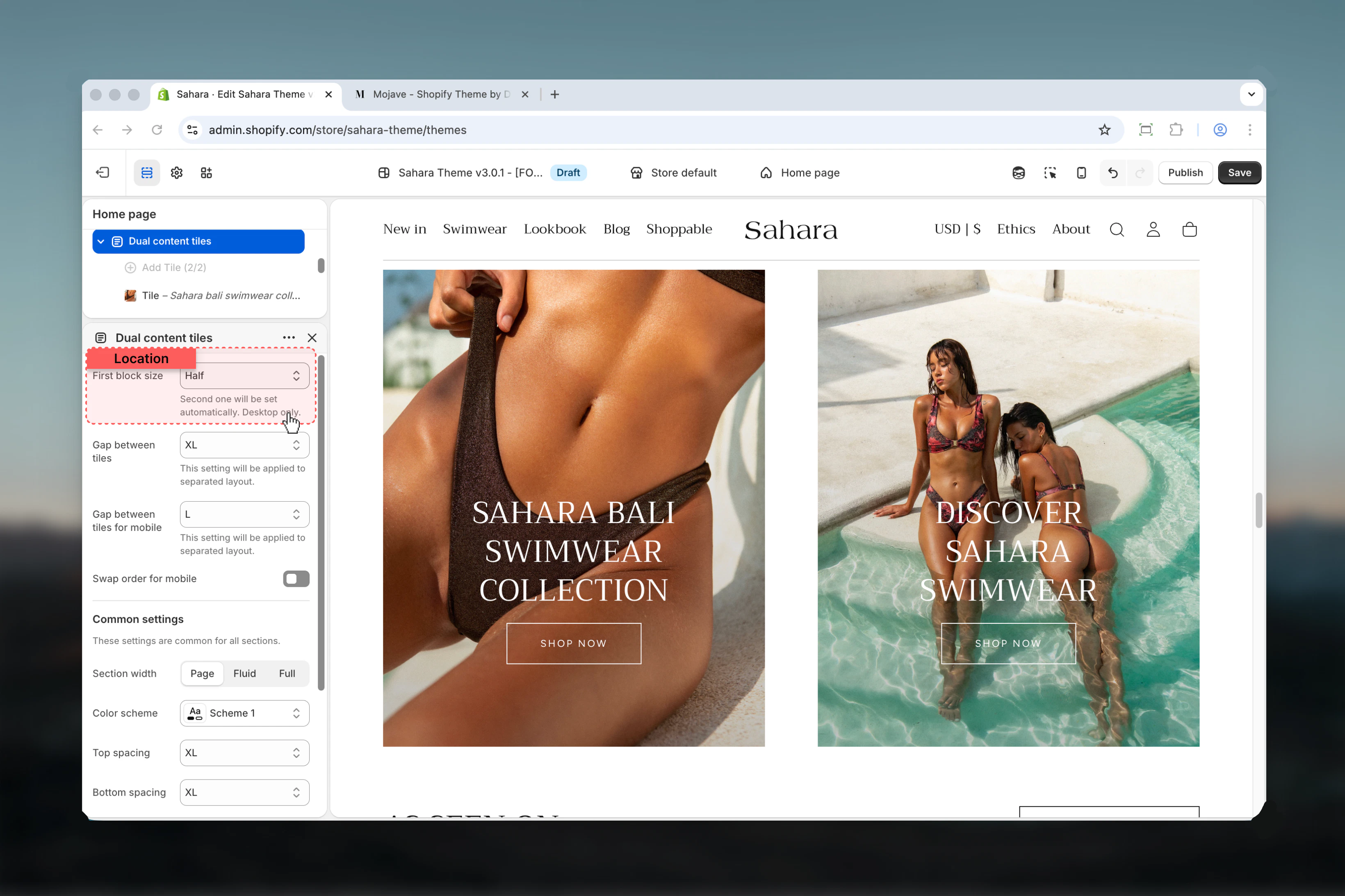
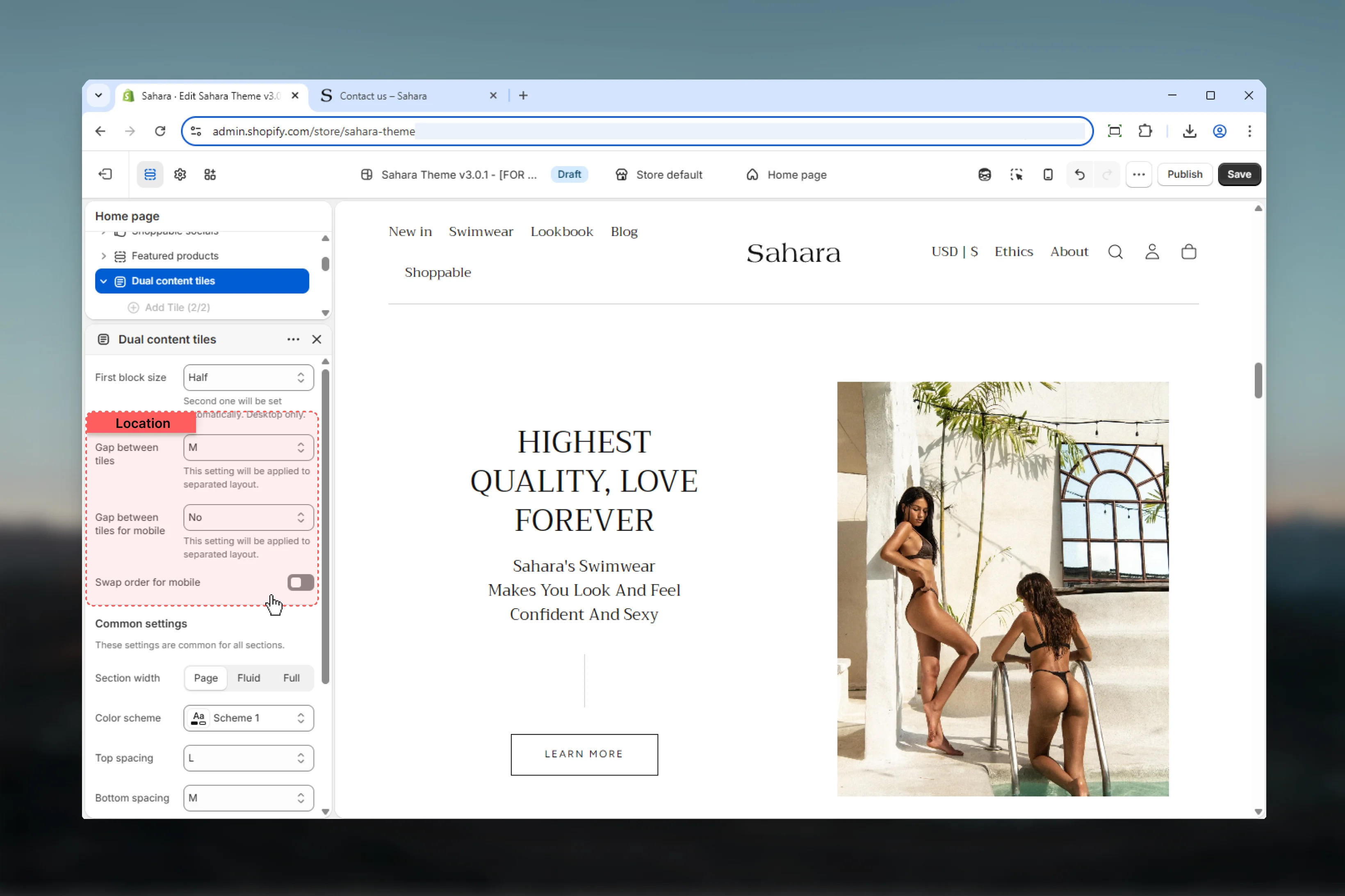
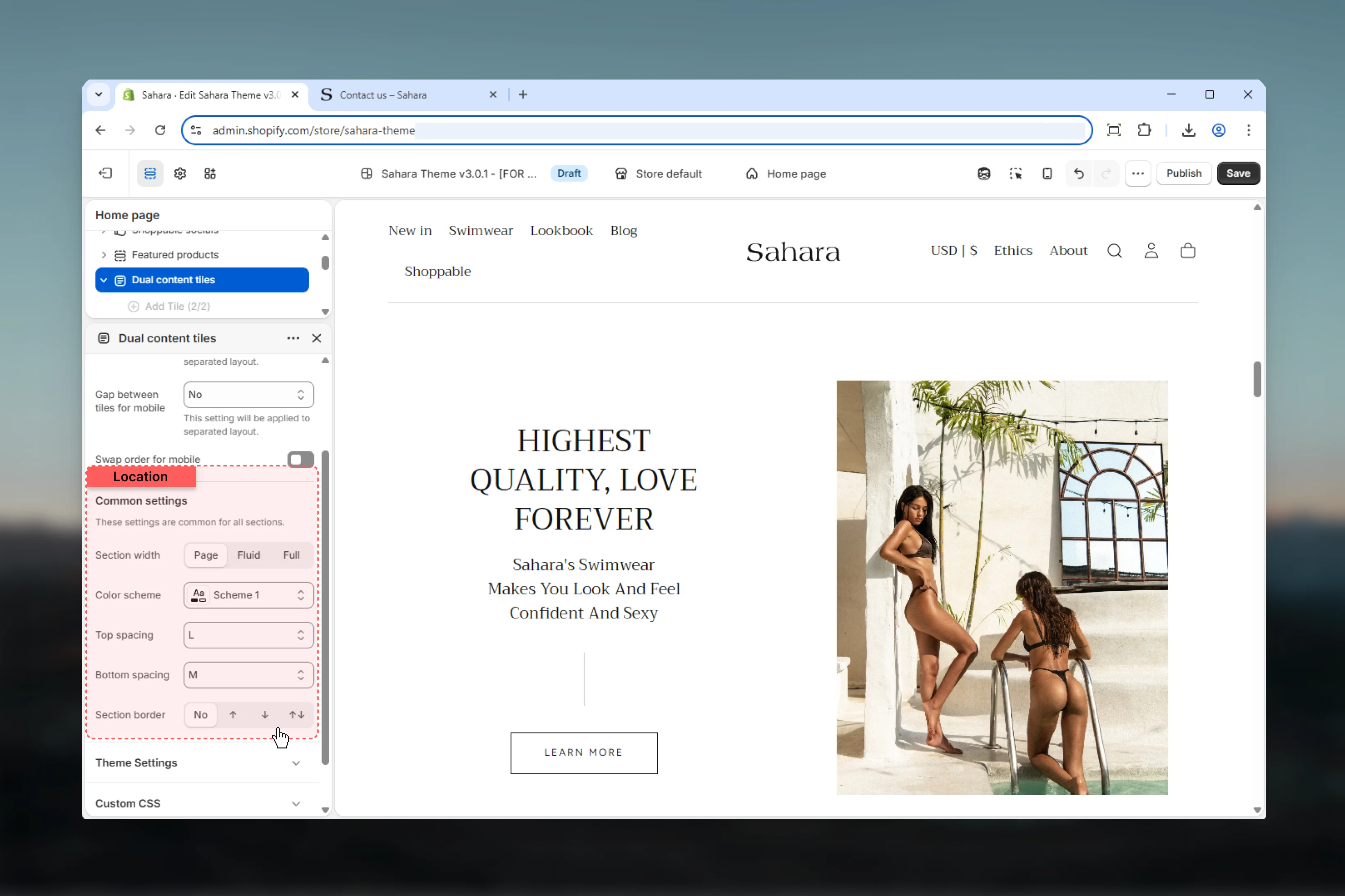
Gap between tiles (Desktop)
Controls horizontal and vertical spacing between tiles on desktop.Options: No spacing, S, M (default), L, XLGap between tiles (Mobile)
Controls spacing between tiles on mobile devices independently.Options: No spacing, S, M (default), L, XLReverse on mobile
Swaps tile order on mobile devices.Default: FalseMobile ordering strategy
Mobile ordering strategy
Disabled (False - default):
- Tiles maintain desktop order on mobile
- First tile displays first
- Standard top-to-bottom flow
- Reverses order on mobile only
- Second tile displays first
- Useful when second tile is more important on mobile
Block settings
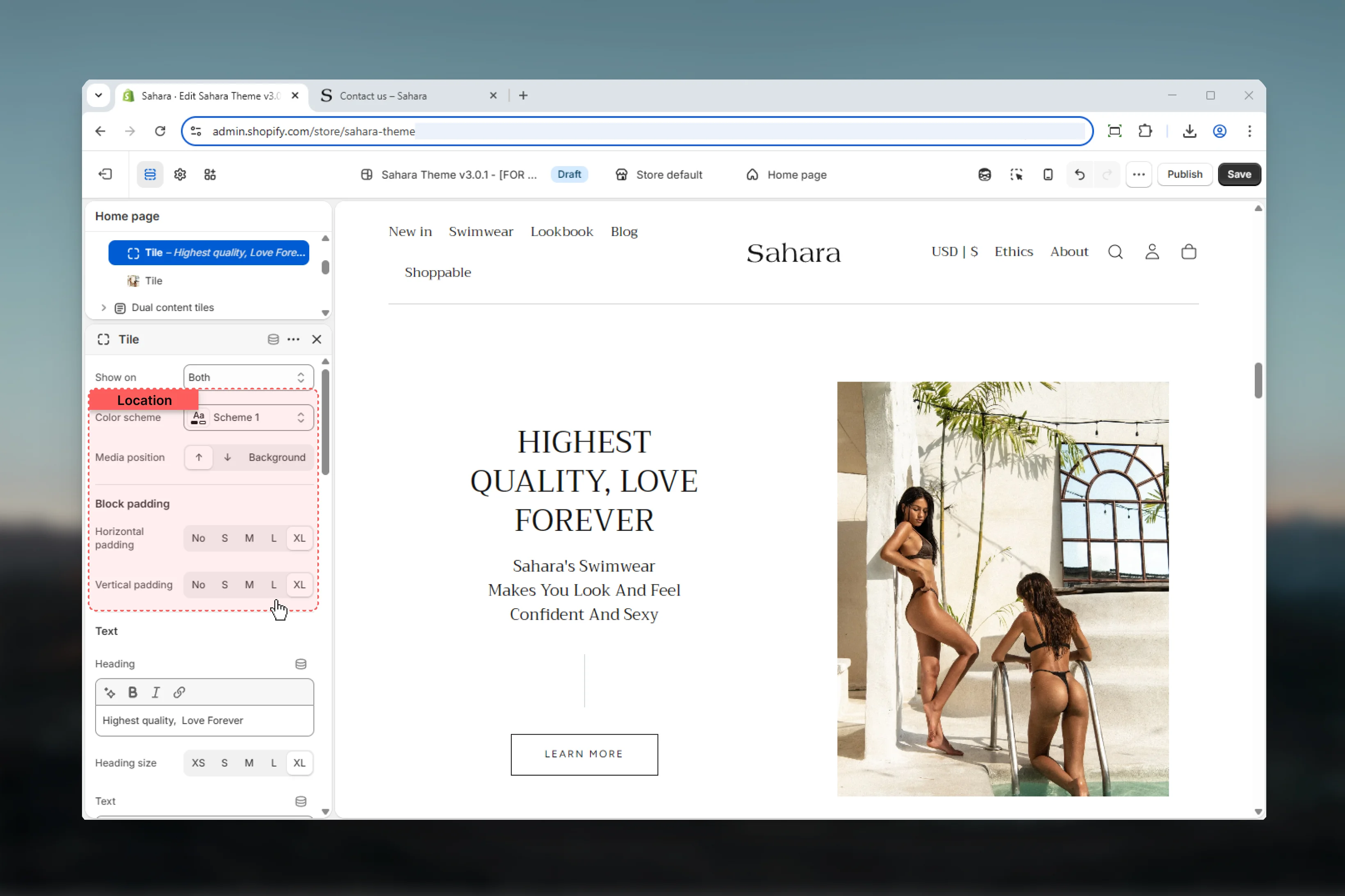
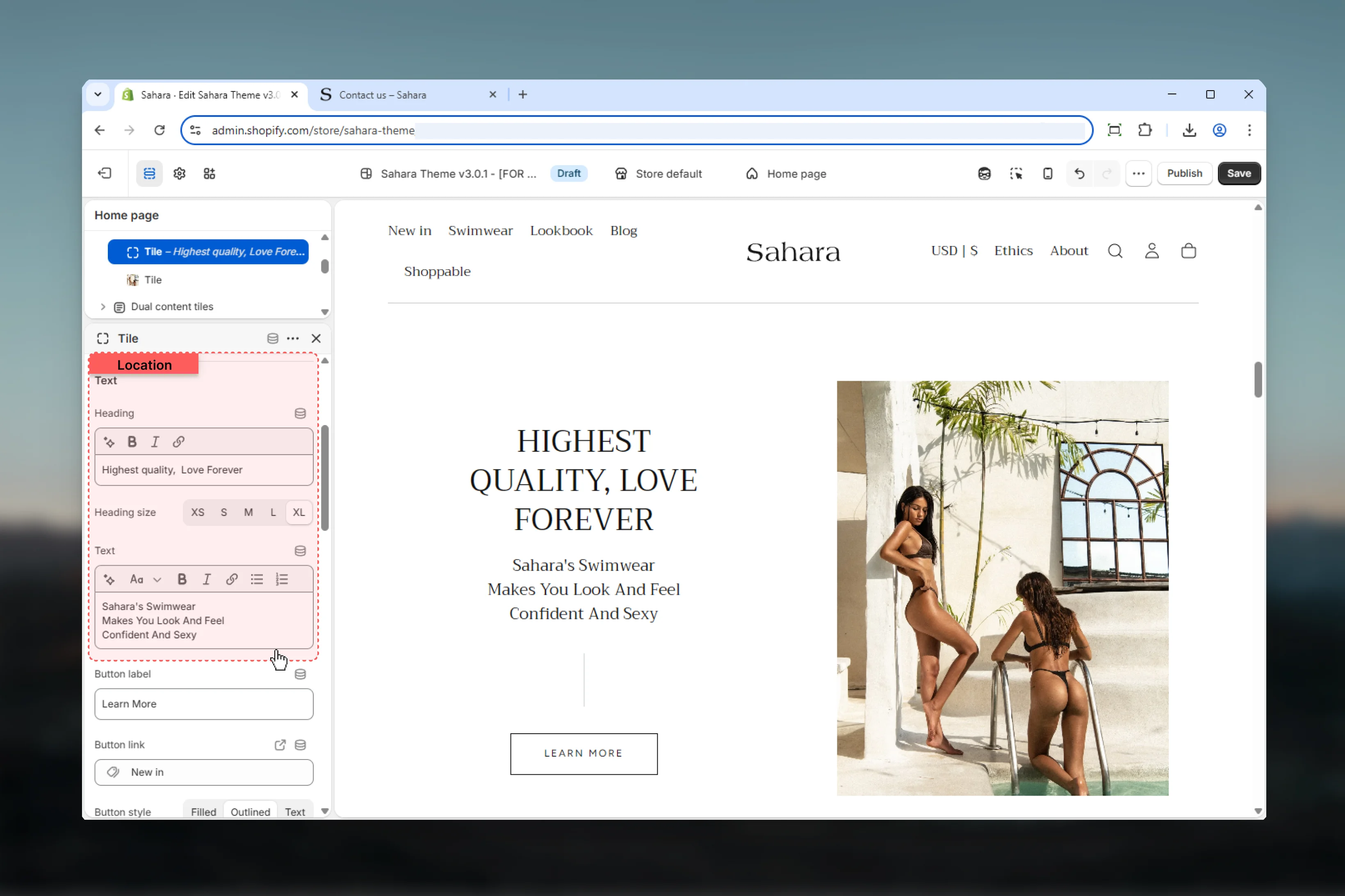
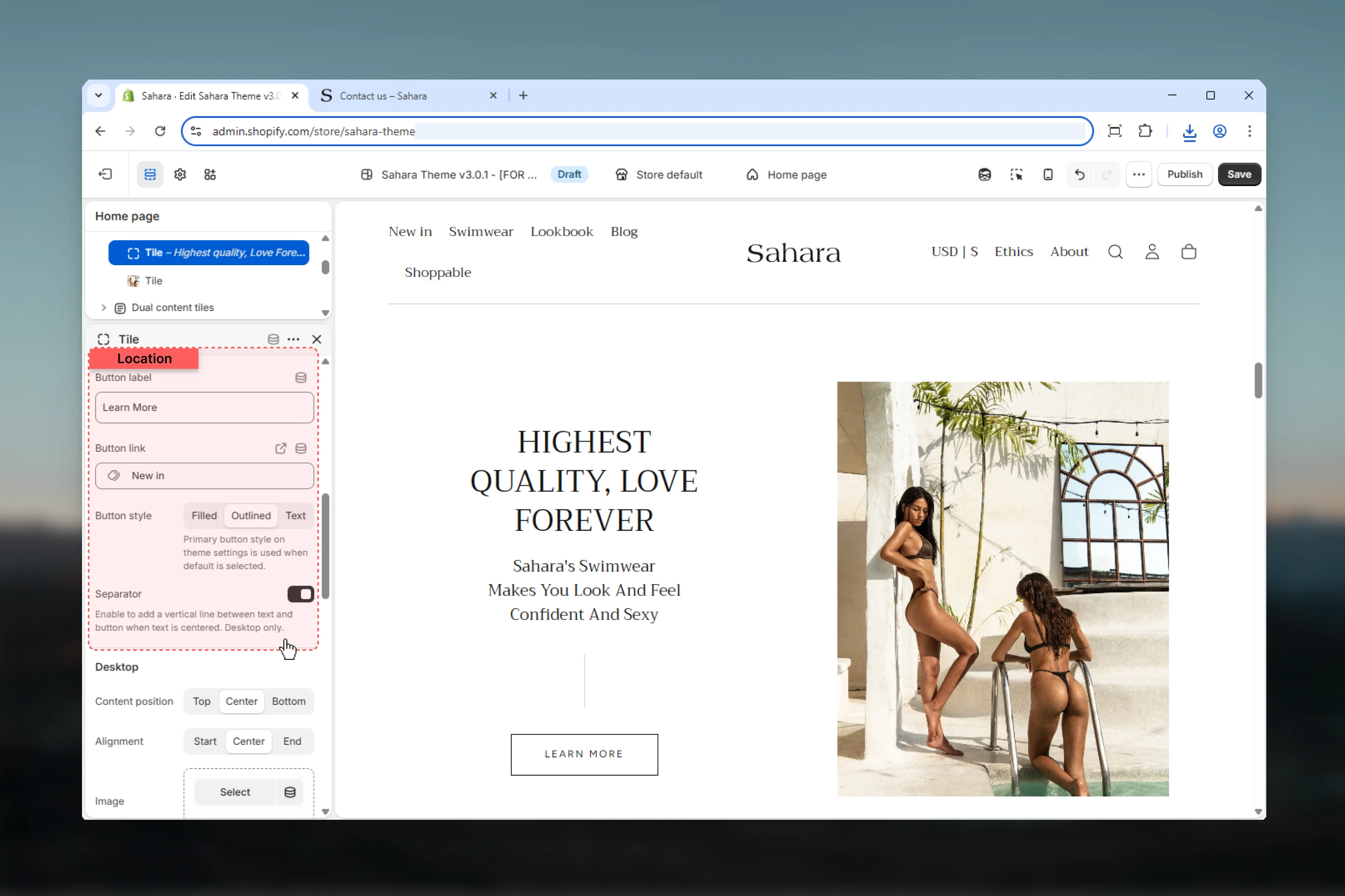
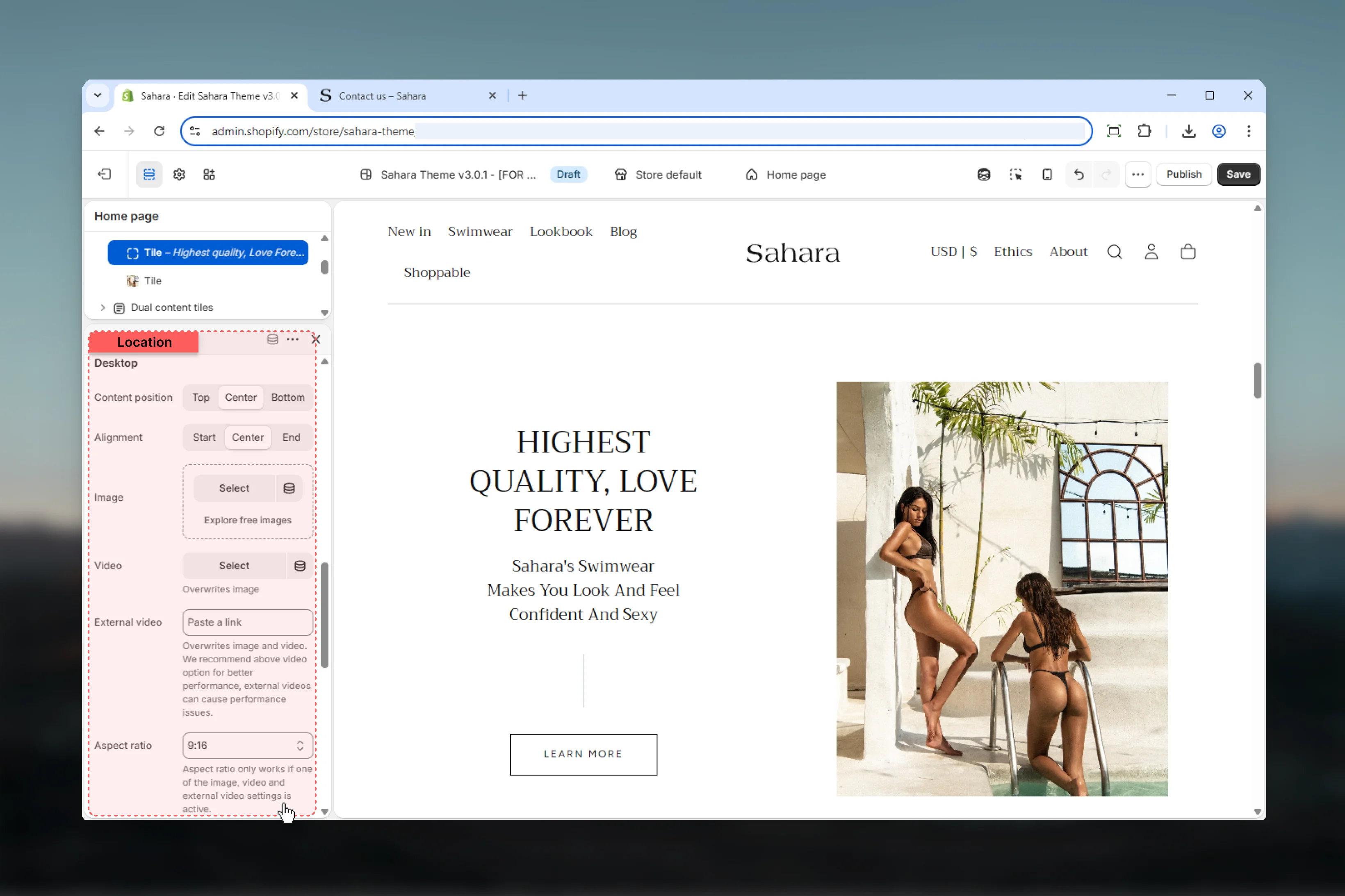
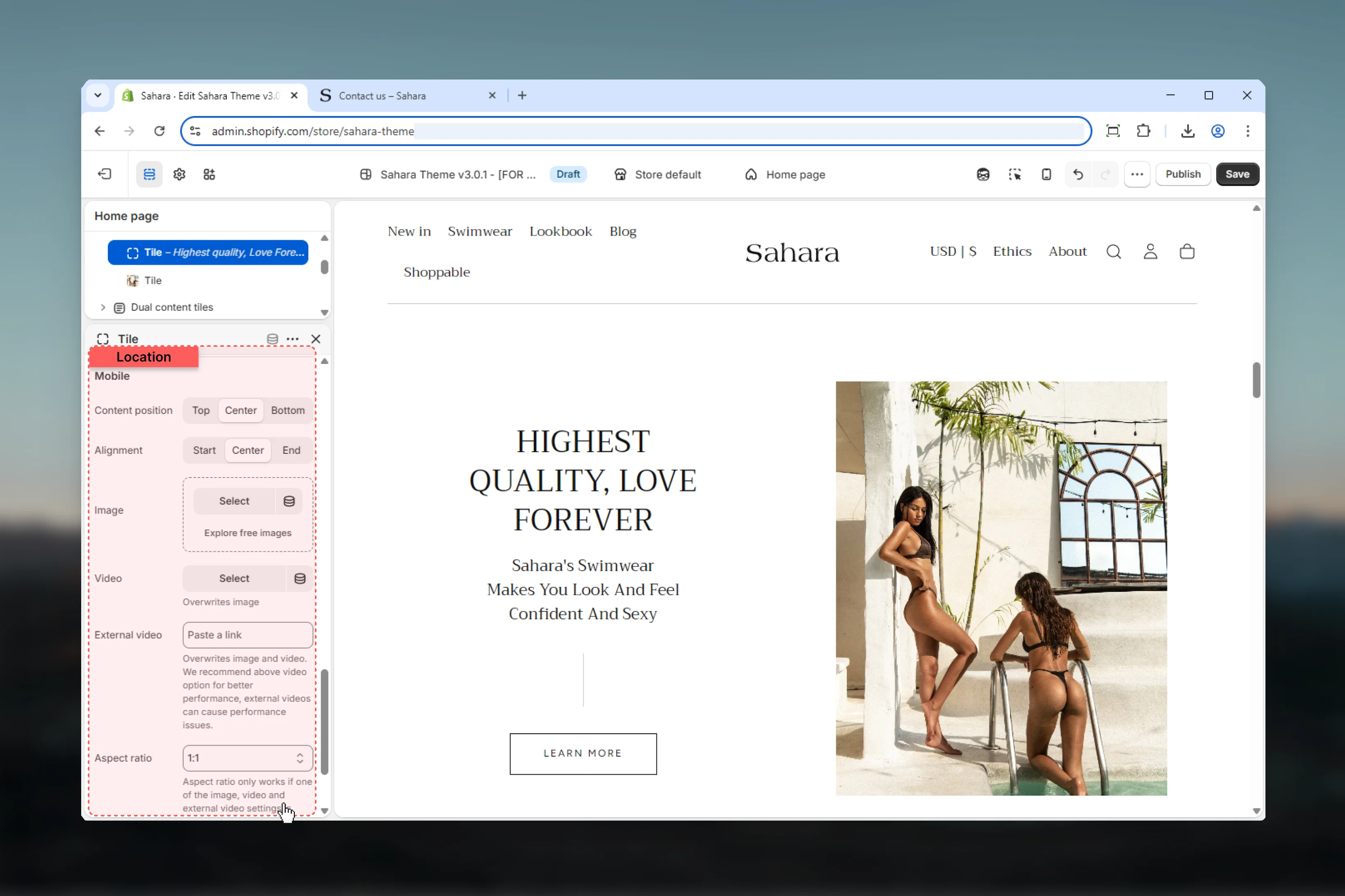
Each Tile block represents one of the two content areas. Configure them independently for maximum flexibility.- Visibility
- Styling
- Content
- Desktop
- Mobile
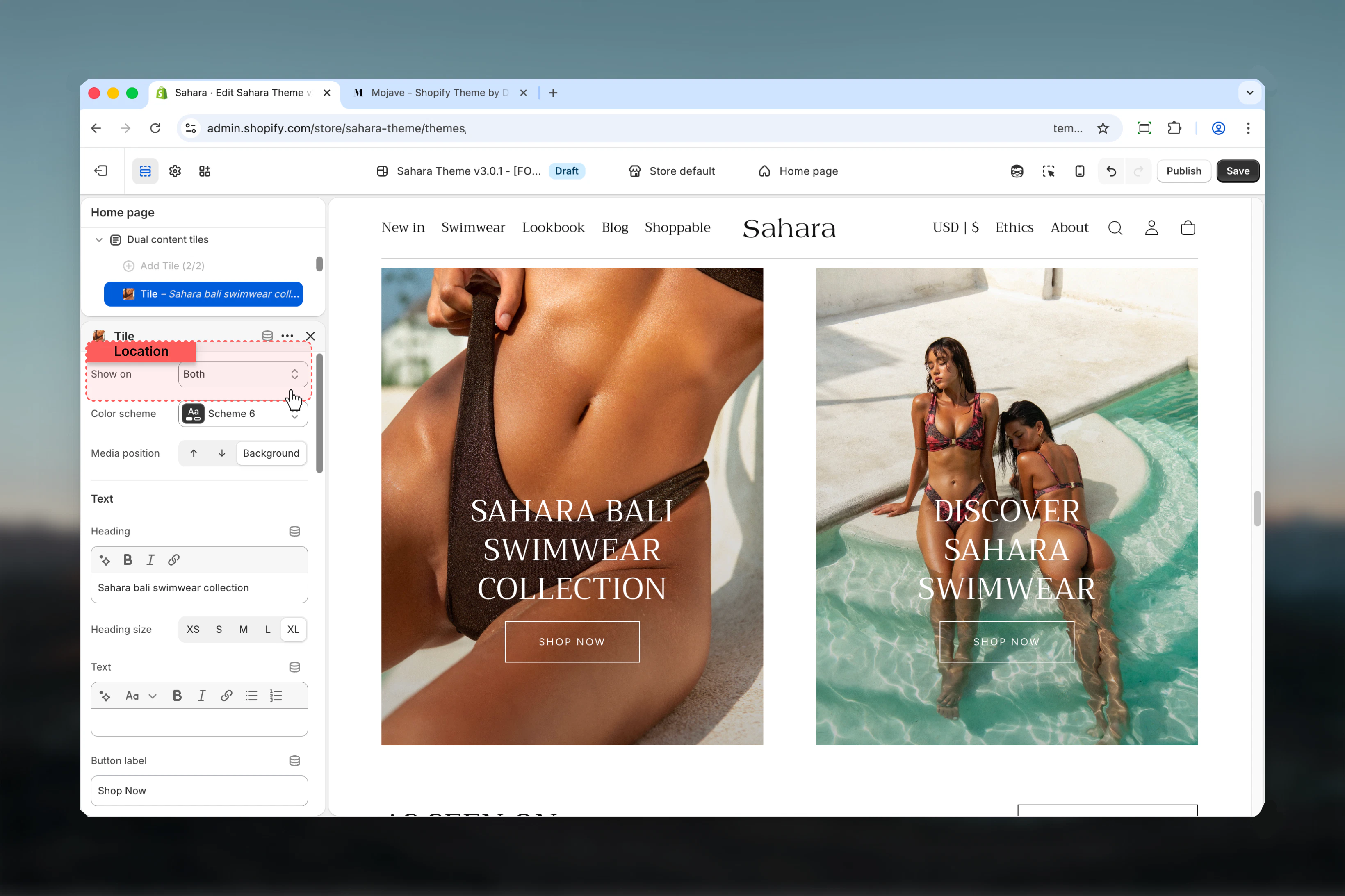
Show on
Controls which devices the tile is visible on.Options:- Desktop - Desktop only
- Mobile - Mobile only
- Both - All devices (default)
Device-specific tiles
Device-specific tiles
Use cases for selective visibility:
- Different messaging for mobile vs desktop
- Desktop-only detailed content
- Mobile-only app promotions
- A/B testing across devices
Best practices
Balanced content
Use Half (50/50) block size for equal emphasis, Large/Small for primary/secondary content hierarchy.
Consistent imagery
Use matching aspect ratios across both tiles for visual harmony and professional appearance.
Mobile optimization
Provide portrait-oriented mobile images and consider reversing tile order if second tile is more important on mobile.
Strategic gaps
Use larger gaps (L, XL) for clearly separated tiles, no gap for seamless edge-to-edge layouts.
Content brevity
Keep text concise (30-50 words per tile) for readability. Tiles are for highlights, not essays.
Button placement
Add buttons to both tiles for balanced CTAs or just one tile to create visual hierarchy.
Color contrast
Use different color schemes per tile to create visual interest and differentiate content types.
Background positioning
When using background media position, ensure sufficient text-to-image contrast for readability.
Common use cases
Campaign split feature
Campaign split feature
Half (50/50) block size. Tile 1: “Men’s Sale” with background image. Tile 2: “Women’s Sale” with background image. Both with filled buttons. Center content alignment. Different color schemes per tile.
Primary/secondary content
Primary/secondary content
Large (66/33) block size. Tile 1: Featured collection with background video, heading, text, outlined button. Tile 2: Newsletter signup with top media, heading, form description, filled button.
Product showcase duo
Product showcase duo
Half (50/50) block size, small gap. Both tiles: product images (top position), product names as headings, brief descriptions, “Shop now” outlined buttons. Matching color schemes for cohesion.
Story + testimonial
Story + testimonial
Large (66/33) block size. Tile 1: Brand story with background image, heading, 3-4 sentence text, “Learn more” text link. Tile 2: Customer testimonial with top portrait image, quote as text, customer name as heading.
Related sections
Carousel
Multiple sliding content cards
Featured collections
Collection showcase with custom styling
Content tiles
Multi-tile grid layouts