

What this covers
- Triggering a full Shopify catalog sync
- Reviewing synced products and excluding items if needed
- Connecting Meta and pushing products for product messages
- Understanding sync status per product
Before you begin
Your WhatsApp Business Account must be connected before setting up a Meta Catalog push. A catalog connection is only required if you plan to use product message formats — standard campaigns and automations do not require it.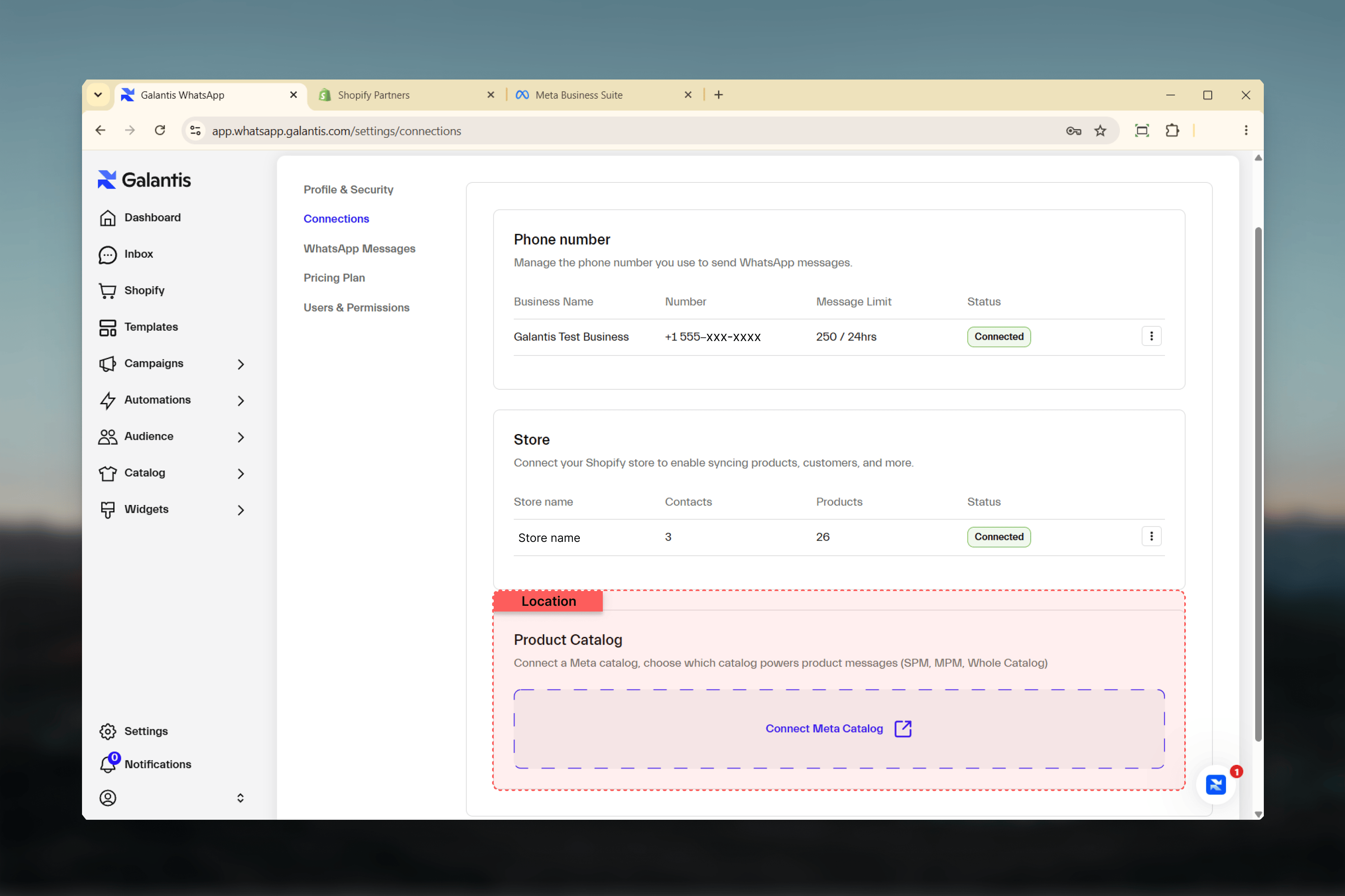
Syncing your Shopify catalog
1
Open the Catalog module
In the Galantis dashboard, go to Catalog → Shopify Sync.
2
Trigger a full sync
Click Sync Now to import all your Shopify products and collections into Galantis. This is a one-time full import — after this, Galantis keeps product data current automatically via Shopify webhooks.
3
Review synced products
Once the sync completes, browse the product list. Check that titles, prices, variants, and images have imported correctly.
4
Exclude products if needed
If specific products should not be synced to Meta, flag them with the
exclude_from_syncforce option on the individual product record. This does not remove them from Galantis — it only prevents them from being pushed to Meta.Pushing products to Meta (optional)
This step is only required if you plan to use SPM, MPM, or Whole Catalog message formats.1
Connect your Meta Catalog
Go to Catalog → Meta Sync. You have two options:
- Import an existing Meta Catalog — connect a catalog you have already configured in Meta Commerce Manager.
- Create a new Meta Catalog from Galantis — build and push directly from your Shopify data, without setting anything up in Meta Commerce Manager.
2
Push products to Meta
Once connected, trigger a Meta push. Products that are successfully pushed will show a
SYNCED status.3
Verify sync status
Review the status column per product. Address any
FAILED items by checking the error details and resolving the issue (for example, images that do not meet Meta’s size requirements).Sync status reference
How ongoing sync works
After your first manual sync, Galantis keeps product data current automatically. Shopify triggers a webhook whenever a product is created, updated, or deleted — Galantis processes these in near real time. You only need to run a manual sync again after bulk edits or if you need to recover from a sync error.Related guides
- Catalog — Full reference for sync configuration, product fields, and catalog health
- WhatsApp Connection — Required for Meta Catalog integration
- First Campaign — Use catalog products in campaign messages