

There are two ways to connect: the full WhatsApp Platform (campaigns and automations) or a simple chat button. If you are not sure which you need, read Choose Your Connection first.
Install Galantis WhatsApp on Shopify
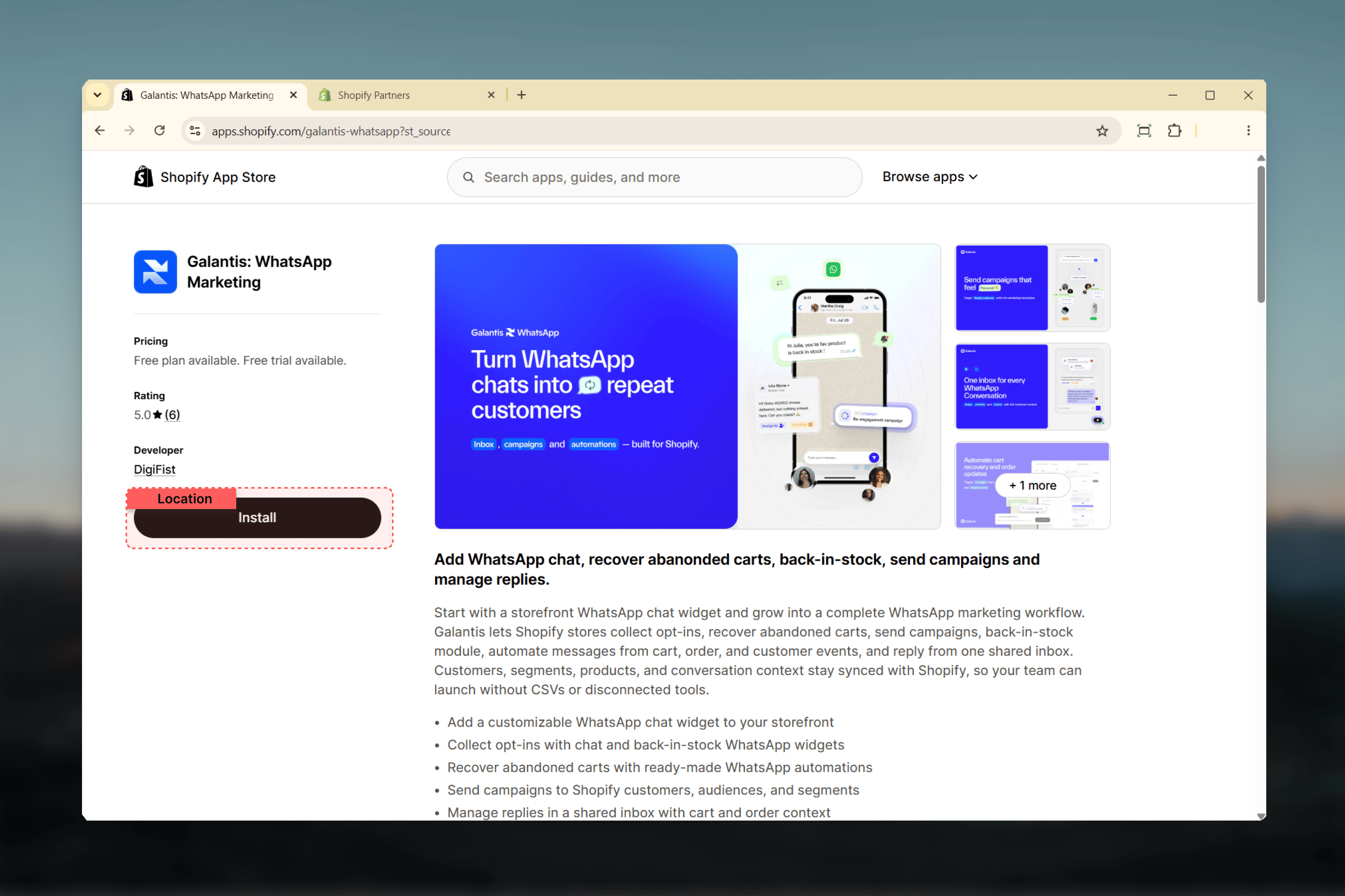
Open the official Shopify App Store listing and click Install. You’ll be prompted to sign in to Shopify if you aren’t already.
What happens during install
1
Open the Shopify App Store listing
Use the install card above or visit apps.shopify.com/galantis-whatsapp directly. Sign in to the Shopify account that owns the store you want to install on.
2
Review the permissions Shopify shows
Shopify displays the data scopes Galantis requests — customers, orders, products, checkouts, script tags. Each one powers a specific Galantis feature. See Required permissions below for what each scope unlocks.
3
Click Install app
Shopify provisions the install, grants the permissions, and redirects you to the Galantis app inside your Shopify admin.
4
The Galantis in-app onboarding wizard launches
Once you land in Galantis, the onboarding wizard appears on the dashboard. Its first step launches Meta’s Embedded Signup modal to connect WhatsApp — see Connect WhatsApp for the modal walkthrough. From install to a connected dashboard typically takes about 5 minutes for merchants who already have a WhatsApp Business Account.
Required permissions
Galantis requests these Shopify permissions during installation. Each one is tied to a specific feature — denying any disables the feature that depends on it.- Customers & consent
- Orders
- Products & collections
- Checkouts
Read and write customers — Syncs customer contact profiles and marketing consent state into Galantis. Consent status (
marketing_state) is pulled from Shopify and kept in sync via webhook so opt-ins captured at checkout or in your customer account appear immediately in Galantis audiences.All permissions are required for the platform to function end to end. You can install Galantis with a subset and still explore the dashboard, but features tied to denied scopes will be inactive until you re-authorize. See the Shopify permissions reference for the full breakdown.
What the in-app onboarding wizard does
After install, the wizard guides you through:- Connect WhatsApp — launches Meta’s Embedded Signup modal to attach (or migrate, or create) your WABA and phone number
- Sync your Shopify catalog — optional during onboarding, can be skipped and configured later — see First catalog sync
- Invite team members — optional; roles and seats can be configured later under Settings → Team
Uninstalling Galantis
If you ever need to uninstall: in your Shopify admin, go to Settings → Apps and sales channels, find Galantis WhatsApp, and click Uninstall. Shopify revokes all granted permissions automatically. Your Galantis workspace data is retained according to standard retention policy in case you reinstall later.Connect WhatsApp
The Embedded Signup walkthrough — the natural next step after installing.
Shopify permissions reference
Deep reference for every scope, what it enables, and what breaks if it’s missing.