

What this section controls
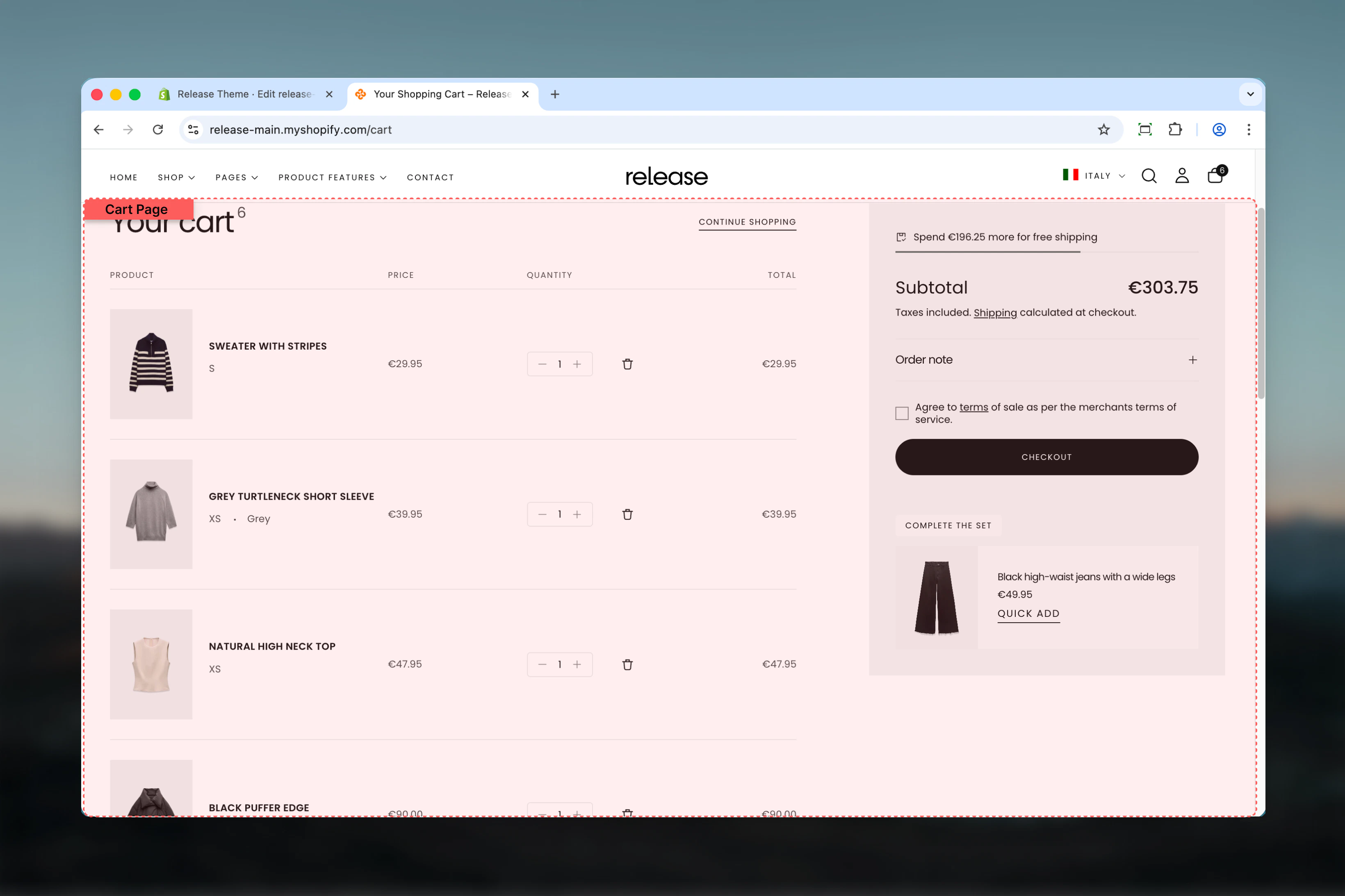
This page template manages:- Cart items display - Show selected products with images, prices, quantities, and variants
- Free shipping notifications - Display progress bars and messages for shipping thresholds
- Terms and conditions - Require customer agreement before checkout
- Dynamic checkout buttons - Enable express checkout options (Shop Pay, Apple Pay, etc.)
- Upsell products - Recommend additional products based on cart contents
- Order notes - Allow customers to add special instructions
- Empty cart content - Customize messaging and button when cart is empty
- Section layout - Adjust cart page width, color scheme, and spacing
Getting started
1
Open Theme Customizer
From Shopify admin, access the Theme Customizer to design your cart page
2
Navigate to Cart page
In the left sidebar, click Pages > Cart
3
Configure shipping notifications
Enable free shipping notifications and set your threshold price to encourage higher cart values
4
Set terms and conditions
Add terms checkbox text and choose where to display it (cart page, cart drawer, or both)
5
Enable upsell products
Turn on product recommendations to increase average order value with AI-powered suggestions
6
Configure empty cart
Set the button URL for empty cart state (typically to collections or homepage)
7
Adjust layout settings
Choose section width (recommend max-w-page), color scheme, and spacing for optimal cart experience
Section Settings
- Shipping Notification
- Cart Page
- Upsell Products
- Additional Features
- Empty Cart
- Layout
Display free shipping progress and notifications to encourage higher cart values.
Enable shipping notification
Enable shipping notification
Type: Toggle
Default: DisabledShow a free shipping notification based on cart price. Displays a progress bar or message showing how much more customers need to spend to qualify for free shipping.When enabled, customers see:
Default: DisabledShow a free shipping notification based on cart price. Displays a progress bar or message showing how much more customers need to spend to qualify for free shipping.When enabled, customers see:
- Progress bar showing amount remaining for free shipping
- Celebratory message when threshold is reached
- Real-time updates as cart value changes
The notification appears above cart items and updates dynamically as customers adjust quantities or add products.
Threshold cart price
Threshold cart price
Type: Number input
Default: 0 (always free shipping)Minimum cart price value for free delivery qualification. When cart total reaches this amount, free shipping notification shows success message.How it works:
Default: 0 (always free shipping)Minimum cart price value for free delivery qualification. When cart total reaches this amount, free shipping notification shows success message.How it works:
- Set to
0or leave blank: Always shows “Free shipping available” - Set to
50: Shows progress until cart reaches $50 - Set to
100: Customers see how much more to add for free shipping
- Budget stores: 35
- Mid-range stores: 75
- Premium stores: 150
How the cart page works
The cart page is a crucial step in the customer journey from browsing to purchase:Cart page flow
- Customer adds products - Items are added to cart from product pages
- Cart page displays - Shows all cart items with images, prices, quantities
- Customer reviews order - Can adjust quantities, remove items, see totals
- Optional features engage:
- Free shipping notification encourages adding more
- Upsell products suggest complementary items
- Terms checkbox ensures agreement to policies
- Order notes field collects special requests
- Checkout initiated - Customer clicks checkout or dynamic checkout button
- Redirect to checkout - Shopify’s checkout process begins
Empty cart experience
When cart is empty (no items added or all items removed):- Empty cart message appears (managed via locales)
- Call-to-action button shows with configured URL
- Customer clicks button to browse products
- Redirects to configured collection or page
Empty cart title and description are managed through theme locale files, not Theme Customizer. Only the button URL is configurable in settings.
Common use cases
- Standard e-commerce
- High-value/luxury
- B2B/wholesale
- Gift shop
- Subscription box
- Minimal checkout
Typical online store cart optimized for conversions.Configuration:
- Enable shipping notification: Yes
- Threshold cart price: 75 (slightly above AOV)
- Show cart terms on: Both
- Show dynamic checkout buttons: Yes
- Enable upsell products: Yes
- Enable order notes: No (streamlined)
- Section width: max-w-page
- Encourage higher cart values with free shipping
- Reduce friction with express checkout options
- Increase AOV with AI-powered upsells
- Keep checkout simple without extra fields
Best practices
Free shipping threshold
Set free shipping threshold 10-20% above your average order value to encourage customers to add one more item. If AOV is 55-60 threshold.
Enable upsells
Product recommendations in cart increase AOV by 15-25% on average. Enable upsells unless you’re a B2B or single-product store.
Dynamic checkout buttons
Keep express checkout buttons enabled. They improve conversion rates by 5-15% by reducing checkout friction for returning customers.
Terms placement
Show terms checkbox on “Both” cart page and drawer for consistent policy acceptance regardless of how customers checkout.
Empty cart destination
Link empty cart button to your best-converting collection (new arrivals or best sellers) rather than generic “all products” page.
Order notes consideration
Only enable order notes if you need them (gifts, customization). Each extra field increases checkout friction slightly.
Cart width
Use max-w-page or max-w-narrow for cart. Narrow width creates more focused checkout experience with fewer distractions.
Shipping accuracy
Ensure shipping notification threshold matches your actual Shopify shipping rates. Don’t promise free shipping you won’t honor.
Mobile optimization
Test cart page on mobile devices. Ensure upsells, shipping notifications, and buttons work well on small screens.
Terms link clarity
In terms checkbox text, use clear HTML links to your full policy pages. Test that links work before launching.
Related guides
Cart Drawer
Configure the slide-out cart drawer popup
Checkout Settings
Customize Shopify checkout page and payment options
Shipping Settings
Configure shipping rates and free shipping rules
Product Recommendations
Learn how Shopify’s AI recommendation engine works