

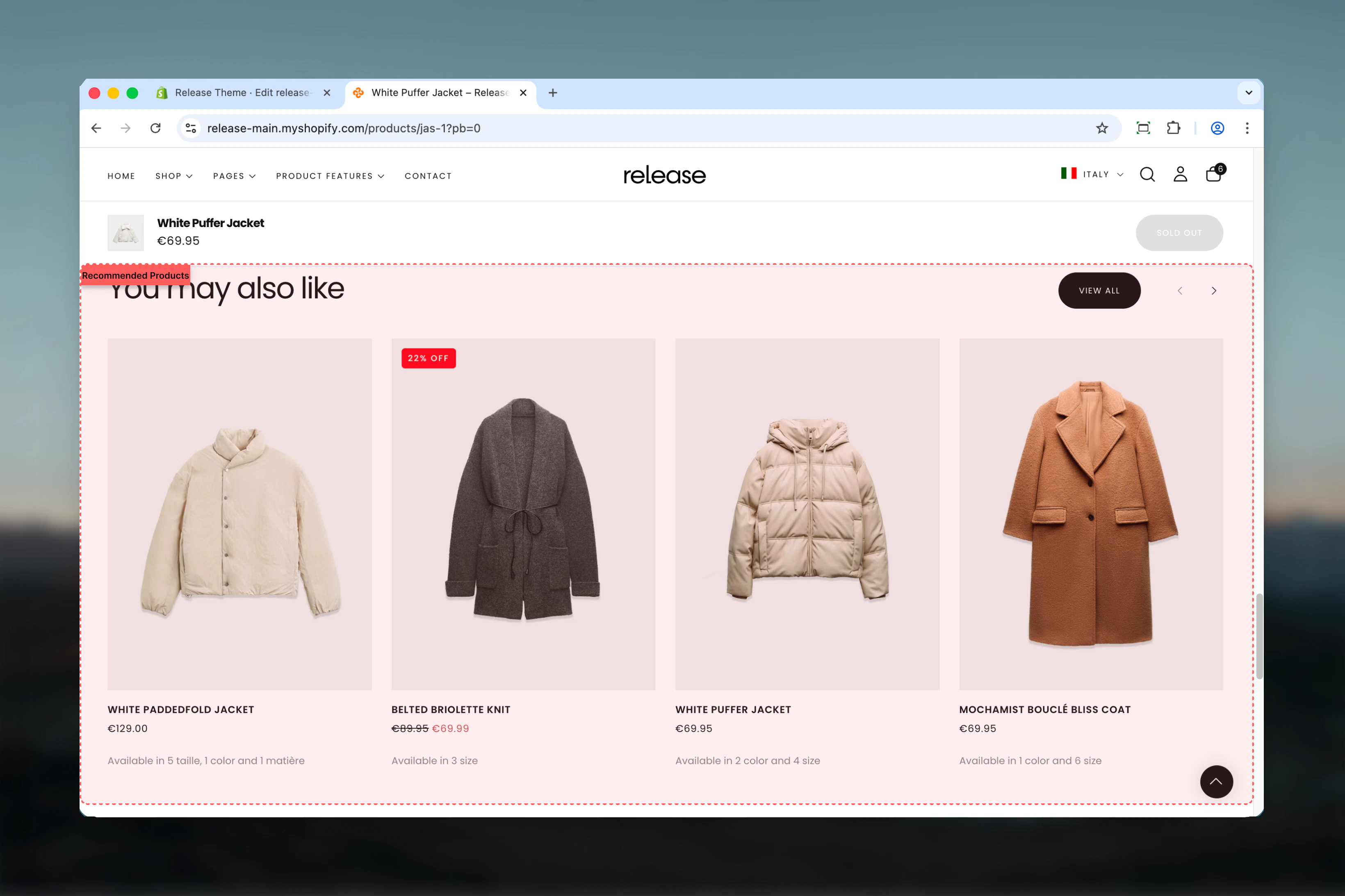
What this section controls
This section controls product recommendation displays with the following capabilities:- Shopify AI-powered product recommendations
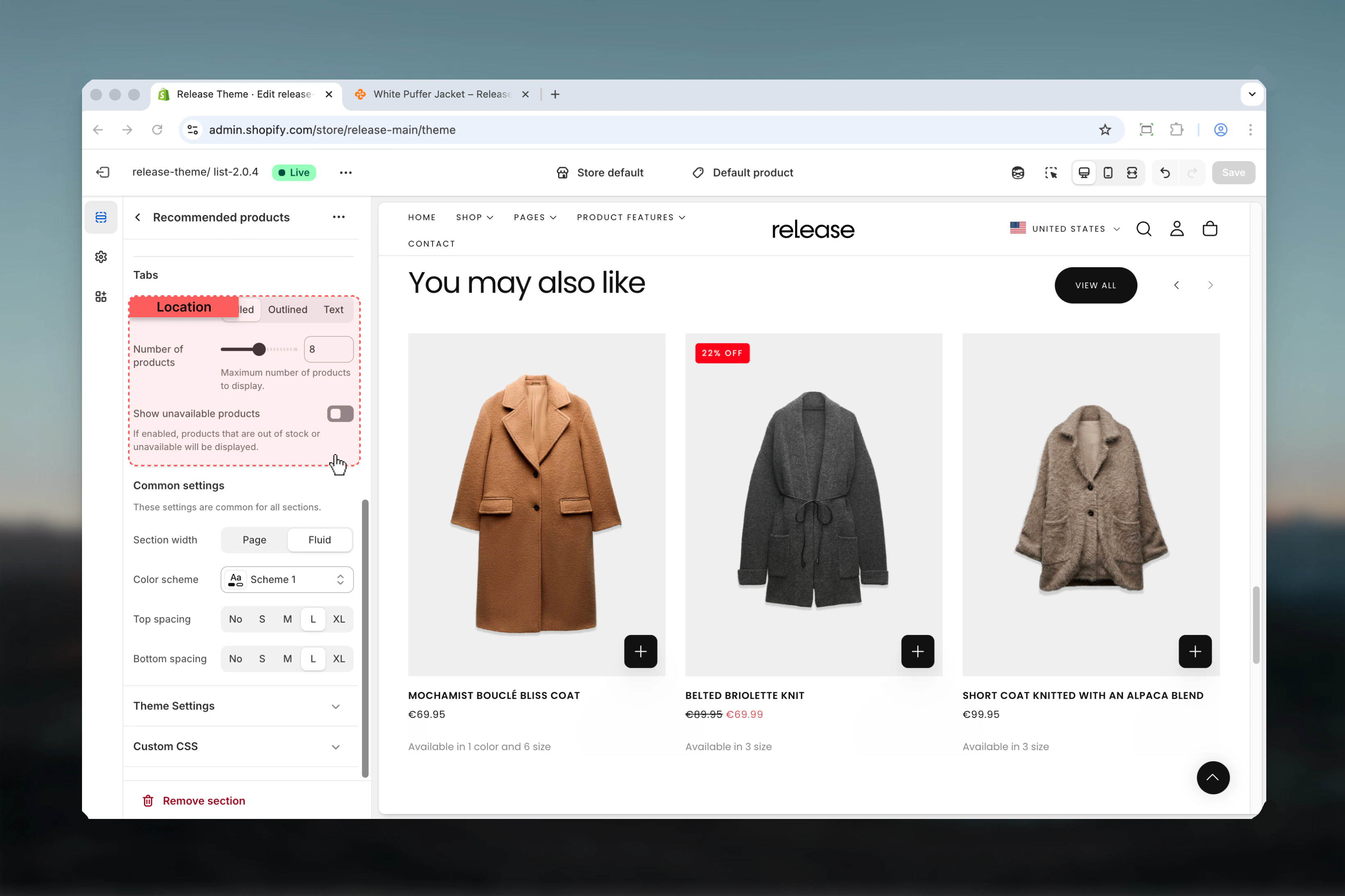
- Up to 12 recommended products
- Carousel-style display with navigation
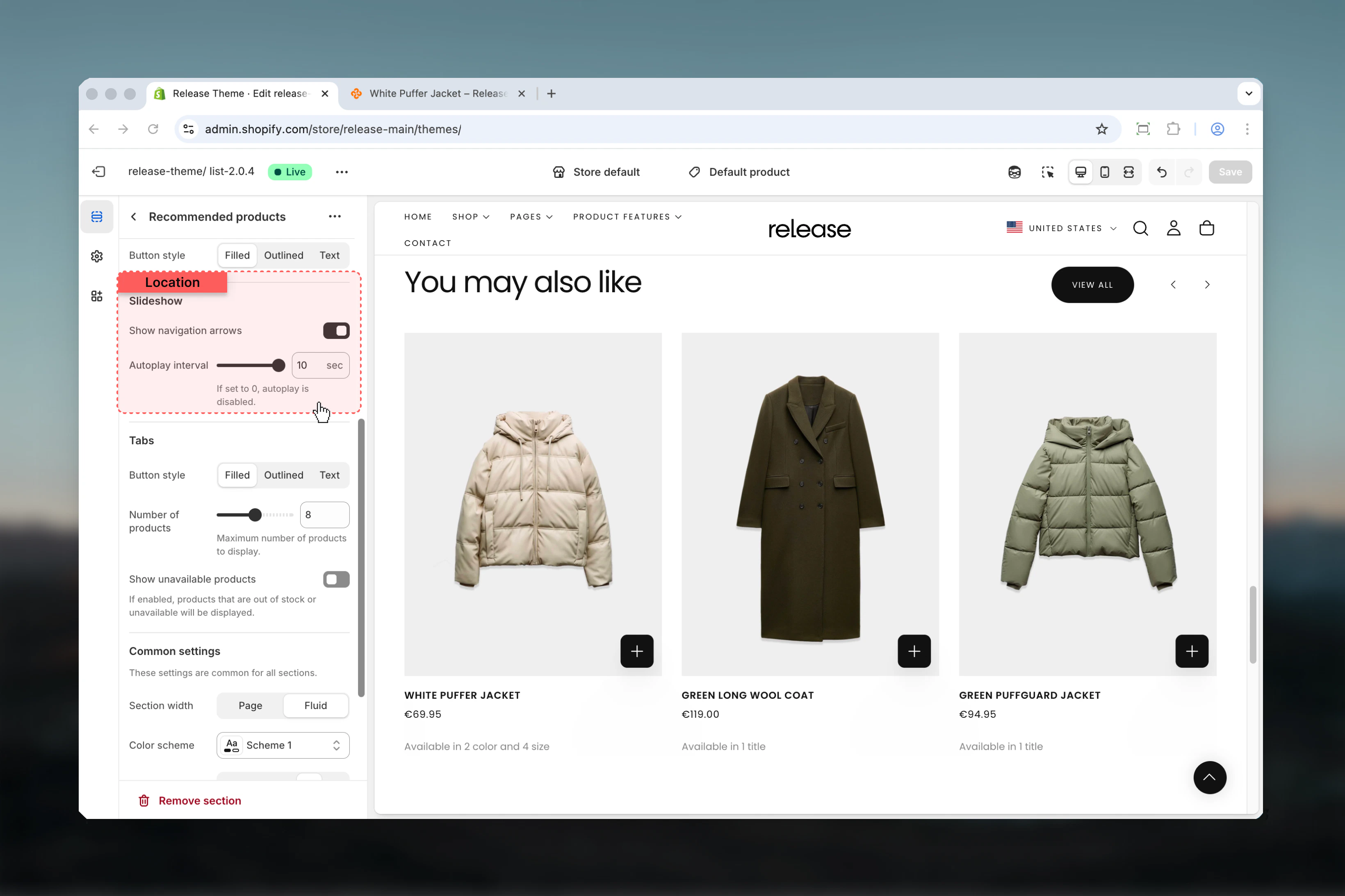
- Tab-style filtering options
- Stock status visibility control
- Optional section-level button
How the Recommended Products section works
The Recommended Products section uses Shopify’s recommendation engine:- Automatically displays related products based on current product or cart
- Supports up to 12 recommended products
- Carousel-style display with optional navigation
- Tab-style navigation for product filtering
- Configurable product visibility settings
Getting started
1
Open Theme Customizer
From Shopify admin, access the Theme Customizer.
2
Add Recommended Products section
Add the section to a product page template or cart page.
3
Configure display options
Set maximum products, autoplay interval, and layout preferences.
4
Test recommendations
Preview on live products to verify recommendation quality.
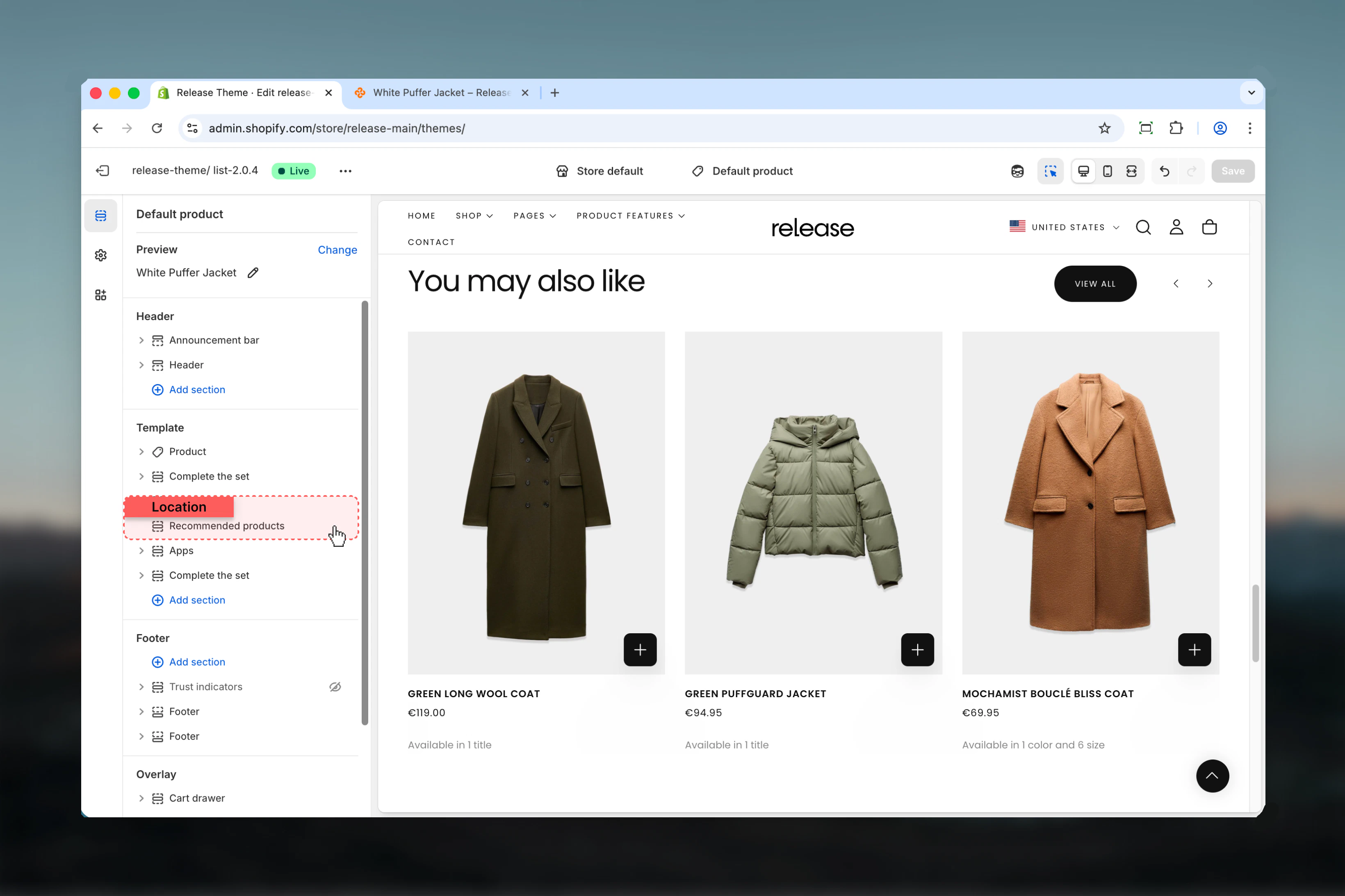
Section settings
Section settings control styling, slideshow behavior, and product display options.- Section styling
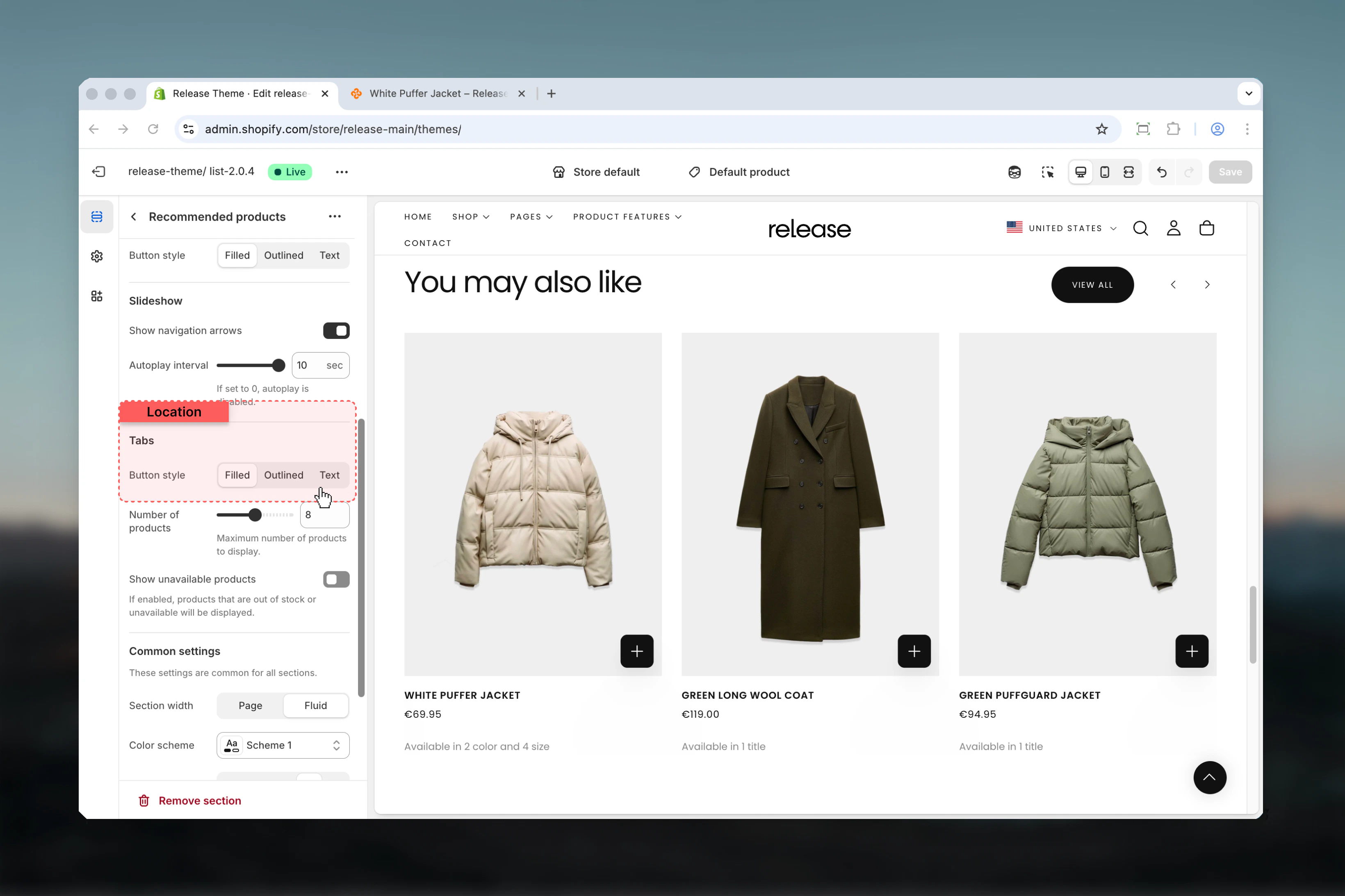
- Slideshow & Tabs
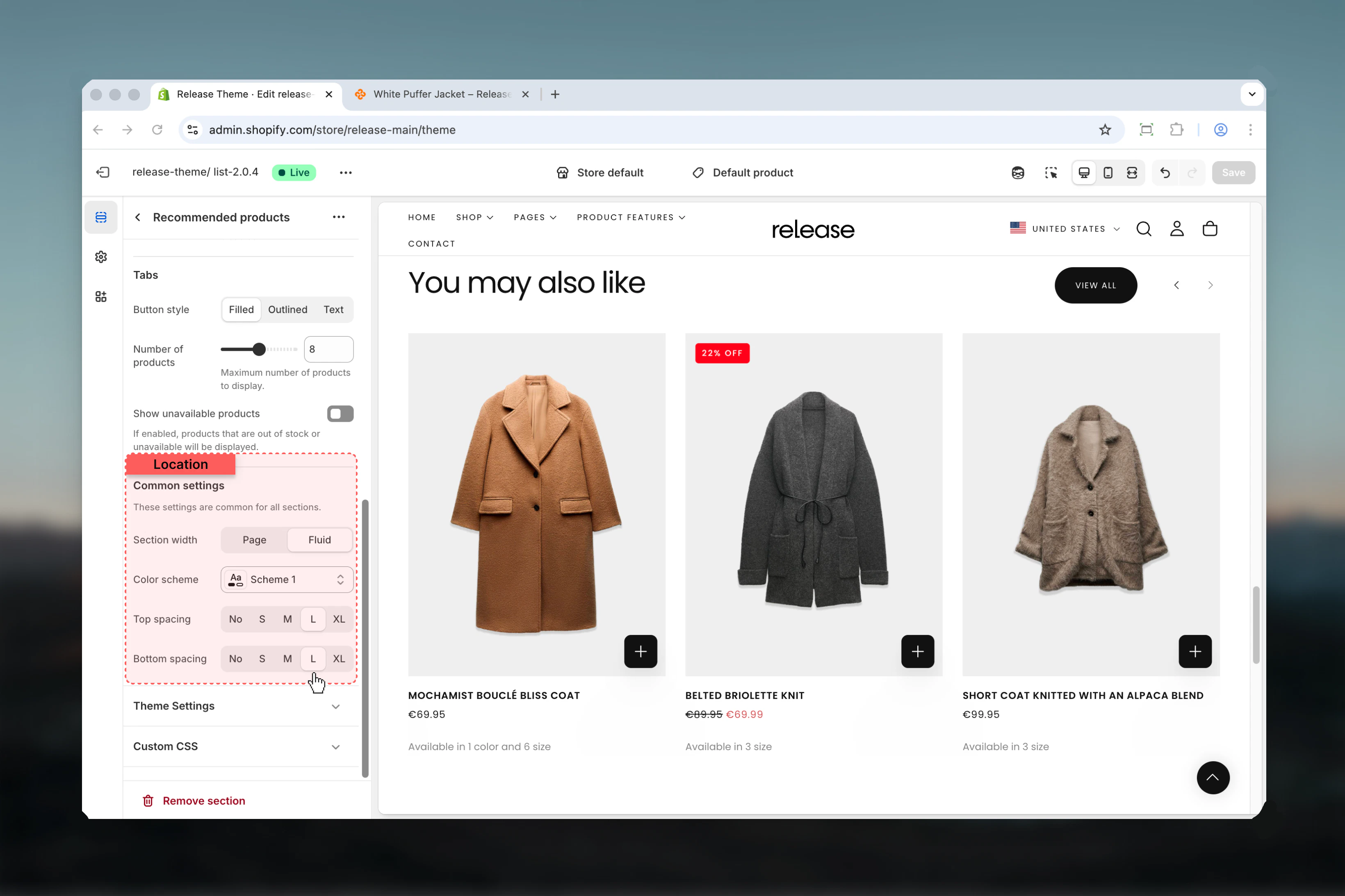
- Products & Settings
Layout
Controls the visual style of the section.Available options:- Layout 1: Standard layout
- Layout 2: Alternative layout
Enable slideshow overflow
Allows slideshow to overflow section boundaries.Options: True / FalseDefault: FalseSection heading
Main title text for the section.- Inline rich text supported (bold, italic, links)
- Default: “You may also like”
Heading size
Controls the size of section heading.Available options: XS, S, M, L, XLDefault: LSubheading
Optional descriptive text above the heading.- Inline rich text supported
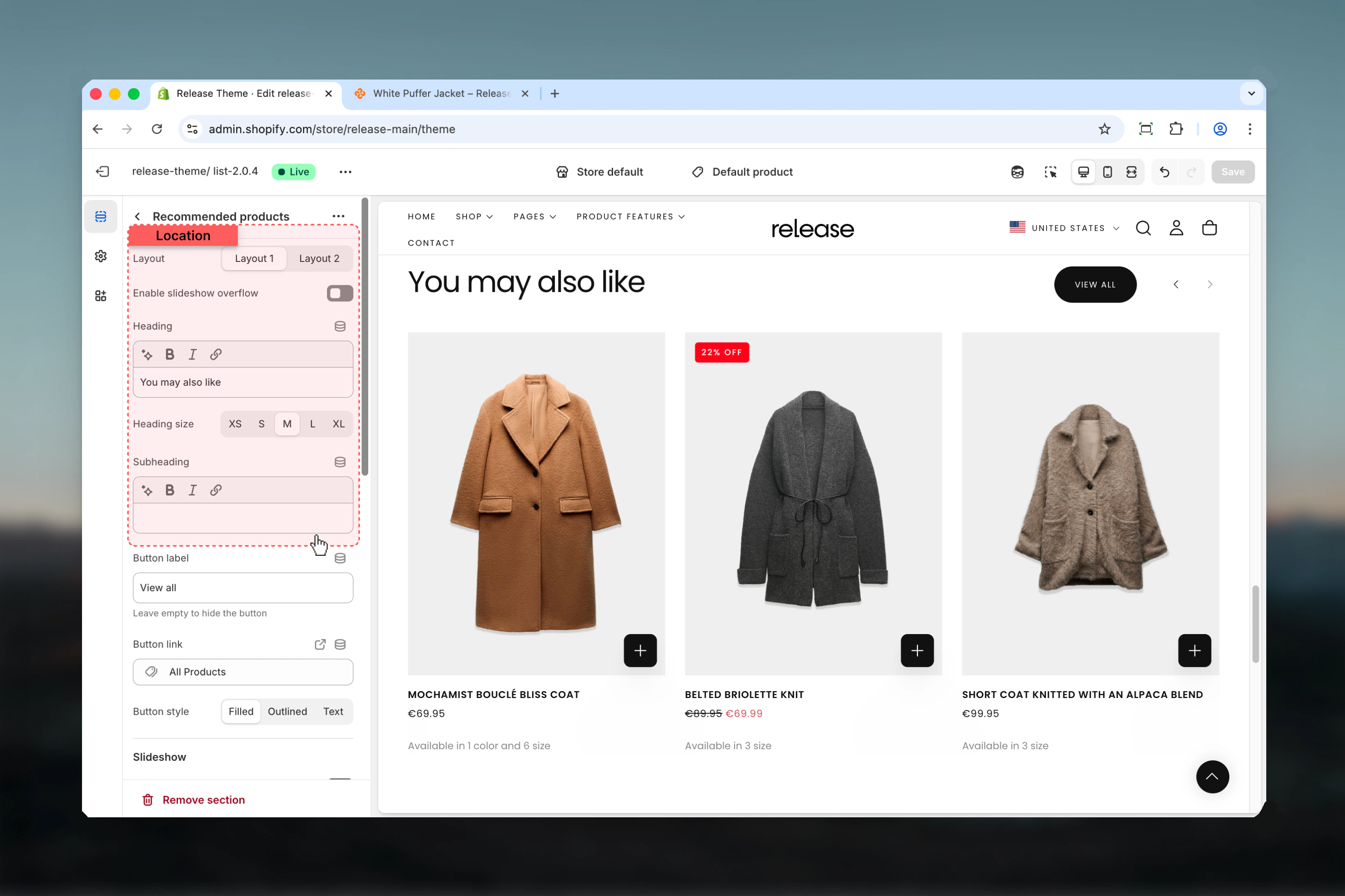
Button label
Text for optional section-level button.- Leave empty to hide
- Default: “View all”
Button link
Destination URL for section button.- Shopify URL selector
Button style
Visual style for section button.Available options:- Filled: Solid background
- Outlined: Border only
- Text: Text only
Best practices
- Place on product pages to encourage cross-selling and complementary purchases
- Use on cart page to suggest additional items before checkout
- Keep heading descriptive and action-oriented (“Complete the look”, “You may also like”, “Customers also bought”)
- Set max products to 6-8 for optimal browsing without overwhelming customers
- Test recommendation quality - Shopify’s AI improves with more order data and time
- Hide unavailable products unless showing full catalog diversity is important
- Use autoplay sparingly - consider disabling for better user control and accessibility
- Ensure sufficient historical order data for effective recommendations (at least 50-100 orders)
- Monitor recommendation performance through analytics and adjust max products accordingly
- Consider using custom collection sections if AI recommendations don’t align with your merchandising strategy
Common use cases
- Product page upselling - Show related or complementary products to increase average order value
- Cart page cross-selling - Suggest additional items before checkout to maximize basket size
- Post-purchase recommendations - Display related products on thank you or account pages
- Bundle suggestions - Encourage customers to complete product sets or collections
- Alternative products - Show similar products when current item is out of stock
- Personalized shopping - Leverage Shopify’s AI to provide tailored product suggestions
Related guides
Common Settings
Learn about common settings shared across sections