

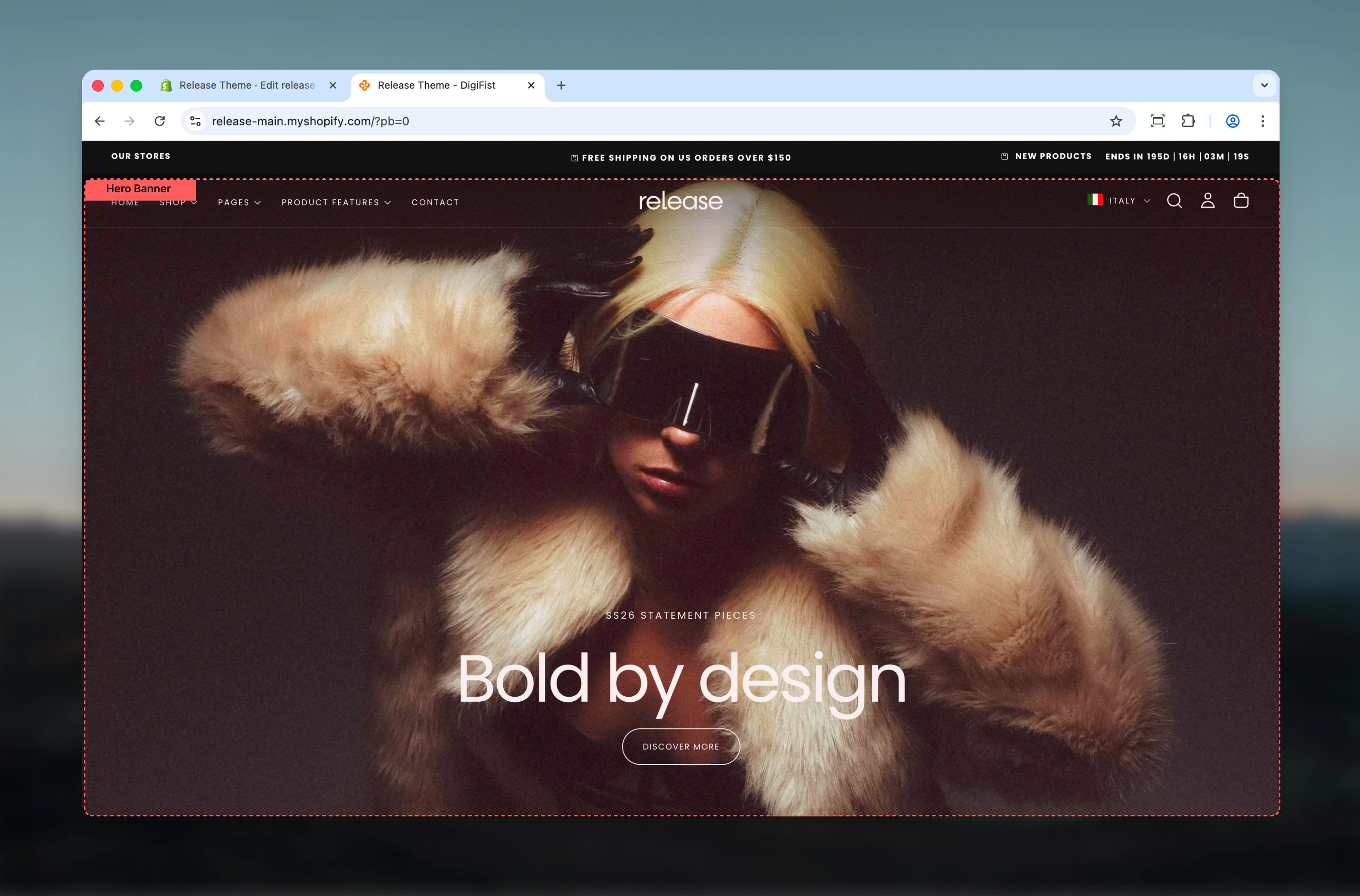
What this section controls
This section controls large banner areas with the following capabilities:- Visual slideshows with multiple media types
- Transparent header integration when placed first on a page
- Desktop and mobile-specific media and positioning
- Interactive elements including buttons and video controls
How the Hero Banner works
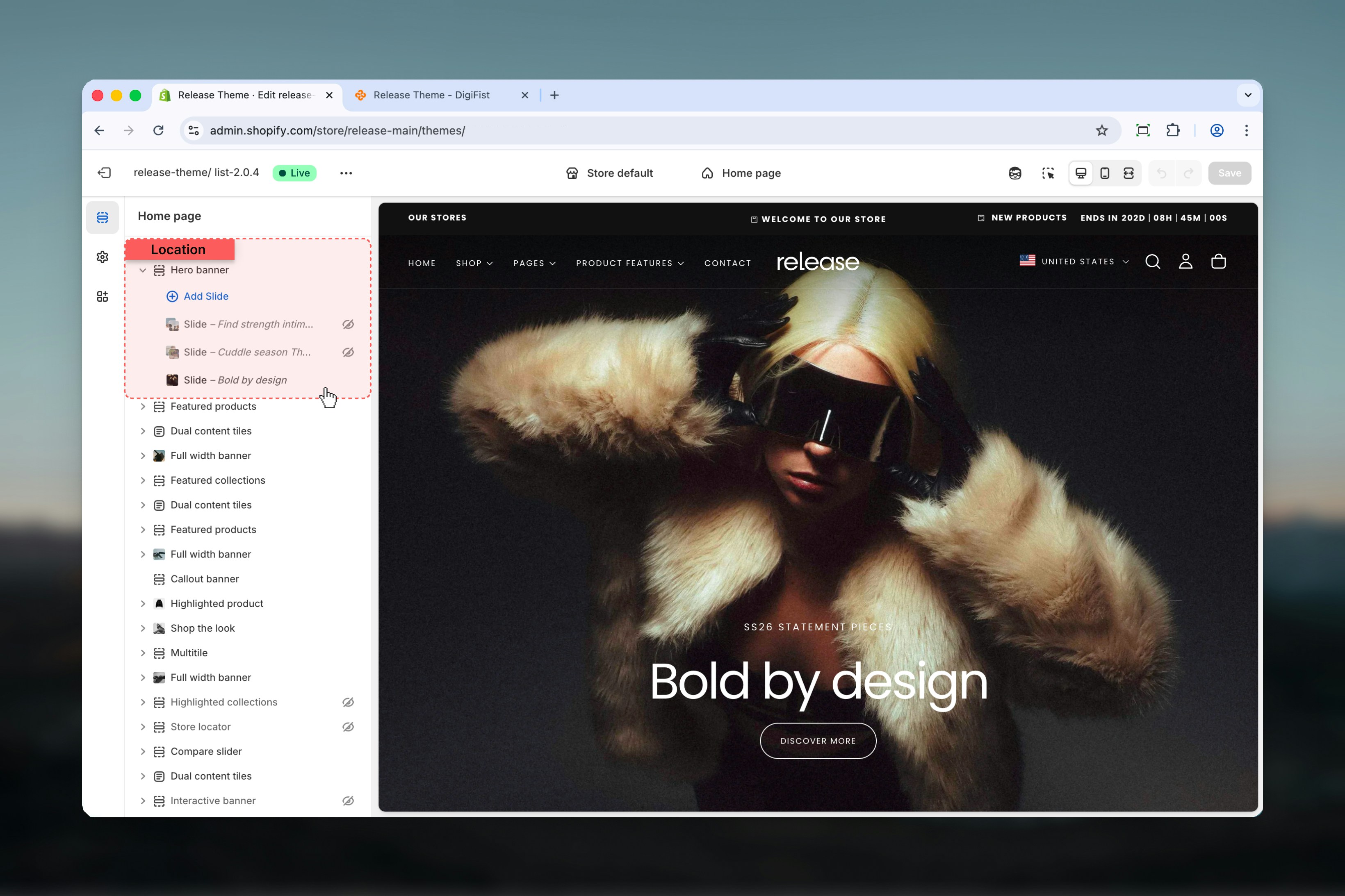
The Hero Banner uses a block-based system:- Each slide is created as a block inside the Hero Banner section
- Multiple slides automatically form a slideshow
- When placed as the first section on the page, the Hero Banner can enable a transparent header
Getting started
1
Open Theme Customizer
From Shopify admin, access the Theme Customizer.
2
Add Hero Banner section
Add the Hero Banner section to your page or template.
3
Add slides
Click Add Slide to create banner content.
4
Configure settings
Adjust section and slide settings according to your needs.
Section settings
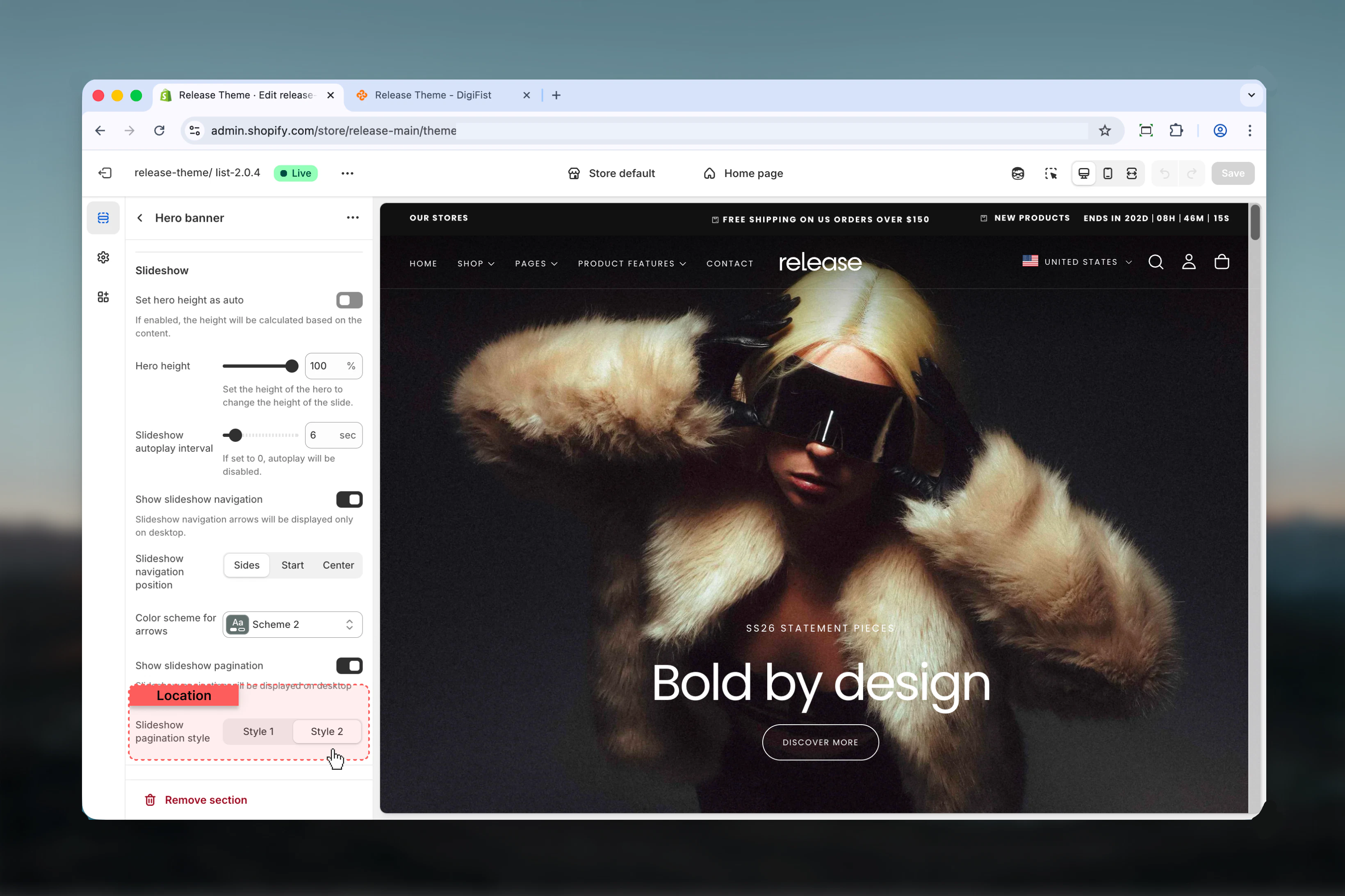
Section settings control the global behavior of the Hero Banner and apply to all slides.- Header integration
- Slideshow
- Advanced
Enable transparent header
When enabled, the header becomes transparent only if this section is the first section on the page.This allows the Hero Banner media to appear behind the header.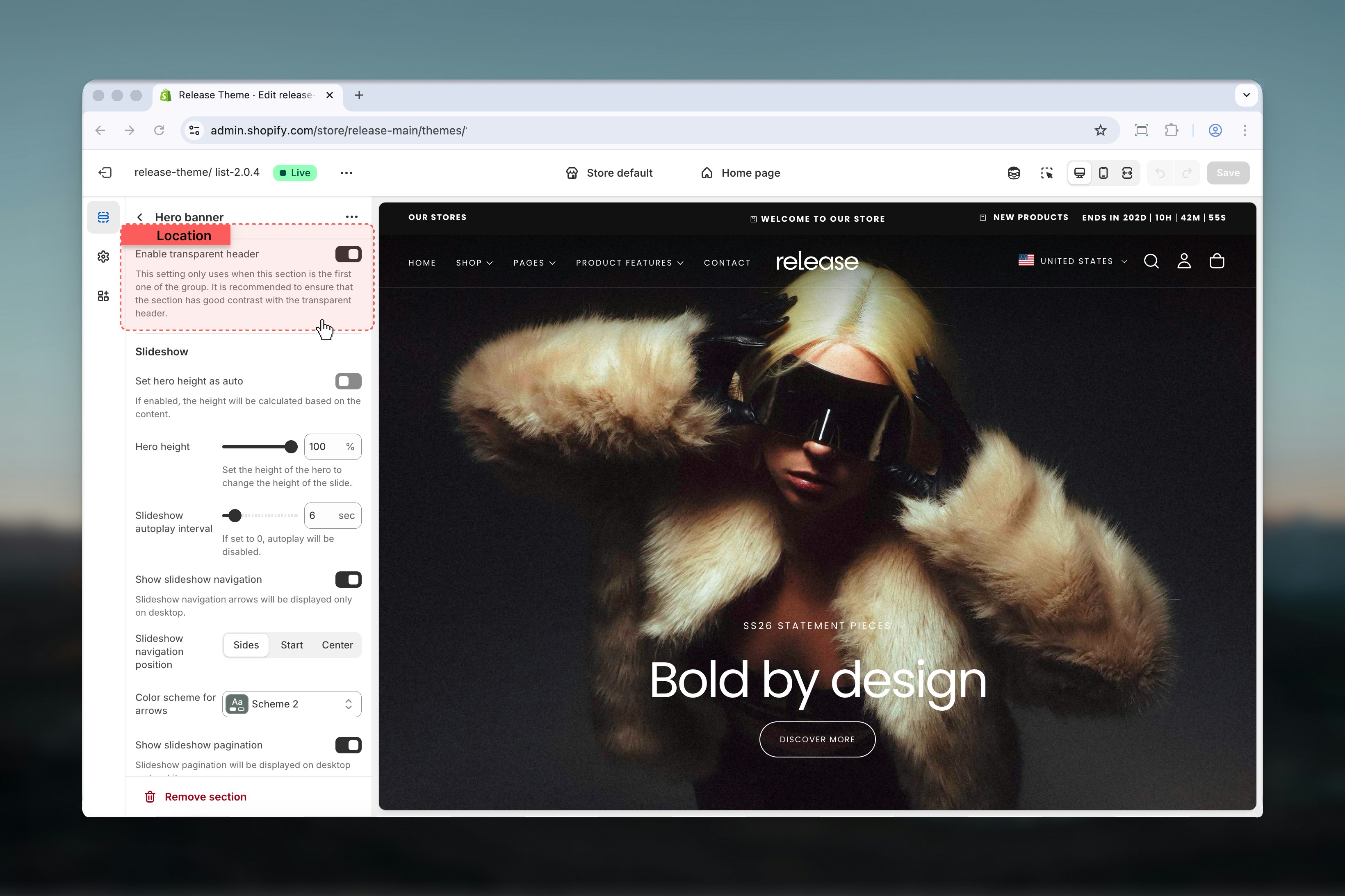
Block settings
Block settings control the layout, content, and media of each individual slide. Each slide represents one banner within the hero area.- Layout & Style
- Content
- Desktop media
- Mobile media
Banner layout
Controls how content and media are distributed within the slide.Available options: Full, 70 / 30, 30 / 70, Split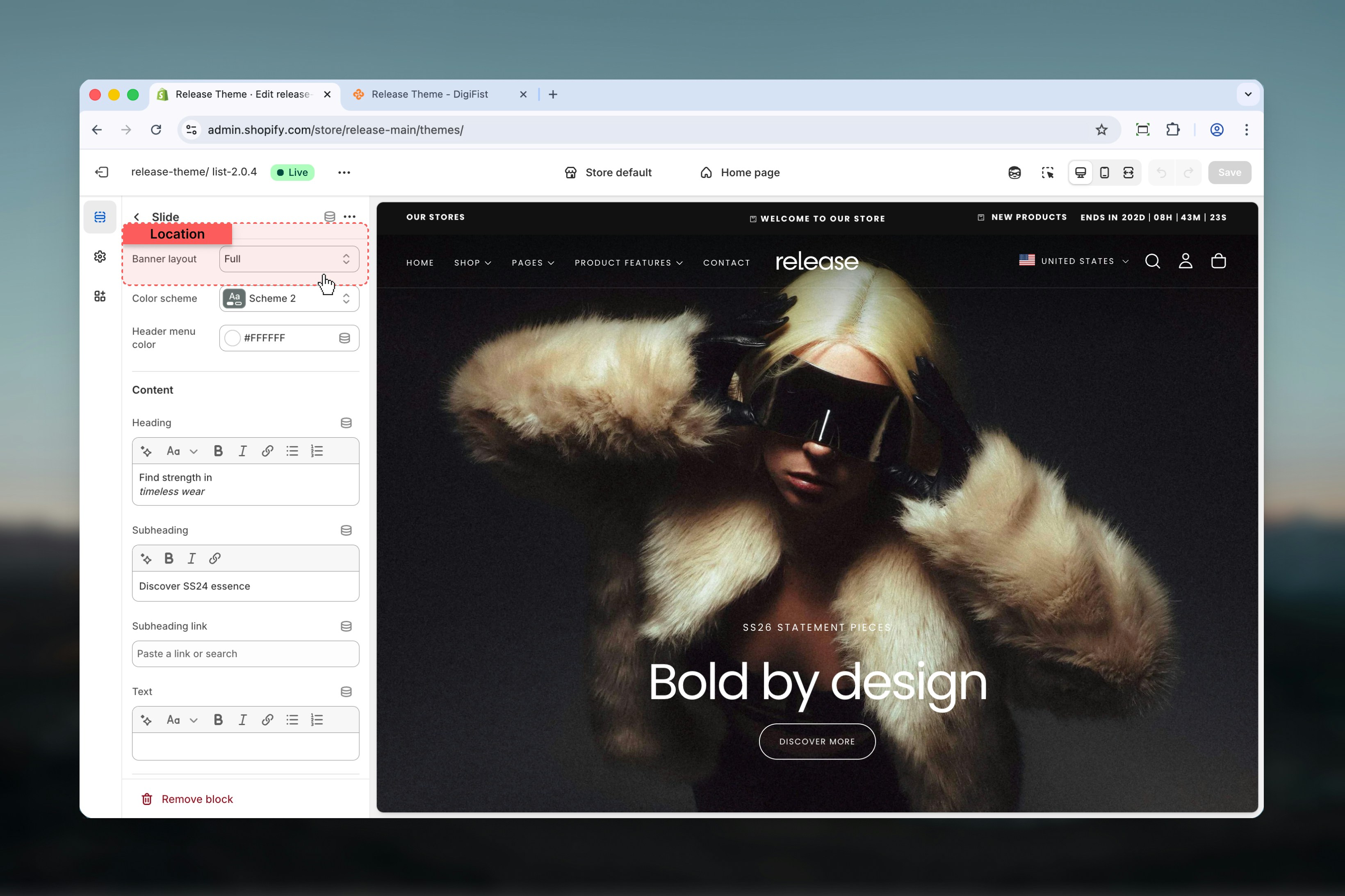
Color scheme
Controls the background and text colors for the slide using Shopify’s color scheme system.Header menu color
When the header is transparent, this setting controls the color of header navigation links for better contrast.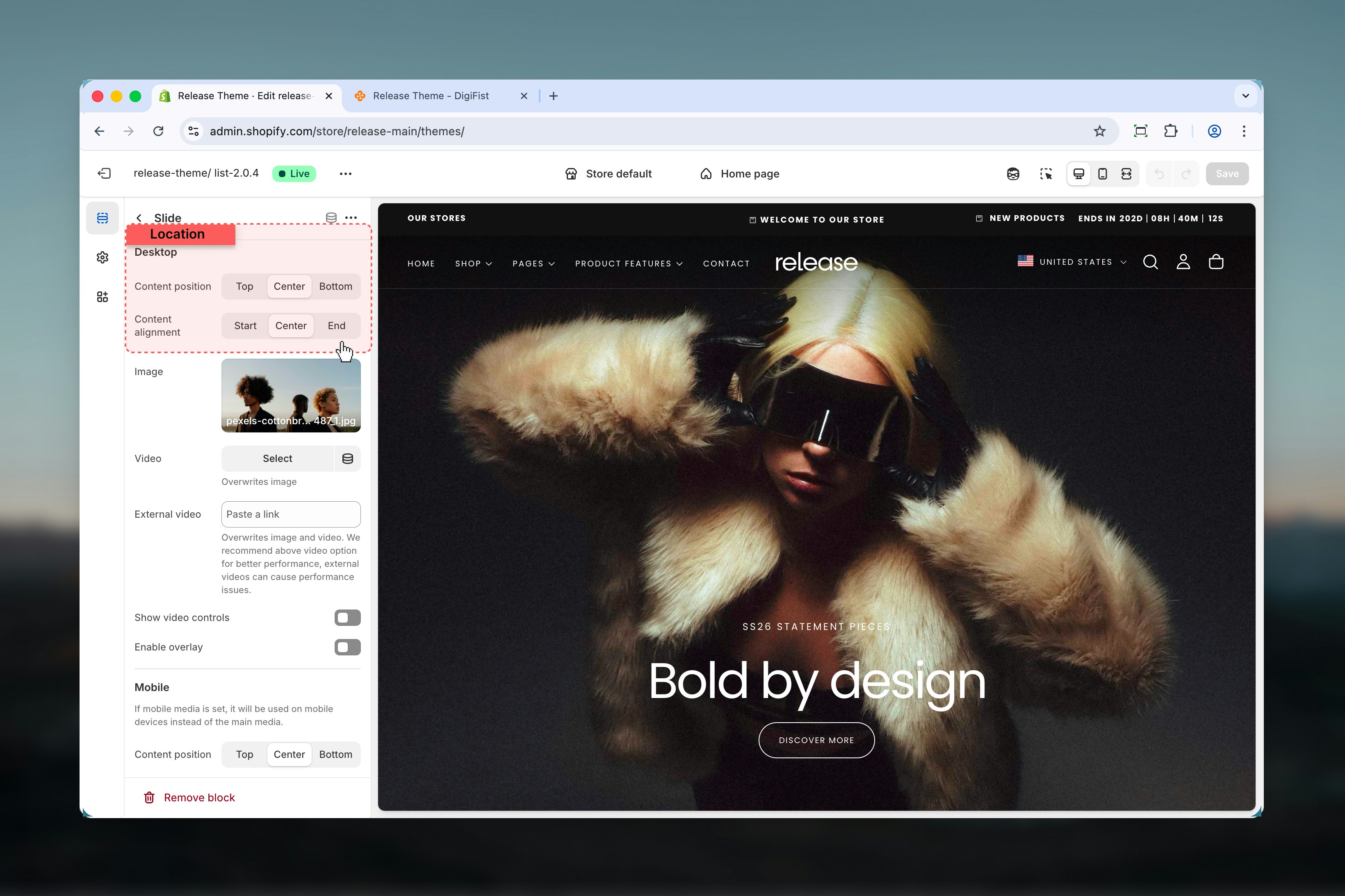


Best practices
- Use the Hero Banner as the first section to enable transparent headers
- Avoid external videos unless necessary due to performance impact
- Ensure sufficient contrast when using transparent headers for navigation visibility
- Keep slide content concise for better readability and faster comprehension
- Limit the number of slides to maintain performance and prevent user fatigue
- Test mobile and desktop layouts separately to ensure optimal presentation
- Use high-quality images that maintain clarity at large sizes
Related guides
Header section
Learn about header configuration and transparent header behavior
Theme settings
Understand global theme configuration options