

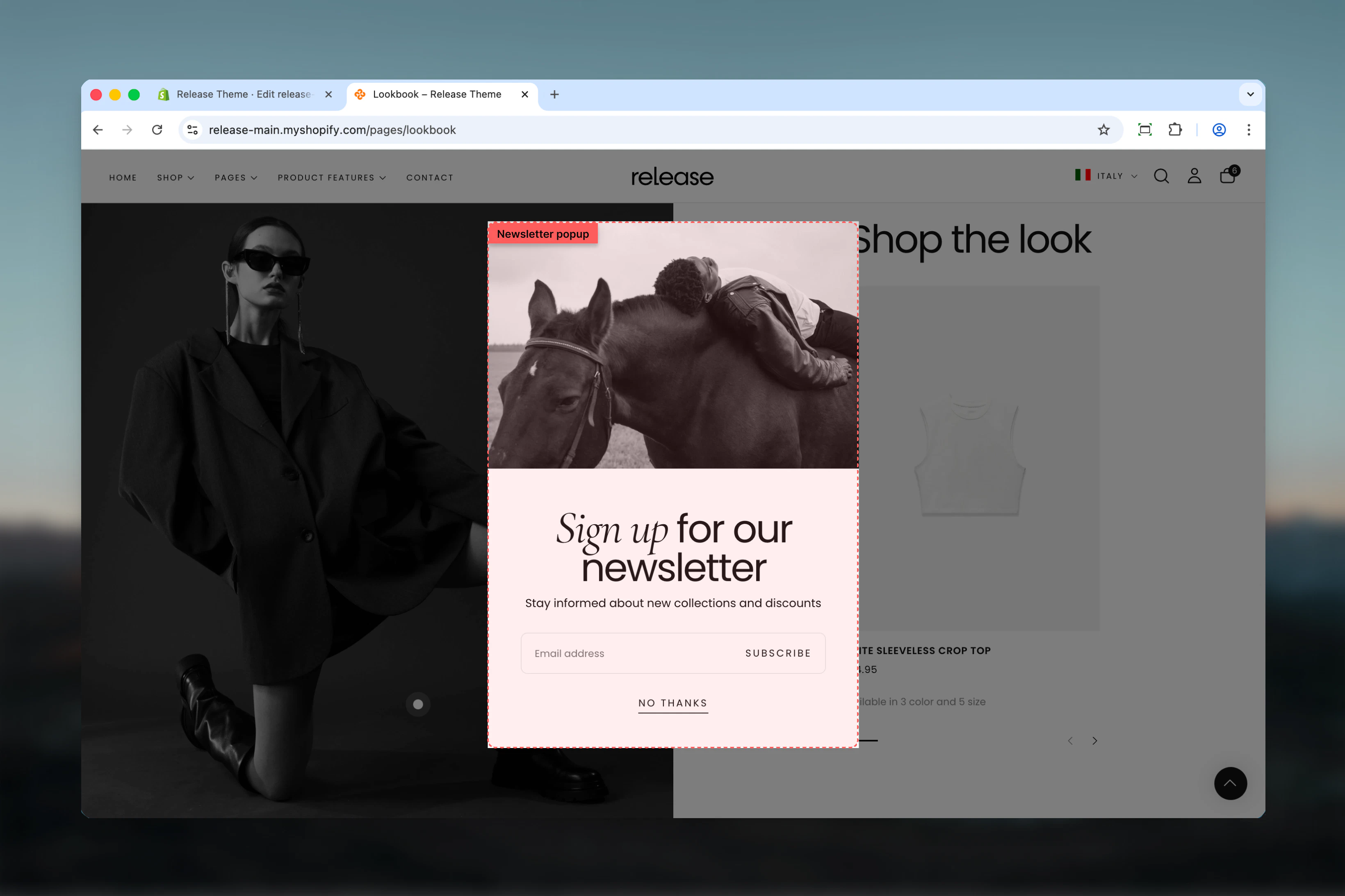
What this section controls
This section controls newsletter popup display with the following capabilities:- Timed appearance after page load (4-30 seconds)
- Optional image for visual appeal
- Customizable heading and text
- Integrated newsletter signup form
- Friendly close/dismiss option
- Theme Customizer preview mode
How the Newsletter Popup section works
The Newsletter Popup displays a modal overlay:- Appears automatically after configured delay
- Shows optional image alongside content
- Displays heading, text, and email form
- User can submit email or close popup
- Remembers if user dismissed (session-based)
- Mobile responsive design
Getting started
1
Open Theme Customizer
From Shopify admin, access the Theme Customizer.
2
Add Newsletter Popup section
This section is typically added to your theme’s global sections.
3
Configure content
Set heading, text, and optional image.
4
Set timing
Adjust delay to control when popup appears (recommend 10-15 seconds).
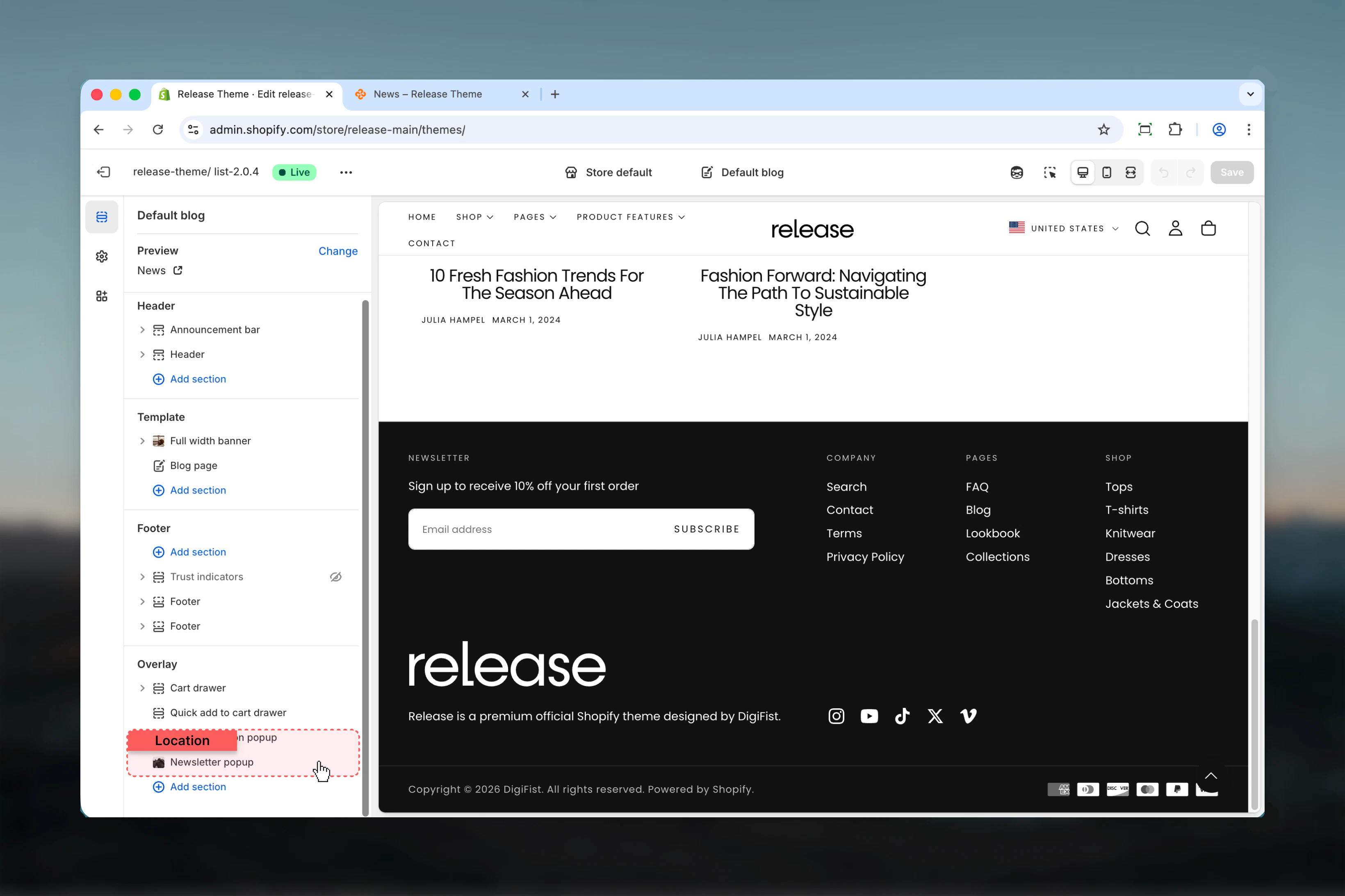
Section settings
- Timing
- Content
- Settings
Show newsletter after
Controls when the popup appears after page load.Range: 4 – 30 secondsDefault: 10 seconds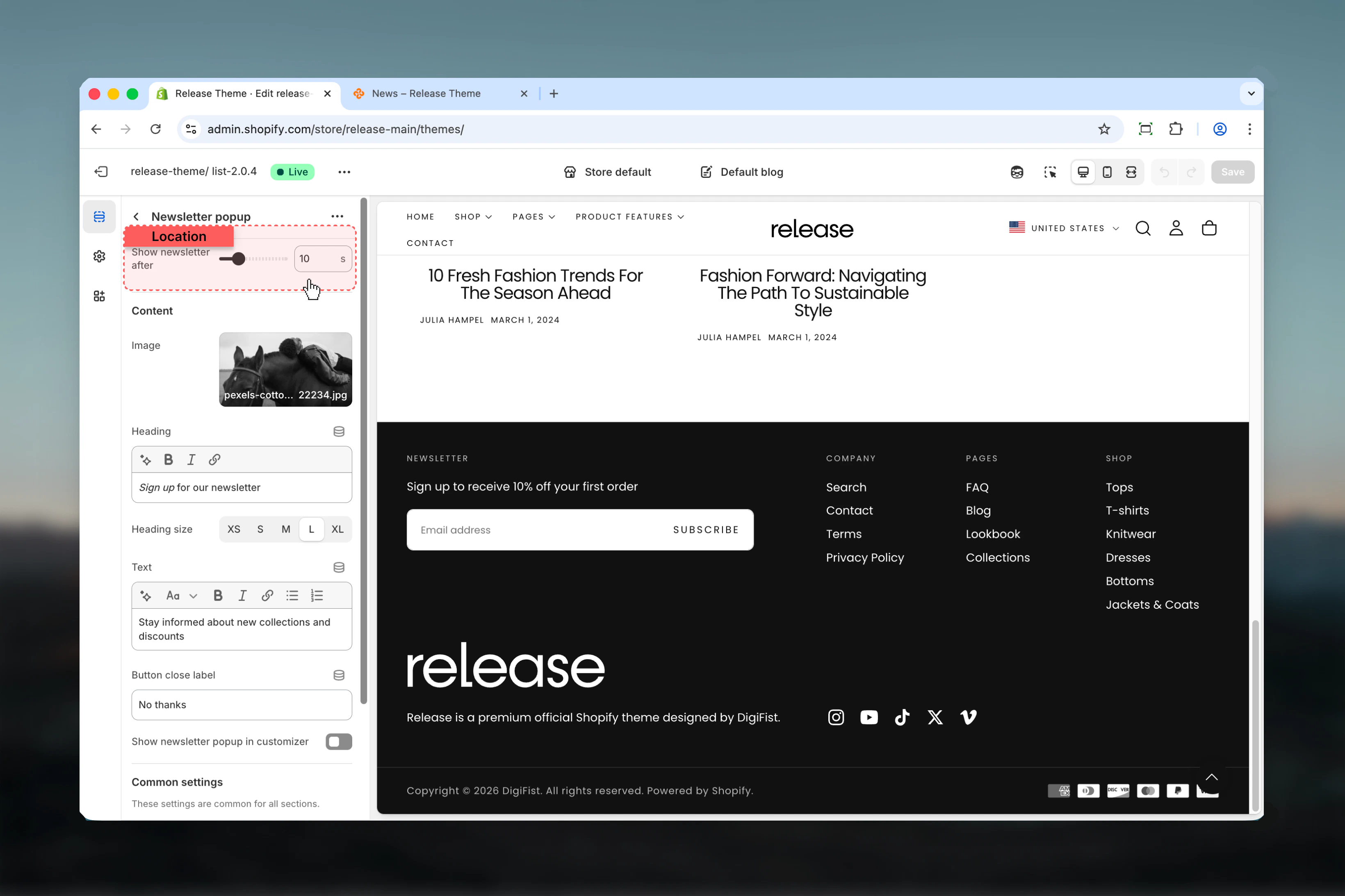
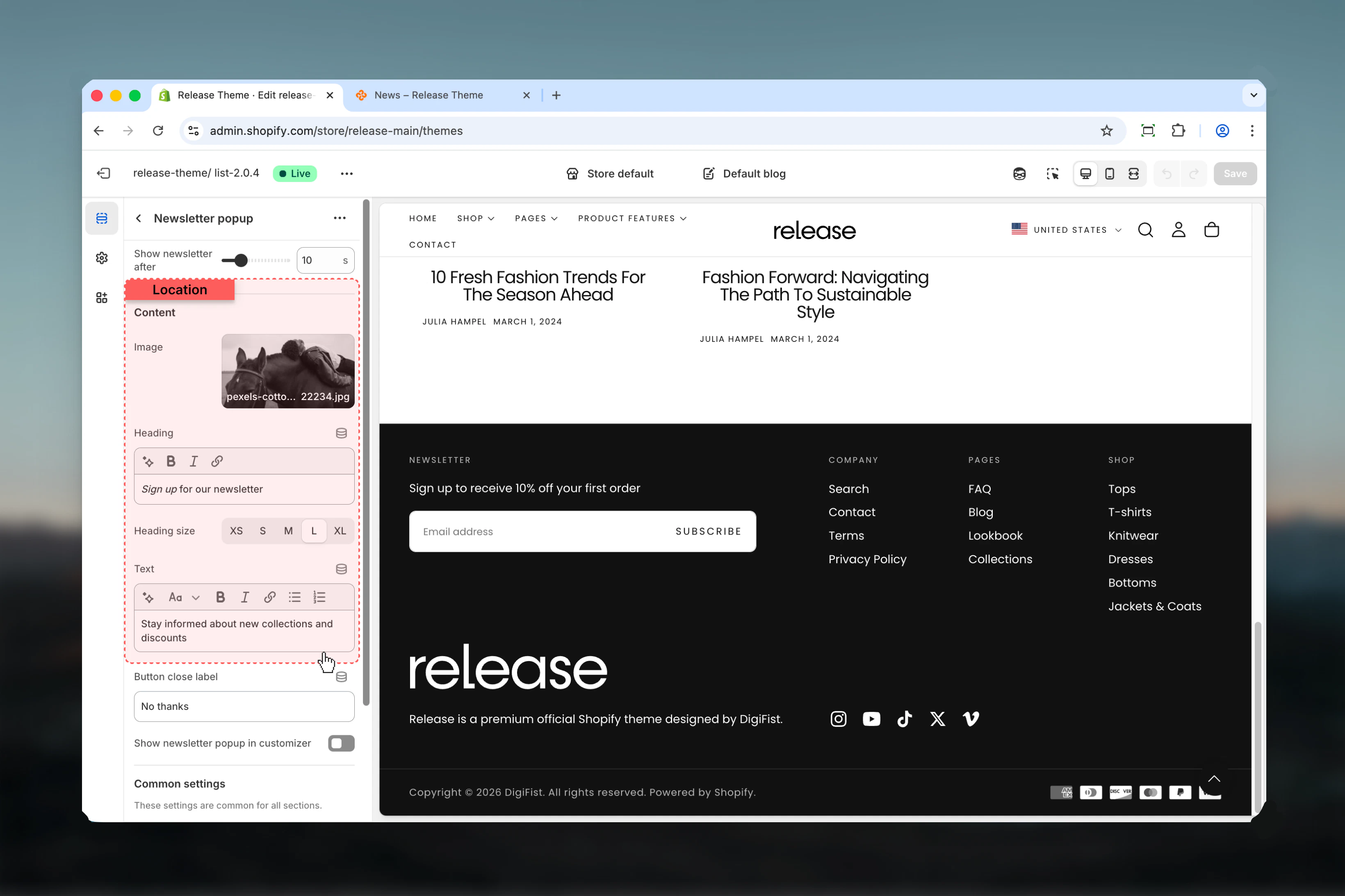
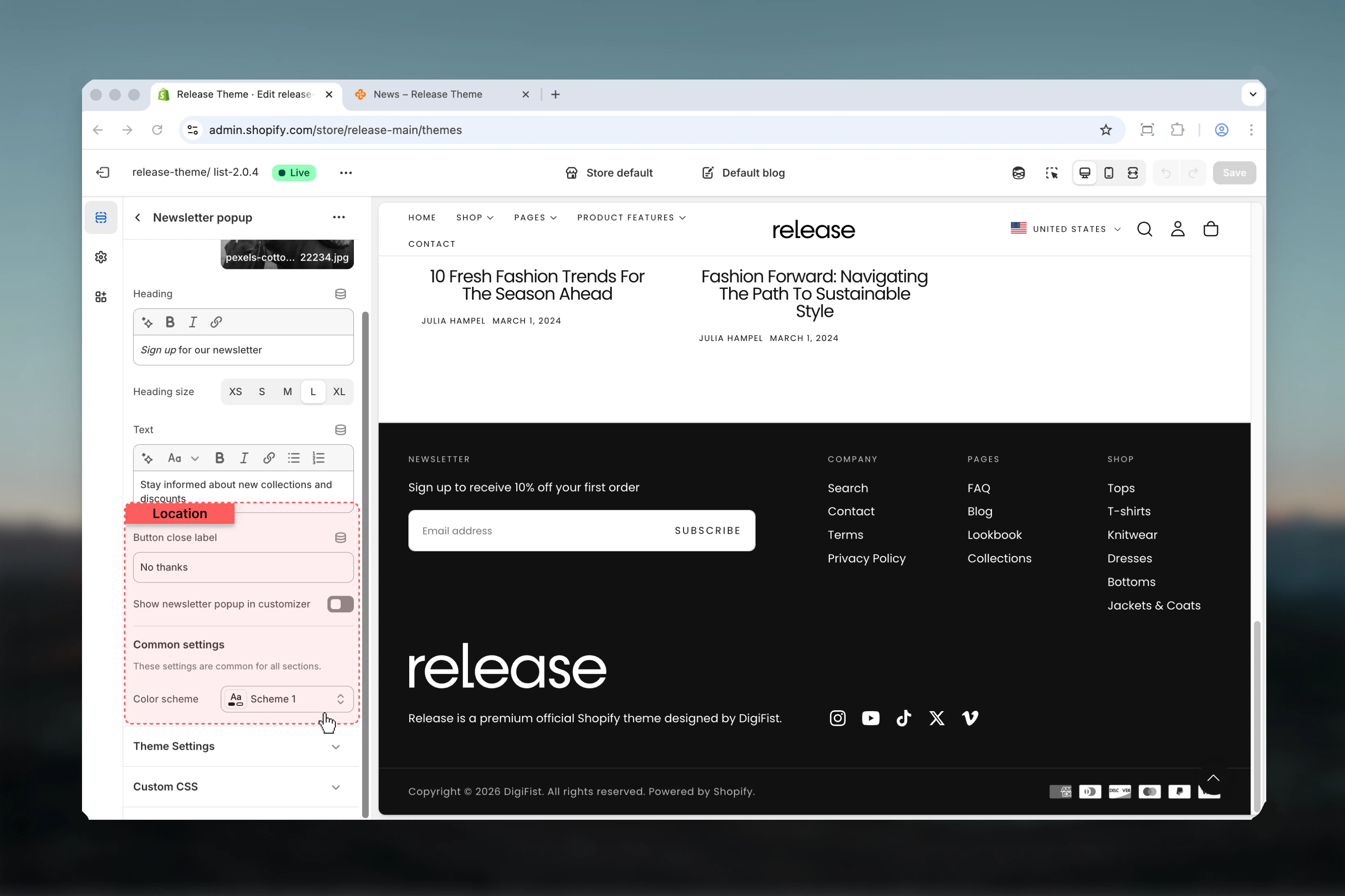
Newsletter form
The popup includes an integrated newsletter signup form:- Email input field - Standard email validation
- Submit button - Label from theme translations
- Form handling - Integrates with Shopify customer accounts
- Error messaging - Displays validation errors
- Success state - Shows confirmation message
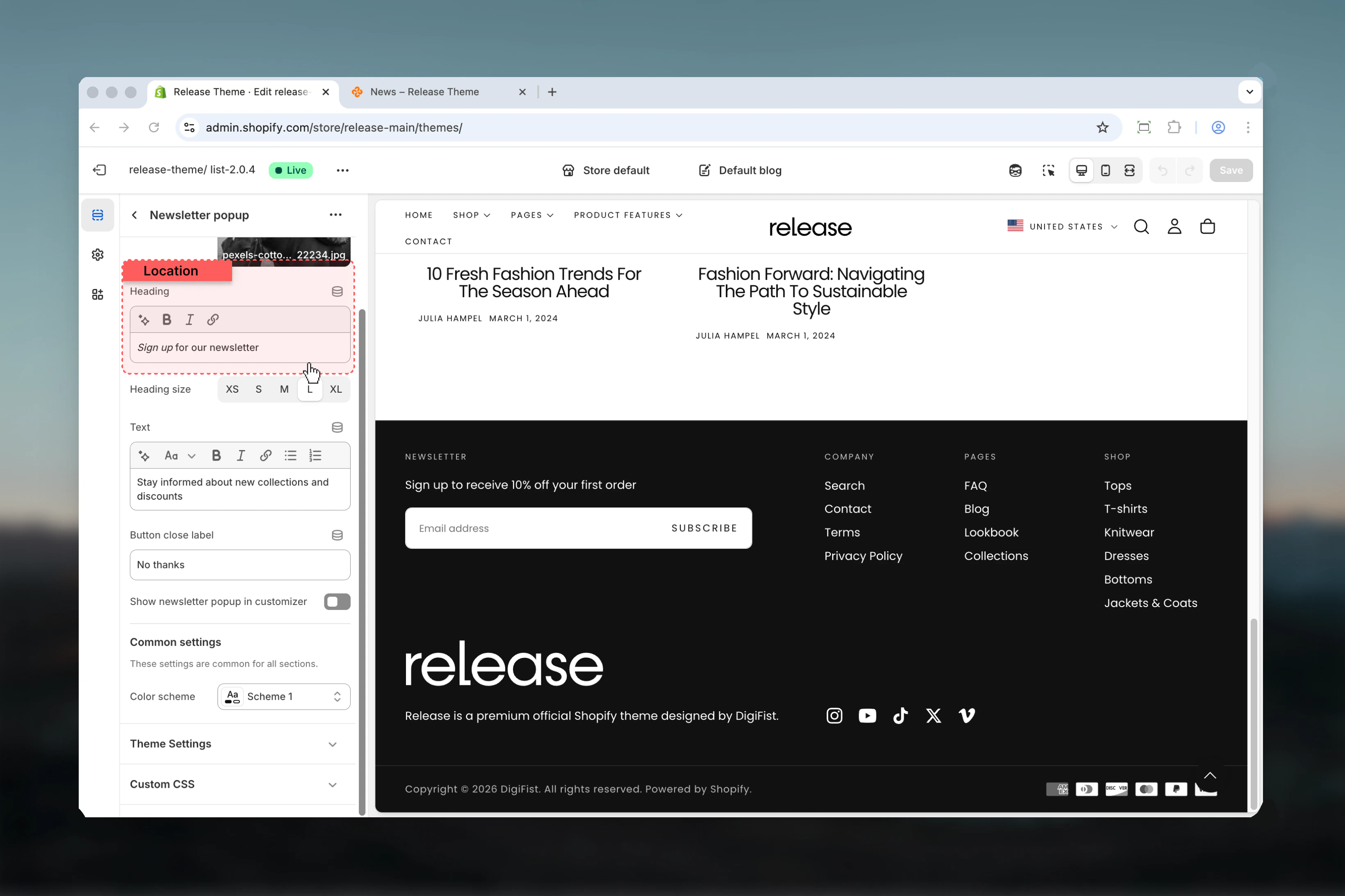
Best practices
- Set delay to 10-15 seconds to allow users to engage with page content first
- Keep heading concise and value-focused - emphasize benefits like “Get 10% off” or “Exclusive access”
- Use high-quality brand imagery that supports your value proposition
- Make close button text friendly and non-pushy - “No thanks” or “Maybe later” work well
- Enable “Show in customizer” temporarily for testing appearance without waiting
- Avoid very short delays (< 8 seconds) that interrupt users immediately
- Test with different color schemes to ensure popup stands out but doesn’t clash
- Keep descriptive text brief - one or two sentences maximum for quick scanning
- Ensure color scheme provides strong contrast for text readability and accessibility
- Consider A/B testing different delays, headlines, and images to optimize conversion
Common use cases
- Email list building - Capture subscriber emails on homepage and key landing pages
- First-time visitor capture - Engage new visitors with welcome offers
- Special offer announcements - Promote limited-time discounts or free shipping
- Exclusive content access - Gate premium content like guides or lookbooks
- Product launch notifications - Build pre-launch email list for new products
- Seasonal campaign signups - Capture emails for holiday sales or seasonal collections
- VIP club invitations - Invite customers to join loyalty programs
- Early access signups - Offer early access to sales or new releases
Related guides
Common Settings
Learn about common settings shared across sections