

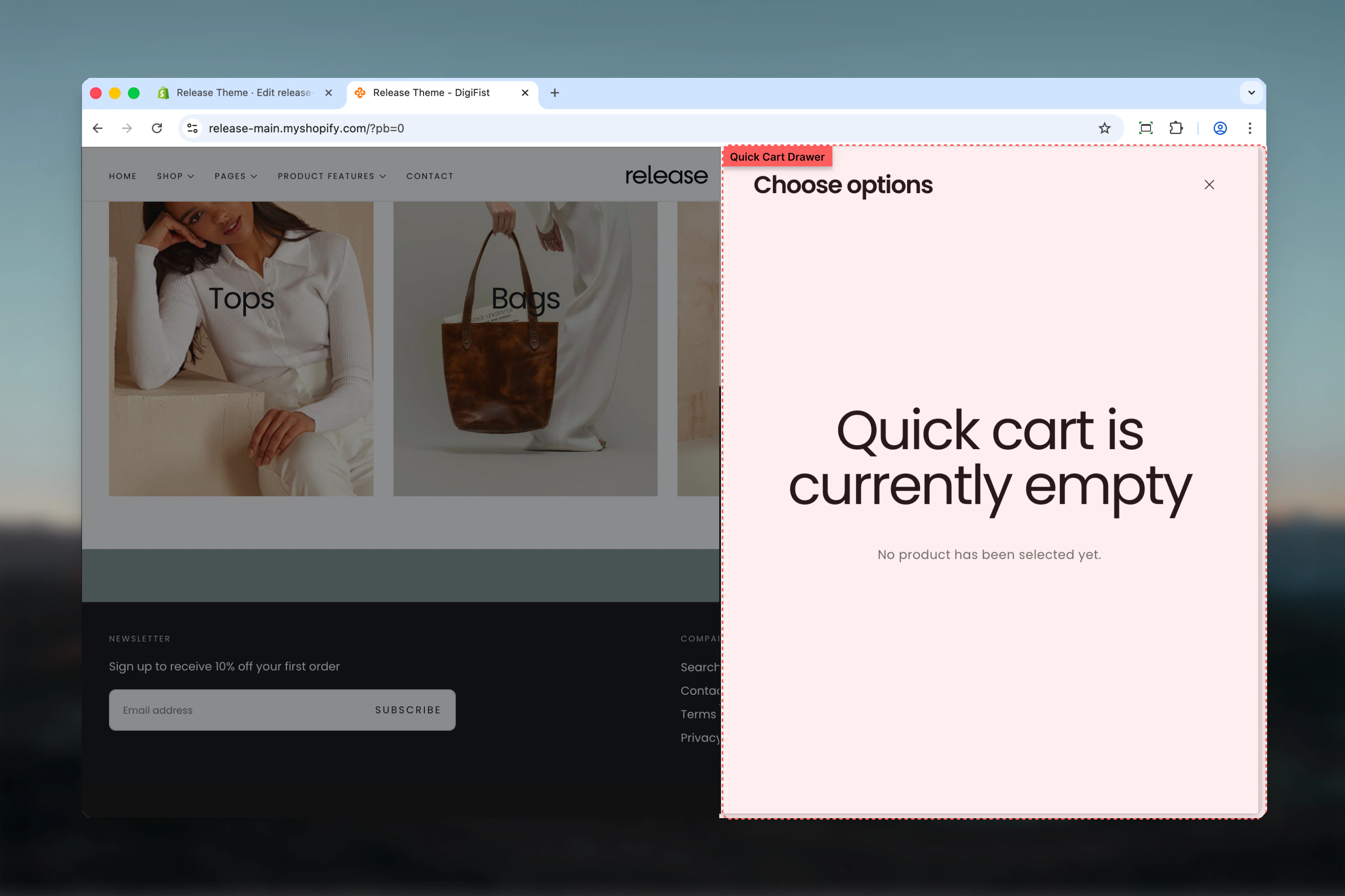
What this section controls
- Quick add drawer appearance
- Product option selection interface
- Color scheme for drawer
- Empty state messaging
How it works
When quick add buttons are enabled in theme settings:- Customer clicks “Quick Add” on a product card
- Drawer opens showing product options (variants, quantity)
- Customer selects options and adds to cart
- Drawer closes automatically after adding
Section settings
Color scheme
Background and text colors for the drawer.- Shopify color scheme selector
- Default: Scheme 1
This section only appears when “Enable quick add to cart button” is enabled in Theme Settings > Products.
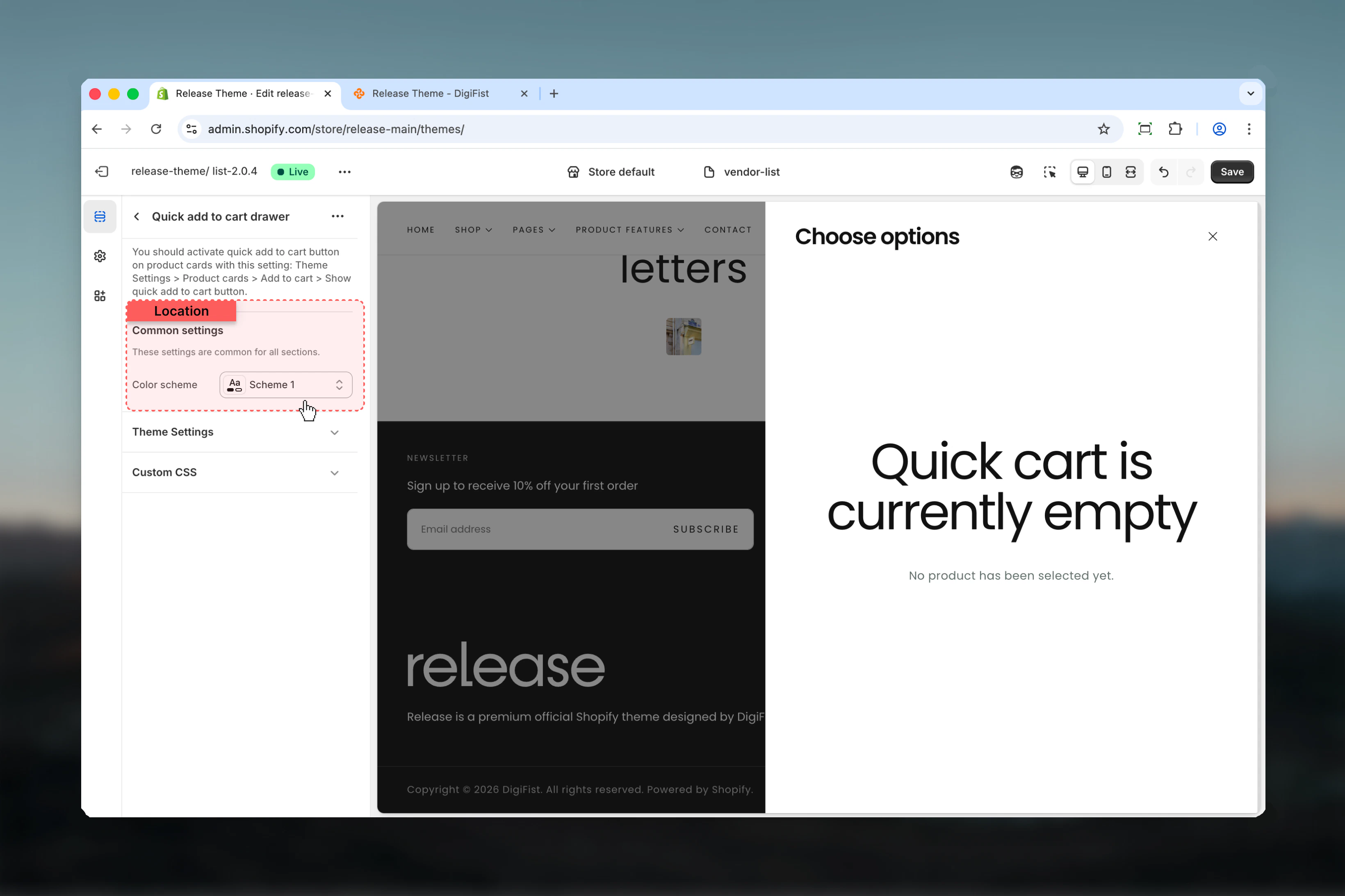
Empty state
When drawer is opened without product data: Title: “Choose your options” Empty message: Displayed when no product is loadedBest practices
- Match color scheme with your cart drawer for consistency
- Ensure product media aspect ratio is set in theme settings
- Test quick add functionality on product grids
- Verify variant selection works correctly
- Check mobile experience for smooth interactions
Common use cases
- Collection pages - Quick add from product grids
- Search results - Fast add to cart from search
- Related products - Quick add from recommendations
- Featured products sections - Homepage quick purchases
Related guides
Product Settings
Enable and configure quick add buttons
Cart Drawer
Learn about the main cart drawer