

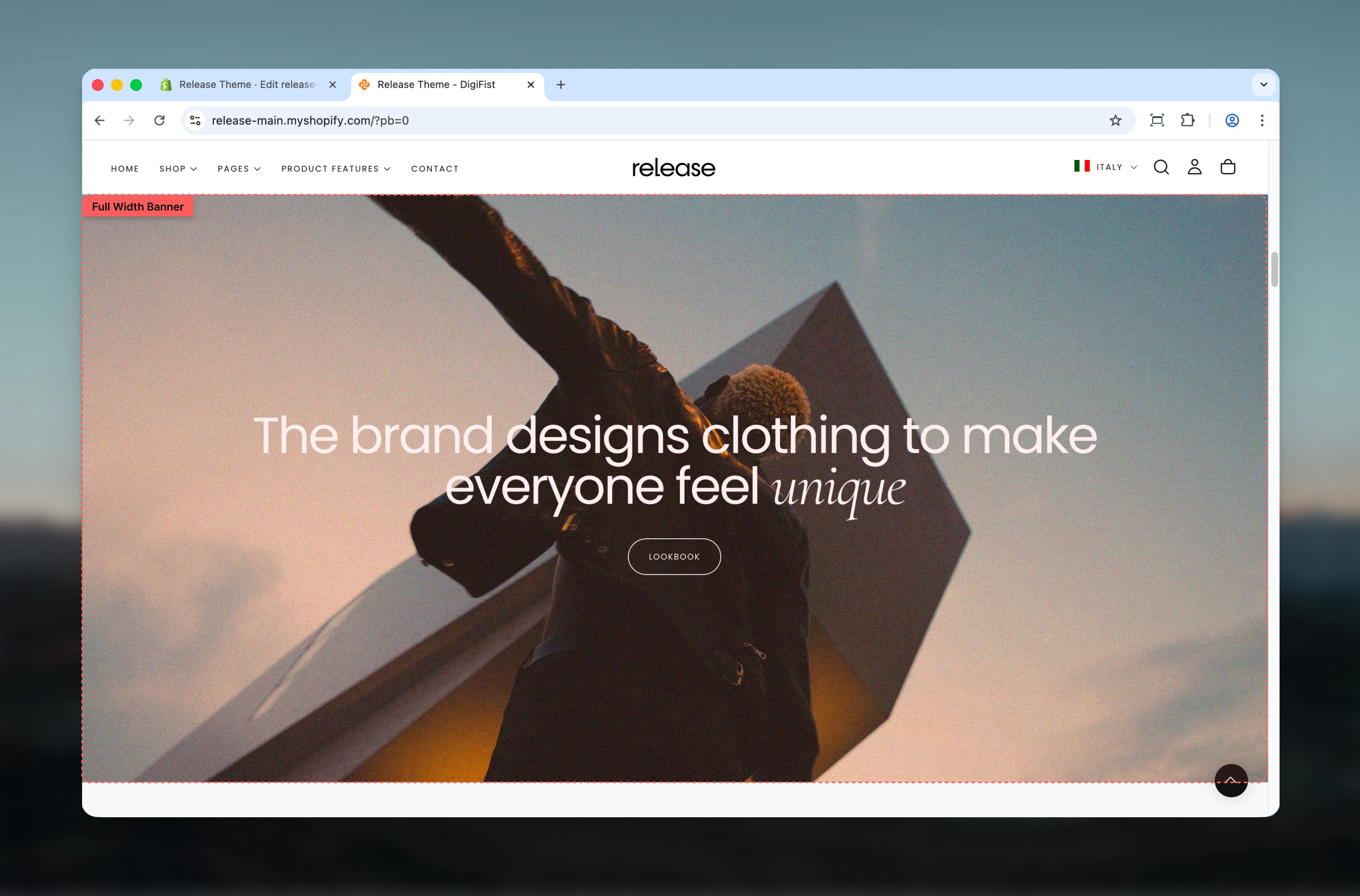
What this section controls
This section controls full-width banner displays with the following capabilities:- Edge-to-edge banners spanning the full viewport width
- Flexible media positioning (top, bottom, or background)
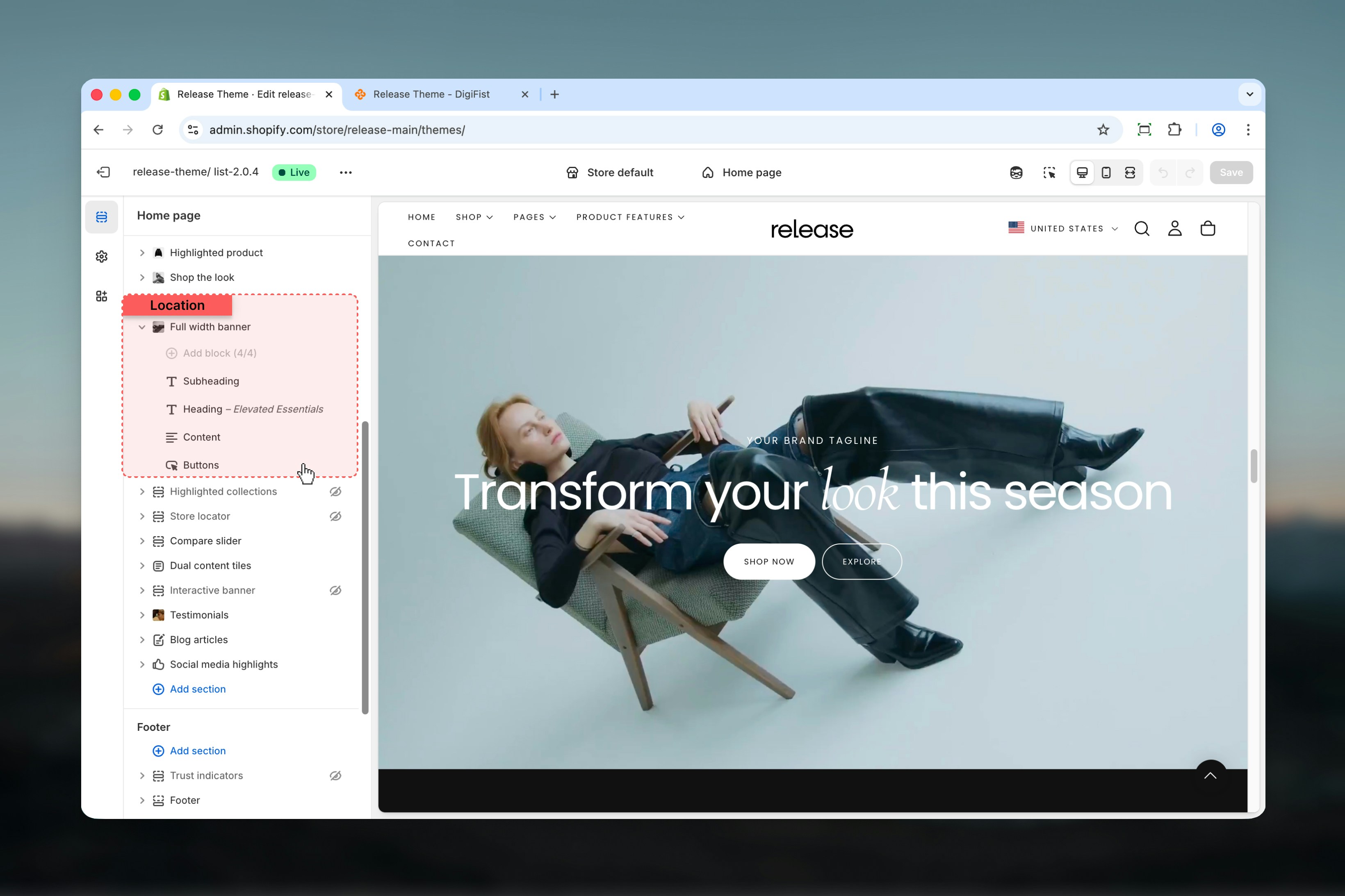
- Block-based content structure for precise control
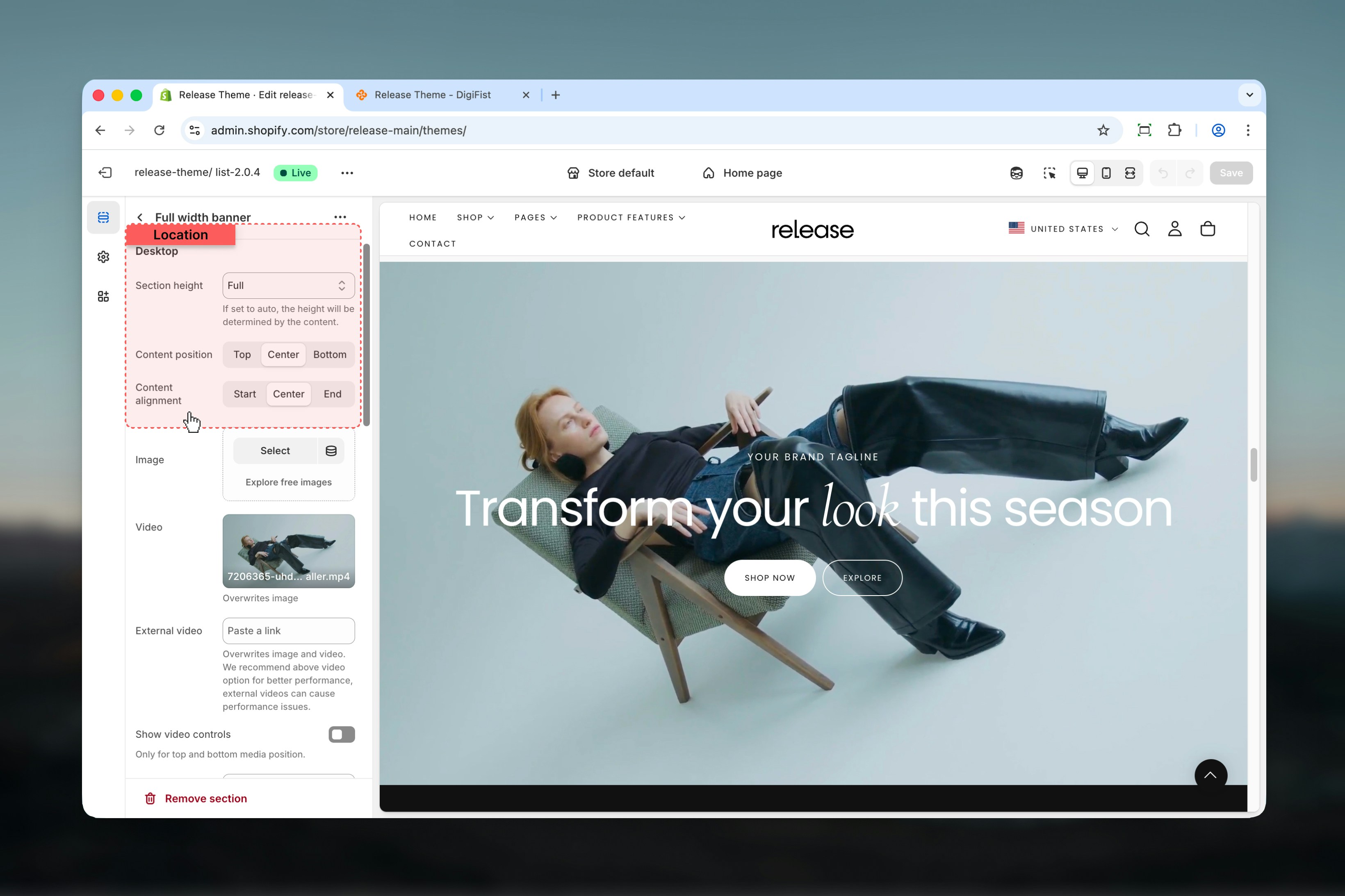
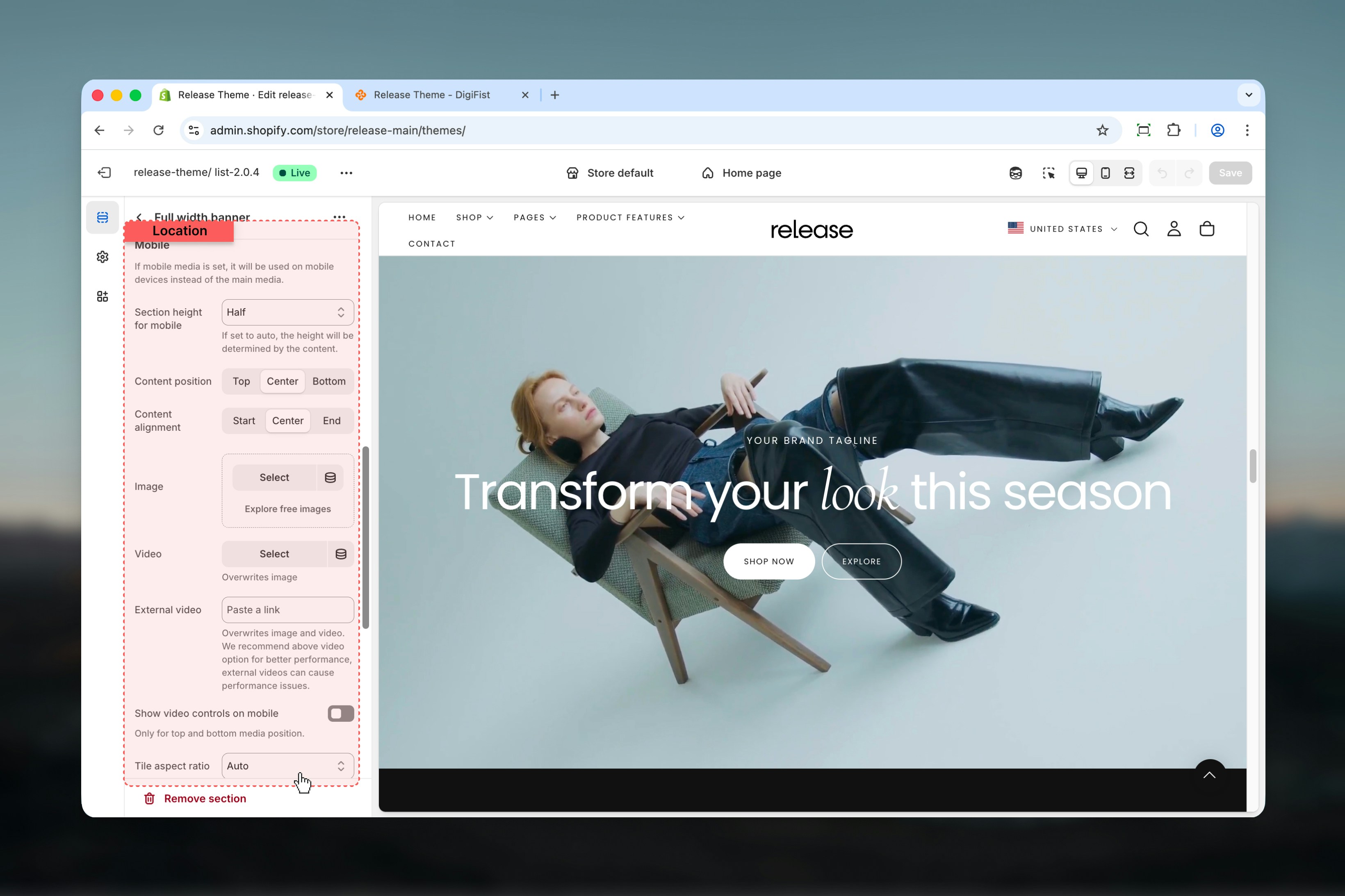
- Desktop and mobile-specific layouts and media
- Transparent header integration when placed first on page
How the Full Width Banner works
The Full Width Banner uses a block-based content system:- The section spans the full width of the viewport
- Media can be positioned above, below, or behind the content
- Content is built using blocks instead of fixed text fields
- Desktop and mobile layouts can be configured independently
- When placed at the top of the page, the banner can enable a transparent header
Getting started
1
Open Theme Customizer
From Shopify admin, access the Theme Customizer.
2
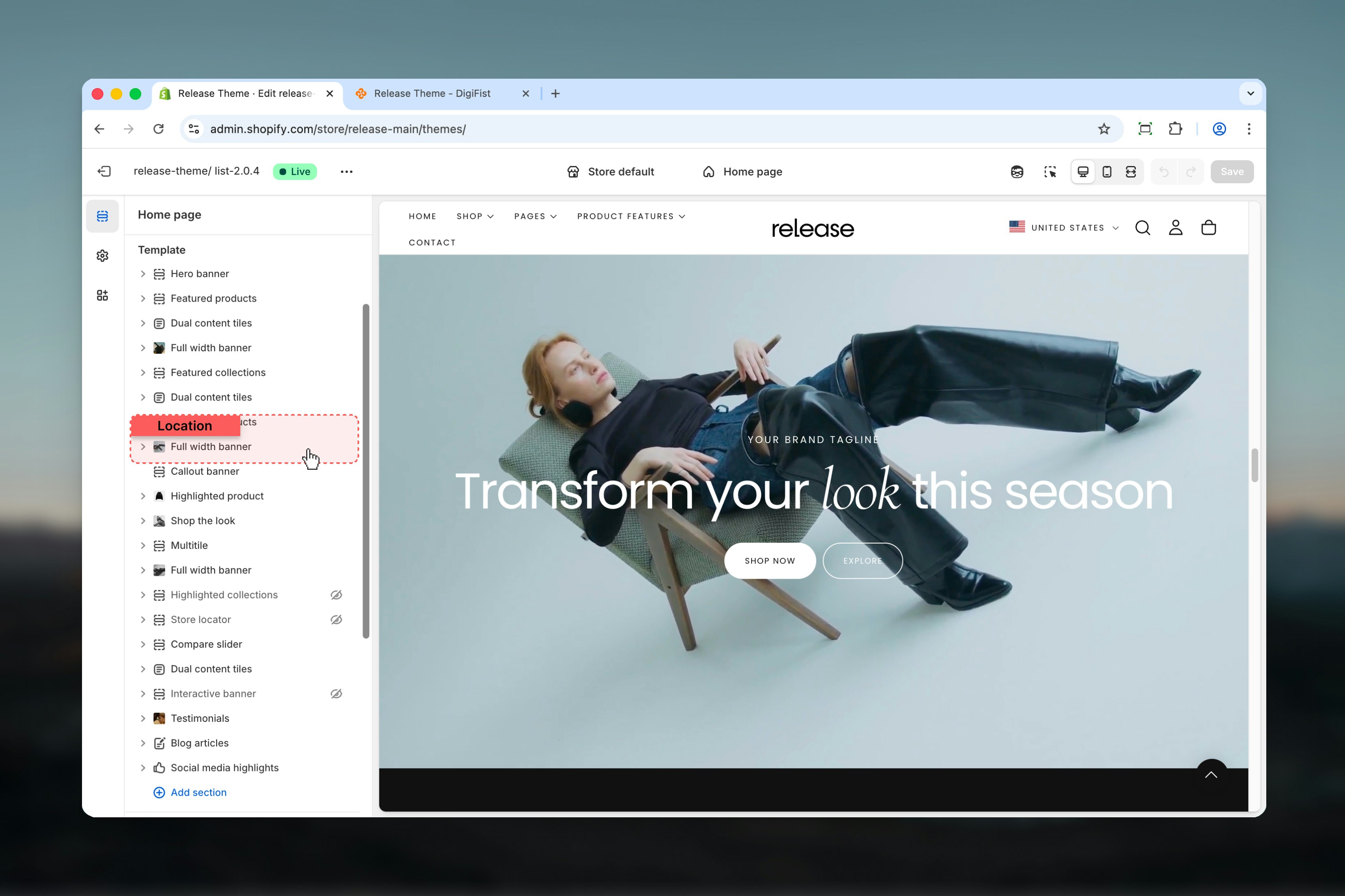
Add Full Width Banner section
Add the Full Width Banner section to your page or template.
3
Add content blocks
Click Add block to create heading, subheading, text, or button blocks.
4
Configure settings
Adjust section settings and media positioning according to your needs.
Section settings
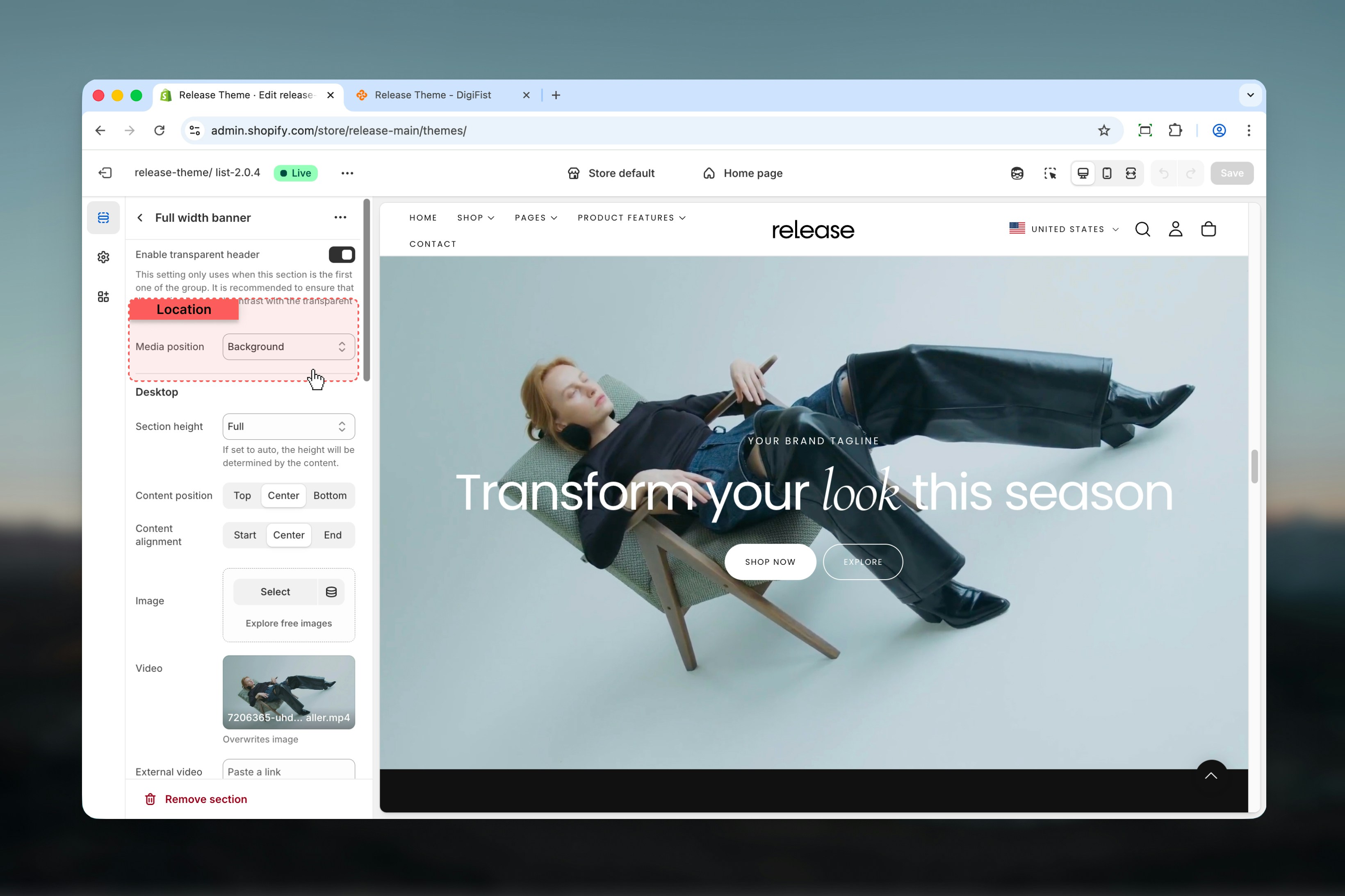
Section settings control the overall layout and media behavior of the banner.- Header integration
- Media position
- Desktop settings
- Mobile settings
Enable transparent header
When enabled, the header becomes transparent only if this section is the first section on the page.This allows the banner media to appear behind the header.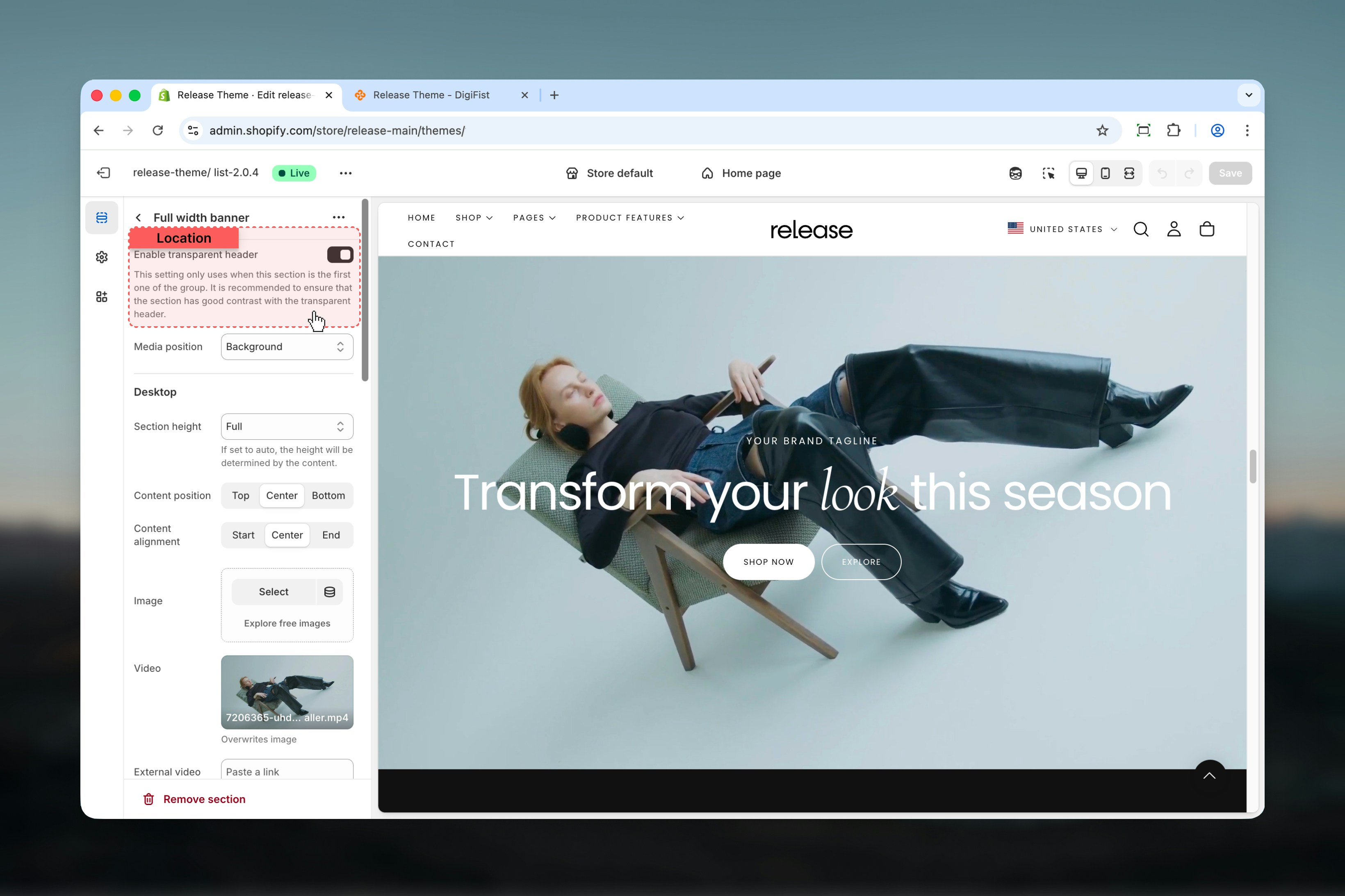
Content blocks
Content inside the Full Width Banner is built using blocks. Blocks can be reordered and selectively enabled per device.Heading block
Heading block
Subheading block
Subheading block
Content block
Content block
Used for longer descriptive text.
Text
Rich text content.- Supports paragraphs and headings (H1–H4)
- Allows bold, italic, and links
Best practices
- Use block order to control content hierarchy and reading flow
- Prefer Background media position for hero-style banners to create immersive experiences
- Avoid external videos unless necessary due to performance impact
- Use Auto height for content-heavy banners to ensure all content is visible
- Test contrast carefully when using transparent headers for navigation visibility
- Keep mobile content concise as vertical space is limited
- Use high-quality images that maintain clarity at full viewport width
- Consider load time when using full-width, high-resolution media
Related guides
Header section
Learn about header configuration and transparent header behavior
Theme settings
Understand global theme configuration options