

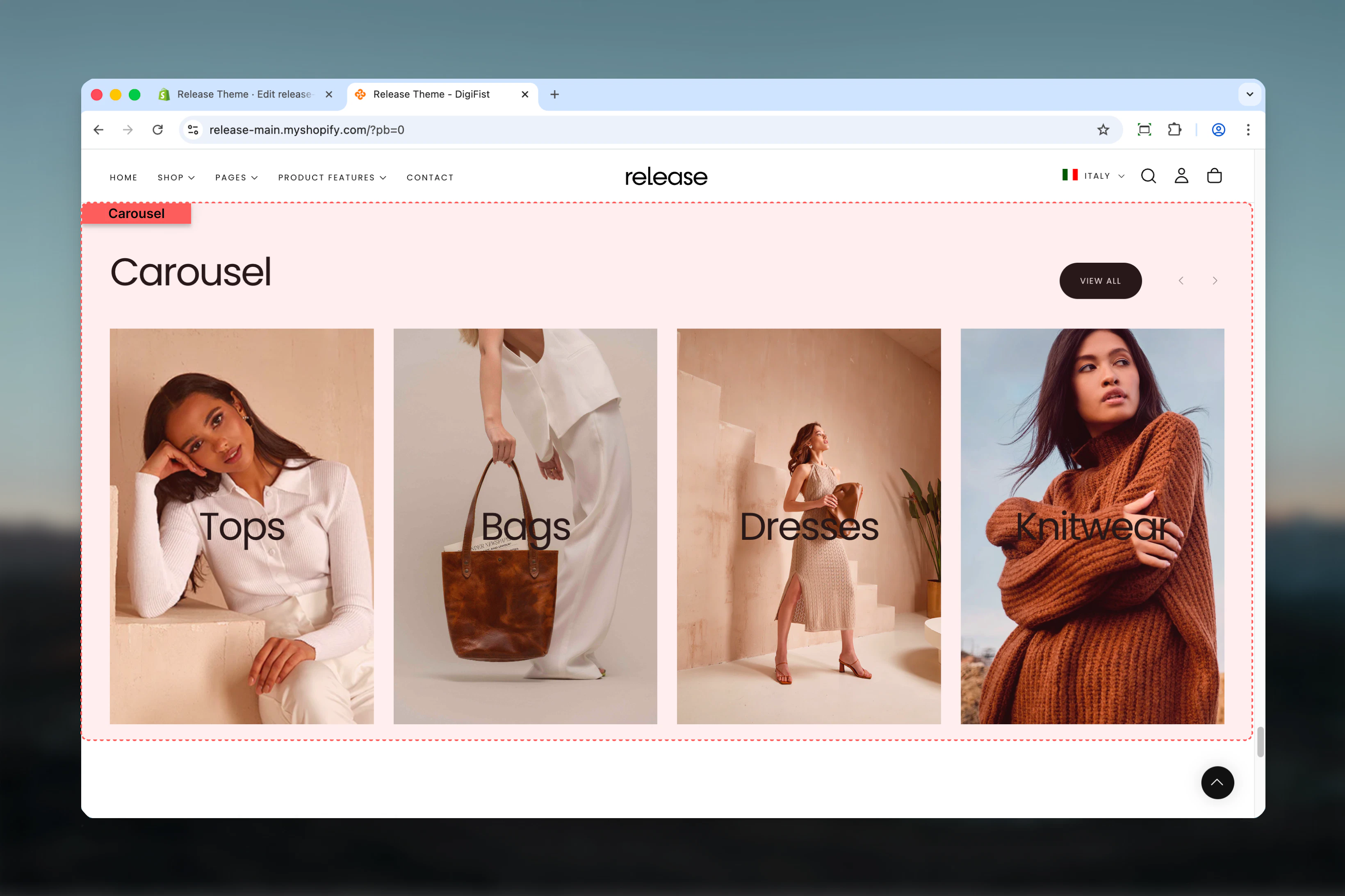
What this section controls
This section controls carousel displays with the following capabilities:- Unlimited customizable card blocks
- Image, video, or external video support per card
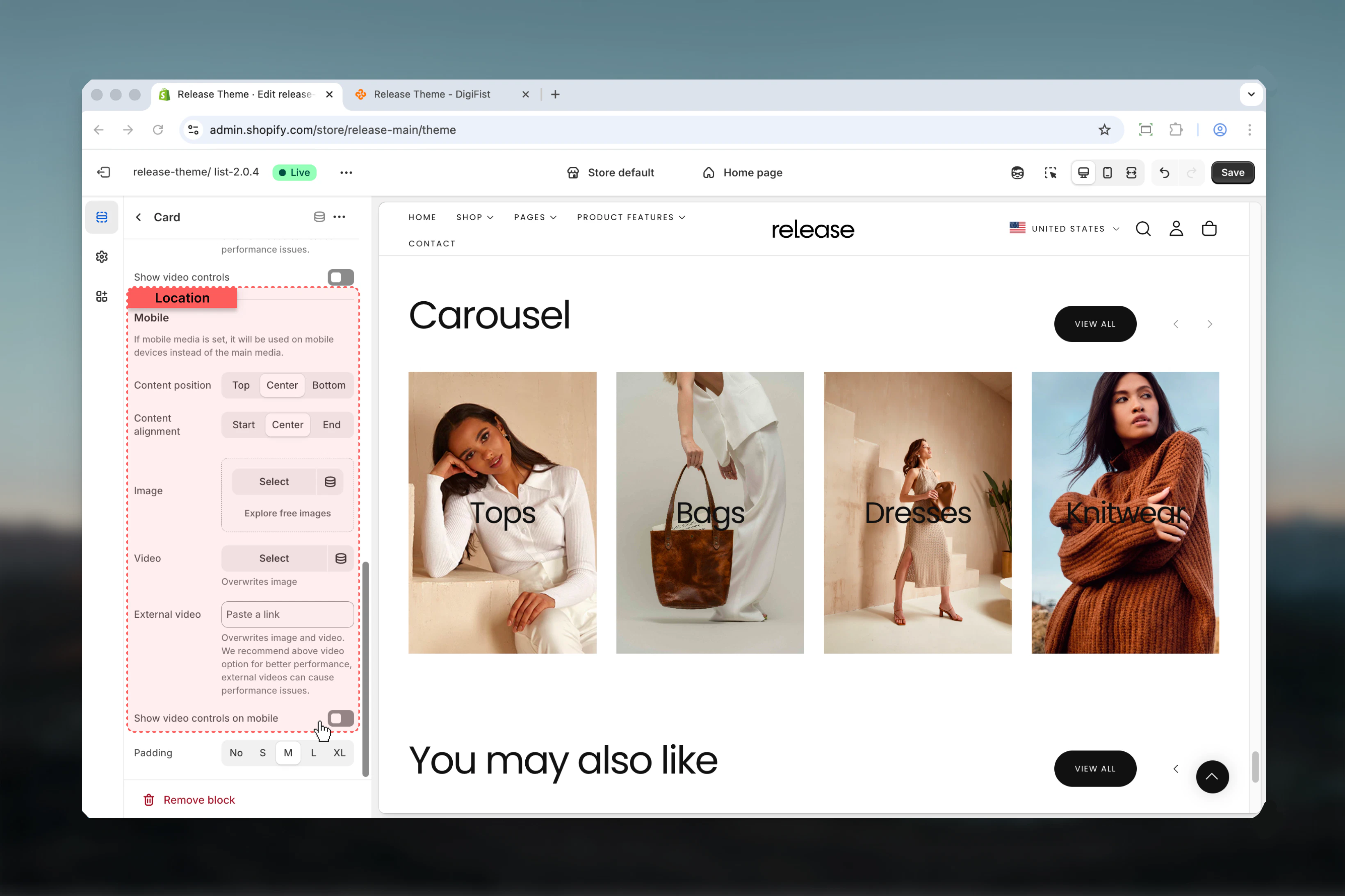
- Desktop and mobile-specific media options
- Configurable slides per view (1-6)
- Automatic or manual slide navigation
- Flexible content positioning and alignment
- Section-level and card-level buttons
How the Carousel section works
The Carousel section uses a block-based system:- Displays content cards as individual carousel slides
- Supports unlimited card blocks
- Each card can contain media (images/videos), heading, text, and button
- Desktop and mobile-specific media and positioning options
- Automatic or manual slide navigation
- Fully customizable slides per view and spacing
Getting started
1
Open Theme Customizer
From Shopify admin, access the Theme Customizer.
2
Add Carousel section
Add the Carousel section to your page or template.
3
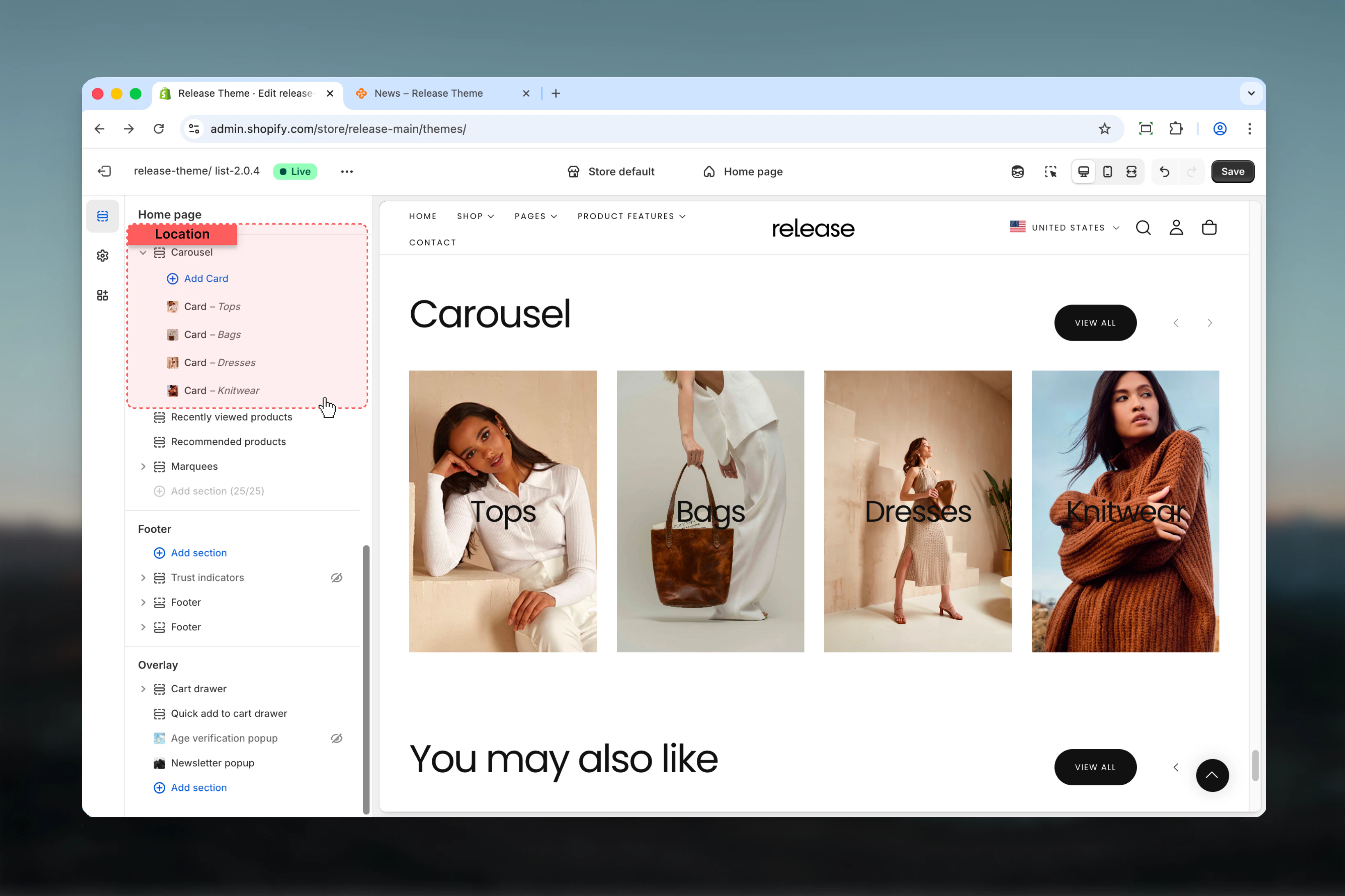
Add card blocks
Click Add Card to create carousel slides.
4
Configure content
Add media, heading, text, and optional button for each card.
Section settings
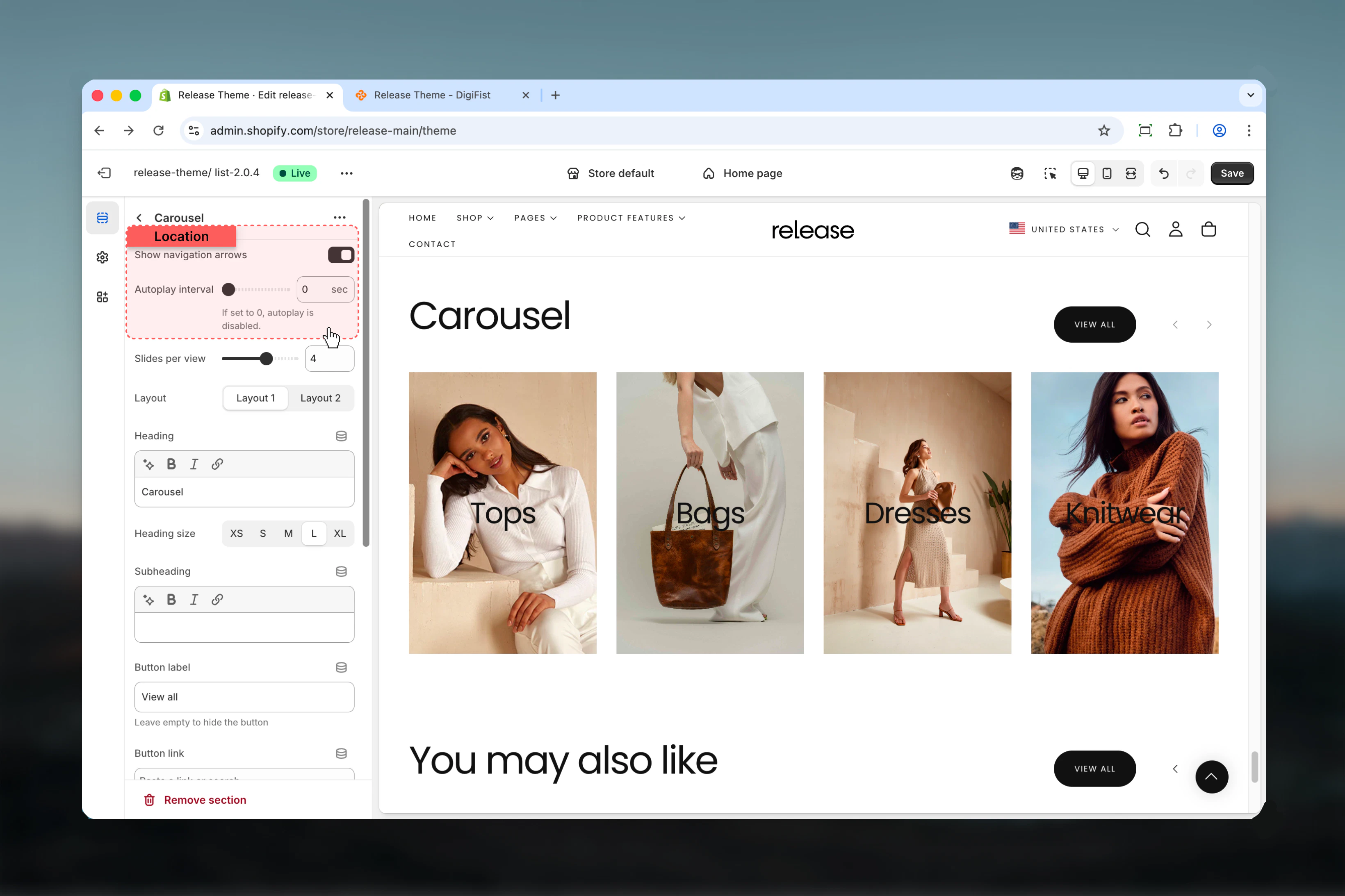
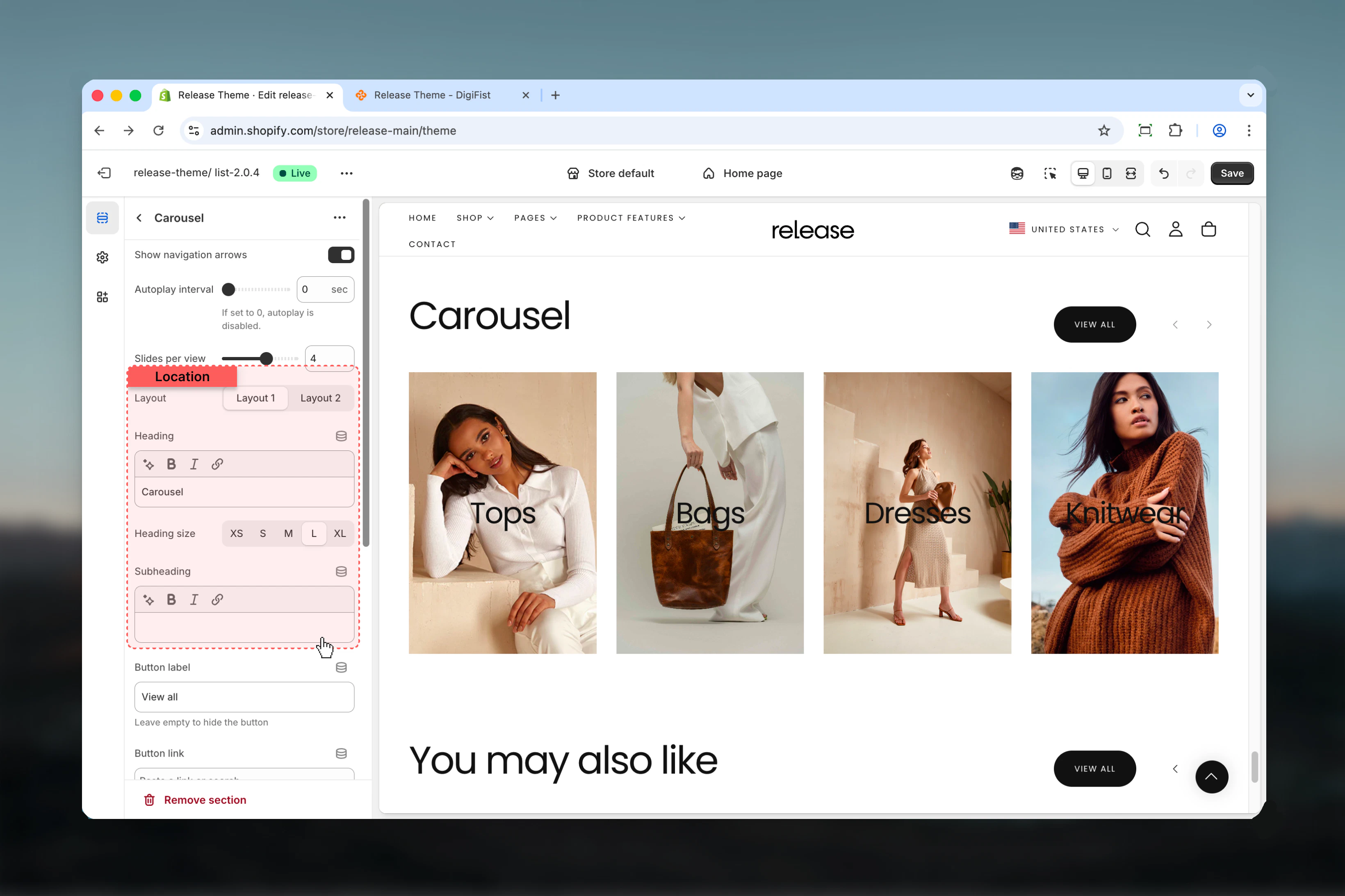
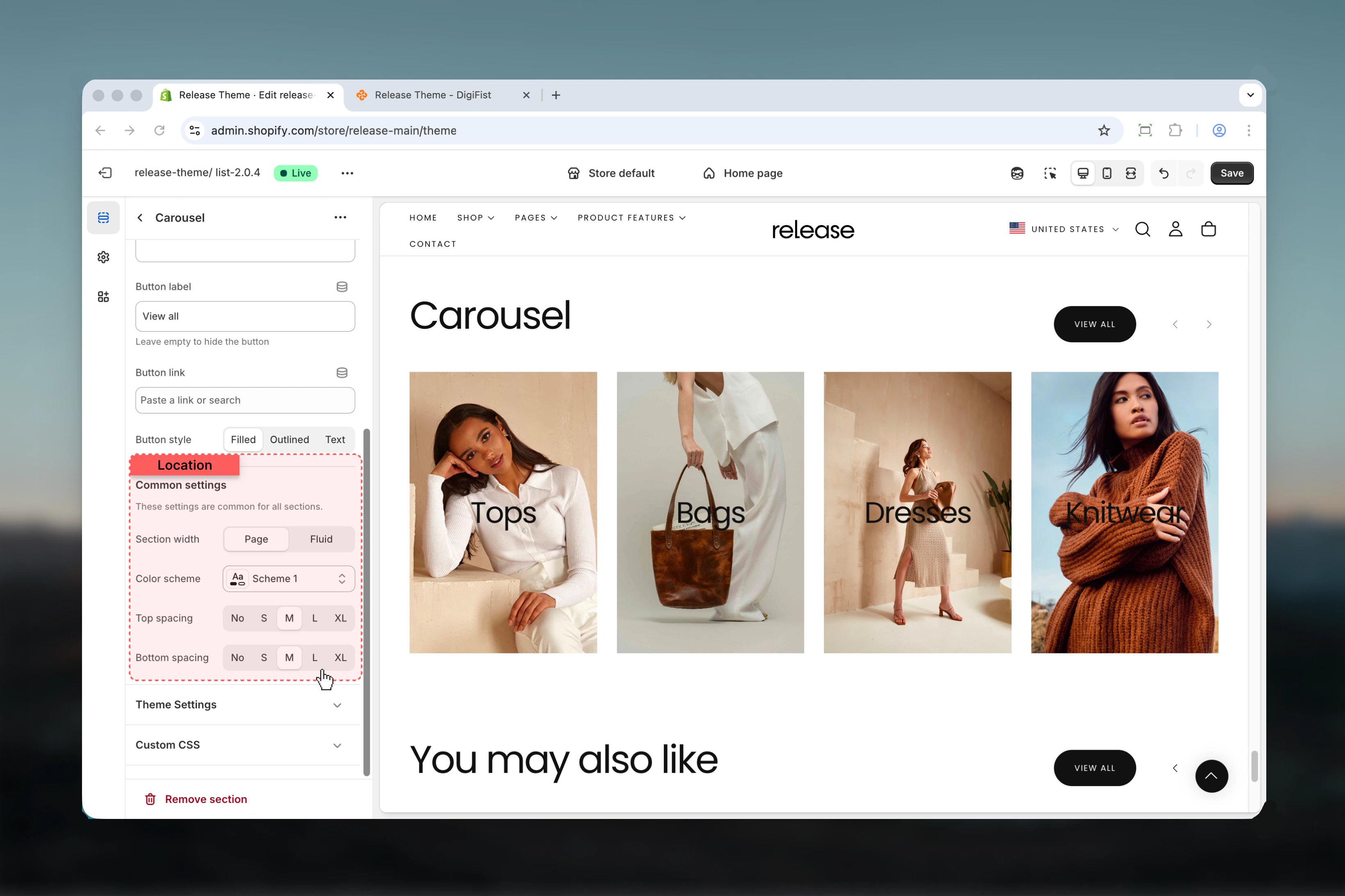
Section settings control slideshow behavior, section styling, and overall layout.- Slideshow
- Section styling
- Settings
Show navigation arrows
Displays previous/next navigation arrows.Options: True / FalseDefault: TrueSlideshow autoplay interval
Controls automatic slide advancement.Range: 0 – 10 seconds- Set to
0to disable autoplay - Default: 0 seconds
Slides per view
Number of slides visible at once on desktop.Range: 1 – 6 slidesDefault: 4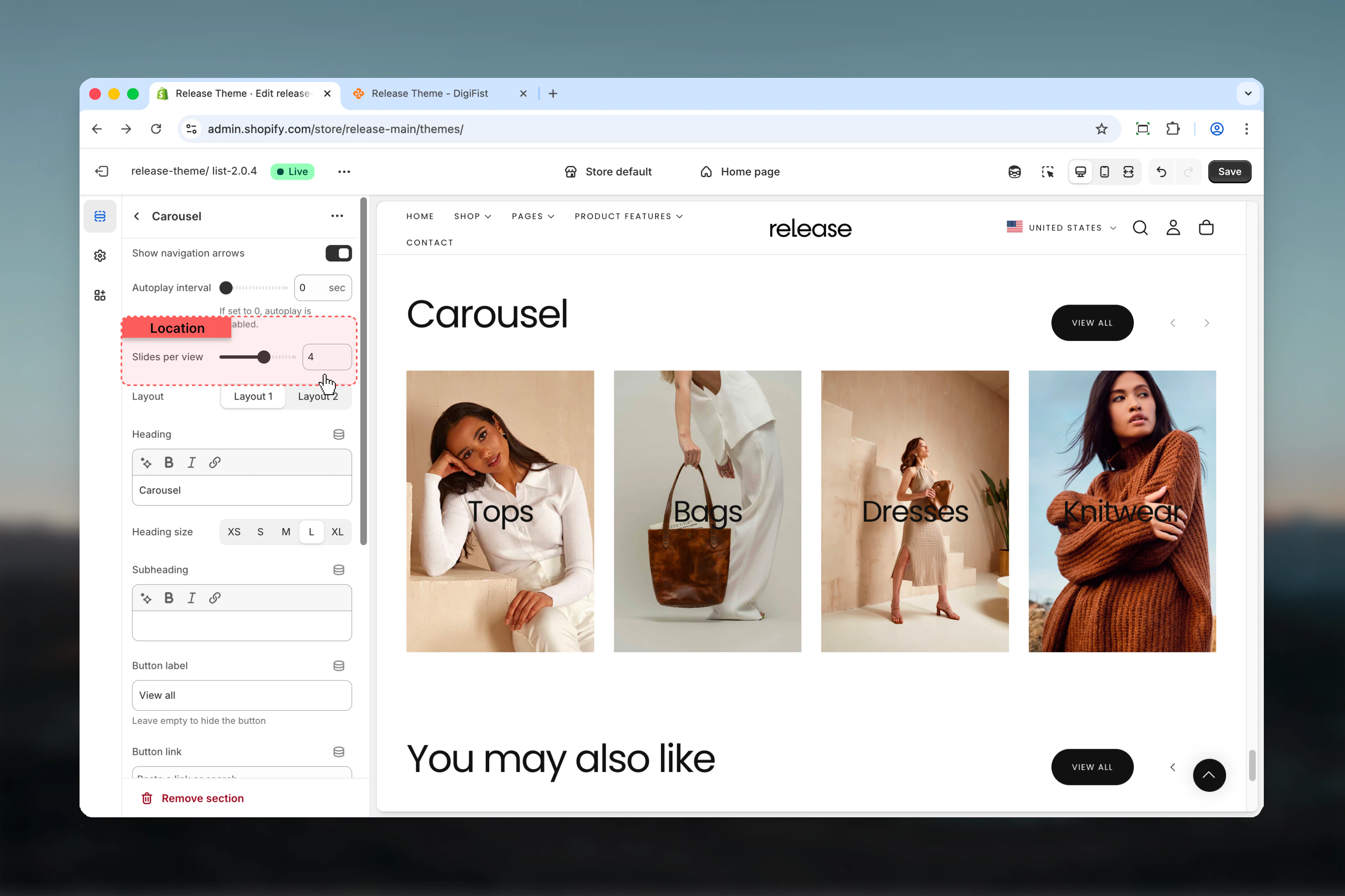
Block settings
Block settings control individual carousel cards. Each block represents a single slide.- Card content
- Card styling
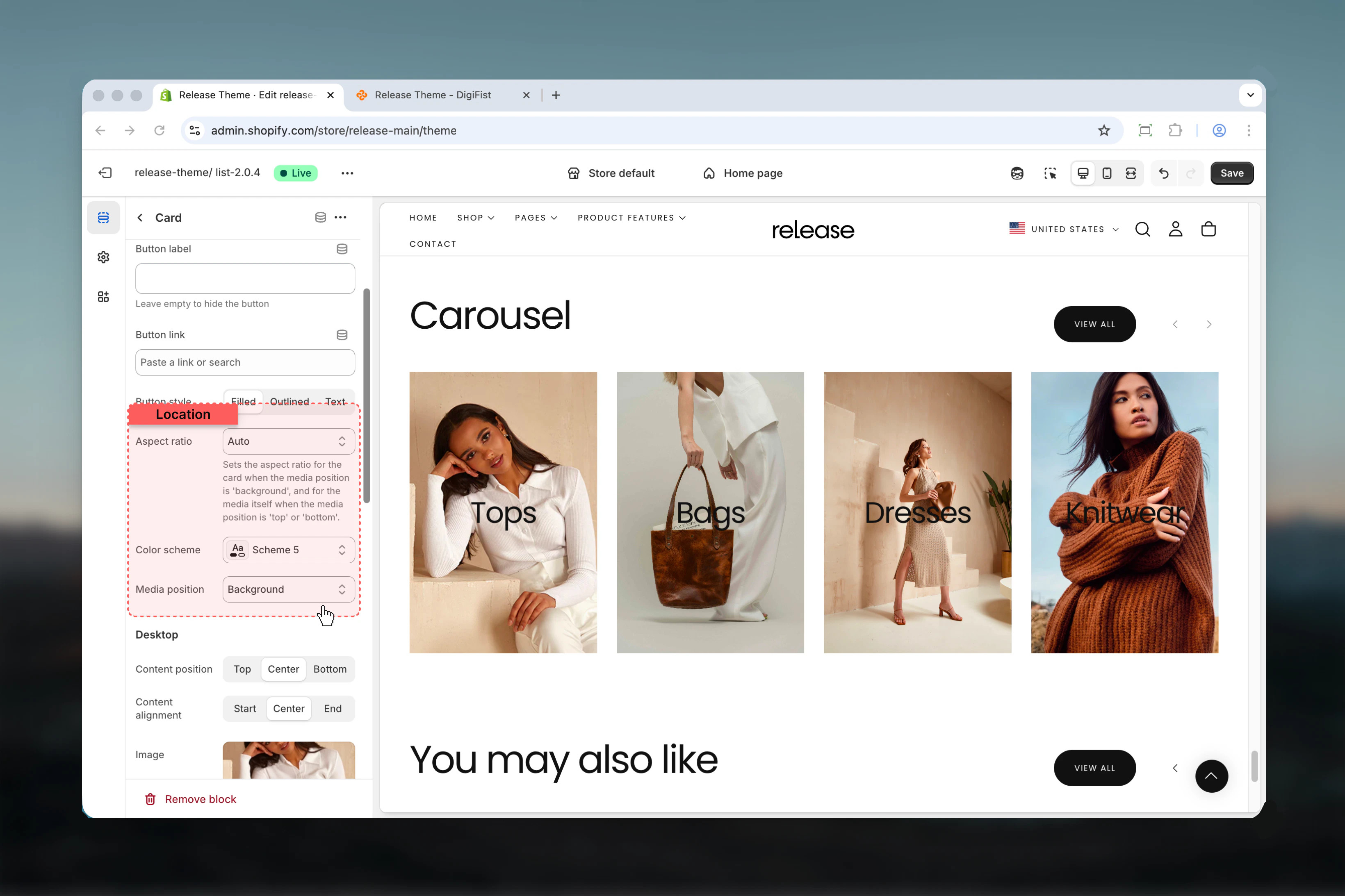
- Desktop media
- Mobile media
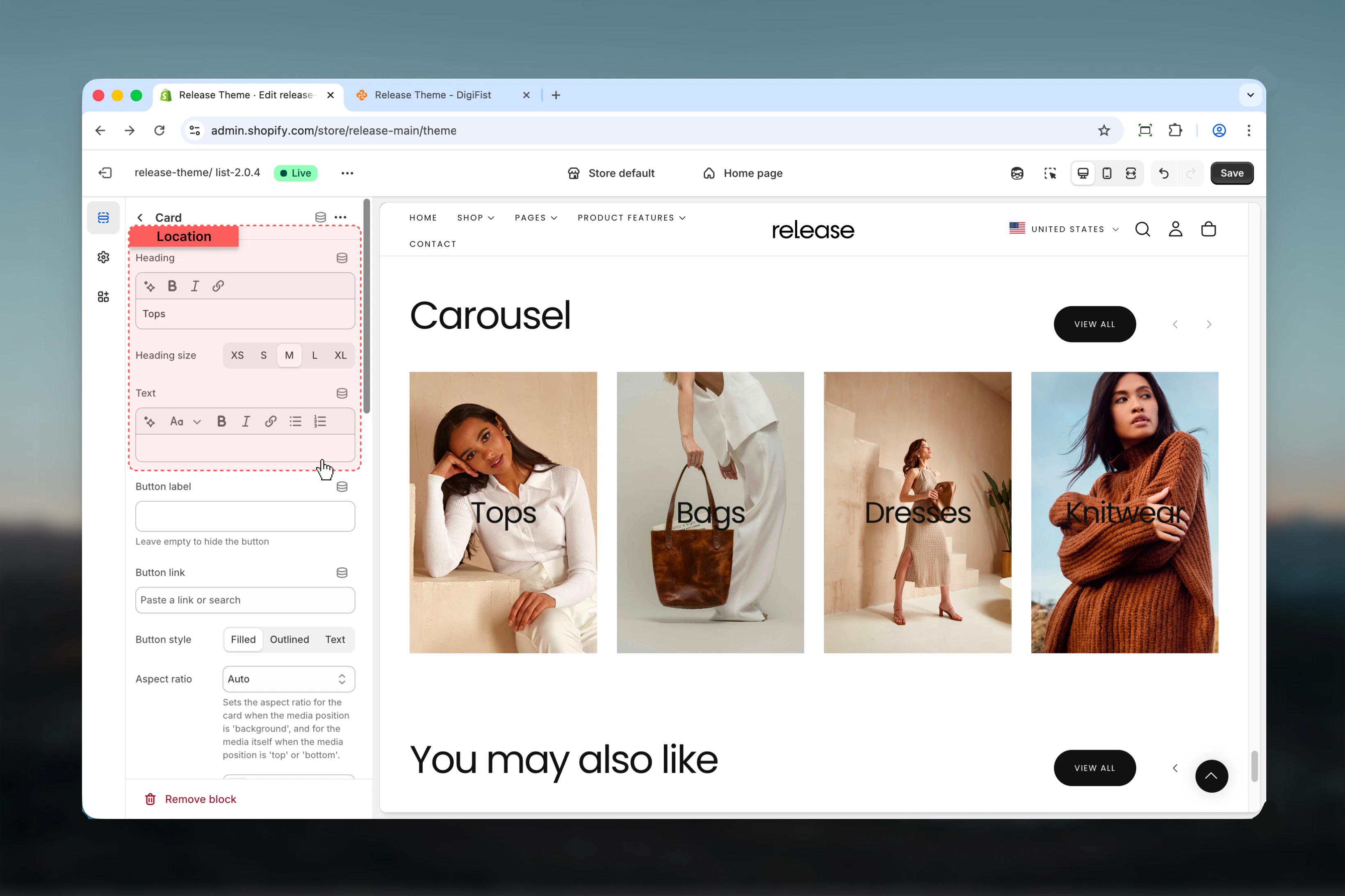
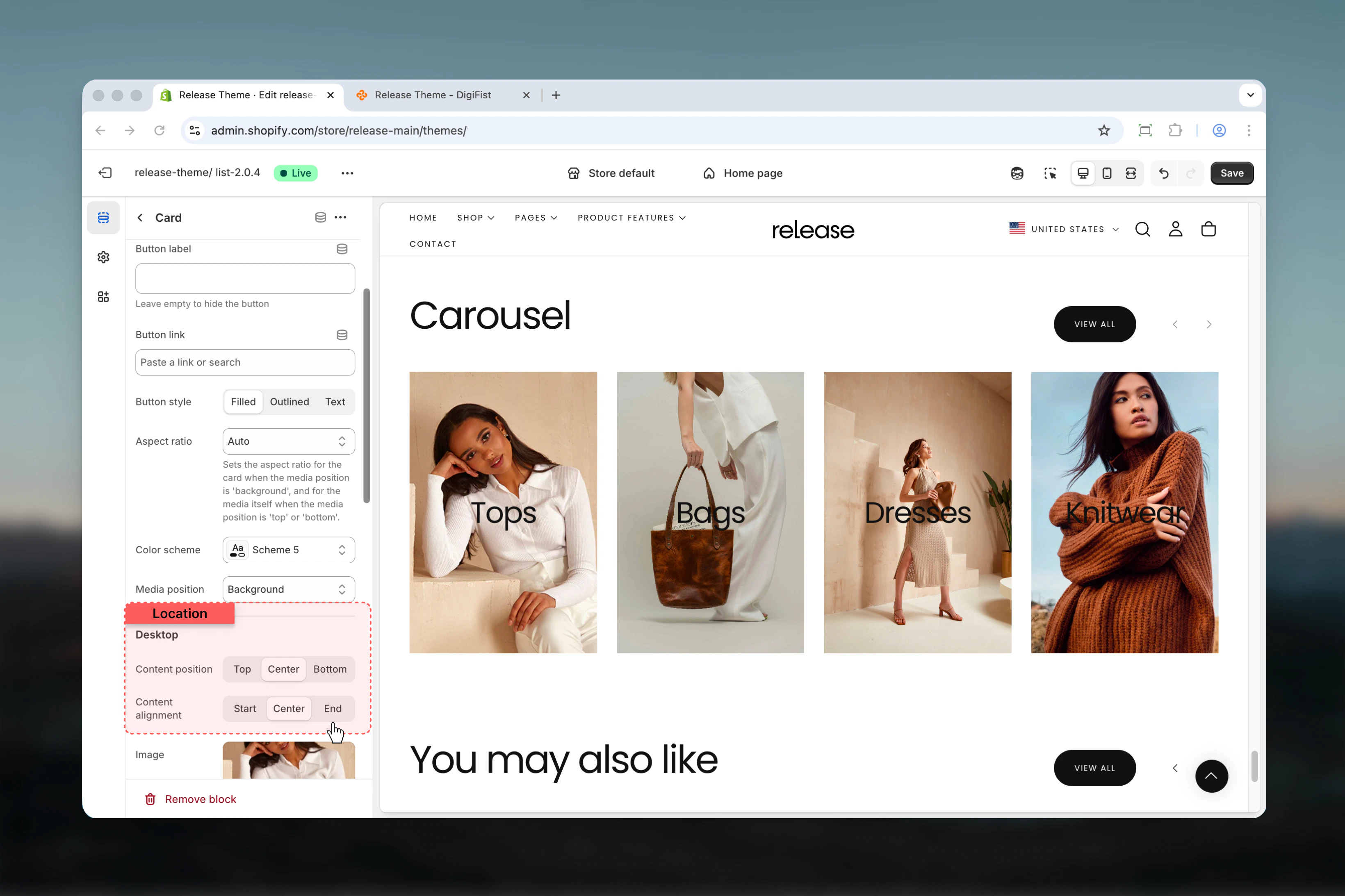
Heading
Main title text for the card.- Inline rich text supported (bold, italic, links)
Heading size
Controls the size of card heading.Available options: XS, S, M, L, XLDefault: LText
Descriptive text content for the card.- Rich text supported
Button label
Text for optional card button.- Leave empty to hide
Button link
Destination URL for card button.- Shopify URL selector
Button style
Visual style for card button.Available options:- Filled: Solid background
- Outlined: Border only
- Text: Text only
Best practices
- Keep card headings concise and impactful (3-6 words) for quick scanning
- Use consistent aspect ratios across all cards for visual harmony
- Limit slides per view to 3-4 for optimal readability on most screens
- Enable autoplay sparingly - consider user experience and accessibility
- Provide mobile-optimized media for better performance and composition
- Use background media position for hero-style cards with overlay content
- Test navigation arrows visibility against background colors
- Order cards by priority or narrative flow
- Use section button for “View all” or collection links
- Consider setting autoplay to 0 for content-heavy cards requiring reading time
Common use cases
- Product collections showcase - Display featured products or new arrivals in a browsable format
- Promotional banners - Highlight multiple offers or campaigns in a single section
- Category navigation - Guide users to different product categories with visual cards
- Brand storytelling - Share brand values, features, or benefits across multiple slides
- Customer testimonials - Showcase reviews or customer stories with images
- Content marketing - Display blog posts, guides, or resources in a carousel format
Related guides
Common Settings
Learn about common settings shared across sections