

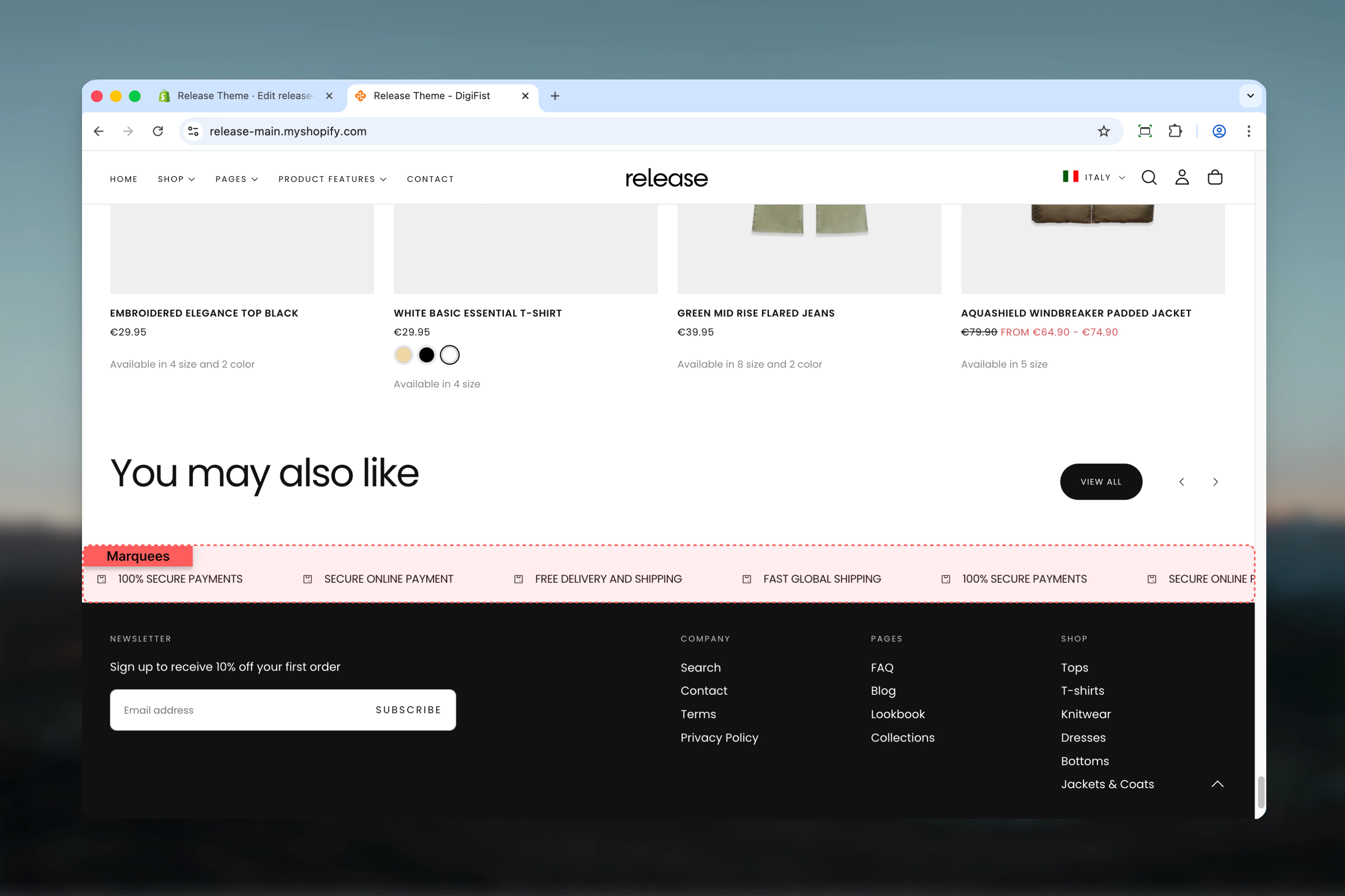
What this section controls
This section controls marquee displays with the following capabilities:- Unlimited text items, product items, or countdown timers
- Continuous horizontal scroll animation
- Pause on hover functionality
- Configurable animation speed
- Icon and custom image support
- Product card integration
- Responsive element sizing
How the Marquees section works
The Marquees section creates an infinite scrolling animation:- Displays unlimited text items, product items, or countdown timers
- Continuous horizontal scroll animation
- Pause on hover functionality
- Configurable animation speed and element sizing
- Supports icons, custom images, and product cards
- Responsive design with mobile-specific sizing
Getting started
1
Open Theme Customizer
From Shopify admin, access the Theme Customizer.
2
Add Marquees section
Add the section to your desired page or template.
3
Add marquee items
Click Add Text item or Add Product item to create scrolling content.
4
Configure animation
Adjust animation speed, element size, and spacing.
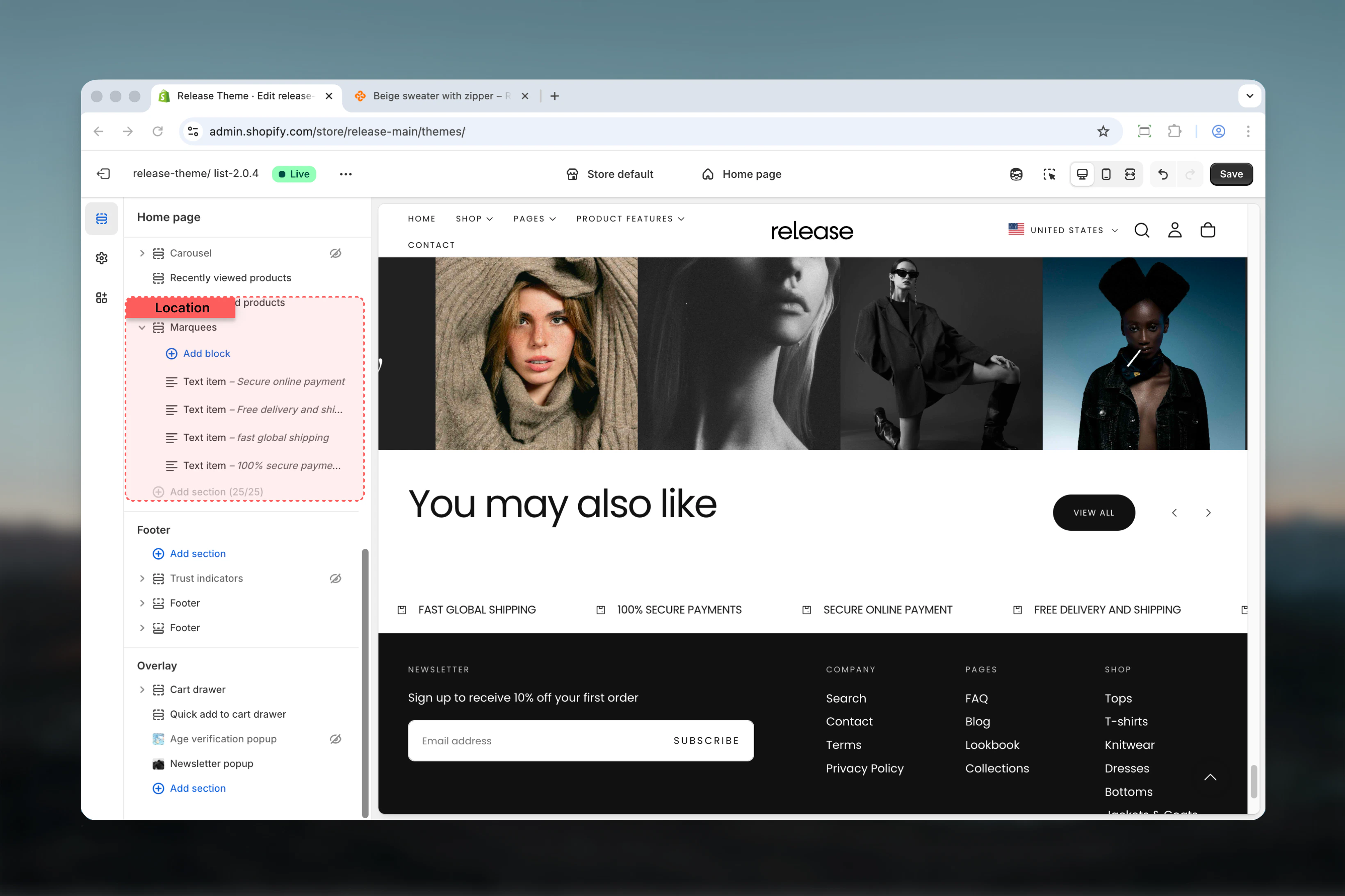
Section settings
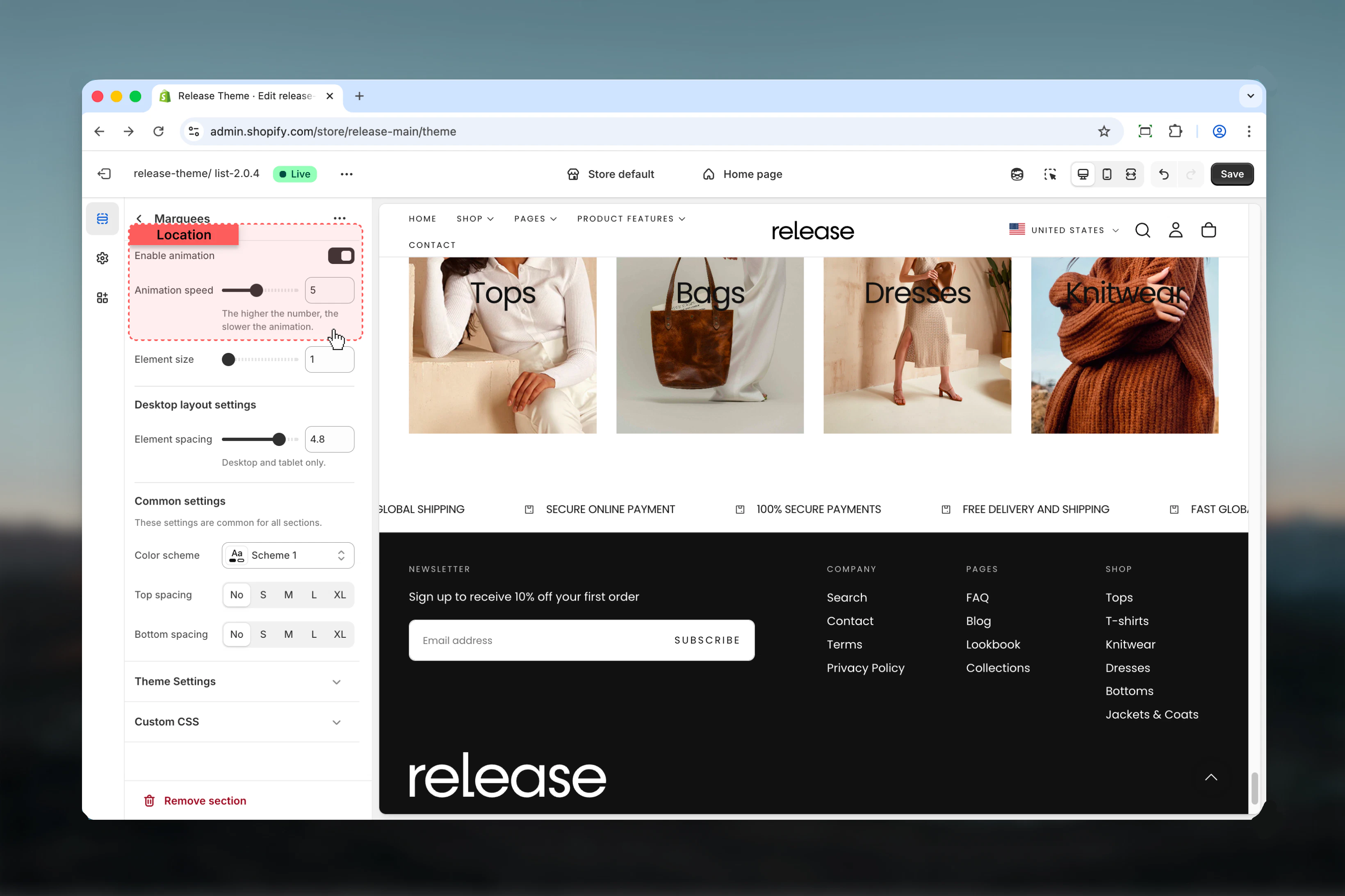
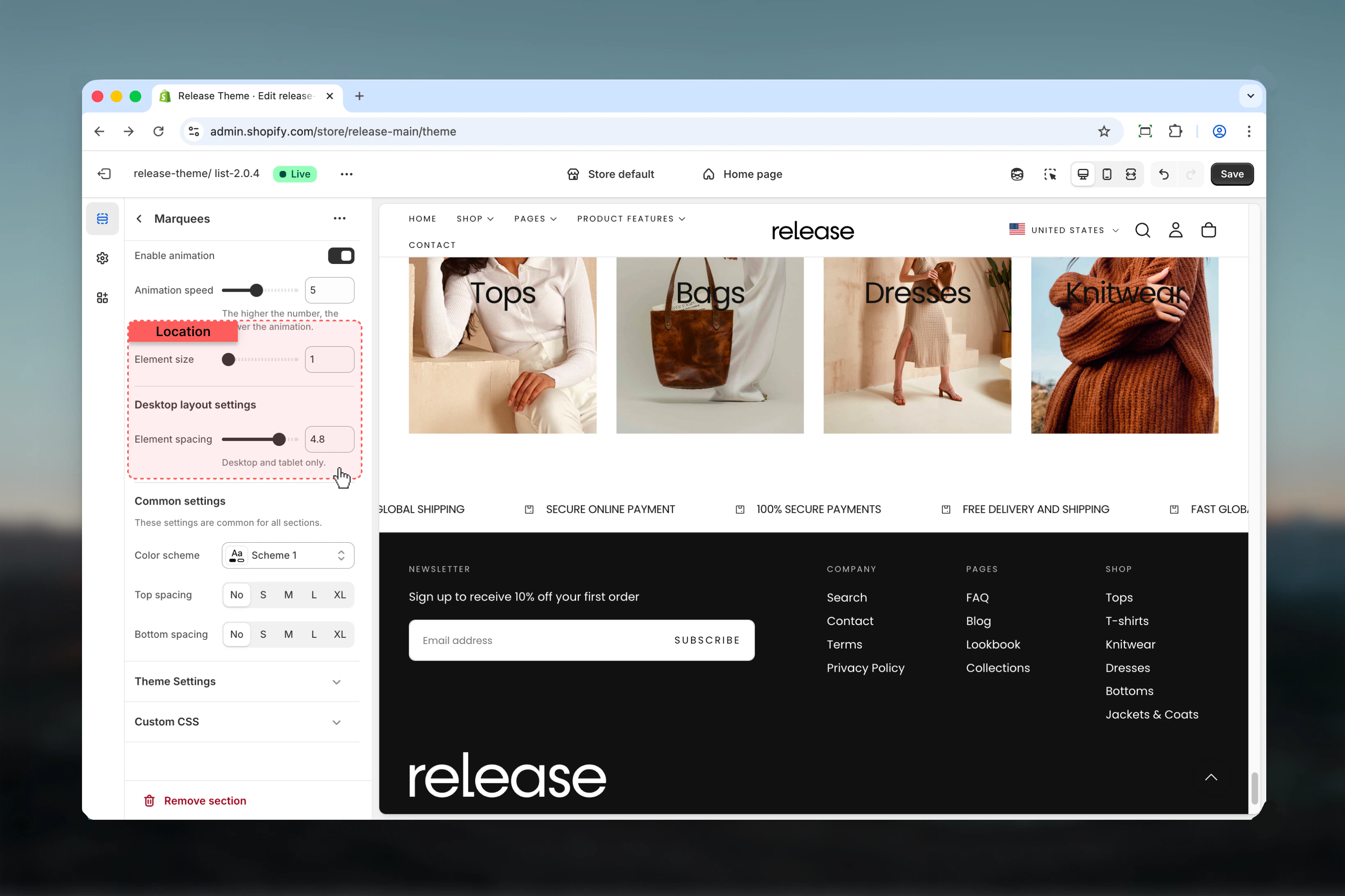
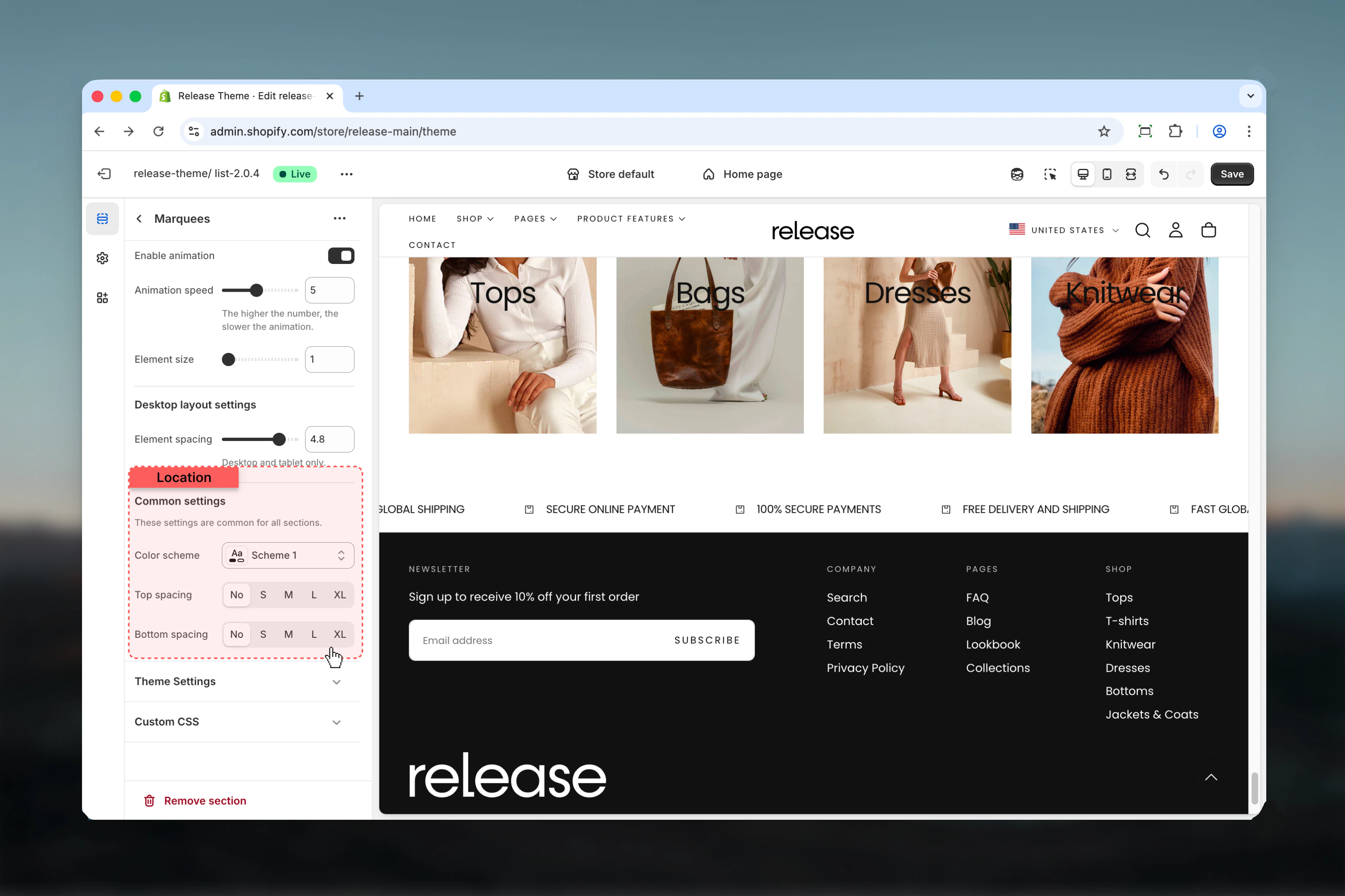
Section settings control animation behavior, sizing, and layout.- Animation
- Layout
- Settings
Block settings
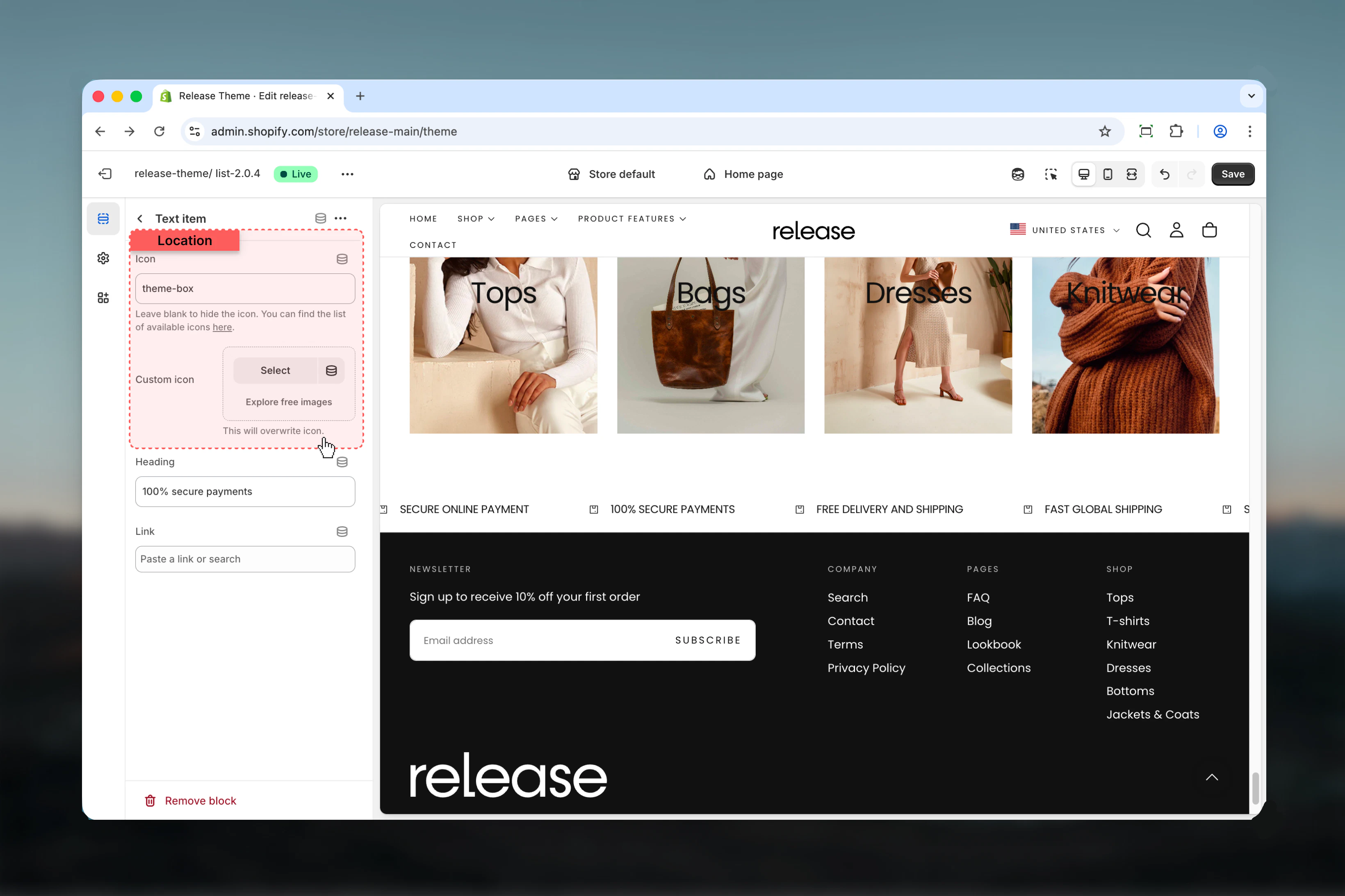
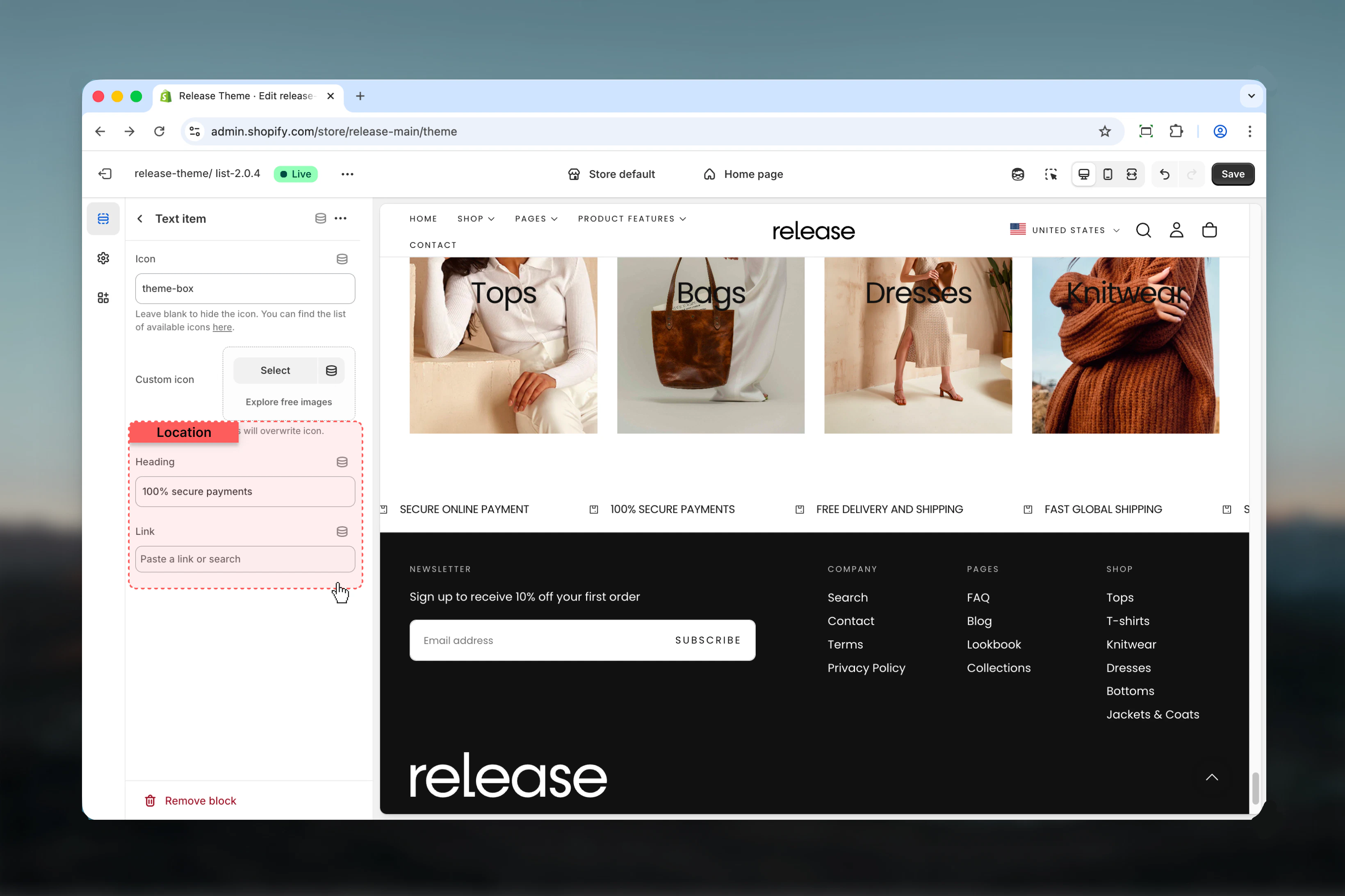
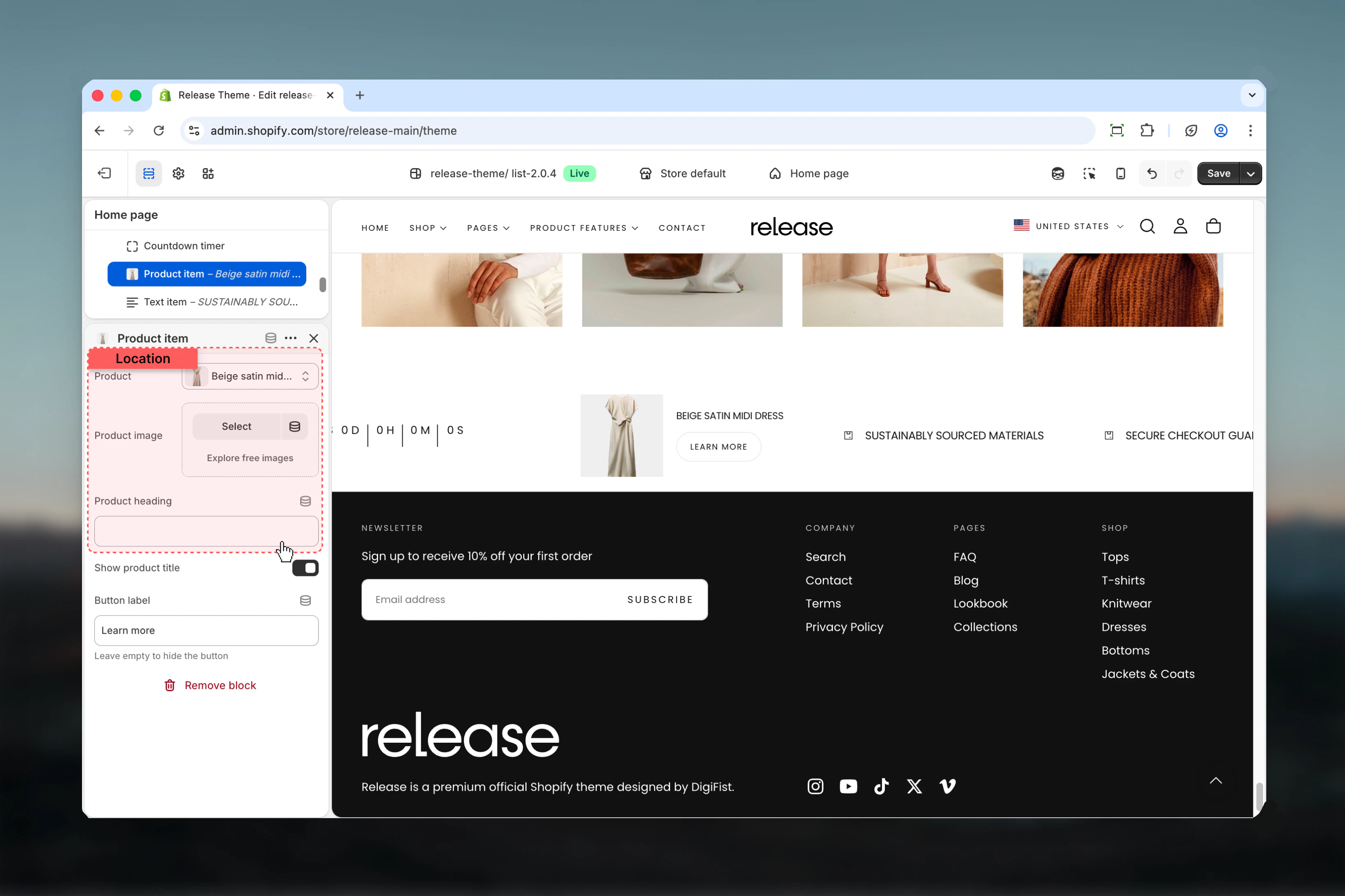
The Marquees section supports three types of blocks for flexible content display.- Text item
- Product item
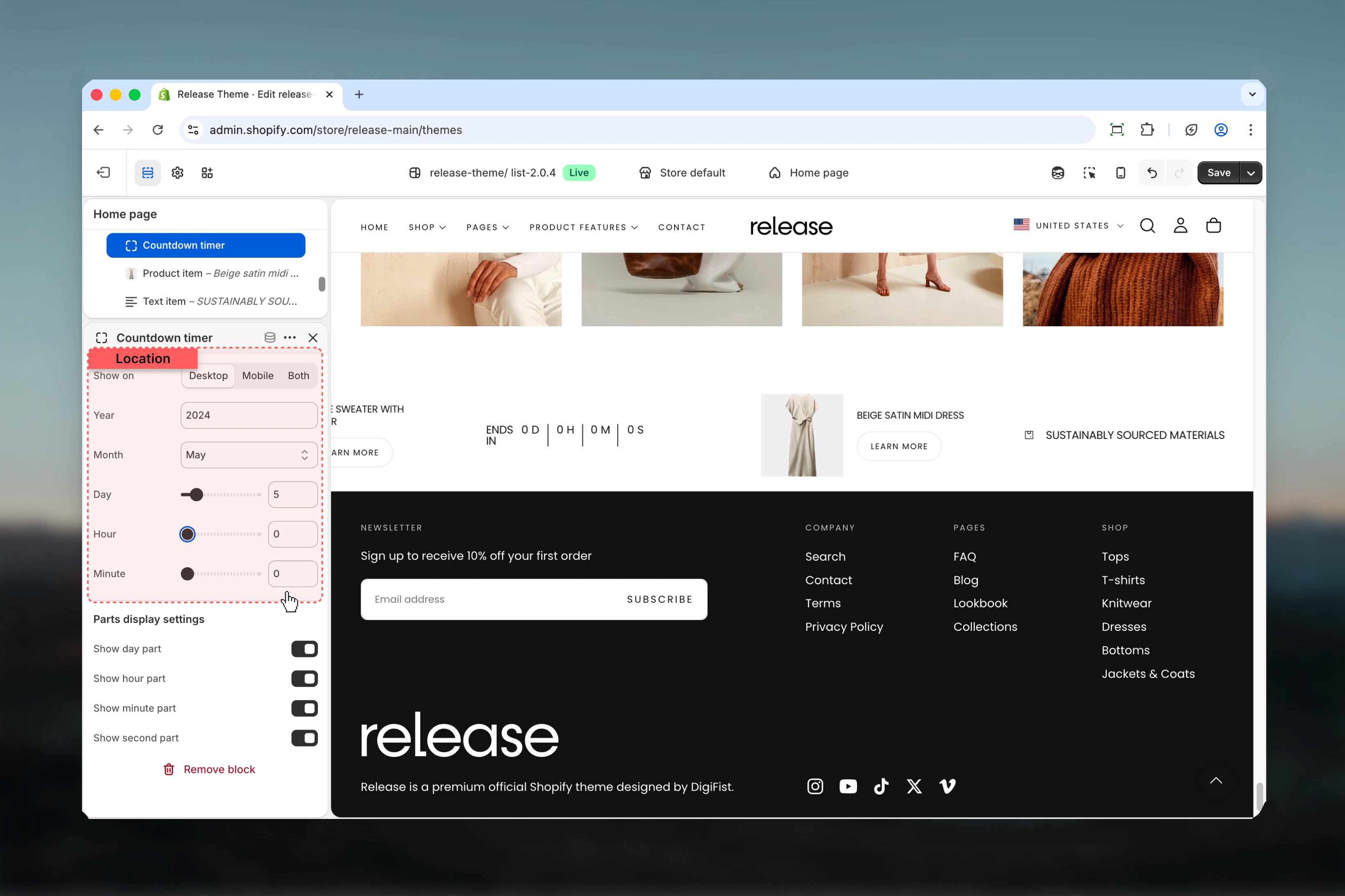
- Timer
Best practices
- Keep text items concise (2-5 words) for quick comprehension during scrolling
- Use consistent icon styling across all items for visual harmony
- Set animation speed based on content length - slower for text-heavy items
- Test animation speed on actual devices to ensure readability during scroll
- Limit to 6-8 unique items to avoid overwhelming the animation cycle
- Use high contrast colors for text against background for readability
- Consider disabling animation for accessibility or content-heavy messages
- Product items work best with square product images for consistent display
- Use marquees for promotional messages, shipping info, or store highlights
- Place near top of page for maximum visibility and impact
Common use cases
- Promotional messaging - Highlight sales, discounts, or special offers
- Shipping and returns - Display free shipping, easy returns, or delivery information
- Trust indicators - Show certifications, guarantees, warranties, or brand values
- Featured products - Showcase product collections or new arrivals in motion
- Event countdown - Display countdown to sales, launches, or special events
- Store highlights - Emphasize key differentiators or unique selling points
- Announcement ticker - Share news, updates, or important store information
Related guides
Common Settings
Learn about common settings shared across sections