

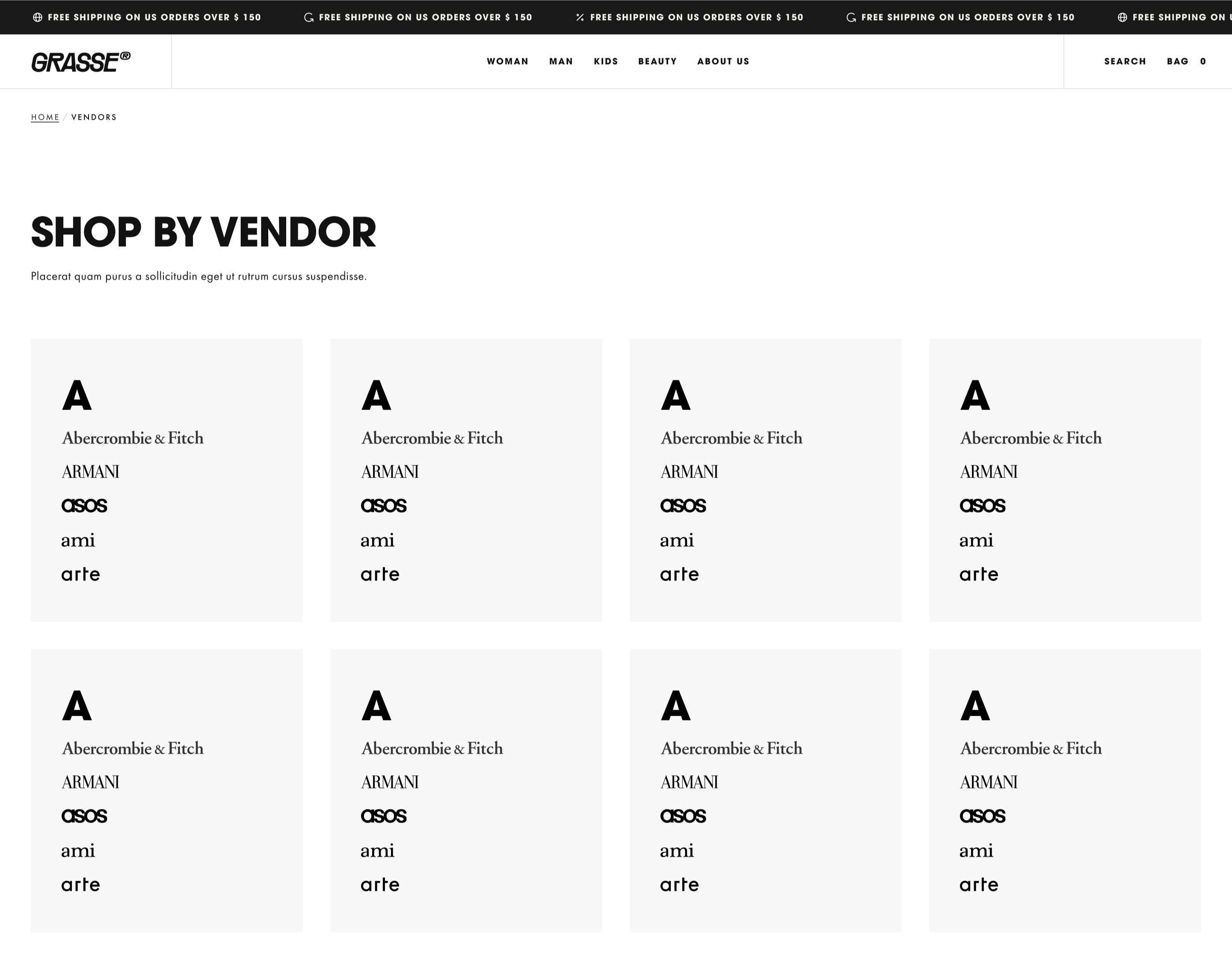
What this section controls
This section manages:- Vendor directory display - Showcase all brands/manufacturers in your store
- Vendor logos - Display brand logos with customizable height
- Alphabetical navigation - Enable A-Z quick navigation for browsing
- Metaobject integration - Connect to Shopify metaobjects for vendor data
- Vendor cards - Customize card appearance and color scheme
- Section layout - Adjust section width, color scheme, and spacing
Getting started
1
Create vendor metaobject definition
You need to create a metaobject definition for vendors.
- In the Shopify admin, go to Content → Metaobjects → Add definition
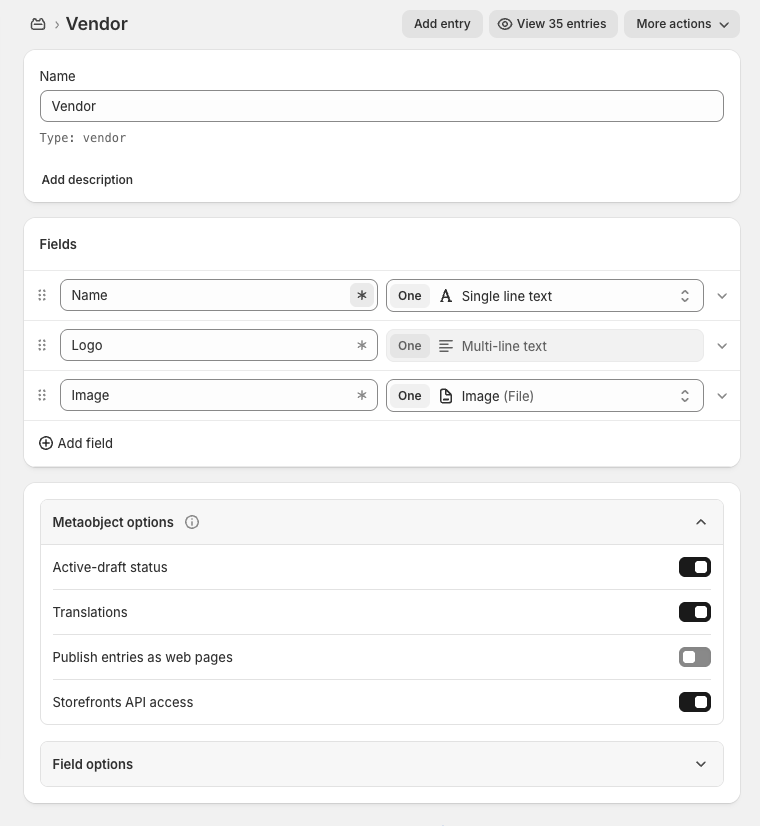
- Create a Vendor metaobject definition:
- Name: Vendor
- Handle: vendor
- Add following fields to the definition:
- Save the definition
2
Add vendor entries
Create individual vendor entries in the metaobject:
- Go to Content → Metaobjects → Vendor
- Click Add entry
- Fill in vendor details (Name, Logo, Image)
- Repeat for all vendors
3
Open Theme Customizer
From Shopify admin, access the Theme Customizer
4
Navigate to Vendors page
In the left sidebar, click Pages > Vendor list
5
Link metaobject
In the Vendor List section, select the created Vendor metaobject definition
6
Configure display settings
Enable logo display, alphabetical navigation, and set logo height and color scheme
Section Settings
- Vendor Display
- Metaobject
- Card Design
- Layout
Control how vendor information is displayed on the page.
Show vendor logo
Show vendor logo
Type: Toggle
Default: EnabledDisplays the vendor’s logo when available from the metaobject. If disabled, only vendor names will be shown.
Default: EnabledDisplays the vendor’s logo when available from the metaobject. If disabled, only vendor names will be shown.
Logo height
Logo height
Type: Range slider
Range: 20-200 pixels
Default: 60Controls the displayed height of vendor logos. Width adjusts automatically to maintain aspect ratio.
Range: 20-200 pixels
Default: 60Controls the displayed height of vendor logos. Width adjusts automatically to maintain aspect ratio.
Metaobject setup requirements
To display vendors on this page, you must create a properly structured metaobject definition.Required metaobject structure
Definition details:- Name: Vendor
- Handle: vendor (must be exactly this)
Adding vendor entries
After creating the metaobject definition:- Go to Content → Metaobjects → Vendor
- Click Add entry for each vendor
- Fill in required information:
- Name - Vendor/brand name (e.g., “Nike”, “Adidas”)
- Logo - SVG code or HTML for vector logos
- Image - Upload brand logo as image file
- Save each entry
Common use cases
- Multi-brand store
- Manufacturer directory
- Local artisans
Showcase all brands carried in your store.Configuration:
- Show vendor logo: Enabled
- Logo height: 60-80px
- Show navigation: Enabled (for 20+ brands)
- Section width: max-w-fluid
- Color scheme: Neutral (scheme-1)
- 50+ vendor entries
- Consistent logo sizing
- All entries with logos
Best practices
Logo consistency
Maintain consistent logo sizing and quality across all vendors. Use vector (SVG) logos when possible for crisp display at any size.
Navigation threshold
Enable alphabetical navigation for stores with 20+ vendors. For smaller lists, navigation adds unnecessary complexity.
Logo height standards
Standard 50-80px works for most stores. Premium brands: 100-150px. Many small logos: 40-60px to fit more per row.
Metaobject naming
Use exact handles (
name, logo, image) as specified. Any variation will break the integration.Image optimization
Optimize logo images before upload. Use PNG with transparency or JPG. Keep file sizes under 200KB for fast loading.
SVG preference
Prefer SVG logos in the Logo field over image files. SVGs scale perfectly and maintain quality at any size.
Card color scheme
Use neutral or branded color scheme that complements vendor logos without competing visually.
Vendor curation
For premium positioning, curate vendor list to feature key partnerships. Don’t feel obligated to list every brand.
Mobile optimization
Test vendor card layout on mobile. Logos should remain legible. Consider slightly larger logo height for mobile users.
Update frequency
Keep vendor list current. Remove discontinued brands, add new partnerships. Update logos when brands rebrand.
Related guides
Metaobjects
Learn more about Shopify metaobjects and custom data structures
Collection List Page
Similar list page layout for displaying collections