

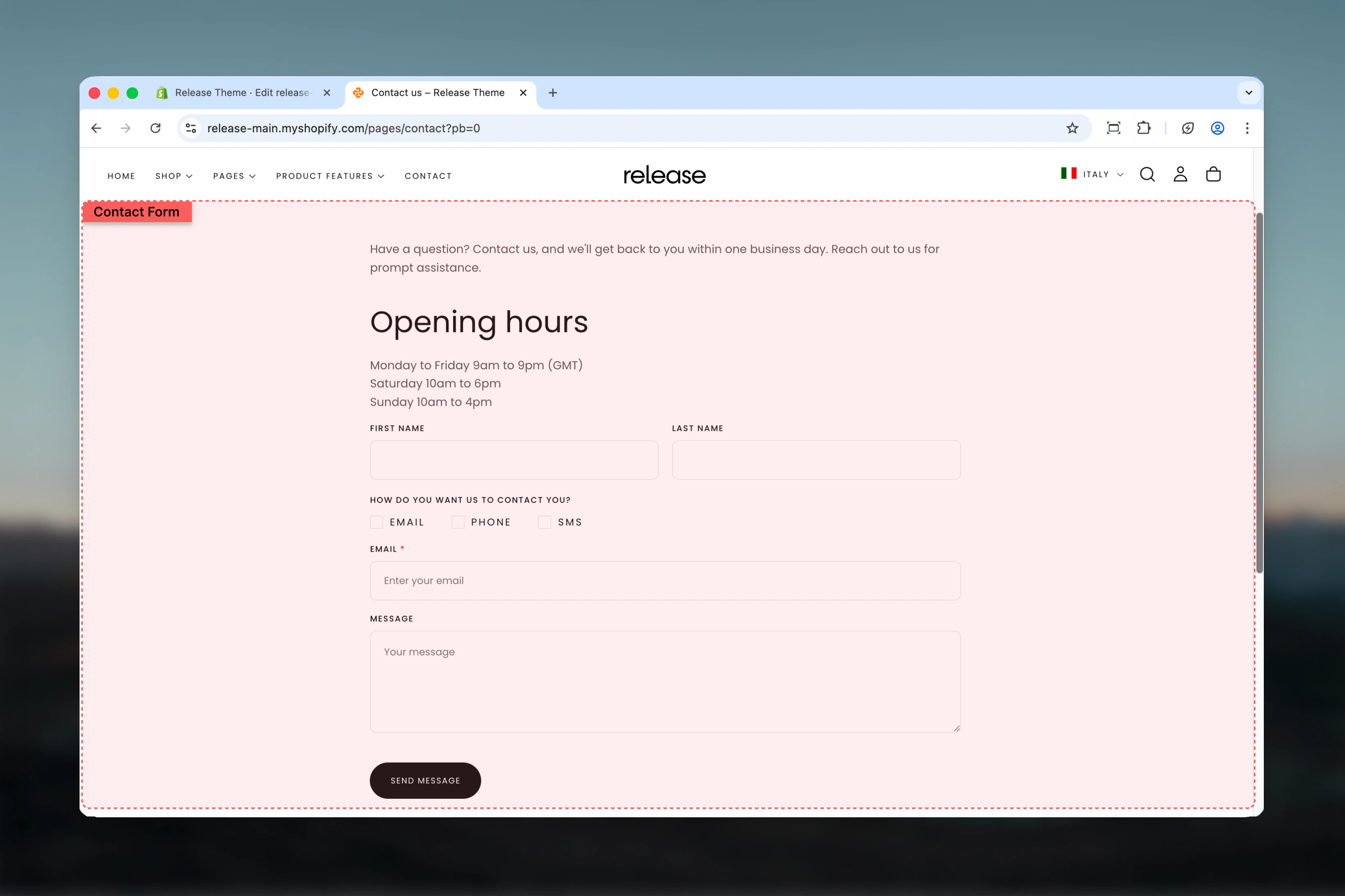
What this section controls
- Customizable form fields (text, email, tel, checkbox, radio)
- Field layout and column spanning
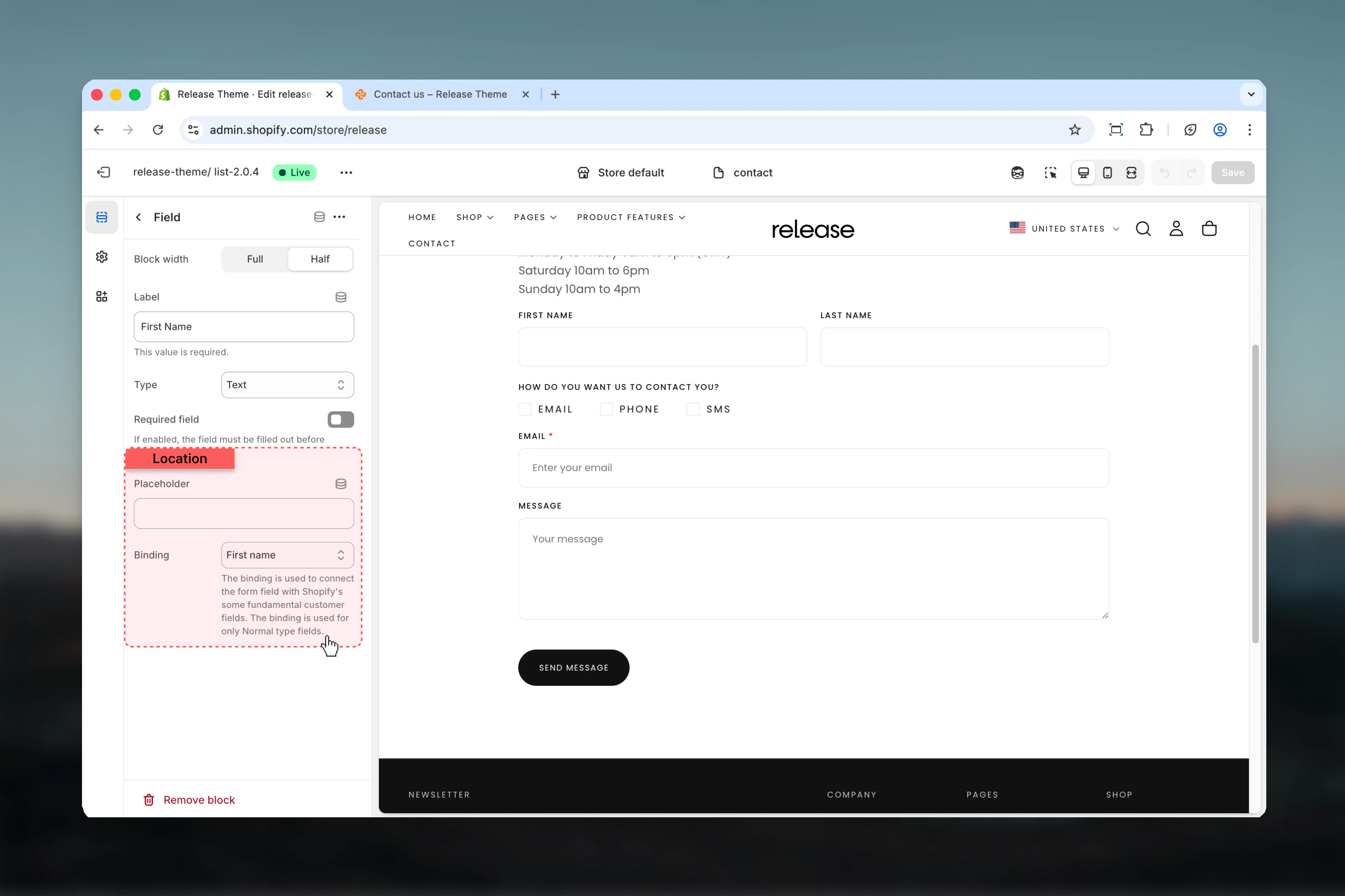
- Customer data binding for logged-in users
- Required field validation
- Form submission and success messaging
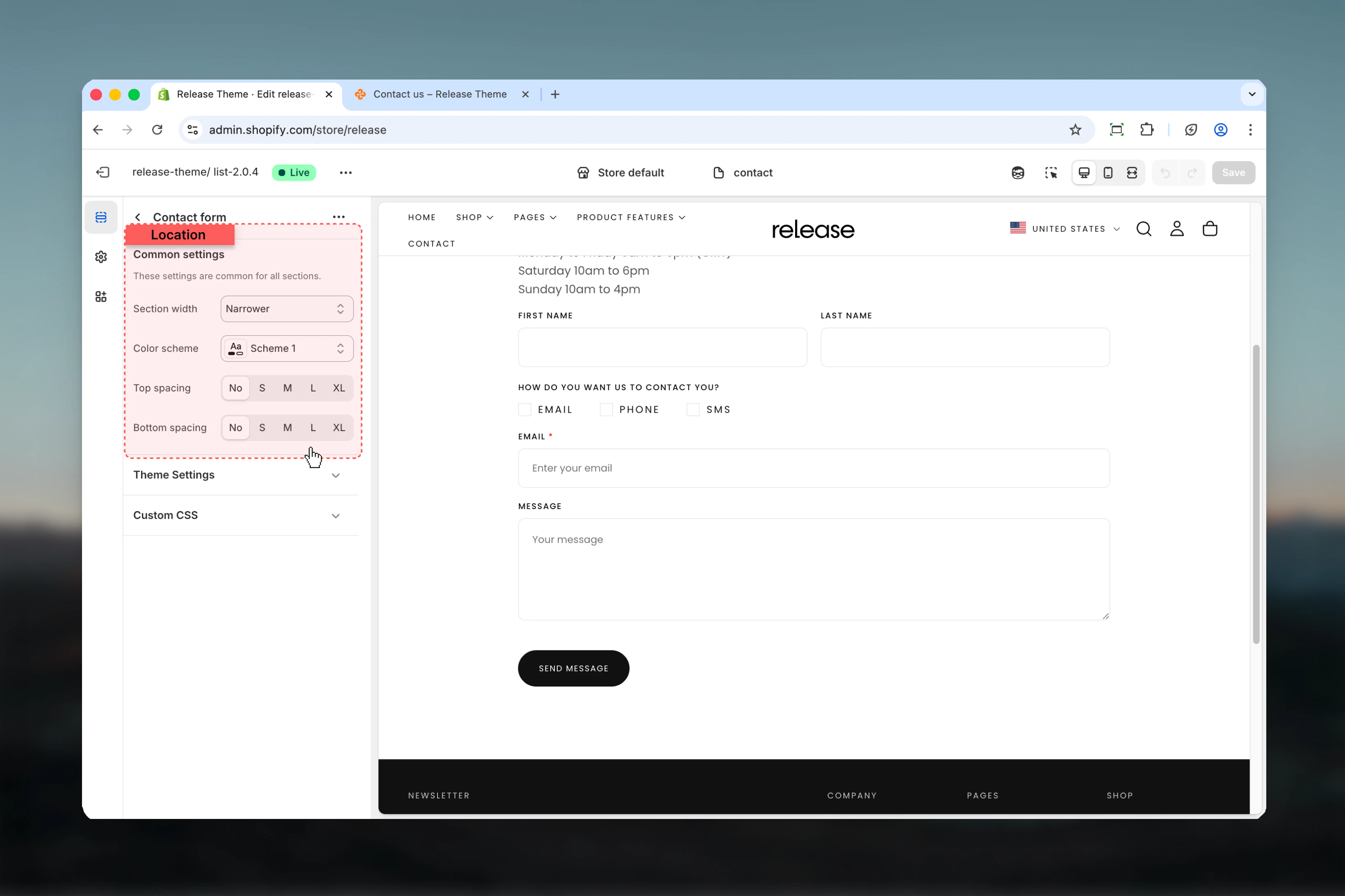
Section settings
- Layout
Section width
Control the maximum width of the contact form.Available options:- max-w-page - Standard container
- max-w-narrower - Narrow focused layout
- max-w-fluid - Wider container
Color scheme
Select the color scheme for the form section.- Default: scheme-1
Spacing top & bottom
Adjust padding above and below the form.Options: No (0), S (1), M (2), L (4), XL (6)- Default: M (2) for both
Block settings
Field Block
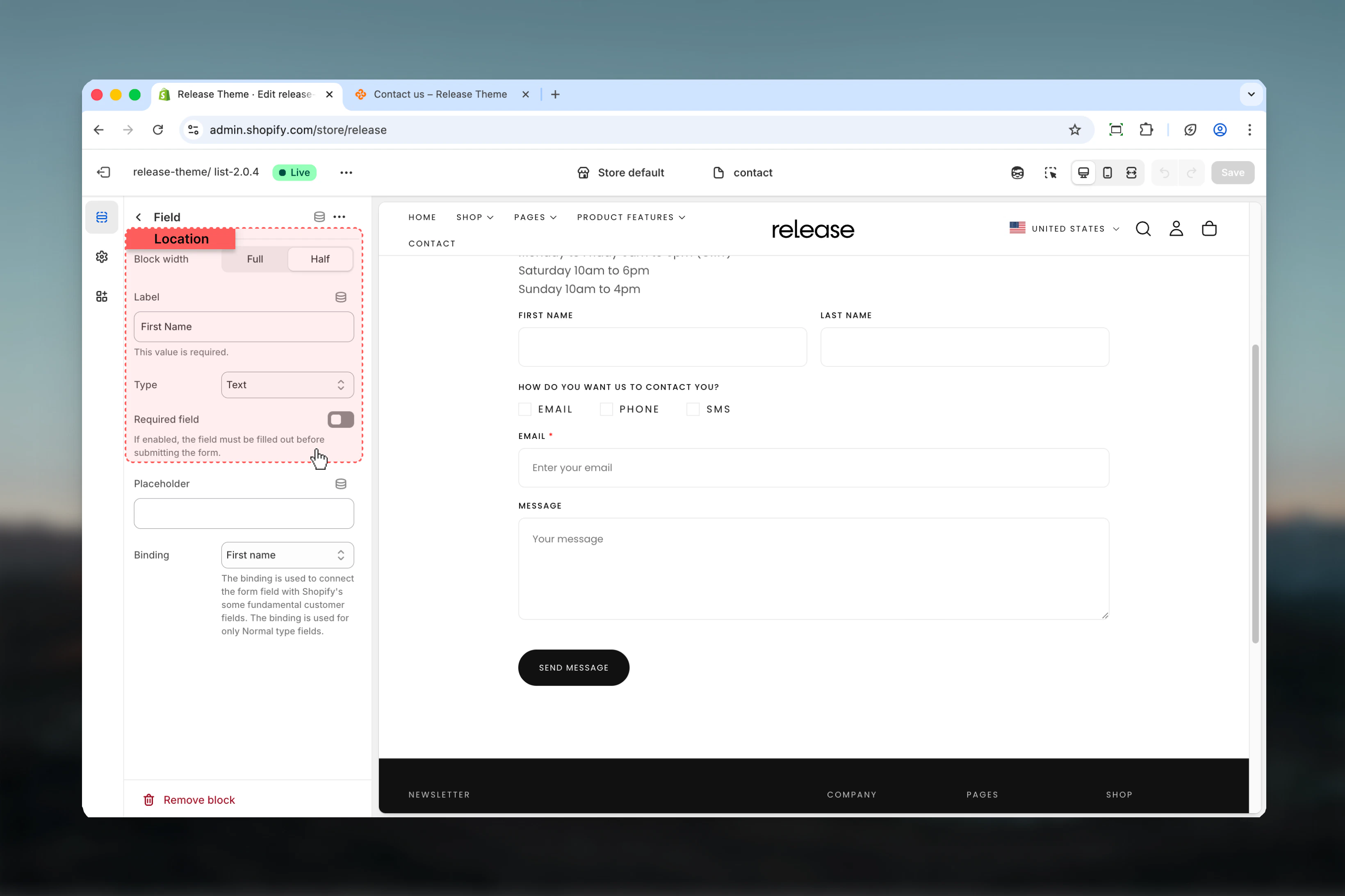
Add customizable form fields to build your contact form. Each field can span full or half width.- Basic Settings
- Input Fields
- Selection Fields
Column factor
Control the width of the field.Available options:- Full width (6) - Spans entire form width
- Half width (3) - Takes up half the row
Heading (Label)
The label text displayed above the field.- Default: “Label”
- This will be used to generate the field name
Type
Choose the field input type.Input fields:- Text - Single line text input
- Email - Email address input
- Tel - Telephone number input
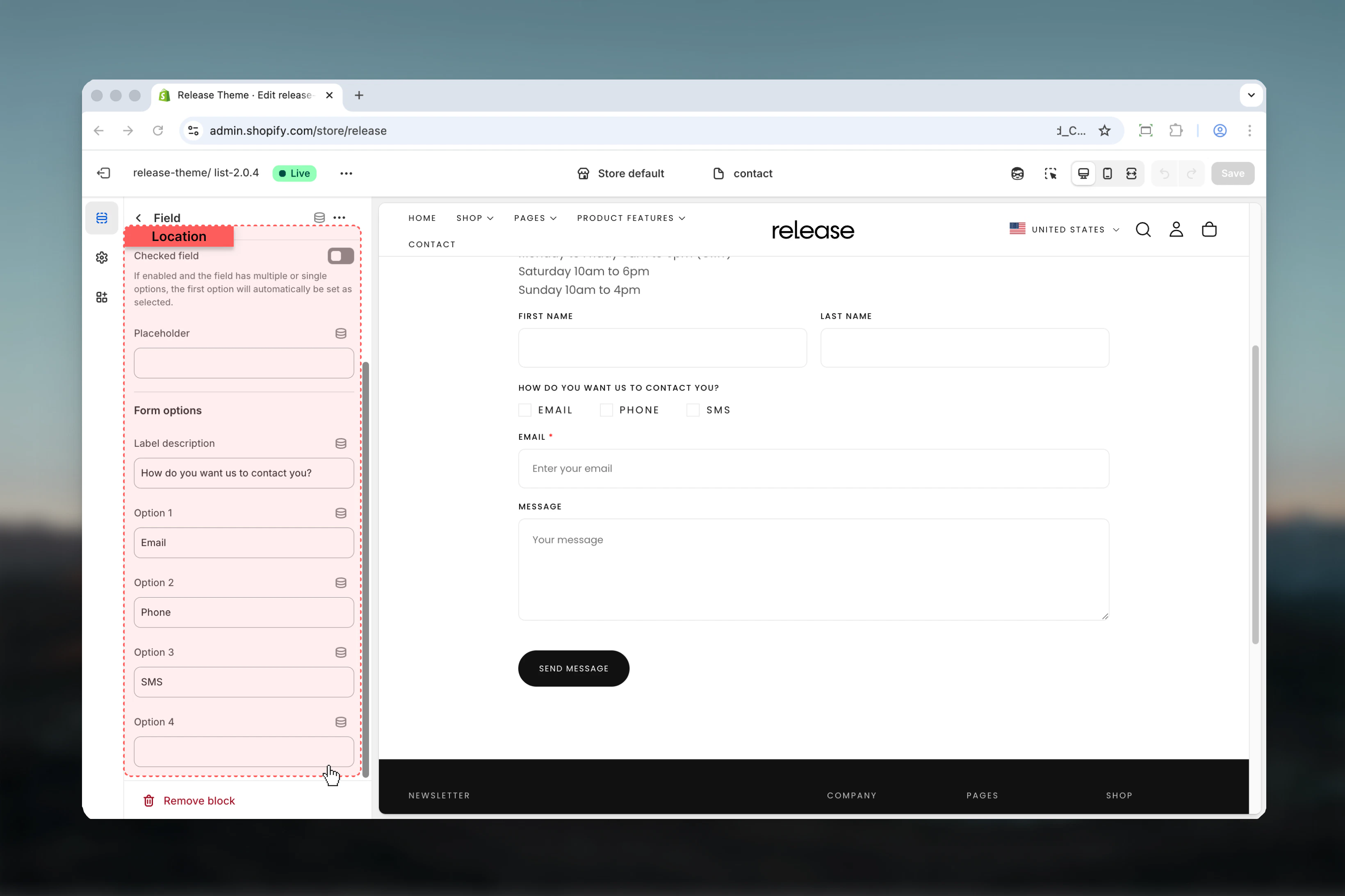
- Checkbox - Multiple choice checkboxes
- Radio - Single choice radio buttons
Required
Mark the field as required for form submission.- Default: Disabled
Best practices
- Form width: Use max-w-narrower (default) for better readability and completion
- Required fields: Mark name, email, and message as required minimum
- Half-width fields: Use for related pairs (first name/last name, city/zip)
- Full-width fields: Use for message/textarea and single important fields
- Email binding: Always bind email field to customer email for convenience
- Field order: Name → Email → Subject/Reason → Message is standard flow
- Placeholder text: Use to provide format hints (“john@example.com”, “+1 (555) 123-4567”)
- Checkbox for consent: Add required checkbox for terms/privacy acceptance
- Radio for categories: Use for predefined options (inquiry type, department)
- Keep it short: 4-6 fields maximum for higher completion rates
Common use cases
- Basic contact - Name (text, required), Email (email, required, binding: email), Message (text, full-width, required)
- Support inquiry - Name, Email (binding: email), Order ID (text, binding: last_order), Issue type (radio: Technical/Billing/General), Description
- Newsletter signup - Email (email, required, binding: email), Consent checkbox (required, “I agree to receive newsletters”)
- Quote request - First name + Last name (half-width), Email, Phone (tel, binding: phone), Service type (checkbox), Budget range (radio), Details
- Partnership inquiry - Company name, Contact name, Email, Phone, Partnership type (radio), Message
- Product inquiry - Name, Email, Product interest (radio), Quantity needed, Additional information
Related guides
Newsletter Popup
Configure newsletter signup popup
Page Settings
Create custom pages for forms