

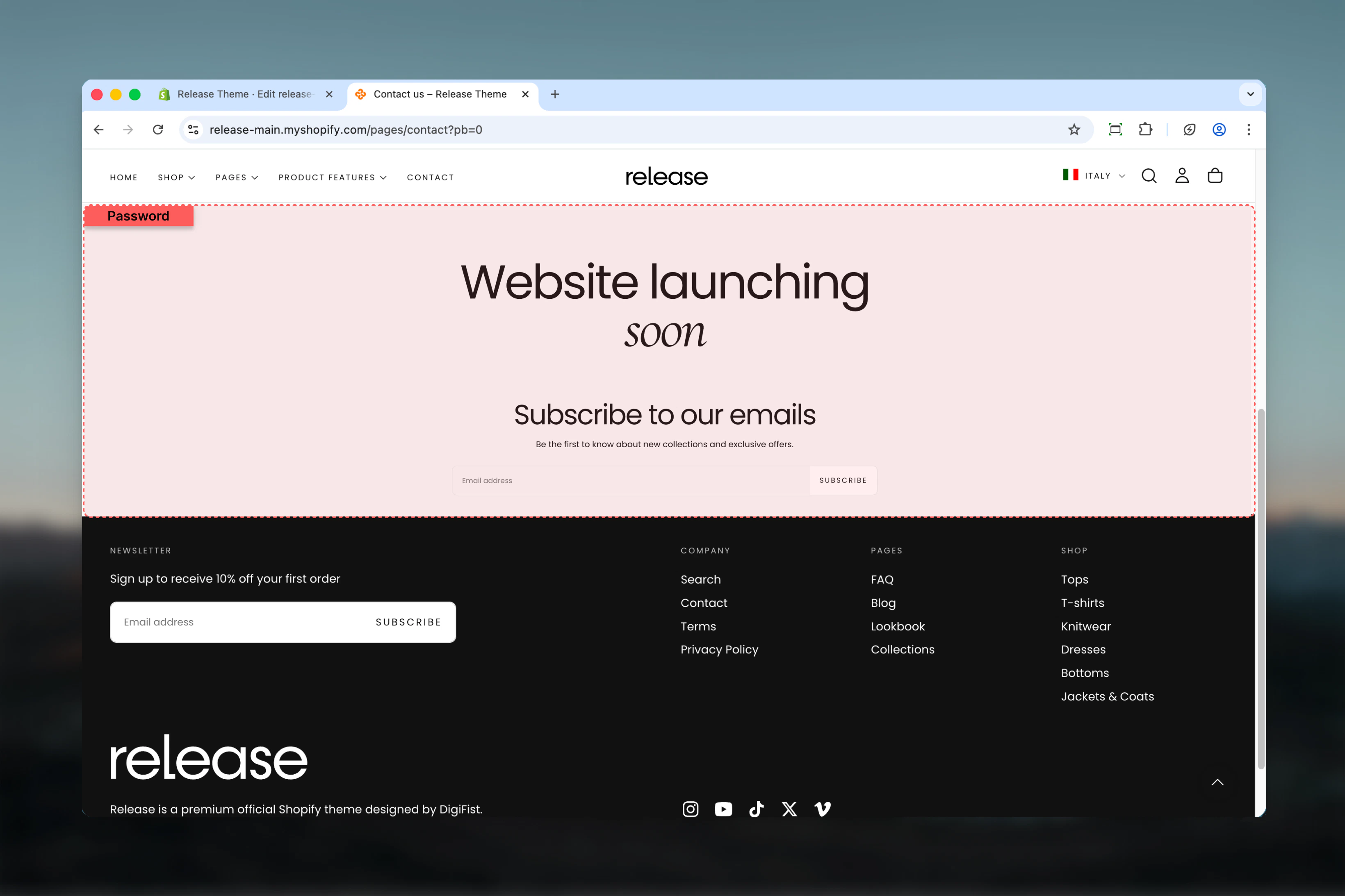
What this section controls
This page template manages:- Launch messaging - Headline and description for your upcoming store opening
- Email signup form - Collect customer emails for launch notifications
- Password access - Display password-protected page before store launch
- Pre-launch branding - Present your brand identity before official opening
- Coming soon content - Build anticipation and excitement for launch
- Section layout - Adjust page width, color scheme, and spacing
Getting started
1
Enable password protection
First, password-protect your store in Shopify settings:
- Go to Online Store → Preferences in Shopify admin
- Scroll to Password protection section
- Enable Restrict access to visitors with the password
- Set your password
- Add optional message for visitors
- Save changes
Once enabled, all visitors will see the password page unless they enter the correct password or you share a preview link.
2
Open Theme Customizer
From Shopify admin, access the Theme Customizer to design your password page
3
Navigate to Password page
In the left sidebar, click Pages > Password
4
Set launch messaging
Add compelling title and description text that explains when you’re launching and what makes your store special
5
Configure email signup
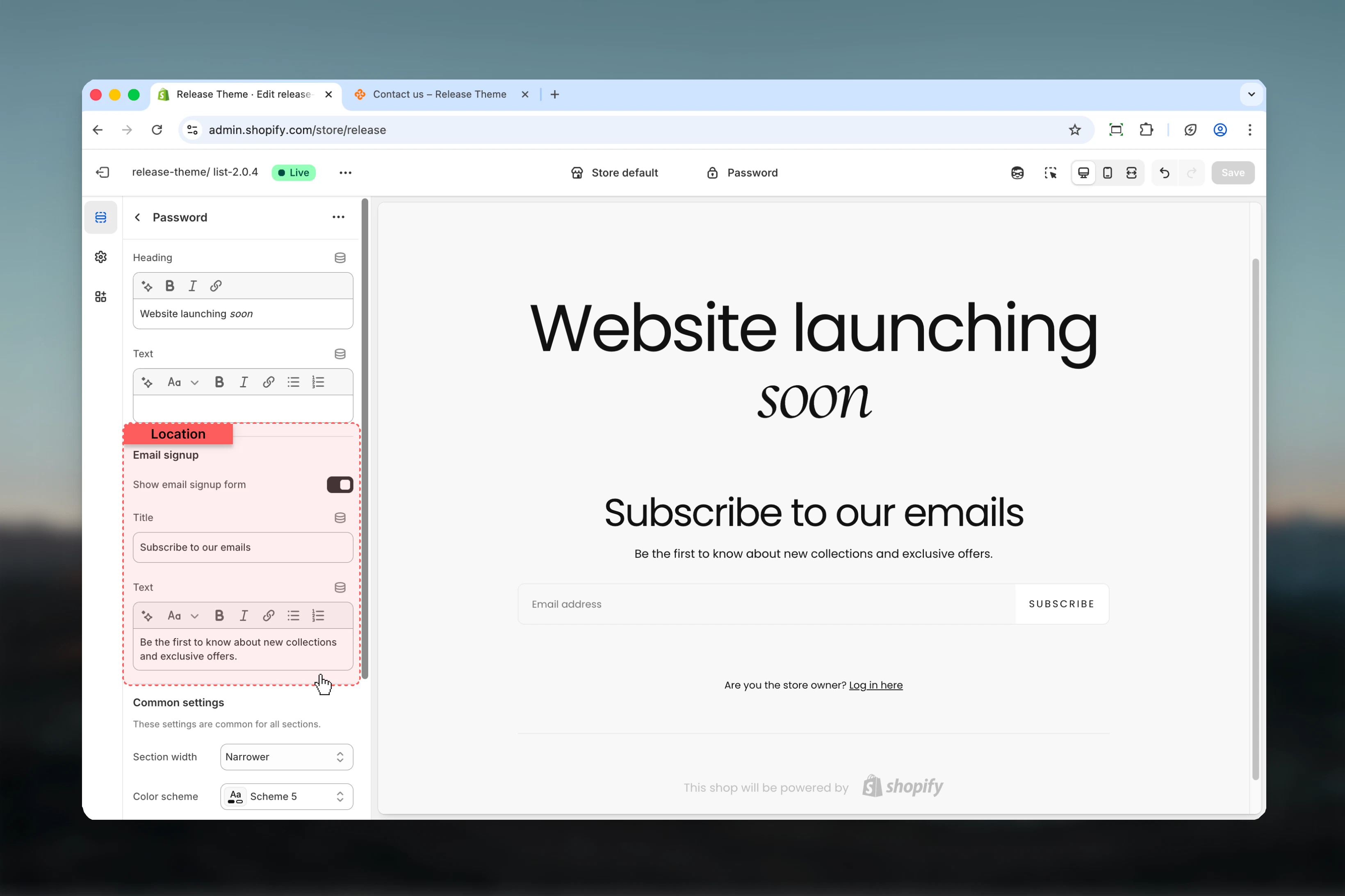
Enable the email signup form to collect customer emails for launch notifications. Customize the signup title and description.
6
Adjust layout
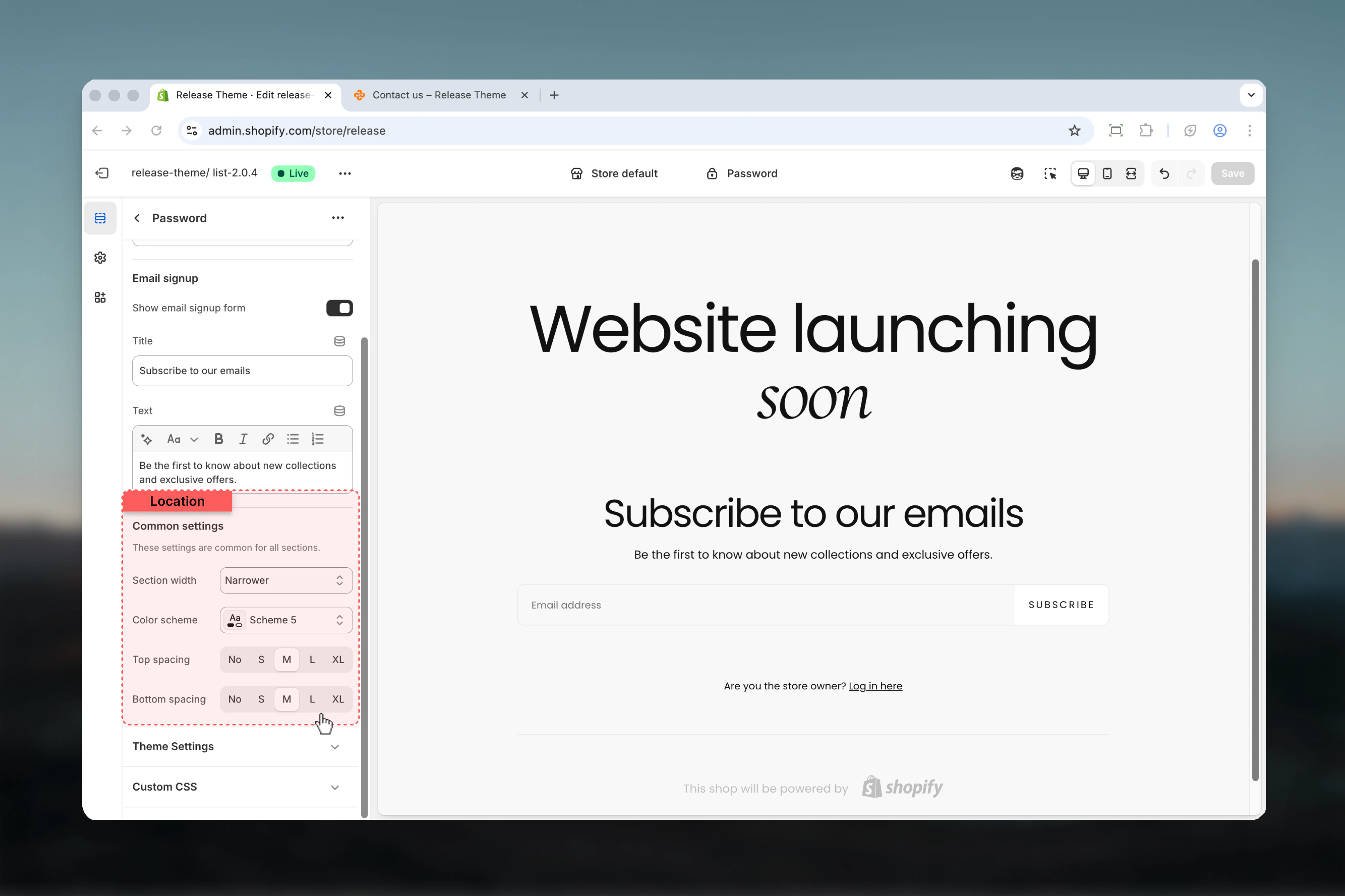
Set section width (recommend narrow for focus), choose color scheme, and adjust spacing
7
Preview and test
Use the preview link to see how your password page appears to visitors. Test the email signup form.
Section Settings
- Content
- Email Signup
- Layout
Control the main messaging displayed on your password-protected page.
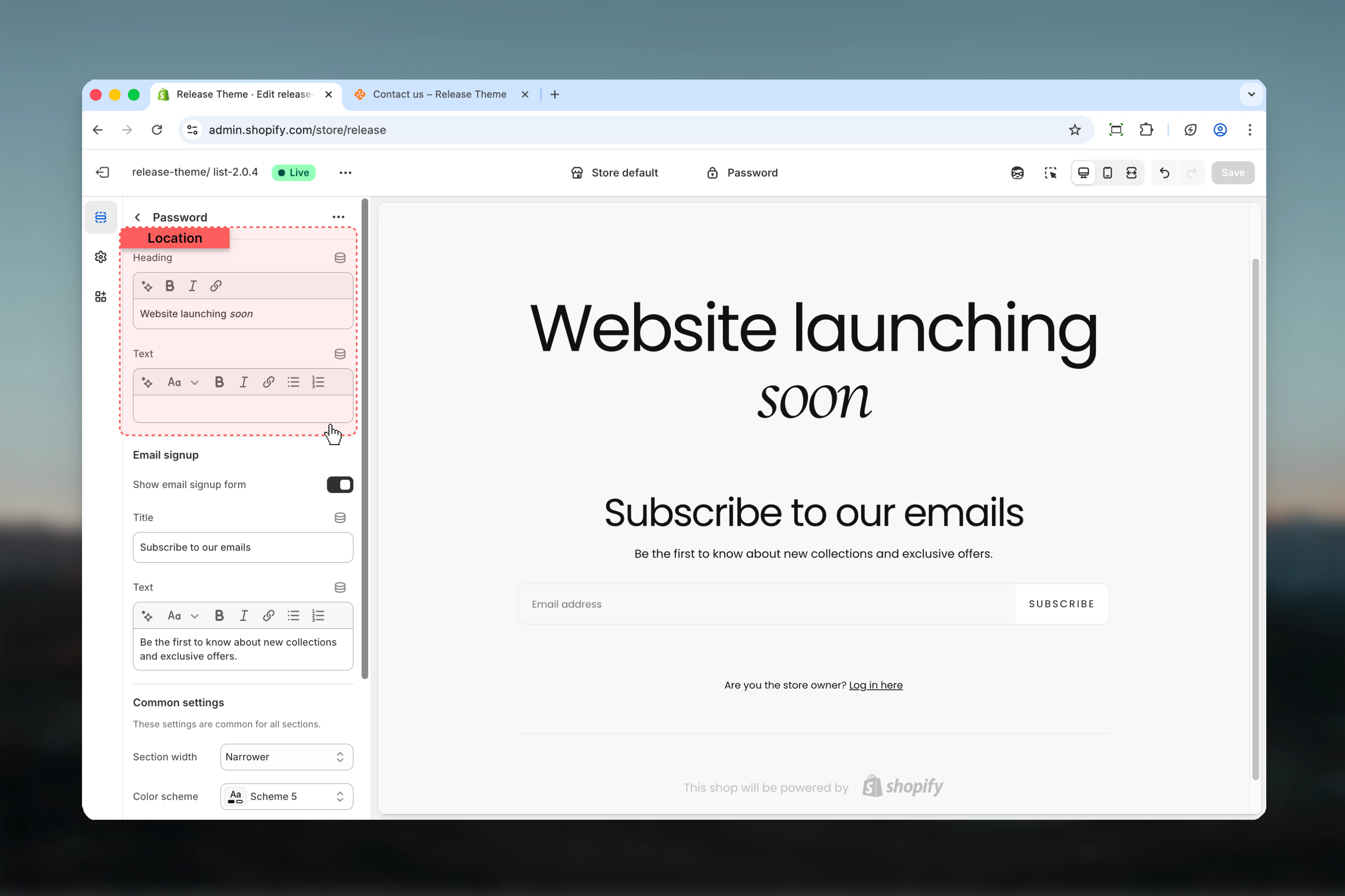
Title
Title
Type: Text input
Default: “Opening soon”Main heading for the password page. This is the first thing visitors see.Example titles:
Default: “Opening soon”Main heading for the password page. This is the first thing visitors see.Example titles:
- “Opening soon”
- “Coming this fall”
- “Launching March 2026”
- “Under construction”
- “Something amazing is coming”
Text
Text
Type: Rich text editor
Default: EmptyDescription or announcement text below the title. Use this to explain your store concept, launch timeline, or value proposition.Supports rich text formatting:
Default: EmptyDescription or announcement text below the title. Use this to explain your store concept, launch timeline, or value proposition.Supports rich text formatting:
- Bold and italic text
- Line breaks
- Multiple paragraphs
- “We’re putting the finishing touches on our new online store. Sign up below to be the first to know when we launch!”
- “Premium sustainable fashion arrives this spring. Join our list for exclusive launch-day offers.”
- “Currently redesigning our shopping experience. We’ll be back soon with exciting new products!”
How password protection works
The password page is a special template that appears when you enable password protection in your Shopify store settings. Here’s how the flow works:- Password protection enabled - Store is locked to public visitors
- Visitor arrives - Sees password page with your custom messaging
- Three options:
- Enter correct password → Access store
- Submit email → Added to launch notification list
- Leave page → Can return later with password or when you launch
- Password holders - Anyone with the password can access the full store
- Preview link - Share a special preview link that bypasses password (useful for partners, investors, testers)
- Store owner - You always have access through Shopify admin
Common use cases
- Pre-launch store
- New product line
- Maintenance mode
- Private B2B store
- Soft launch
- Seasonal reopening
Building anticipation before your official store opening.Configuration:
- Title: “Opening [specific date]”
- Text: Clear value proposition and what makes store unique
- Enable email signup: Yes
- Email signup title: “Be the first to shop”
- Section width: max-w-narrower
- Set specific launch date
- Offer launch-day discount for email subscribers
- Share preview link with close network
- Build email list for 30-90 days before launch
Best practices
Specific launch date
State exactly when you’re launching when possible. “Opening March 15” is far more effective than “Coming soon”. Specific dates create urgency.
Always collect emails
Enable email signup for pre-launch stores. Building an email list before launch creates immediate sales opportunities when you open.
Value proposition
Clearly explain what makes your store unique and why customers should care about your launch. What problem do you solve?
Narrow layout
Use max-w-narrower (default) for focused experience. The narrow width keeps attention on your message and signup form.
Compelling copy
Create excitement about your launch. Use enthusiastic, benefit-focused language. Avoid vague “coming soon” messaging.
Launch incentive
Offer exclusive launch discount or early access to email subscribers. “Sign up for 15% off opening day” increases conversions.
Preview link sharing
Share password or preview link with testers, investors, partners, and press for feedback before public launch.
Social proof
Mention any press coverage, awards, founder credentials, or milestones that build credibility and trust.
Mobile optimization
Test password page on mobile devices. Many visitors will discover your store on mobile first.
Export email list
Before launch, export email list from Shopify admin. Import to email marketing platform for launch campaign.
Related guides
Shopify Password Protection
Learn how to enable and manage password protection in Shopify
404 Page
Customize your 404 error page template
Email Marketing
Use collected emails for launch campaigns in Shopify
Theme Settings - Colors
Configure color schemes used on password page