

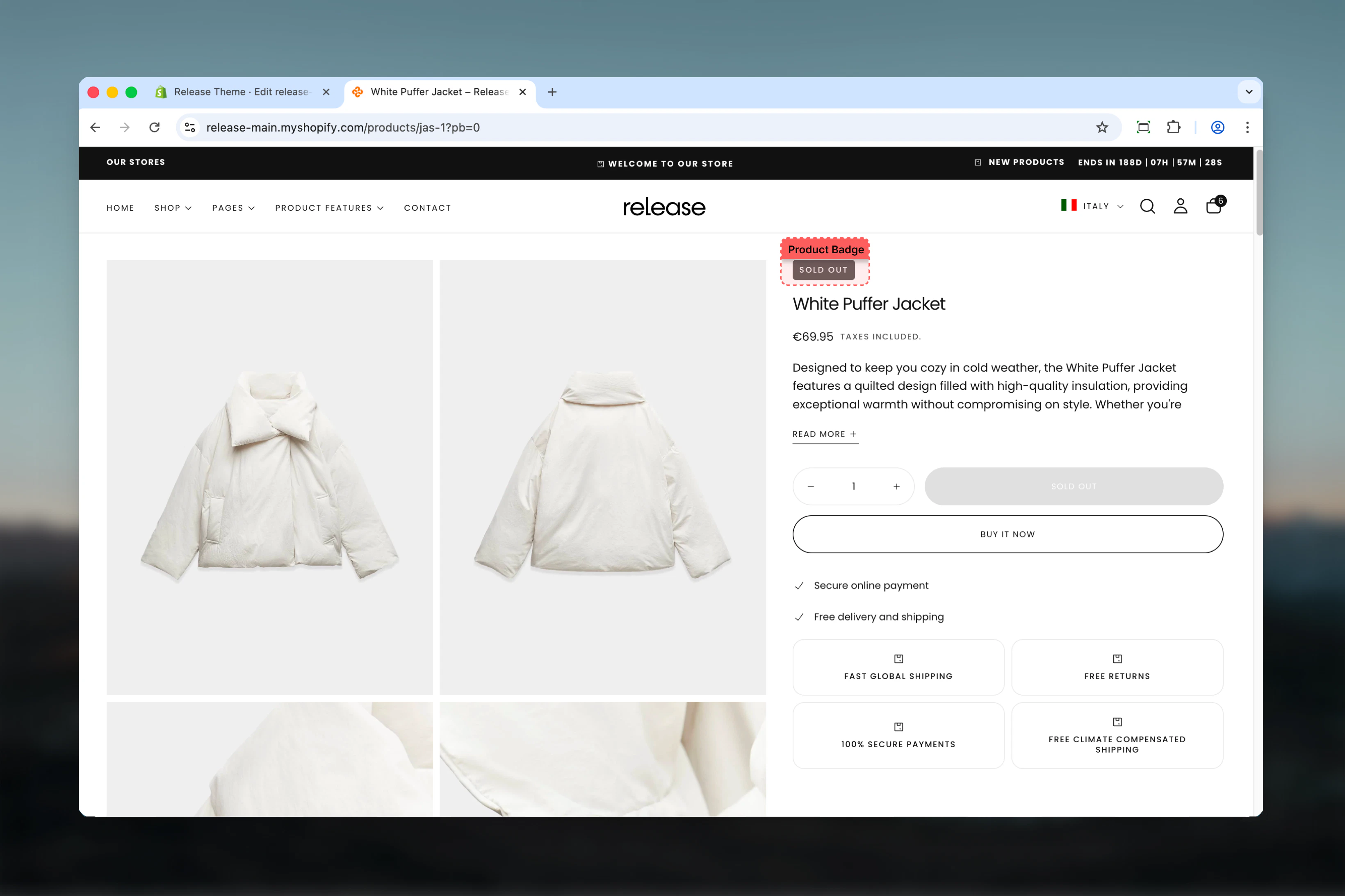
What this feature controls
Product badges manages:- Visual indicators - Display badges on product cards and product pages
- Tag-based system - Use product tags to trigger badge display
- Custom messages - Create unlimited custom badge types
- Multi-language support - Translate badges into multiple languages
- Pre-configured badges - Built-in badges for common use cases (sale, new, bestseller)
- Placement control - Show badges on cards, pages, or both
- Automatic display - Badges appear automatically based on product tags
- Locale integration - Seamless integration with Shopify’s locale system
Getting started
1
Add badge tags to products
Add specific tags to products you want to highlight with badges.
- In Shopify admin, go to Products
- Open the product you want to add a badge to
- In the Tags section, add badge tags using this format:
- Format:
badge:badge_key - Examples:
badge:sale,badge:new,badge:best_seller
- Format:
- Save the product
You can add multiple badge tags to a single product. All badges will display according to your theme settings.
2
Enable badges on product cards
Configure badge display in Theme Customizer settings.
- Go to Online Store → Themes → Customize
- Open Theme settings → Products
- Enable the Product Badges option for product cards
- Save your changes
This setting controls badge display on collection pages, search results, and anywhere product cards appear.
3
Enable badges on product pages
Add the Badges block to product page template.
- In Theme Customizer, navigate to Product pages
- Add the Badges block to the product page template
- Configure badge position and styling in block settings
- Save your changes
4
Test badge display
Verify badges appear correctly on your storefront.
- Visit a product with badge tags
- Check badge appearance on collection pages
- Check badge appearance on product page
- Test with different languages if using translations
How product badges work
Product badges use a simple but powerful tag-based system:Tag format
Badges are triggered by product tags following this format:badge:- Required prefix that identifies this as a badge tagbadge_key- Unique identifier for the badge type
badge:sale- Triggers “Sale” badgebadge:new- Triggers “New” badgebadge:limited_edition- Triggers “Limited Edition” badge
Display logic
- Tag check - Theme scans product tags for
badge:prefix - Key extraction - Extracts badge_key from tag
- Translation lookup - Looks for translation in locale file
- Badge render - Displays badge with translated text
- Fallback - If no translation found, displays badge_key as-is
Pre-configured badges
The theme includes seven built-in badge translations:New
New
Tag:
Display: “New”
Use for: New arrivals, recent additions, latest products
badge:newDisplay: “New”
Use for: New arrivals, recent additions, latest products
Best seller
Best seller
Tag:
Display: “Best seller”
Use for: Top-selling products, popular items, customer favorites
badge:best_sellerDisplay: “Best seller”
Use for: Top-selling products, popular items, customer favorites
Featured
Featured
Tag:
Display: “Featured”
Use for: Highlighted products, editor’s picks, curated selections
badge:featuredDisplay: “Featured”
Use for: Highlighted products, editor’s picks, curated selections
On sale
On sale
Tag:
Display: “On sale”
Use for: Discounted products, sale items, promotions
badge:on_saleDisplay: “On sale”
Use for: Discounted products, sale items, promotions
Coming soon
Coming soon
Tag:
Display: “Coming soon”
Use for: Pre-launch products, upcoming releases, future availability
badge:coming_soonDisplay: “Coming soon”
Use for: Pre-launch products, upcoming releases, future availability
Pre-order
Pre-order
Tag:
Display: “Pre-order”
Use for: Products available for pre-order, advance purchases
badge:pre_orderDisplay: “Pre-order”
Use for: Products available for pre-order, advance purchases
Sold out
Sold out
Tag:
Display: “Sold out”
Use for: Out of stock products, unavailable items
badge:sold_outDisplay: “Sold out”
Use for: Out of stock products, unavailable items
Locale file structure
Badges are defined in theme locale files under thebadges section:
locales/en.default.json
Creating custom badges
- Single language
- Multiple languages
Add custom badges for one language.
1
Choose badge key
Decide on a unique key for your badge.Guidelines:
- Use lowercase letters
- Use underscores for spaces:
limited_edition - Keep it short and descriptive
- Examples:
eco_friendly,handmade,local,exclusive
2
Edit locale file
Add your custom badge to the locale file.
- In your theme code, open
locales/en.default.json - Find the
badgessection - Add your custom badge key and text:
- Save the file
3
Add tag to products
Apply the badge tag to products.
- Go to Products in Shopify admin
- Open a product
- Add tag:
badge:limited_edition - Save the product
Badge configuration
Product card settings
Configure badge display on product cards (collection pages, search results): Location: Theme Customizer → Theme settings → ProductsProduct badges toggle
Product badges toggle
Type: Toggle
Default: EnabledEnable or disable badge display on product cards throughout the store.When enabled:
Default: EnabledEnable or disable badge display on product cards throughout the store.When enabled:
- Badges appear on all product cards
- Visible in collections, search, home page sections
- Automatically displays based on product tags
- No badges show on product cards
- Product page badges are unaffected
- Clean minimal card appearance
Product page settings
Configure badge display on individual product pages: Location: Theme Customizer → Product pages → Add Badges blockBadges block
Badges block
Type: Block
Location: Product page templateAdd the Badges block to display badges on product pages.Block settings:
Location: Product page templateAdd the Badges block to display badges on product pages.Block settings:
- Position (above/below title, near price)
- Badge style (color scheme, size)
- Multiple badge display
- Above product title
- Below product title
- Near product price
- In product info section
Translation management
Fallback behavior
When a badge translation is missing:- Tag: Product has
badge:custom_badge - Lookup: Theme searches locale file for
"custom_badge": "..." - Not found: Translation doesn’t exist in current locale
- Fallback: Badge displays as “custom_badge” (the key itself)
- Tag:
badge:summer_sale - No translation defined
- Displays: “summer_sale” on storefront
Translation best practices
Match brand voice
Translate badges to match your brand voice in each language, not just literal translations. “Hot Deal” might be “Oferta Caliente” (literal) or “Oferta Especial” (better branding) in Spanish.
Keep it short
Badge text should be 1-3 words maximum. Long text doesn’t fit well on badges. “Limited Edition” works better than “Available in Limited Quantities Only”.
Use consistent keys
Use the same badge keys across all products. Don’t create
badge:sale1, badge:sale2, etc. Use one badge:sale for consistency.Test all locales
After adding translations, test badge appearance in every language your store supports. Ensure text fits and looks good.
Common use cases
- Sale promotions
- New arrivals
- Bestsellers
- Sustainability
- Limited editions
- Made-to-order
Highlight discounted products during sales.Setup:
- Badge tag:
badge:on_sale - Display: “On sale” (or translated)
- Products: All items with active discounts
- Add
badge:on_saletag to sale products - Enable badges on product cards and pages
- When sale ends, remove tags
- Use bulk editor to add/remove tags quickly
- Filter by collection or discount code
- Add/remove sale badges en masse
Best practices
Limit badge count
Don’t use more than 1-2 badges per product. Multiple badges create visual clutter and reduce impact. Choose the most important badge.
Use meaningful badges
Every badge should provide valuable information to customers. Avoid generic badges that don’t influence purchase decisions.
Consistent naming
Use underscore format consistently:
best_seller, not bestseller or best-seller. Maintain consistent key formatting across all badges.Translate everything
Provide translations for all badge keys in every language your store supports. Missing translations look unprofessional.
Regular maintenance
Review and update badges regularly. Remove “new” badges after 60 days, update “bestseller” badges monthly based on sales data.
Bulk tag management
Use Shopify’s bulk editor to add/remove badge tags efficiently. Filter products by collection or condition, then edit tags in bulk.
Strategic placement
Enable badges where they matter most. High-traffic collection pages benefit most. Consider disabling on pages where badges distract.
A/B test badge text
Test different badge wording to see what drives conversions. “On Sale” vs “Limited Offer” vs “Special Price” may perform differently.
Automation consideration
For large catalogs, consider Shopify Flow or apps to automatically manage badge tags based on rules (sales data, publish date, stock levels).
Visual consistency
Ensure badge styling matches your brand. Customize badge colors and styles in theme settings to align with overall design.
Technical implementation
Tag format requirements
Key naming rules
Badge key requirements:
- Use lowercase only
- Use underscores for spaces:
best_sellernotbest seller - No special characters except underscores
- Keep under 20 characters
- Use descriptive names:
eco_friendlynoteco
Multiple badges per product
Products can have multiple badge tags:- All badges appear on product
- Order determined by theme settings
- May stack or display inline depending on theme style
- Consider limiting to 2 badges maximum for clean appearance
Related guides
Product Page
Configure the product page template and Badges block
Product Card Settings
Manage product card display settings including badges
Product Tags
Learn more about Shopify product tags and management
Theme Localization
Understanding Shopify theme locale files and translations