

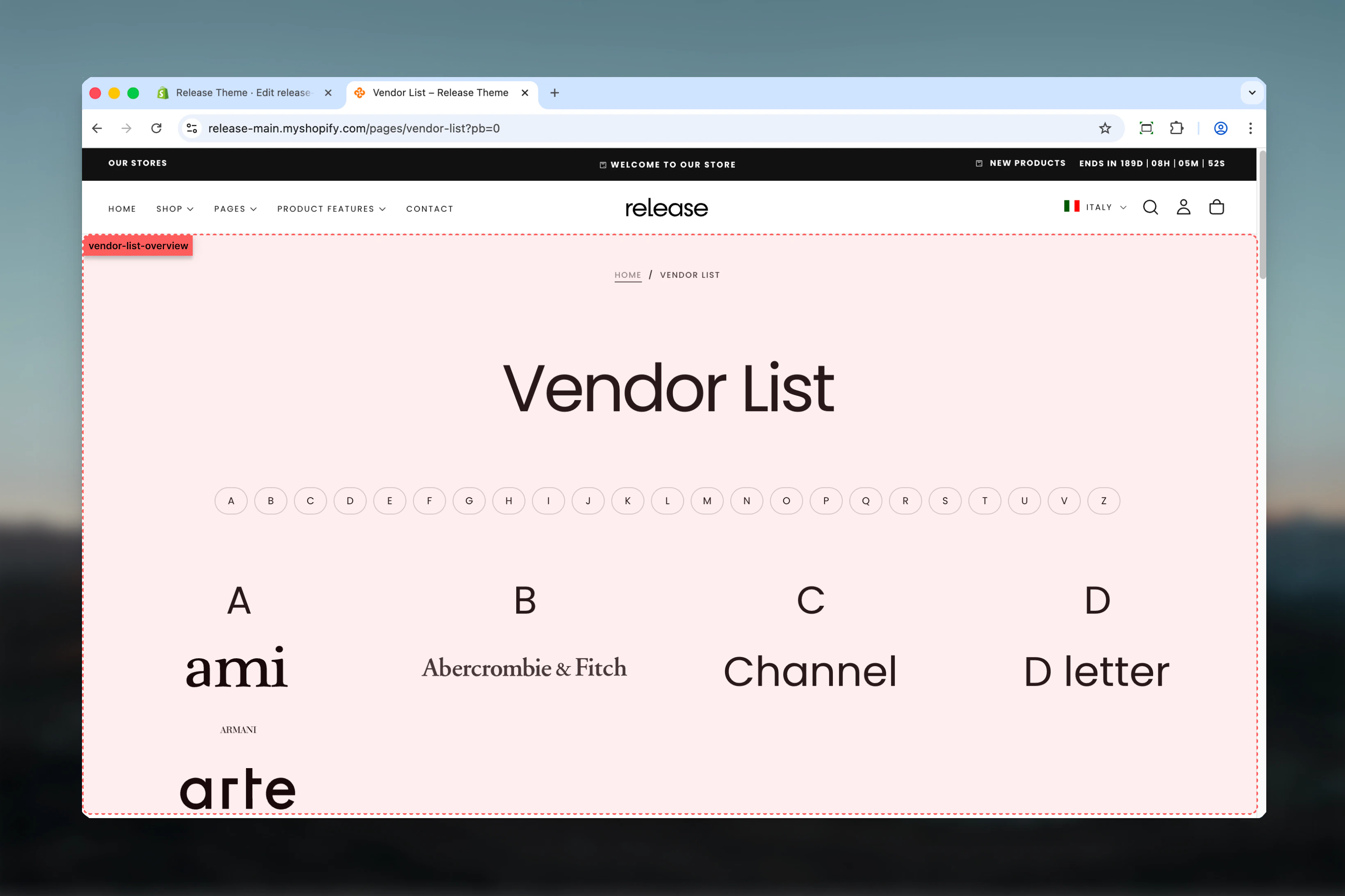
What this section controls
- Automatic vendor list from product collections
- Optional vendor logo display
- Metaobject integration for enhanced vendor data
- Vendor navigation filtering
- Logo height customization
- Card-based layout with color schemes
- Content alignment options
Getting started
1
Open Theme Customizer
From Shopify admin, access the Theme Customizer.
2
Add Vendors section
Add the section to your desired page or template.
3
Configure vendor display
Enable vendor logos and set logo height preferences.
4
Optional: Add metaobject
Connect a metaobject for enhanced vendor information.
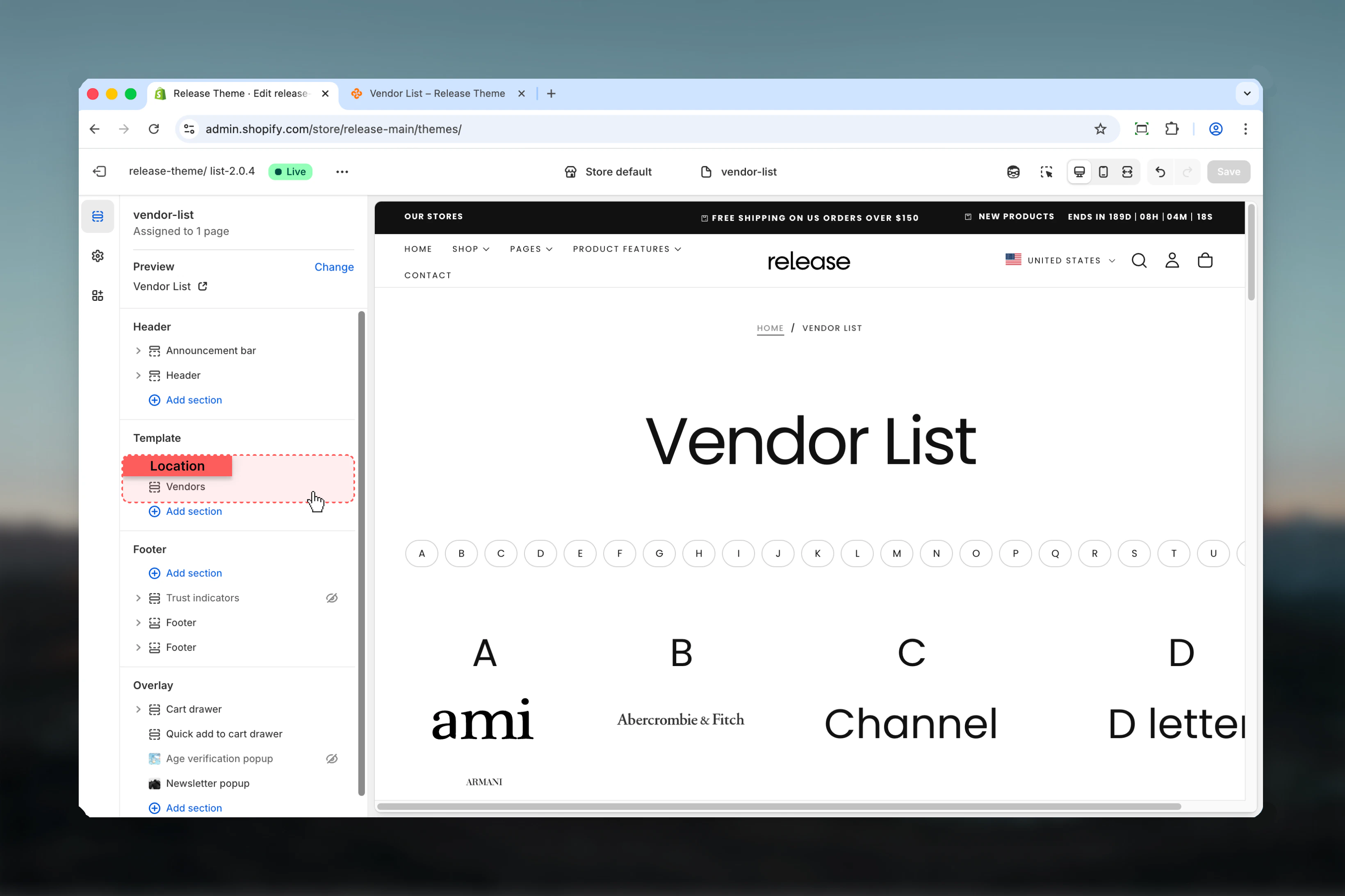
Section settings
- Vendors
- Layout
- Settings
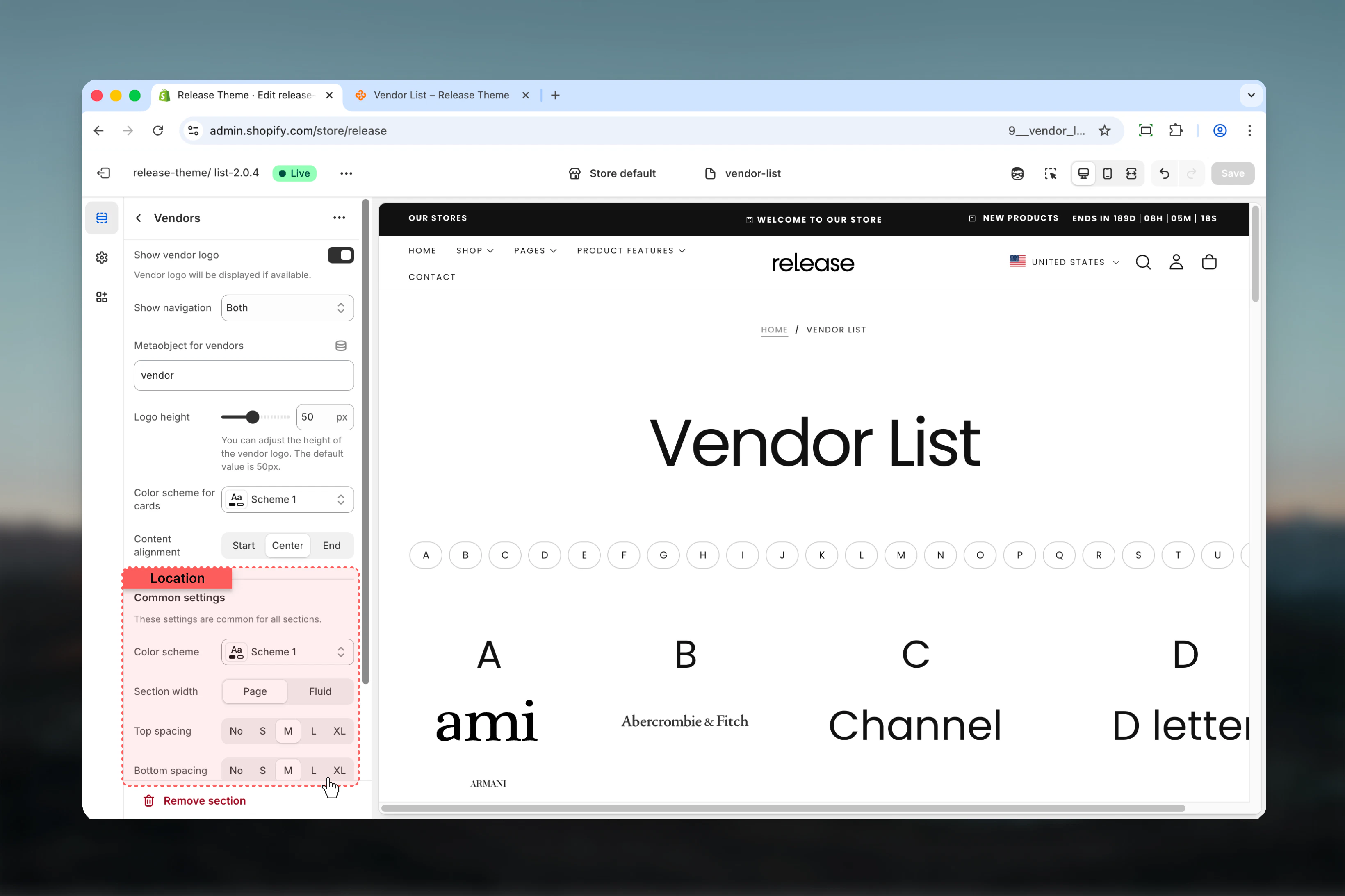
Show vendor logo
Displays vendor logos when available.Default: FalseVendor logo will be displayed if available in your product data or metaobject.
Show navigation
Controls where vendor navigation filtering appears.Available options:- Desktop: Desktop only
- Mobile: Mobile only
- Both: All devices
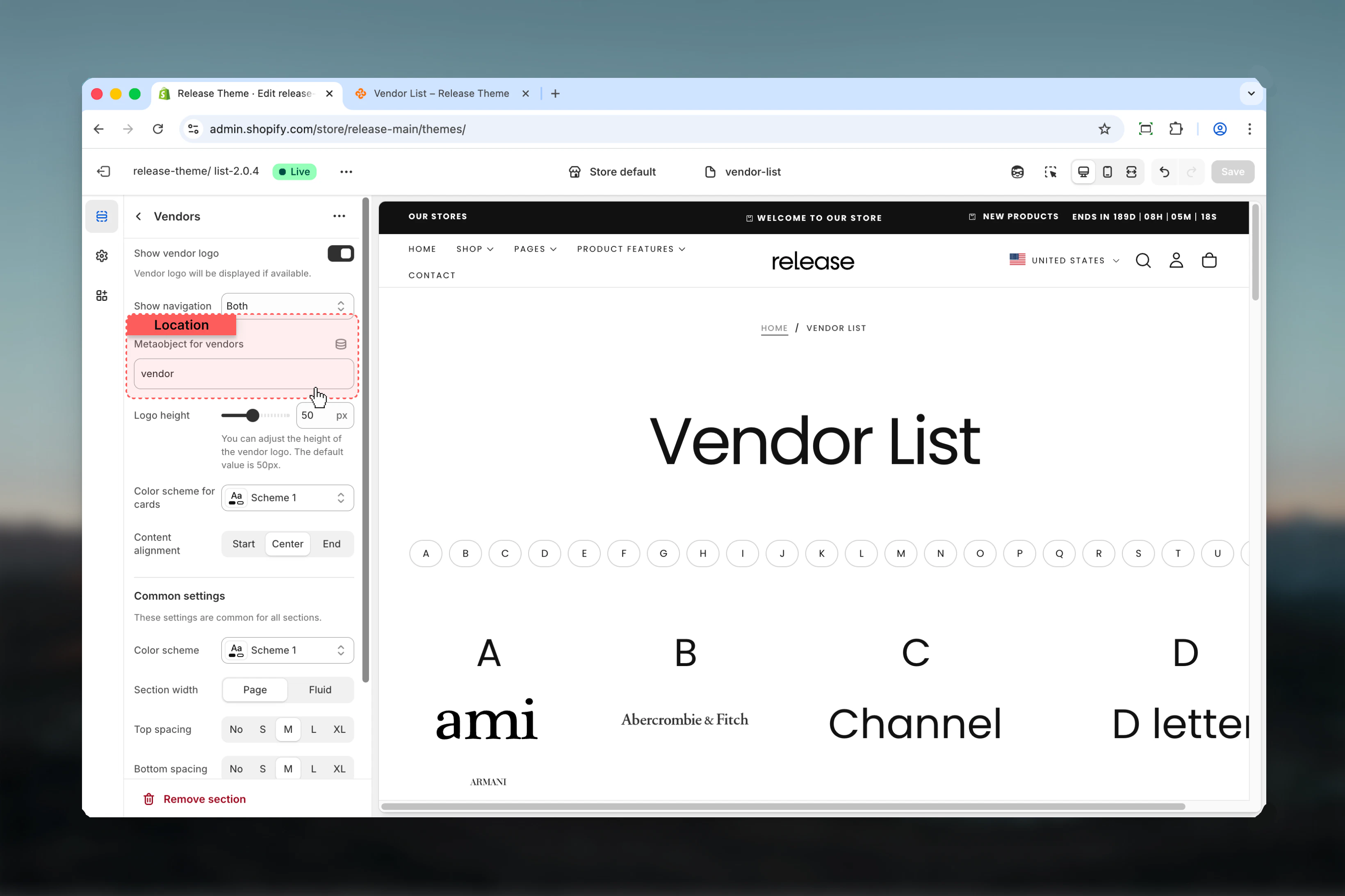
Metaobject for vendors
Connect a metaobject definition for additional vendor data.- Text field for metaobject handle
Use metaobjects to add custom vendor information like descriptions, logos, or links.
Logo height
Controls the height of vendor logos.Range: 10 – 100 pxDefault: 50 px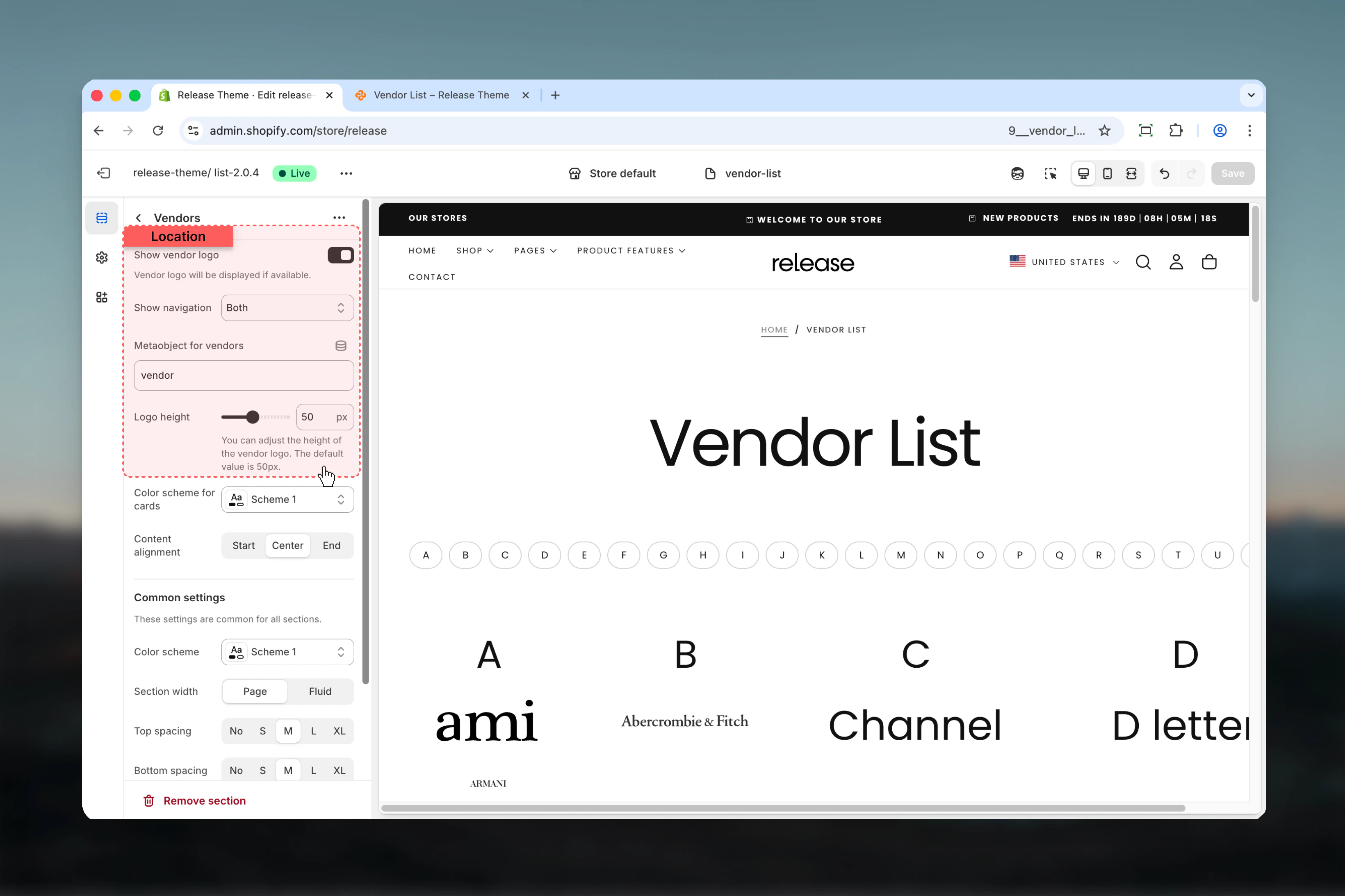
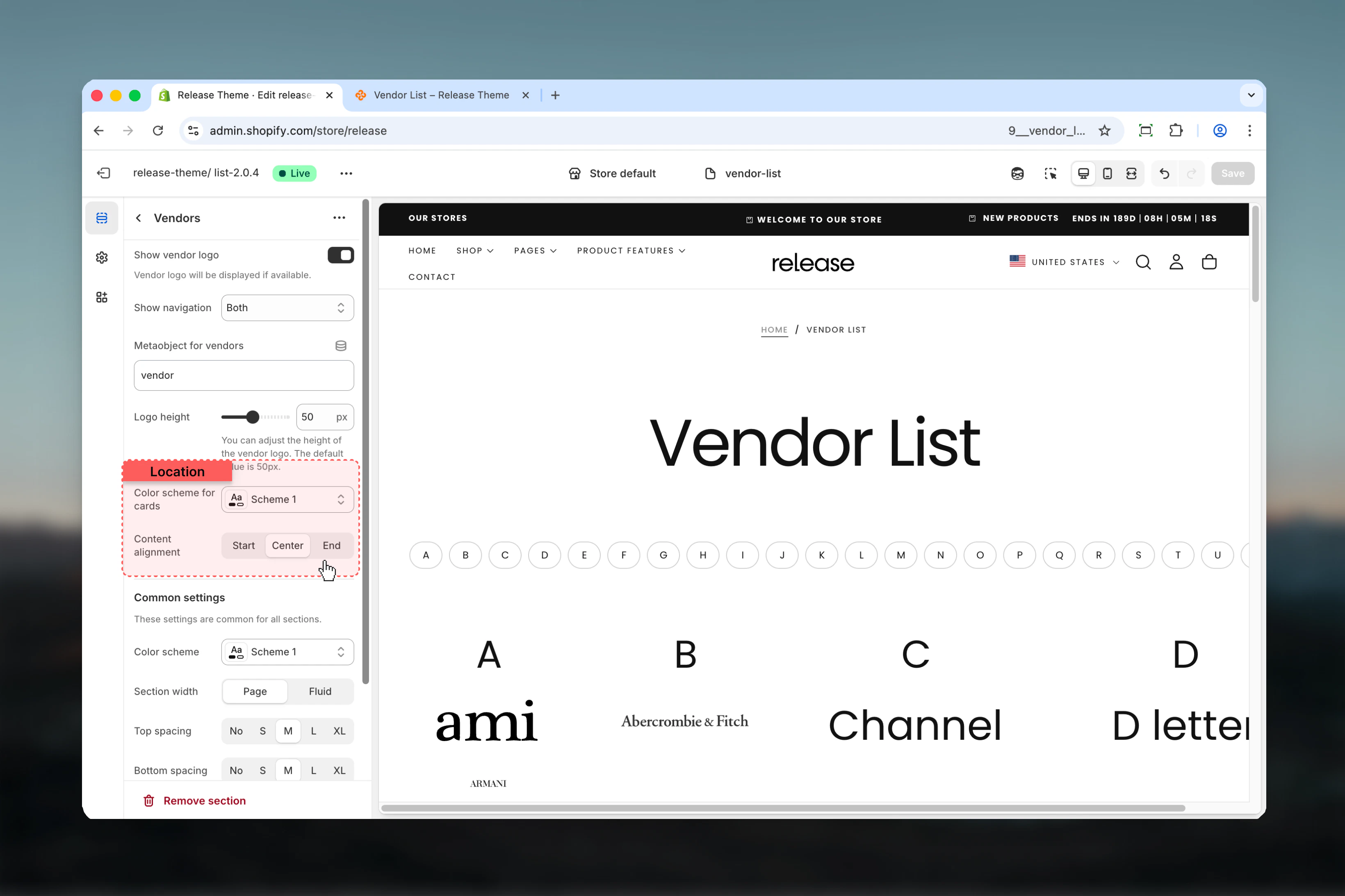
How vendors are populated
The Vendors section automatically collects all unique vendors from your product catalog:- Extracts vendor names from product metadata
- Displays each vendor as a clickable card
- Links to vendor-specific collection pages
- Shows vendor logo when available
Metaobject integration
Enhance vendor listings with metaobjects:- Create a metaobject definition for vendors in Shopify admin
- Add fields like logo, description, website URL, social links
- Enter the metaobject handle in section settings
- Section automatically displays enhanced vendor information
Best practices
- Enable vendor logos for visual brand recognition and credibility
- Set logo height between 40-60px for optimal card display
- Use metaobjects to add rich vendor information beyond basic product data
- Enable navigation on both devices for better filtering experience
- Use center alignment for logo-centric displays
- Use start alignment when including vendor descriptions
- Match card color scheme with your brand colors
- Keep vendor names consistent across products for accurate grouping
- Test with different logo sizes to find optimal balance
- Ensure vendor logos are high-resolution for crisp display
Common use cases
- Multi-brand stores - Showcase all brands carried in your store
- Designer directory - Display fashion designers or artists
- Manufacturer listings - Show product manufacturers
- Brand partnerships - Highlight brand collaborations
- Wholesale portals - Vendor directories for B2B stores
- Marketplace platforms - Display all sellers or creators
- Beauty brands - Cosmetics and skincare brand showcases
Related guides
Page: Vendors
Learn more about the vendors page template
Common Settings
Learn about common settings shared across sections