

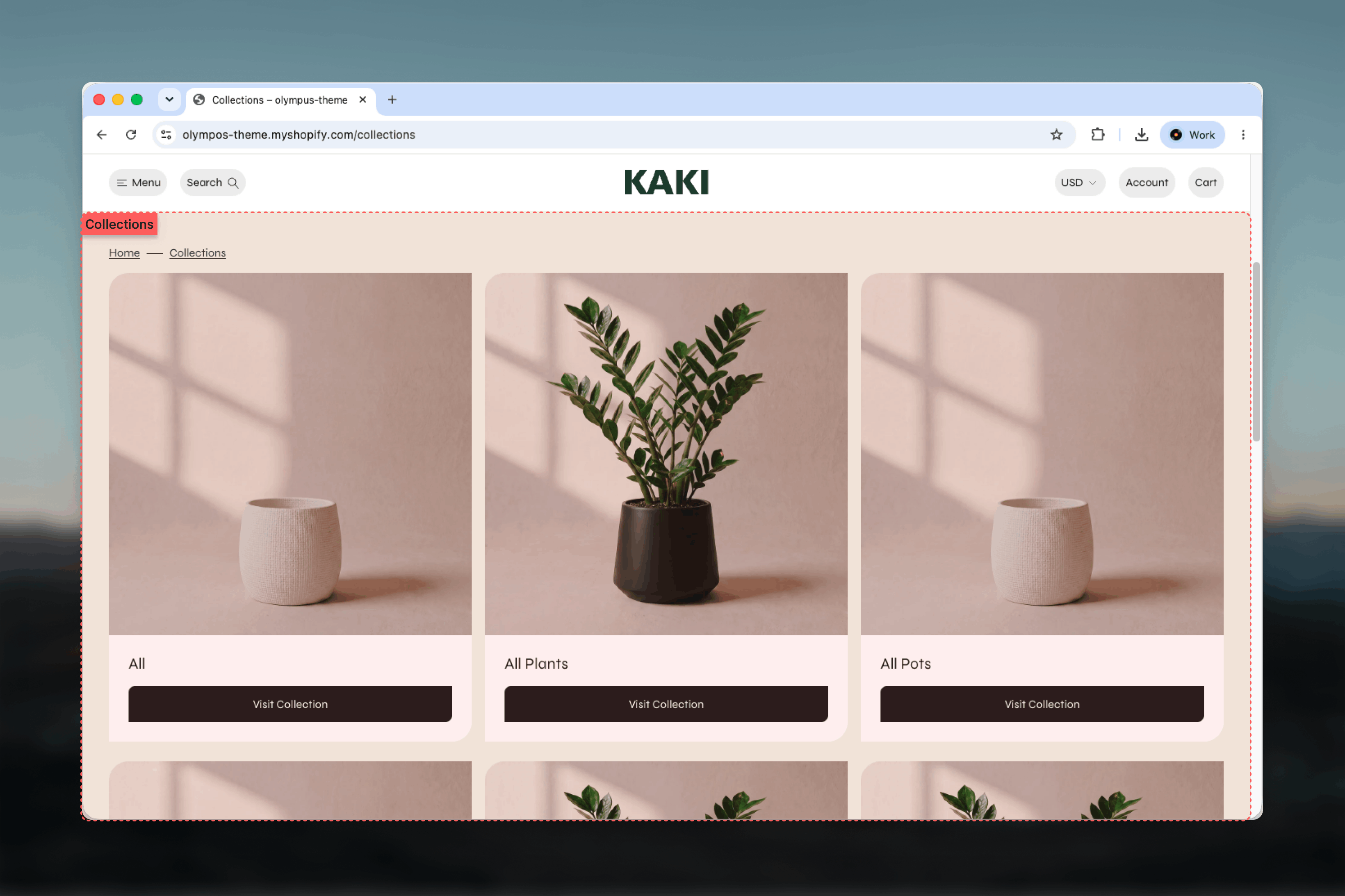
What this template controls
- Whether the grid shows all collections or only the ones you pick
- Breadcrumbs, an optional heading and its text
- Collections per row, card heading size and the button label
- Collections per page when listing all collections
- Color schemes for the page and for the cards, plus width, spacing and borders
Getting started
1
Open the Theme Customizer
From Shopify admin go to Online Store → Themes and click Customize on Olympus.
2
Choose the List collections template
Use the page selector and pick Collections → List collections.
3
Select the Collections grid section
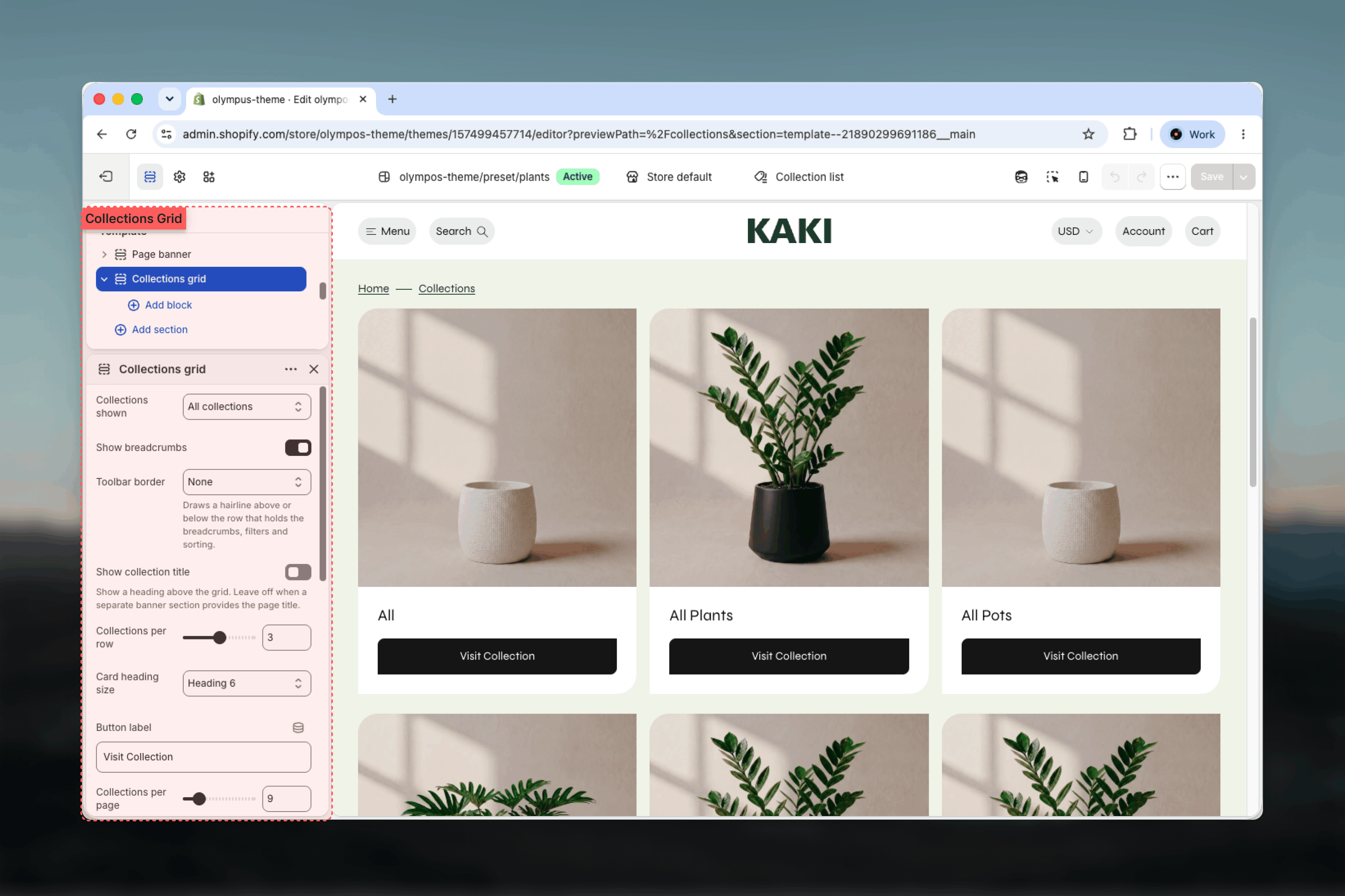
Set Collections shown to All collections or Selected collections. For a curated list, add one Collection block per collection and drag them into order.
Settings
Source and pagination
Collections shown decides where the cards come from. Default: All collections.- All collections: every collection in the store, in Shopify’s default order, paginated with Collections per page (6 to 24 in steps of 3; default 9). Pagination uses the Numbered or Load more style from Theme settings → Pagination.
- Selected collections: only the Collection blocks you add, in the order you set, with no pagination. Use it to hide internal or seasonal collections and to control the order.
Heading and breadcrumbs
Show breadcrumbs (on by default) adds a Home › Collections trail in a toolbar row above the grid; Toolbar border (None, Top, Bottom or Top and bottom) draws a hairline around that row. Show collection title (off by default) prints a heading above the grid with the text from Heading (default “Collections”). Leave it off when a Page header section provides the page title; the heading then stays on the page invisibly for search engines and screen readers.Cards
Collections per row sets the desktop columns: 2 to 4 (default 3). Card heading size sets the title size from Small to Heading 3 (default Heading 6). Button label (default “Visit Collection”) is shown under every title; clear it to show cards without a button. The card image ratio and card borders follow Theme settings → Cards.Colors
Page color scheme colors the section background. Card color scheme (default scheme 5) colors the title and button area of every card, never the image, so cards can stand out from the page.Common settings
Width
Width
Page (default), Narrow, Narrower, Fluid or Full width.
Top spacing and Bottom spacing
Top spacing and Bottom spacing
None, Small, Medium or Large. Defaults: Medium above, Large below.
Section border
Section border
None (default), Top, Bottom or Top and bottom.
Blocks
Collection
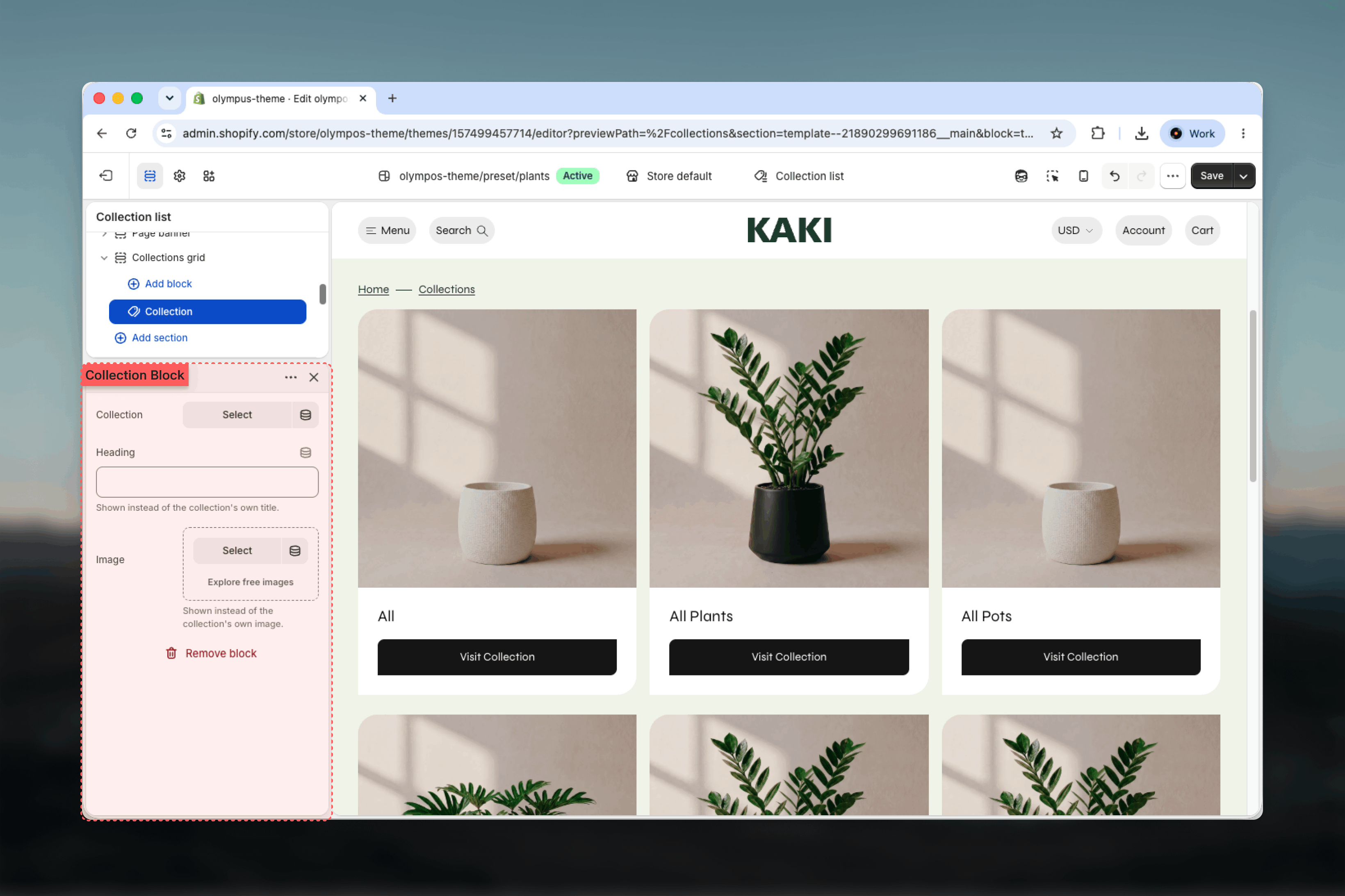
- Collection: the collection the card links to. Without one, a placeholder card is shown in the Theme Customizer.
- Heading: optional text shown instead of the collection’s own title, for a shorter or more descriptive label.
- Image: optional image shown instead of the collection’s own image, for artwork made for this page.
Best practices
Curate for storefront order
Selected collections lets you lead with the categories that sell, and keeps automated or internal collections off the page.
Give every collection an image
Cards fall back to a placeholder without one. Consistent image framing matters more than resolution here.
Match the columns to the count
Three columns suit six to twelve collections; four columns suit large catalogs; two columns give a few collections more presence.
Use one title source
Either the section heading or a Page header section should carry the page title, not both.
Related guides
Collection Page (PLP)
The product grid customers reach from each collection card
Cards
Media aspect ratio and borders shared by collection, product and article cards
Featured collections
Show a handful of collections on any other page