

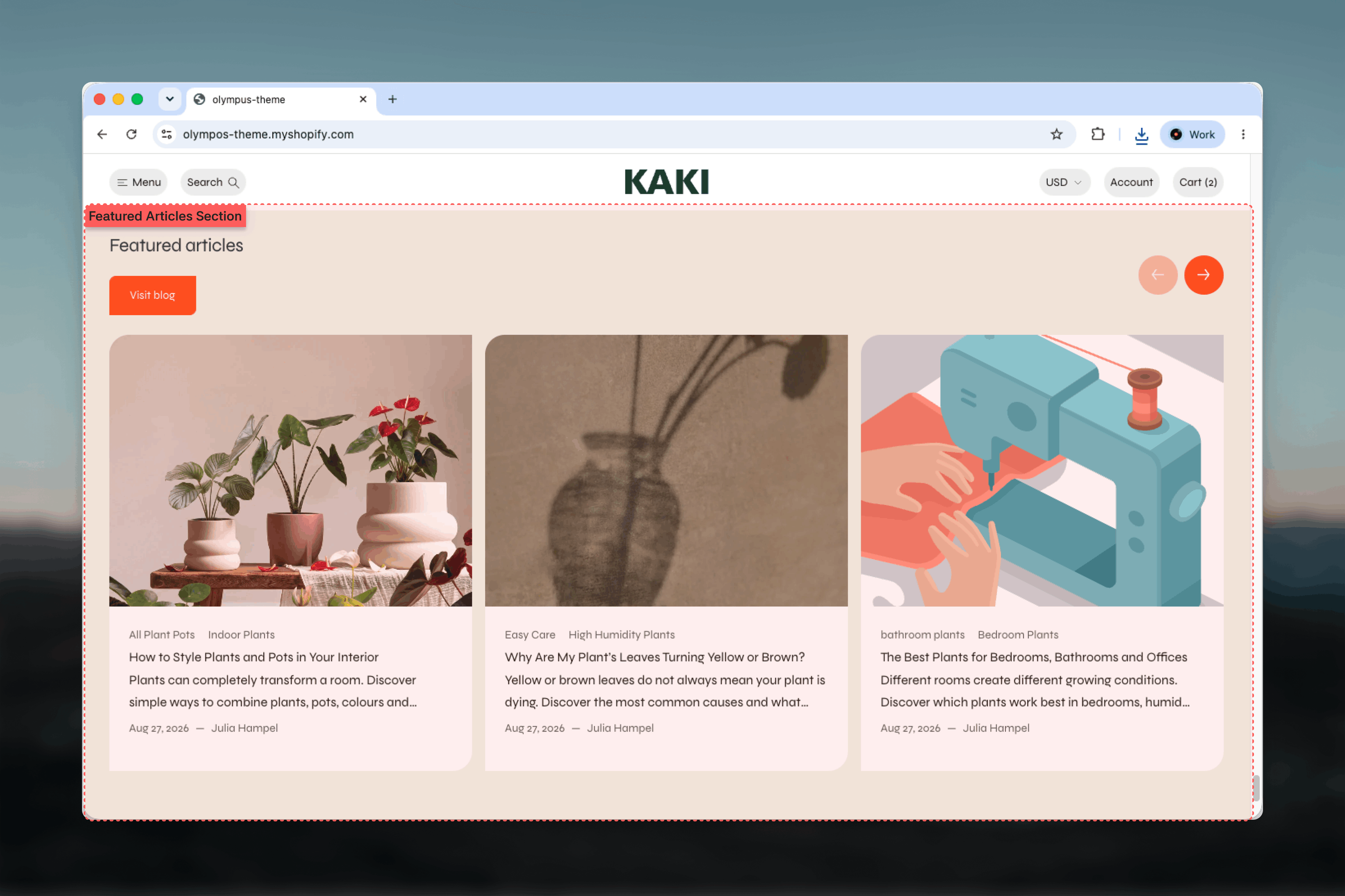
What this section controls
- Which blog feeds the section and how many posts appear
- A section heading and an optional button, for example a link to the full blog
- Whether the heading sits above or beside the cards
- Card media ratio, title size, content alignment and the date and author line
- Spacing between cards on desktop and mobile, and how many cards peek into view on mobile
- Color scheme, width, spacing and borders
Getting started
1
Open the Theme Customizer
From the Shopify admin, open Online Store, then Themes, and select Customize on Olympus.
2
Add the section
Choose the template you want to edit, select Add section and pick Featured articles.
3
Choose a blog
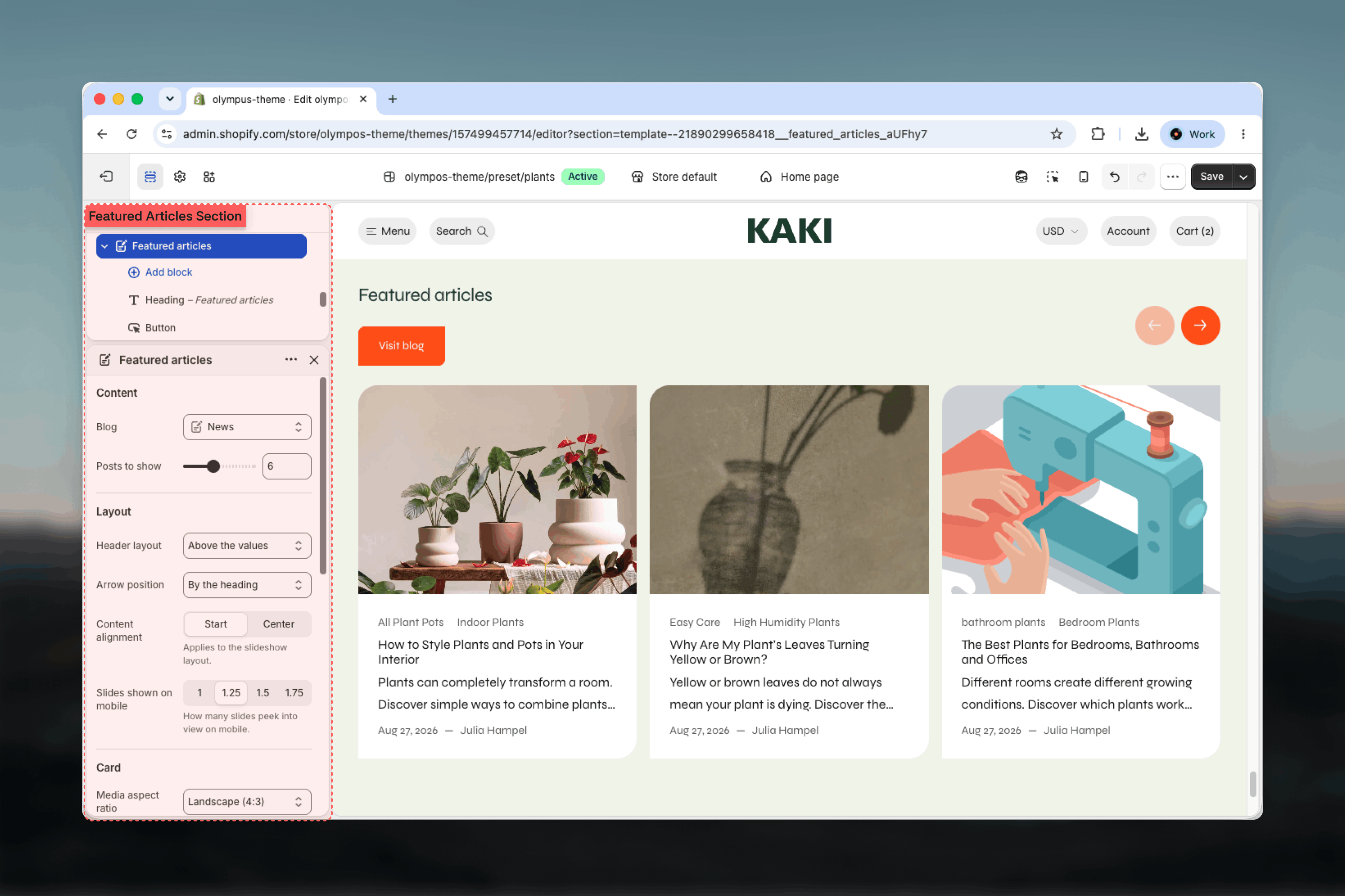
In the Content group, select the Blog to pull posts from and set how many posts to show.
4
Refine the cards
Adjust the Layout and Card groups until the cards match the rest of the page, then save.
How it works
The section always renders as a slideshow. On desktop, arrows step through the cards; on mobile, customers swipe, and a row of pagination dots shows their position. Each card links to its article and shows the article image, up to two tags, the title, a short excerpt, and the date and author line. If an article has no image, a placeholder illustration is used so the row stays even.Section settings
Content
Content settings decide which posts appear and what surrounds them.Heading
Heading
The title shown above or beside the cards. Default: Featured articles. Leave it empty to show the cards alone.
Blog and Posts to show
Blog and Posts to show
Blog selects the blog to read from. Posts appear newest first.Posts to show sets how many articles are loaded into the slideshow, from 2 to 12. Default: 6. Larger counts give customers more to browse but load more images.
Layout
Layout settings position the heading and space the cards.Header layout
Header layout
Places the heading and button relative to the cards.
- Above the values (default): the heading runs across the top and the cards fill the full width below.
- Beside the values: the heading and button sit in a narrow column at the start, and the cards slide alongside it. On mobile the column stacks above the cards.
Content alignment
Content alignment
Aligns the heading, button and slideshow controls to the Start or Center. Default: Start. Center suits short headings on pages with centered content.
Desktop spacing and Mobile spacing
Desktop spacing and Mobile spacing
Set the gap between cards on a 1 to 6 scale. Defaults: 4 on desktop and 2 on mobile. Smaller gaps fit more of the next card on screen; larger gaps give each card more breathing room.
Slides shown on mobile
Slides shown on mobile
Controls how many cards fit the mobile viewport: 1, 1.25, 1.5 or 1.75. Default: 1.25. A fraction leaves part of the next card visible, which signals that the row can be swiped.
Card
Card settings style every article card in the section.Media aspect ratio
Media aspect ratio
Crops article images to a shared shape so the row lines up: Landscape (4:3), Square (1:1) or Portrait (3:4). Default: Landscape (4:3). Choose the ratio that matches how your featured images are usually shot.
Heading size
Heading size
Sets the size of the article title on each card, from Extra small through Body up to Heading 3. Default: Body. Keep titles small when you show many posts so the cards stay compact.
Content alignment
Content alignment
Aligns the tags, title, excerpt and meta line within the card to the left, center or right. Default: left.
Color scheme
Color scheme
Sets the background, text and button colors of the section. Default: Scheme 1.
Common settings
Width
Width
Page (default), Narrow, Narrower, Fluid or Full width.
Top spacing and Bottom spacing
Top spacing and Bottom spacing
None, Small, Medium, Large or Extra large. Default: Large for both.
Section border
Section border
None (default), Top, Bottom or Top and bottom.
Blocks
Featured articles does not accept blocks. The heading, button and article cards are all generated from the section settings above, and the cards themselves read their content from the selected blog. To build a custom arrangement of articles with your own heading, text and button blocks, use the Blog template or a Custom section.Best practices
Keep image ratios consistent
Pick the aspect ratio that fits most of your featured images. Cropping is unavoidable with mixed sources, so shoot or export blog images in one shape.
Link the button to the blog
A Visit blog button gives customers a clear path to older posts that the slideshow does not show.
Show six to eight posts
Enough to feel active, few enough that customers reach the end. Very long rows are rarely swiped through.
Use the side header for editorial pages
Beside the values pairs a short heading with the cards on one line and reads well on wide screens.
Write excerpts
Cards show the article excerpt, or the first words of the content when none is set. A written excerpt reads better than a truncated opening paragraph.
Check the mobile peek
Leave Slides shown on mobile at a fraction so the next card is visible and the row is clearly swipeable.
Related guides
Blog template
Configure the full blog listing that this section links to
Common settings
Width, spacing, borders and color schemes shared across sections