

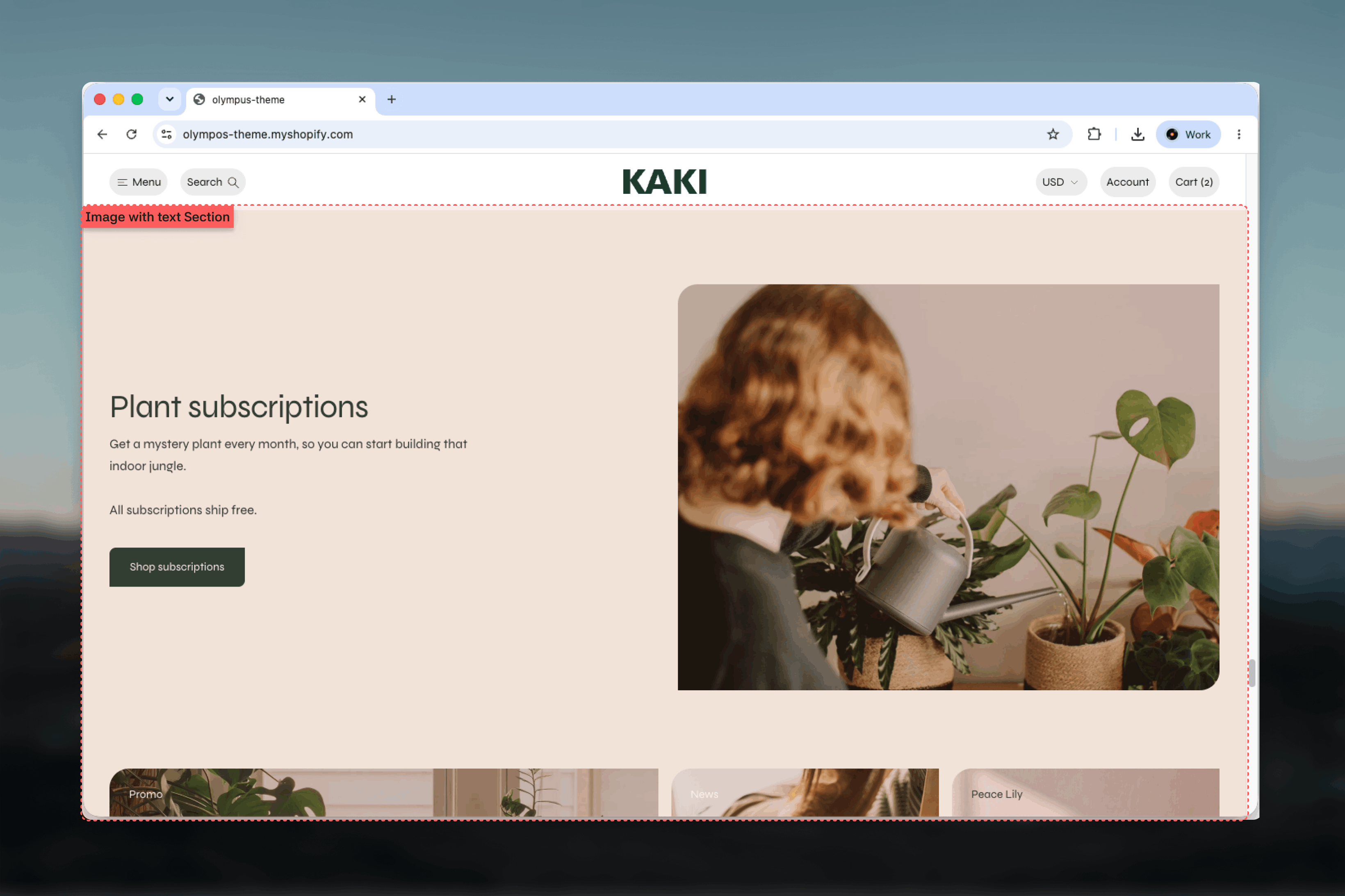
What this section controls
- The image, an optional mobile image and its aspect ratio
- Image position on the left or right
- Vertical alignment of the content against the image
- An optional hairline under the heading and a divider between image and text
- Gap between image and content on desktop and mobile
- Color scheme, width, spacing and borders
Getting started
1
Open the Theme Customizer
From the Shopify admin, open Online Store, then Themes, and select Customize on Olympus.
2
Add the section
Select Add section and choose Image with text. The preset adds a Heading, Text and Button block.
3
Upload the image
In the Media group, add the Image and set its Aspect ratio.
4
Write the content
Edit the nested blocks, then adjust Image position and Content alignment in the Layout group.
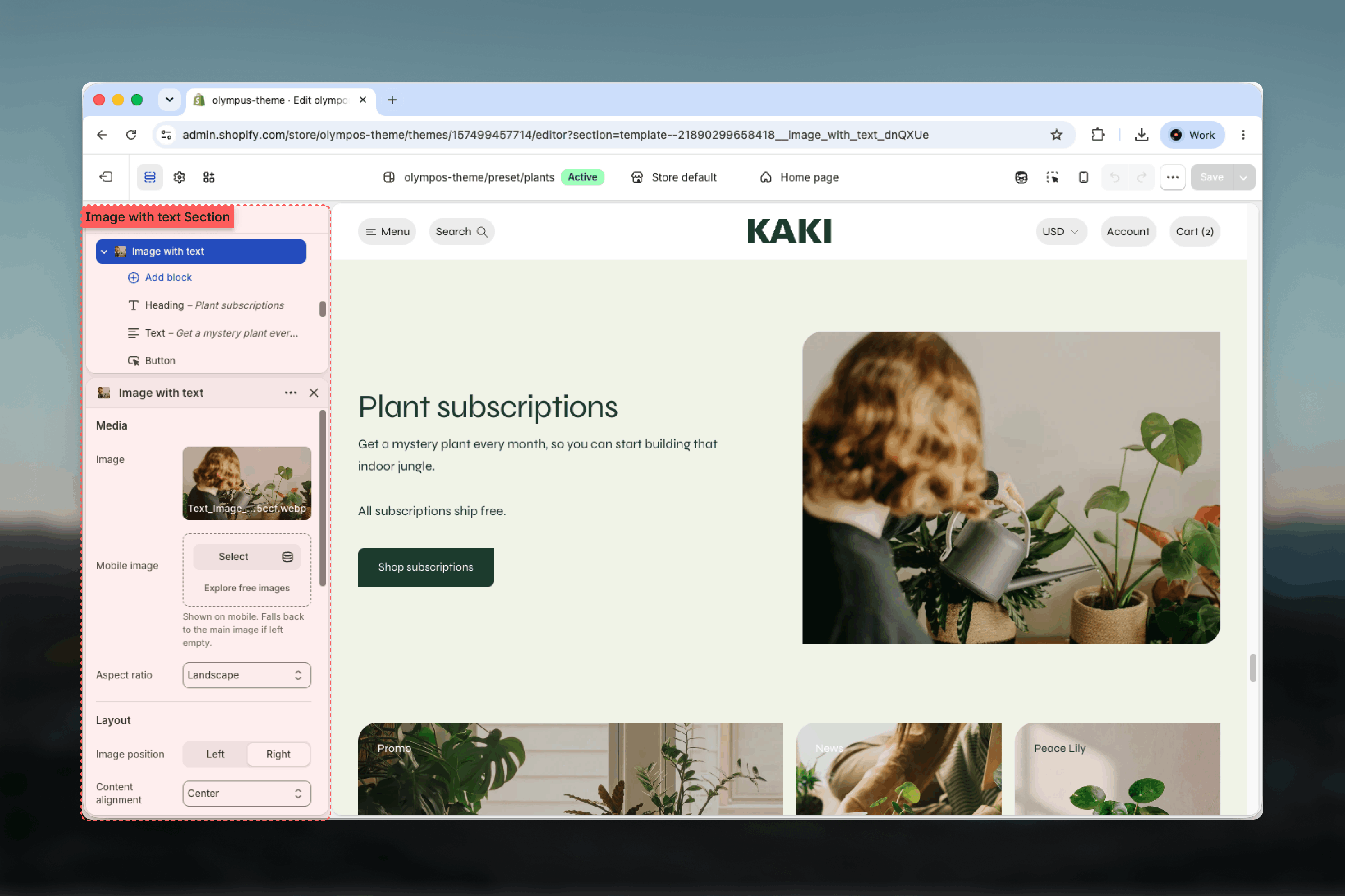
Section settings
Media
Image and Mobile image
Image and Mobile image
Image is shown on desktop. Mobile image replaces it on small screens and falls back to the main image when empty. On mobile the image stacks above the content, so a squarer crop usually works better than the desktop one.
Aspect ratio
Aspect ratio
Shape the image is cropped to: Square, Landscape (default), Widescreen or Portrait. Portrait gives the content column the most height to work with; Widescreen keeps the section short.
Layout
Image position
Image position
Puts the image on the Left or Right of the content on desktop. Default: Right. Alternate the position between consecutive Image with text sections to create a zigzag rhythm down the page.
Content alignment
Content alignment
Vertical placement of the content column against the image.
- Top: content starts level with the top of the image.
- Center (default): content is centered on the image.
- Bottom: content ends level with the bottom of the image.
- Top and bottom: the first block pins to the top and the remaining blocks to the bottom, spreading the column across the full image height.
Border under the heading
Border under the heading
Draws a hairline between the heading and the copy below it. Off by default. Appears only when Content alignment is Top and bottom, where the heading sits apart from the rest and the line ties the two together.
Desktop spacing and Mobile spacing
Desktop spacing and Mobile spacing
Gap between the image and the content. Desktop: 0 to 96 pixels in steps of 4, default 32. Mobile: 0 to 64 pixels in steps of 4, default 24. Set both to 0 for an edge-to-edge composition, especially with the divider turned on.
Divider between image and text
Divider between image and text
Draws a hairline in the border color where the image meets the copy. Off by default. Most effective with small spacing values.
Color scheme
Color scheme
Background, text and button colors for the section. Default: Scheme 1.
Common settings
Width
Width
Page (default), Narrow, Narrower, Fluid or Full width.
Top spacing and Bottom spacing
Top spacing and Bottom spacing
None, Small, Medium, Large or Extra large. Default: Large for both.
Section border
Section border
None (default), Top, Bottom or Top and bottom.
Blocks
The content column accepts the three shared blocks below, in any order and quantity. Their settings are documented in Theme blocks.- Heading: rich text with heading level, size and alignment. The preset uses size Heading 5, which suits a supporting section; raise it when this section carries the page.
- Text: paragraph copy with size and alignment. Bold words are allowed; keep paragraphs short because the column is half the page wide.
- Button: label, link, Filled or Outlined style, optional icon and new-tab behavior. Leave the label empty to hide it.
Image with text accepts only Heading, Text and Button blocks. For an eyebrow label above the heading, use an Extra small Text block, or choose the Feature highlights section, whose Content block includes a Label.
Best practices
One message per section
A heading, two or three sentences and one button. Stack several sections for several messages rather than crowding one.
Alternate image sides
Switching Image position between consecutive sections keeps a long page from feeling repetitive.
Match ratio to content length
Short copy pairs with Landscape or Widescreen; longer copy needs Portrait or Square so the column does not overflow the image.
Use Top and bottom for editorial layouts
Pinning the heading to the top and the button to the bottom, with the border under the heading, gives a magazine-style composition.
Set a mobile image
The image sits above the content on phones. A square crop keeps the subject visible without a very tall section.
Keep the button single
One clear call to action converts better than two. Use the Outlined style when the section is secondary.
Related guides
Theme blocks
Settings for the Heading, Text and Button blocks
Feature highlights
Image and copy with an icon-led feature list
Dual tile
Two side-by-side tiles with their own media and content