

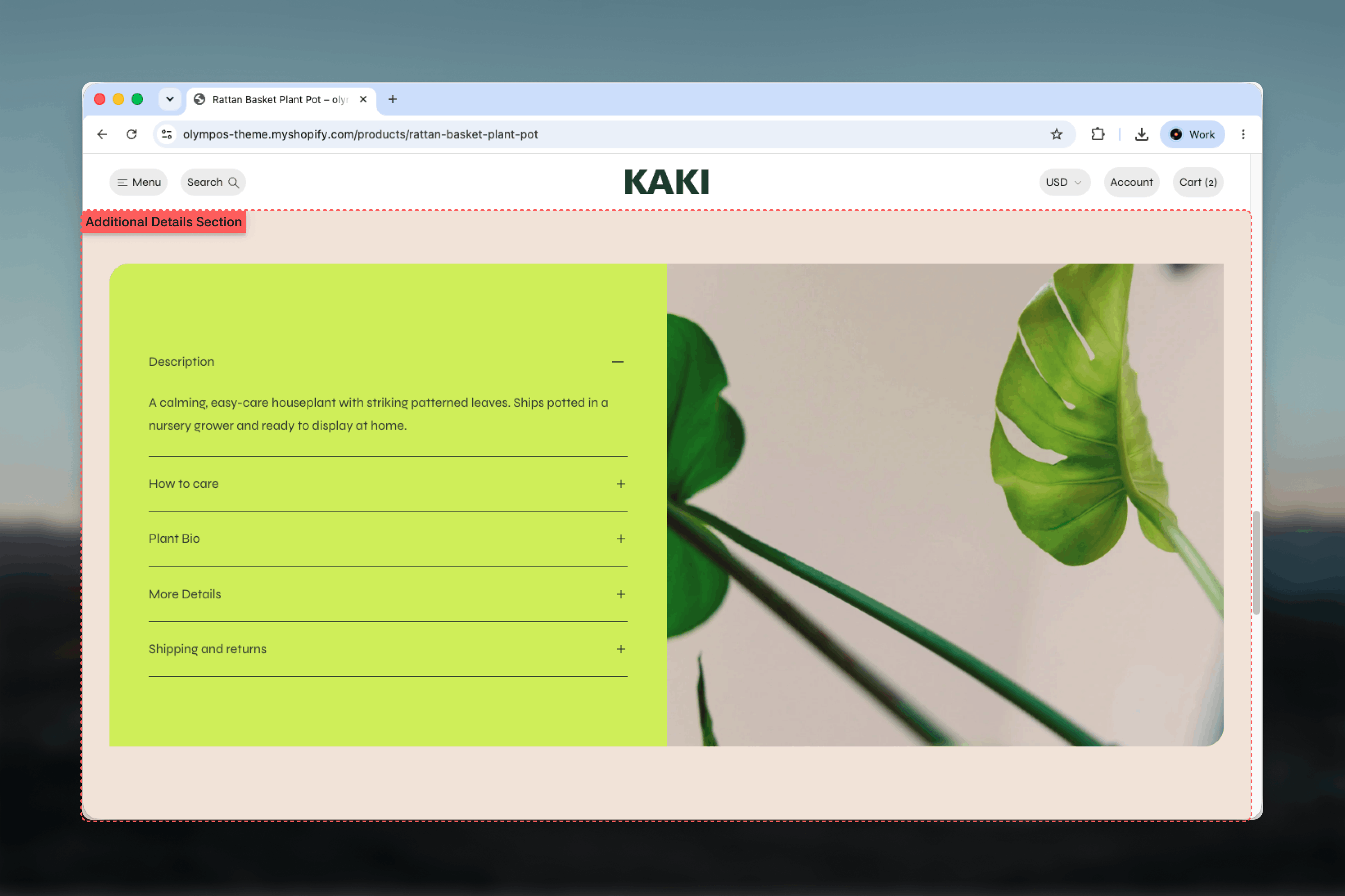
What this section controls
- Whether topics display as an accordion or as tabs
- The size of topic headings and the body text inside them
- An optional image on the left or right of the topics, with a separate mobile image and aspect ratio
- An optional heading seated beside the accordion (when no image is used)
- The color scheme of the section and of the card behind the topics
- Width, spacing and section border
How it works
The section is a container for Detail blocks. Each Detail block carries a heading and holds Heading and Text blocks for its copy. The Layout setting decides how the topics are presented:- Accordion — every topic is a collapsible row that opens and closes on its own, so one or more rows can be open at once and opening one never closes another.
- Tabs — the topic headings become a tab row above a single panel, and only the selected topic is shown. The first topic is selected when the page loads, and the left and right arrow keys move between tabs once a tab has focus, with Home and End jumping to the first and last.
Getting started
1
Open the Theme Customizer
From Shopify admin, open the Theme Customizer and go to the template where the details should appear.
2
Add the section
Click Add section and choose Additional details. The preset comes with three topics: Description, Delivery & Returns and Materials.
3
Edit the topics
Select each Detail block to rename its heading, then edit the Text block inside it. Add a Detail block for every extra topic.
4
Choose the layout
Switch between Accordion and Tabs, add an image if you want a split layout, and pick the color schemes.
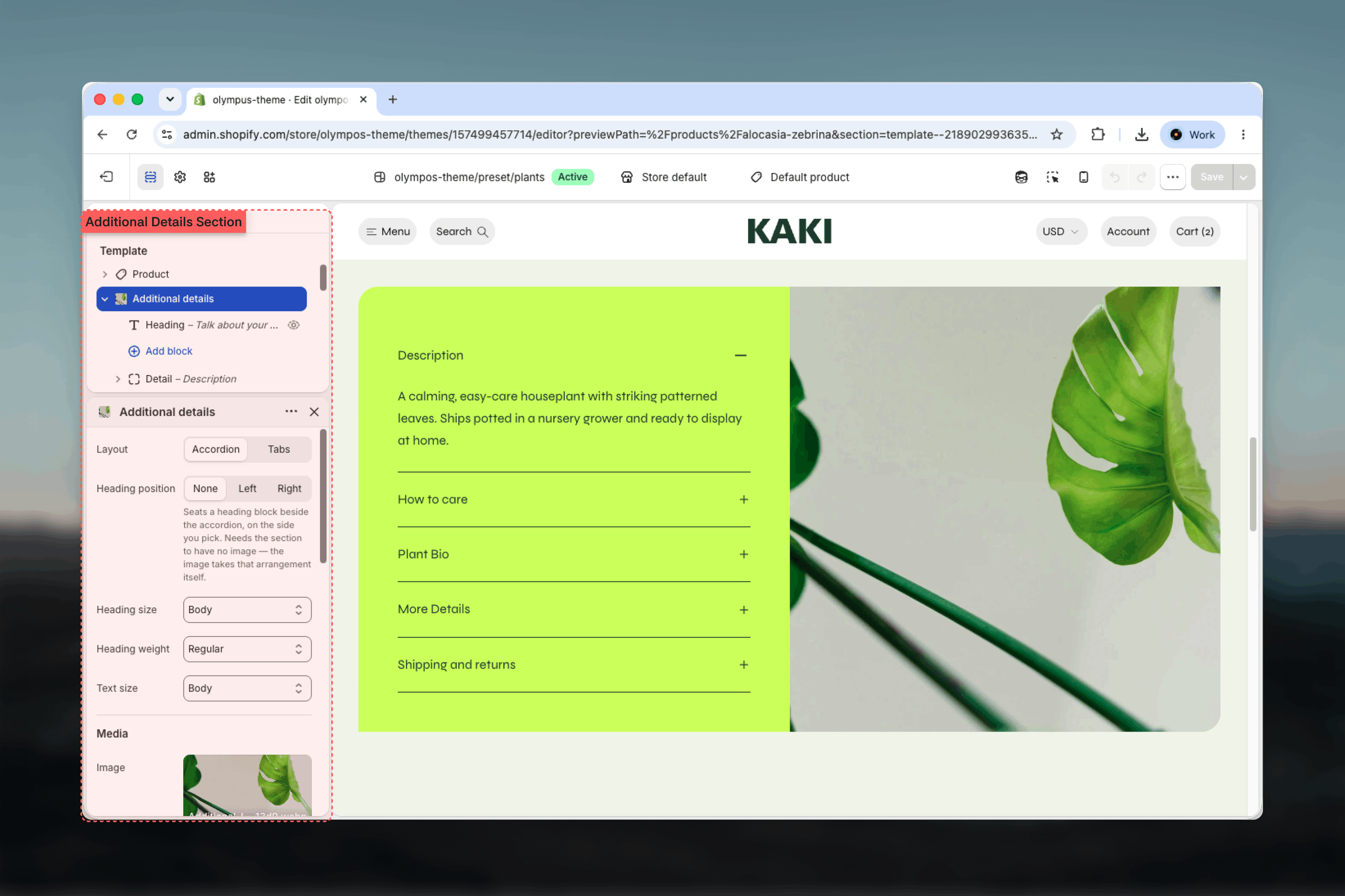
Section settings
Layout and typography
Layout
Layout
Chooses how topics are presented. Default: Accordion.
- Accordion — collapsible rows. Works well for four or more topics, or for copy customers may want to read side by side.
- Tabs — a tab row with one visible panel. Works well for two to four short topics that customers switch between.
Heading position
Heading position
Seats the section’s Heading block beside the accordion, on the left or the right. Default: None.This setting appears only when Layout is set to Accordion, and it takes effect only when the section has no image — with an image, the image occupies that side of the layout instead.
Line under the tabs
Line under the tabs
Draws a rule under the tab row to separate it from the panel below. Enabled by default and shown only when Layout is set to Tabs.
Heading size
Heading size
Sets the size of every topic heading (the accordion row or the tab label). Options run from Extra small and Small through Body to Heading 6, 5, 4 and 3. Default: Body.
Text size
Text size
Sets the size of the body copy inside each topic. Same options as Heading size. Default: Body.
Media
An image turns the section into a two-column split with the topics beside it. On page, narrow and narrower widths the image fills its half of the card edge to edge, and the card corners clip it.- Image — the desktop image. Leave empty for a text-only layout.
- Mobile image — shown on mobile instead of the main image. Falls back to the main image when empty.
- Aspect ratio — Adapt to image, Square, Landscape, Portrait or Widescreen. Default: Adapt to image.
- Image position — Left or Right of the topics. Default: Right.
Colors
- Color scheme — the background of the whole section. Default: Scheme 1.
- Card color scheme — the card drawn behind the topics (and the image). Default: Scheme 2. This setting is hidden when Width is Full width, because a full-width section has no card.
At the Fluid width the card runs edge to edge as a flush band without corners; the image sits against the edge of the viewport and the copy keeps its inset.
Common settings
Width
Width
Page, Narrow, Narrower, Fluid or Full width. Default: Page. Every width except Full width renders the topics inside a card.
Top spacing and Bottom spacing
Top spacing and Bottom spacing
None, Small, Medium, Large or Extra large above and below the section. Default: Large for both.
Section border
Section border
None, Top, Bottom or Top and bottom. Default: None.
Blocks
The section accepts a Heading block and any number of Detail blocks.Heading
A single Heading block that serves as the section title. It renders beside the accordion when Heading position is Left or Right. Its settings — Heading, Heading level, Size and Alignment — are shared across the theme; see Theme blocks.Detail
Each Detail block is one topic: one accordion row or one tab.- Heading — the label shown on the tab or the accordion row. Default: Description.
- Open by default — expands this row when the page loads. Applies to the accordion layout only; the tab layout always shows the first topic first. Disabled by default.
- Heading — a sub-heading inside the topic.
- Text — rich text for the body copy, with Size and Alignment settings.
Best practices
Open the most important topic
Enable Open by default on one topic — usually the description — so the section never looks empty on load.
Match the layout to the count
Tabs read best with two to four topics because every label must fit on one row. Use the accordion when you have more.
Keep topic headings short
One or two words per heading keeps accordion rows scannable and stops tab labels from wrapping on mobile.
Pick one side element
Use either an image or a side heading, not both — the image always takes precedence and hides the side heading.
Contrast the card
Choose a Card color scheme that differs from the section scheme so the topics read as a distinct panel.
Supply a mobile image
A portrait crop for mobile keeps the image from pushing the topics far down the screen when the columns stack.
Related guides
Theme blocks
Settings for the shared Heading and Text blocks used inside each Detail
Additional features
A carousel of image tiles with expandable descriptions for feature highlights