

What this section controls
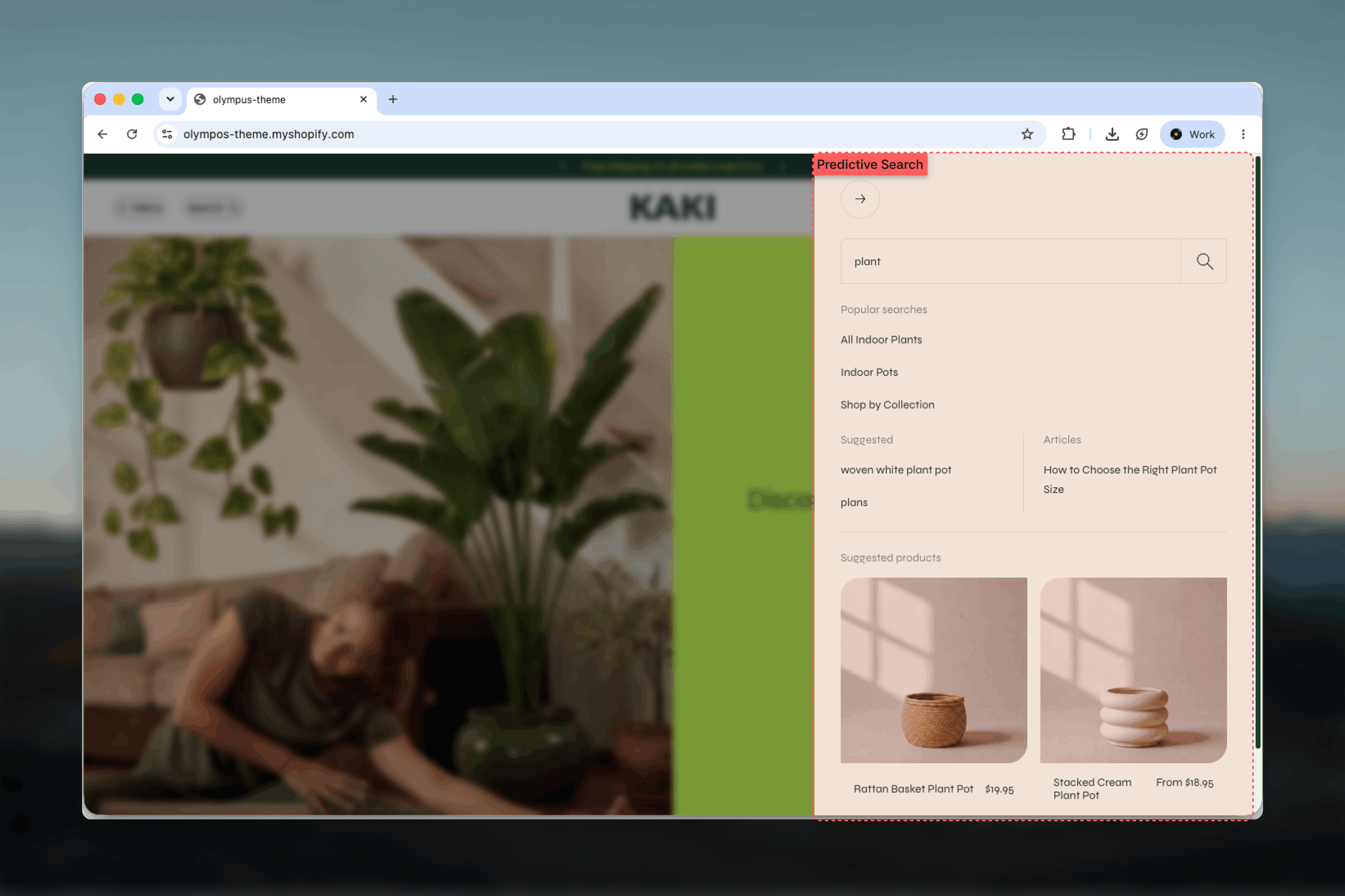
- Live suggestions while typing, grouped into links and products
- A primary link column of Suggested queries, or Collections when there are no queries
- A secondary link column of Pages, or Articles when there are no pages
- Product cards with image, title and price, including “From” pricing for products with several prices
- A “No results found” message for queries with nothing to show
- A View all results button pointing to the search results page
How it works
The Predictive search section has no settings of its own and is not added to a page. It is a results template that Shopify renders each time the search field asks for suggestions, and the header injects the result into the search dialog. This is why its appearance follows the header’s color scheme rather than a scheme of its own. Both header search styles open the same dialog: the search icon opens it directly, and with the field style, focusing the field in the bar opens it too. Suggestions are therefore identical whichever style you choose. Results refresh shortly after typing stops rather than on every keystroke, so the panel does not flicker while a shopper is still typing, and suggestions start once at least two characters have been entered. The dialog closes with Escape or by clicking the dimmed area, and focus returns to the control that opened it. The panel arranges results in this order:- Link columns: Suggested queries on the left and Pages on the right. If there are no suggested queries the first column shows matching Collections instead; if there are no pages the second column shows Articles. A single populated column stretches to full width.
- Suggested products: a grid of product cards, separated from the links by a divider when both are present.
- View all results: a primary button that opens the Search page for the typed term.
Before the shopper types anything, the dialog shows the Popular searches menu configured in the Header section, not predictive results.
Getting started
1
Open the Header settings
In the Theme Customizer, select the Header section in the left sidebar.
2
Choose how search is shown
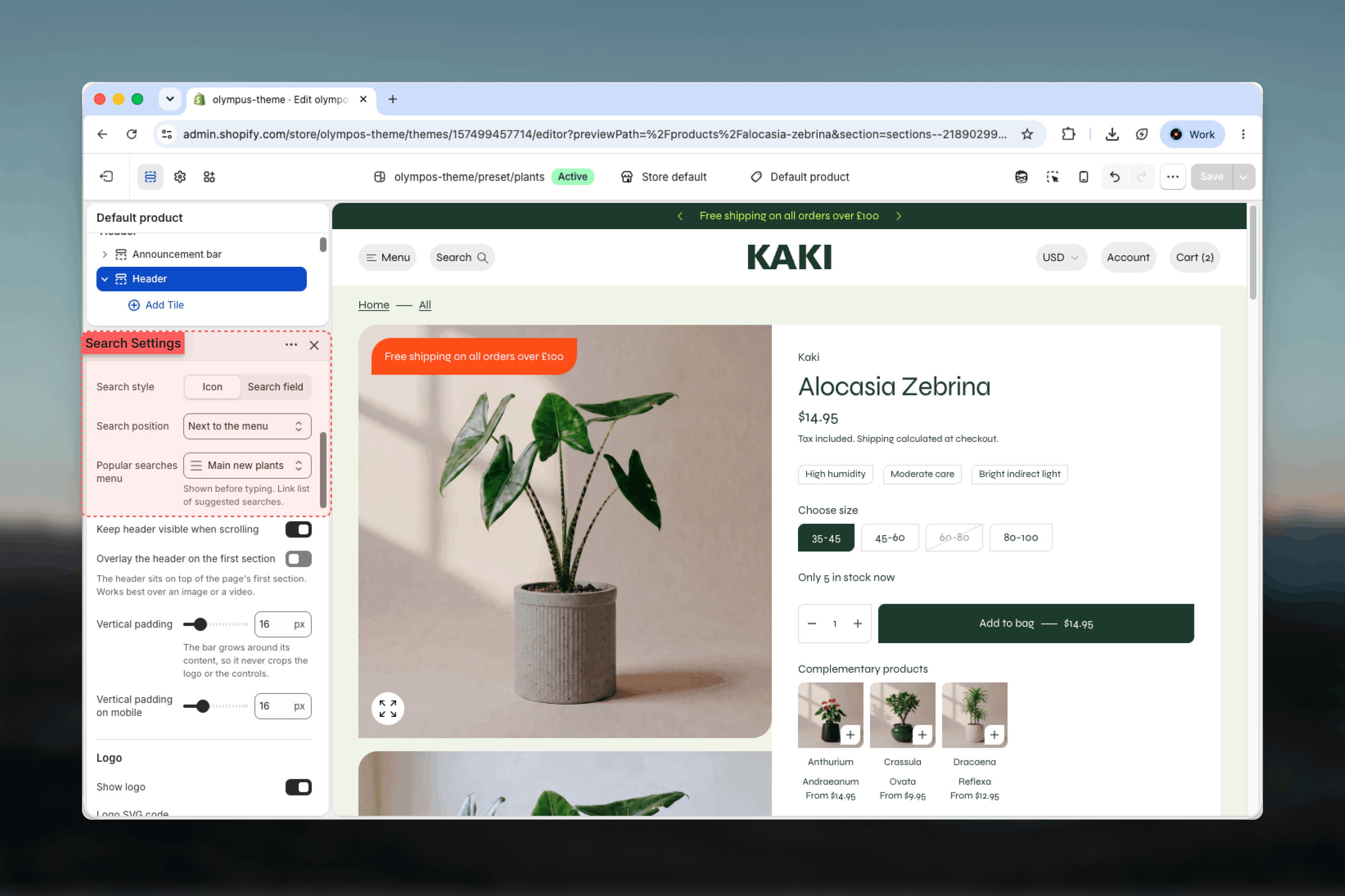
Set Search style to Icon or Search field and, when the navigation is not centered, pick a Search position.
3
Add popular searches
Select a menu in Popular searches menu. Its links appear in the dialog before the shopper types.
4
Tune results in Search & Discovery
Install Shopify’s Search & Discovery app to add synonyms, boosts and redirects; predictive results respect them immediately.
Header search settings
Predictive search is opened from the header, so its entry point is configured there. The full header reference is on the Header page.Search style
Search style
Icon (default) shows a search icon that opens the dialog. Search field places a visible field in the header bar, which invites typing but takes horizontal space from the navigation. Focusing that field opens the same dialog, so the two styles differ in appearance only.
Search position
Search position
With the account and cart (default) or Next to the menu. Appears only when the navigation is not centered.
Control style
Control style
Icons only (default) or Pills with labels. Pills show a “Search” label next to the icon, which helps first-time visitors find it.
Product suggestion cards
Each suggested product is a compact card: the featured image fills the card and a pill along the bottom edge holds the title on the left and the price on the right. Products whose variants have different prices show “From” and the lowest price. Products without an image show a placeholder, so the grid stays aligned. These cards are intentionally simpler than the product cards used in collections: no swatches, badges or quick add, because the goal is to move the shopper to the product or to the full results quickly.Best practices
Curate popular searches
Five to eight links that mirror your top categories give shoppers a strong start before they type.
Add synonyms for your catalog
Use the Search & Discovery app to map regional spellings and informal names to your product titles.
Give every product an image
Placeholders in the suggestion grid look unfinished. Featured images are what make the panel scannable.
Keep product titles short
The title shares a pill with the price. Long titles truncate on narrow screens.
Use Search field for search-heavy stores
Large catalogs benefit from a visible input. Smaller stores can keep the icon and preserve space for navigation.
Review no-result terms
Shopify’s search analytics list queries with no results. Add redirects or synonyms for the frequent ones.
Related guides
Search
Configure the full results page that View all results opens
Header
Search style, position and the popular searches menu
Product cards
The richer cards used in collections and product sliders