

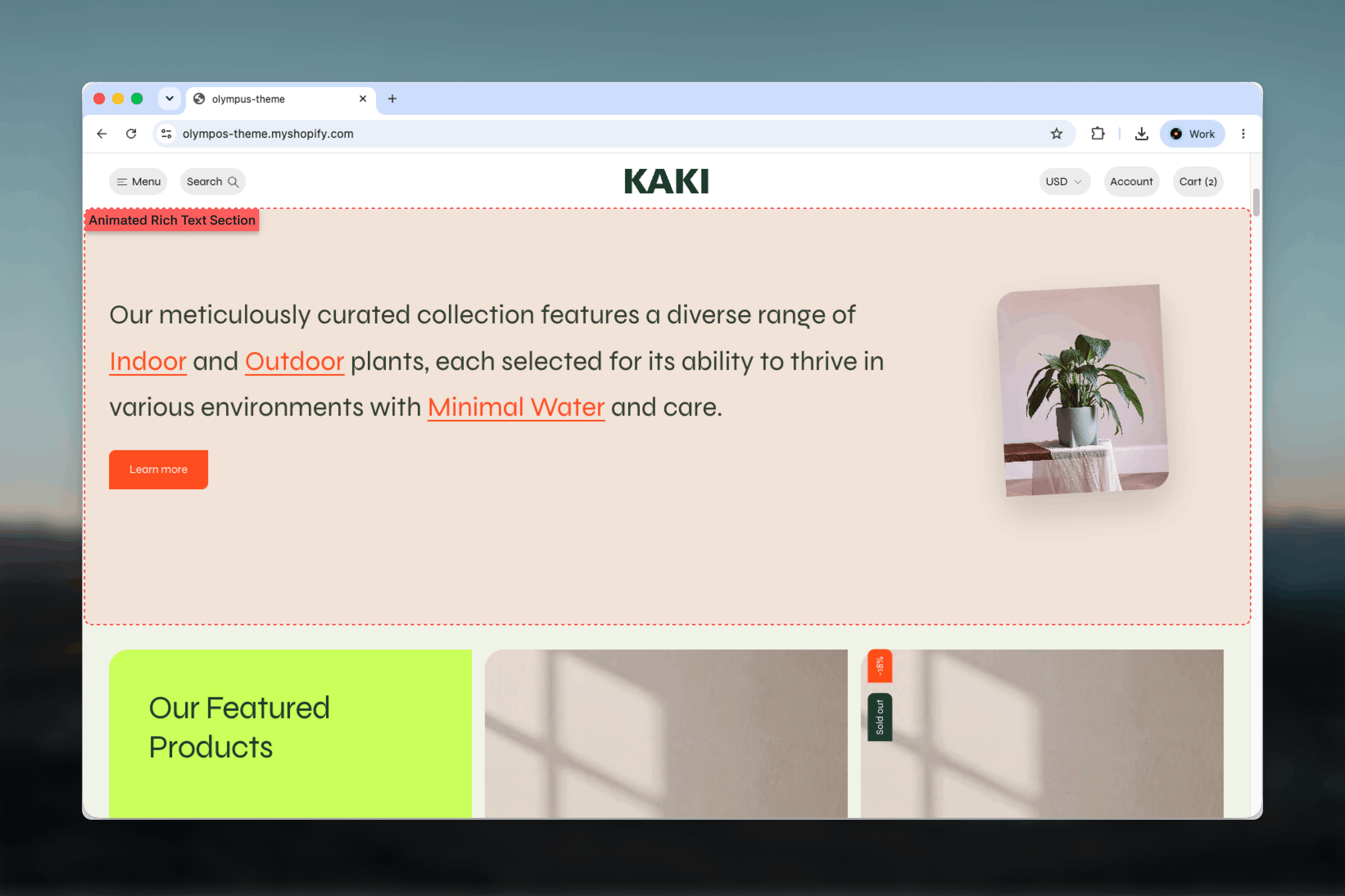
What this section controls
- The animation effect applied to highlighted words
- The color of the highlights, from the scheme or a custom value
- Whether highlighted words are underlined
- Image width, aspect ratio and icon size, depending on the effect
- Color scheme, width, spacing and section border
How it works
Any word or phrase you make bold in a Heading or Text block becomes a highlight, and the effects animate around those bold words: hovering one, or reaching it with the keyboard, is what changes the image. Only bold text is animated, so the rest of the passage stays still. Highlights are colored with the Highlight color and, when enabled, underlined. For the hover, stack, inline and framed effects, each highlight is paired with a Highlight image block in the order they appear: the first bold phrase uses the first Highlight image, the second uses the second, and so on. The Highlight only effect uses the color and underline alone and needs no images. The image effects are designed for desktop. On screens narrower than a desktop, the reveal, stack and framed images are hidden and the passage reads as highlighted text; inline icons remain visible on mobile. Visitors who prefer reduced motion see the same images and highlights without the animated transitions between them.Getting started
1
Open the Theme Customizer
From Shopify admin, open the Theme Customizer on the template where the statement should appear.
2
Add the section
Click Add section and choose Animated rich text. The preset includes a Text block with three bold phrases, three Highlight image blocks and a button.
3
Write and bold the copy
Edit the Text block and bold the words you want to highlight. Add a Heading block if the passage needs a title.
4
Pair images and pick an effect
Add one Highlight image per bold phrase, in the same order, then choose the Effect and highlight color.
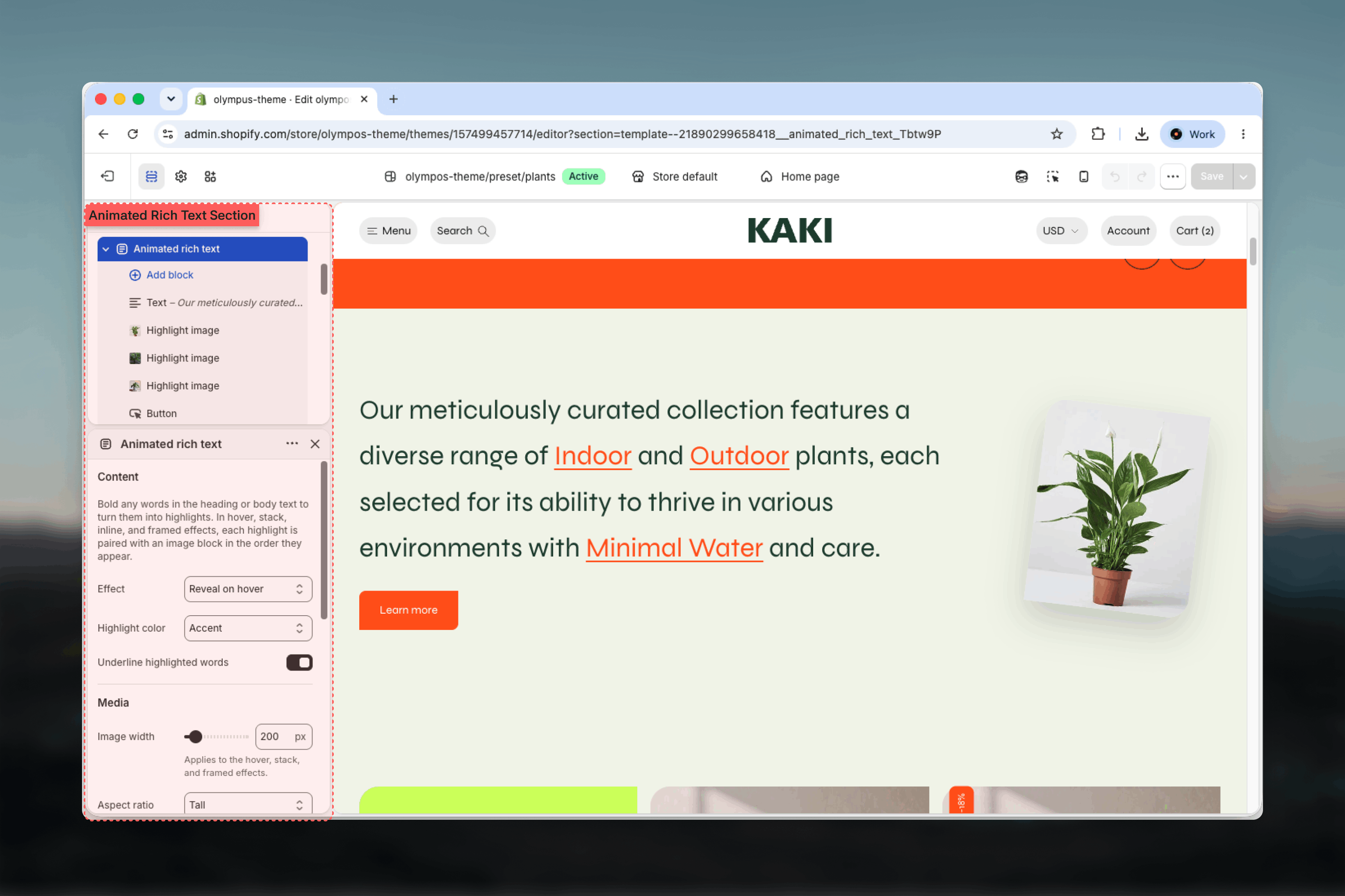
Section settings
Content
Effect
Effect
How the highlights behave. Default: Reveal on hover.
- Reveal on hover — the text takes about two thirds of the width and an image column sits beside it. Hovering a highlighted word, or reaching it with the keyboard, reveals its paired image.
- Image stack on hover — the paired images sit as one deck beside the text, fanned out at slight angles so the edges of the images behind stay visible. Hovering a word, or focusing it with the keyboard, brings its image to the front and re-fans the rest.
- Inline icons — each paired image is shown as a small icon inside the sentence, immediately after its word. Icons are visible on mobile as well.
- Framed sides — the paired images flank the centered passage, alternating sides: the first image goes to the left column, the second to the right, and so on, each nudged slightly off-center. Hovering or focusing a word brings its image forward.
- Highlight only — the bold words are colored and underlined with no images. Highlight image blocks are ignored.
Highlight color
Highlight color
The color of bold words. Default: Accent.
- Accent — the button color of the section’s color scheme.
- Text — the scheme’s text color, so highlights rely on the underline and images alone.
- Custom — a fixed color chosen with Custom highlight color (default: a bright orange). It sits outside the color schemes and stays the same if the scheme changes.
Underline highlighted words
Underline highlighted words
Adds an underline to every highlight. Enabled by default. Turn it off when the color alone is enough or when the passage uses very large type.
Media
These settings shape the paired images and only appear for effects that use them.Image width
Image width
Width of each revealed, stacked or framing image, from 160 to 560 pixels in 20-pixel steps. Default: 200. Shown for the Reveal on hover, Image stack on hover and Framed sides effects.
Aspect ratio
Aspect ratio
Shape of the images: Adapt to image, Square, Portrait or Tall. Default: Tall. Shown for the Reveal on hover and Image stack on hover effects.
Icon size
Icon size
Size of inline icons, from 20 to 96 pixels in 4-pixel steps. Default: 40. Shown for the Inline icons effect only. Keep it close to the text’s line height so lines do not jump in height.
Colors
Color scheme — background and text colors for the section. Default: Scheme 1. With Highlight color set to Accent, the scheme’s button color also becomes the highlight color.Common settings
Width
Width
Page, Narrow, Narrower, Fluid or Full width. Default: Page. The Inline icons and Highlight only effects use a slightly wider measure at Narrow so long sentences do not wrap too early.
Top spacing and Bottom spacing
Top spacing and Bottom spacing
None, Small, Medium, Large or Extra large. Default: Large for both.
Section border
Section border
None, Top, Bottom or Top and bottom. Default: None.
Blocks
The section accepts Heading, Text, Highlight image and Button blocks.Heading and Text
The passage itself. Bold words in either block become highlights. The preset uses a Text block at Heading 6 size so the sentence reads as display type; a Heading block works the same way when you want a semantic heading. Heading level, Size and Alignment are shared block settings; see Theme blocks.Highlight image
A single Image setting. Each Highlight image block is paired with one bold phrase, in order. It is shown on desktop for the Reveal on hover, Image stack on hover and Framed sides effects, and as an icon on all devices for the Inline icons effect. Add exactly as many Highlight image blocks as you have bold phrases; extra blocks are not shown and missing ones leave a phrase without an image.Button
An optional call to action under the passage, with Button label, Link, Style (Filled or Outlined), Button type, new-tab option and Alignment. The preset adds a “Learn more” button. See Theme blocks.Best practices
Bold three to five phrases
Enough highlights to create rhythm, few enough that the passage still reads as a sentence rather than a list.
Keep image order in sync
Highlight images pair by position. When you reorder or delete a bold phrase, reorder the Highlight image blocks to match.
Check the mobile fallback
Reveal, stack and framed images are hidden on small screens. Make sure the passage still makes sense as highlighted text alone.
Use one image shape
Choose an Aspect ratio and crop every paired image to it so the reveal or stack does not change size between words.
Test the highlight contrast
An Accent highlight follows the scheme’s button color. If that color sits close to the background, switch to Text or a Custom color.
Match icons to the type
For Inline icons, set Icon size near the text size of the block so icons read as part of the sentence, not as interruptions.
Related guides
Theme blocks
Full settings for the Heading, Text and Button blocks
Colors
Set the button color that the Accent highlight uses