

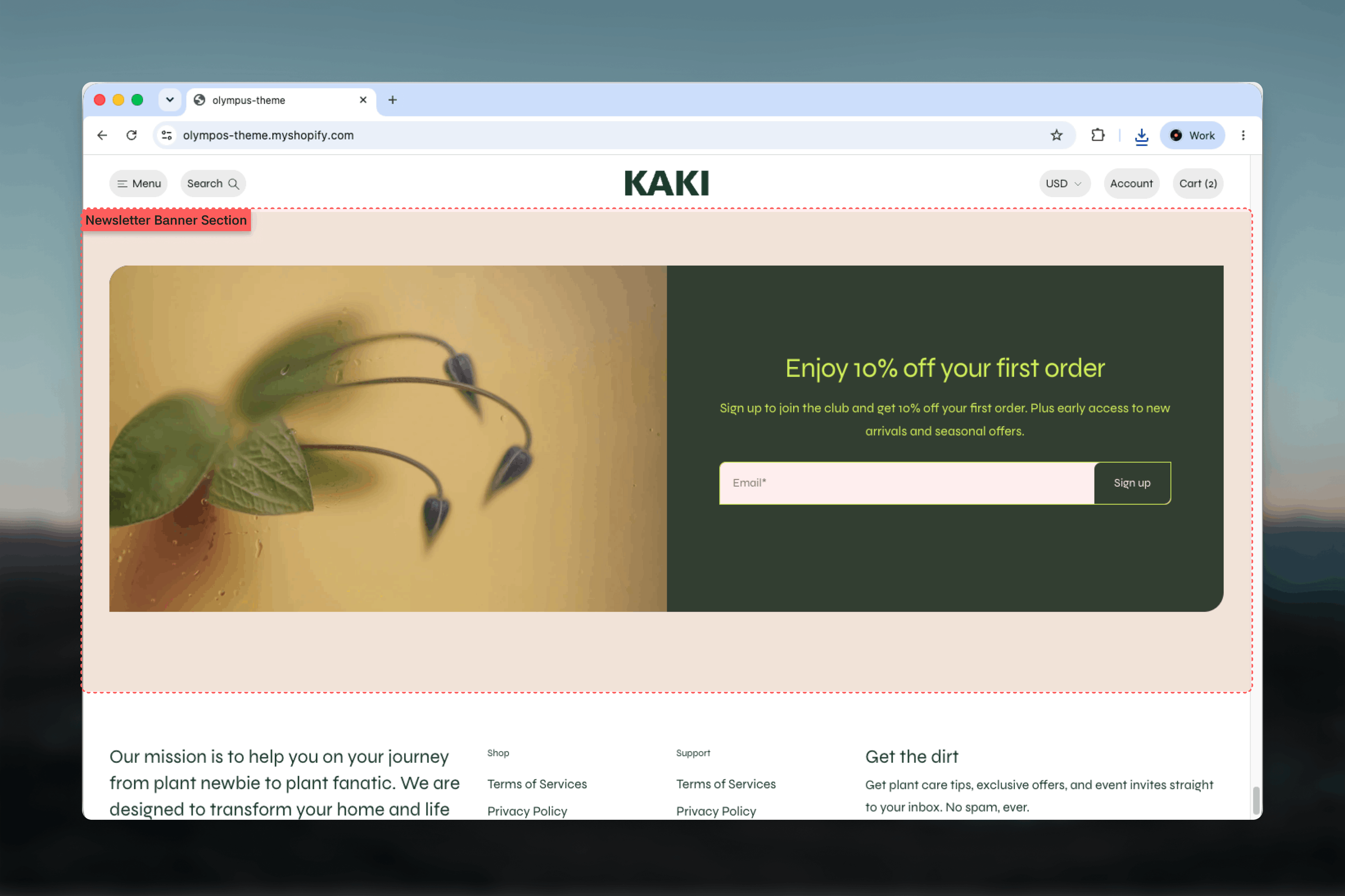
What this section controls
- The submit button label
- An image with a mobile version, shown beside the text or as a full background
- Minimum height and the horizontal and vertical position of the content
- Separate color schemes for the background, the card and the button
- Heading, Text and Image blocks inside the card
- Width, spacing and borders
Getting started
1
Open the Theme Customizer
From the Shopify admin, open Online Store, then Themes, and select Customize on Olympus.
2
Add the section
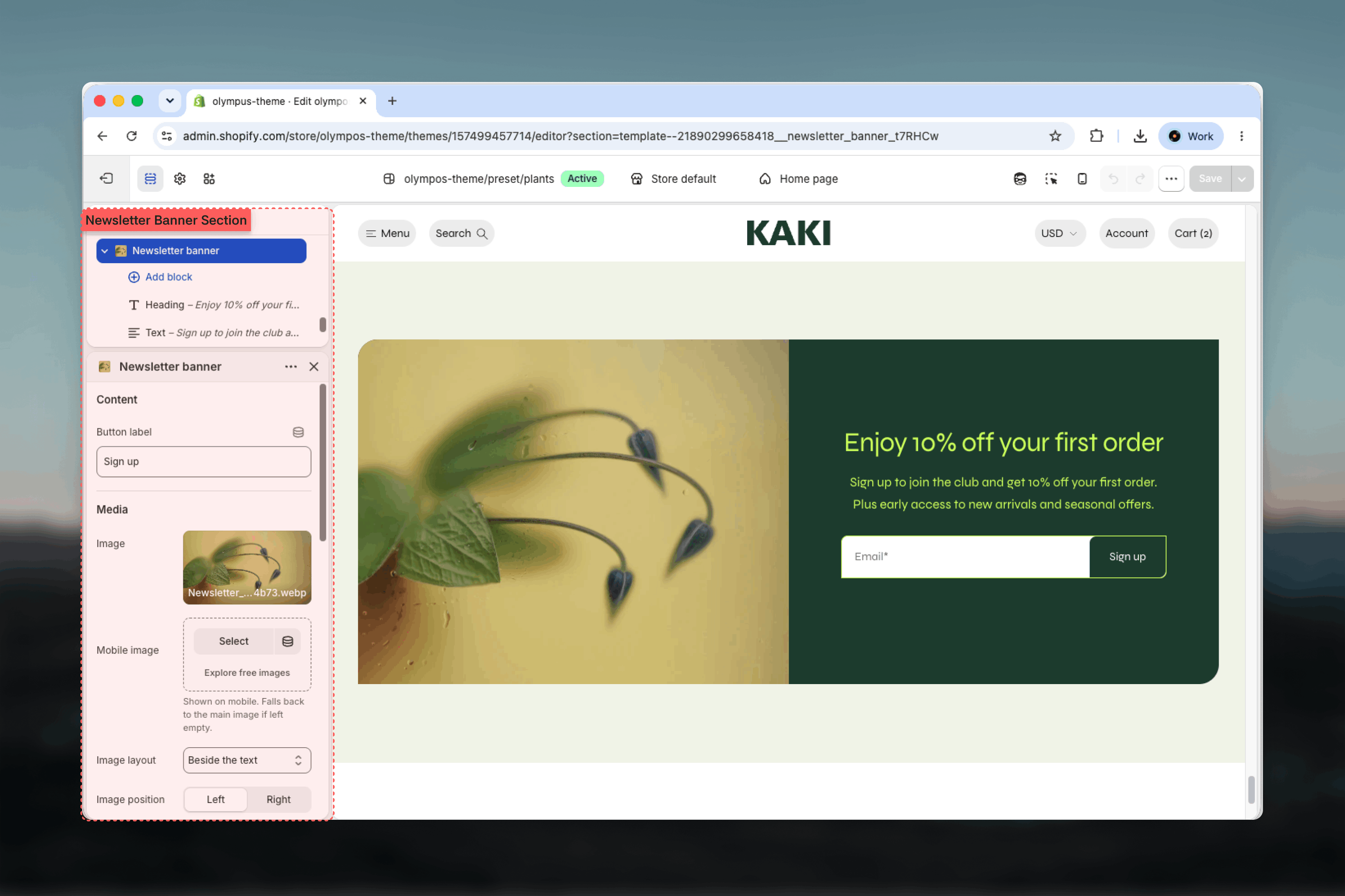
Select Add section and choose Newsletter banner. The preset adds a Heading and a Text block with a first-order offer.
3
Write the offer
Edit the Heading and Text blocks. Change the Button label in the Content group if Sign up does not fit your tone.
4
Add an image
Upload an Image in the Media group and choose whether it sits beside the text or fills the background.
How it works
The form asks for an email address only. After a successful submission the message “Thanks for subscribing!” appears under the field, and the address is stored as a customer in the Shopify admin with the tag newsletter. Validation errors from Shopify, such as an invalid address, are shown under the field. No app is needed, and any email service connected to your Shopify customers can pick up the subscribers.Section settings
Content
Button label: text on the submit button. Default: Sign up. The email field’s placeholder reads “Email*” and is not editable in this section.Media
Image and Mobile image
Image and Mobile image
Image is optional. Without one, the card is a solid block in its color scheme. Mobile image replaces the main image on small screens and falls back to it when empty.
Image layout
Image layout
- Beside the text (default): the image takes one half of the card and the form the other. On mobile the image stacks above the form.
- Full background: the image fills the whole card and the form sits on top of it.
Image position
Image position
Puts the image on the Left (default) or Right in the Beside the text layout. Has no effect on the background layout.
Image overlay opacity
Image overlay opacity
Darkens the background image from 0% to 80% in steps of 5 so the form stays readable. Default: 0%. Appears only when Image layout is Full background and an image is set.
Layout
- Minimum height: the card is never shorter than this, from 200 to 720 pixels in steps of 20. Default: 420. In the Beside the text layout this also sets how much of the image is visible.
- Horizontal position: aligns the content within its area to the Start, Center (default) or End.
- Vertical position: Top, Center (default) or Bottom. Most noticeable when Minimum height leaves room above and below the form.
Colors
Background color scheme
Background color scheme
Fills the full width of the section behind the card, even when Width is Page. Default: Scheme 1.
Card color scheme
Card color scheme
Colors the card itself: its background, text and form. Default: Scheme 1. Choosing a different scheme from the background lifts the card off the page.
Common settings
Width
Width
Page (default), Narrow, Narrower, Fluid or Full width.
Top spacing and Bottom spacing
Top spacing and Bottom spacing
None, Small, Medium, Large or Extra large. Default: Large for both.
Section border
Section border
None (default), Top, Bottom or Top and bottom.
Blocks
The card accepts three shared blocks, placed above the form in the order you set. Their settings are documented in Theme blocks.- Heading: the offer, for example “Enjoy 10% off your first order”. Rich text with heading level, size and alignment; the preset uses Heading 3 aligned left.
- Text: what subscribers get and how often. Size and alignment; keep it to one or two sentences.
- Image: a small graphic inside the content area, separate from the section’s own media, with an aspect ratio and optional link. Useful for a logo mark or an illustration above the heading when the section has no main image.
The form itself is not a block and always renders below the blocks. To collect only an email with no message, remove all blocks.
Best practices
Lead with the benefit
A discount, early access or useful content in the heading. “Subscribe to our newsletter” on its own gives no reason to act.
Set expectations in the text
Say how often you email. Customers subscribe more readily when they know it is a monthly edit rather than daily promotions.
Keep contrast high
Over a background image, add overlay or a distinct Card color scheme until the field and button are clearly visible.
Place it once
One banner near the bottom of the home page, plus the footer Newsletter block, covers most stores. Repeating the form on every section devalues it.
Provide a mobile image
In the Beside the text layout the image sits above the form on phones. A landscape crop keeps it from pushing the form far down.
Match the popup
If you also use the Newsletter popup, keep the offer identical so customers do not see two different promises.
Related guides
Newsletter popup
A timed signup dialog that appears over the page
Footer
Add a compact newsletter form to the footer with the Newsletter block
Theme blocks
Settings for the Heading, Text and Image blocks