

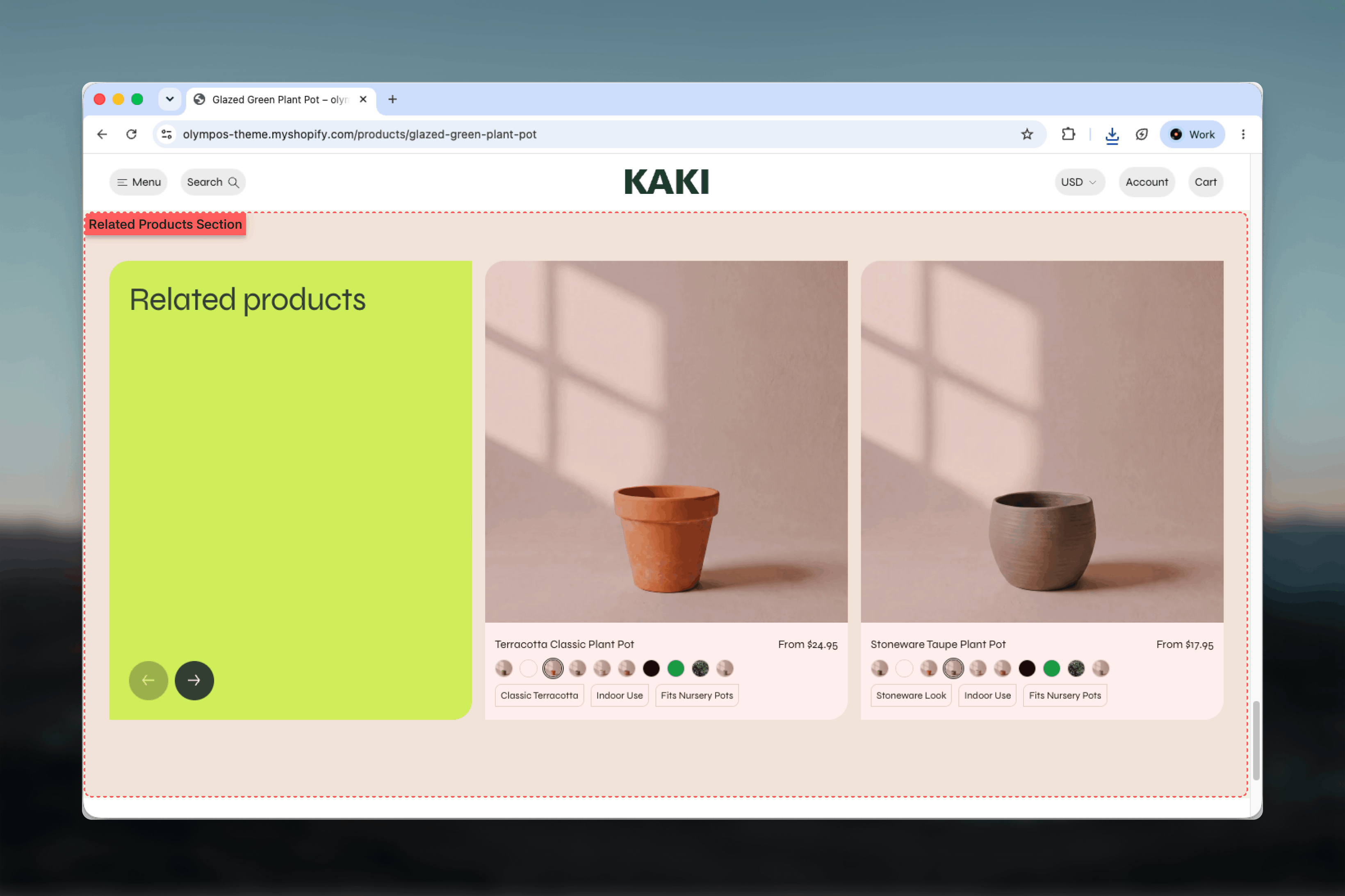
What this section controls
- Grid or Slideshow layout for the recommended products
- A two-part heading, description and their alignment
- Where the copy sits: above the products, stacked, or beside them on a panel
- How many products are shown and their card aspect ratio
- An enlarged third card in the grid layout
- Slides visible on desktop and mobile, arrow style and arrow color scheme
- Color scheme for the section and its cards
How it works
Recommendations are requested from Shopify for the product currently open and delivered up to the Products to show limit; Shopify returns at most ten. The recommendations are fetched only once the section is about to scroll into view, not on page load, so they do not slow down the top of the product page. If Shopify returns no recommendations, for example for a brand new product, the section takes itself off the page, heading included, rather than showing an empty row. The Search & Discovery app lets you add complementary and related products manually per product, and the section respects those choices. Without manual input, Shopify falls back to its own algorithm based on collections, descriptions and purchase history.Recommendations are generated by Shopify and cannot be edited from the Theme Customizer. Use the Search & Discovery app to influence which products appear.
Getting started
1
Open the product template
In the Theme Customizer, choose Products, then Default product from the page selector.
2
Add Related products
Choose Add section and pick Related products. Place it below the Product section.
3
Choose a layout
Pick Grid or Slideshow and set Products to show.
4
Refine recommendations
Open the Search & Discovery app in Shopify admin to set related products for key items.
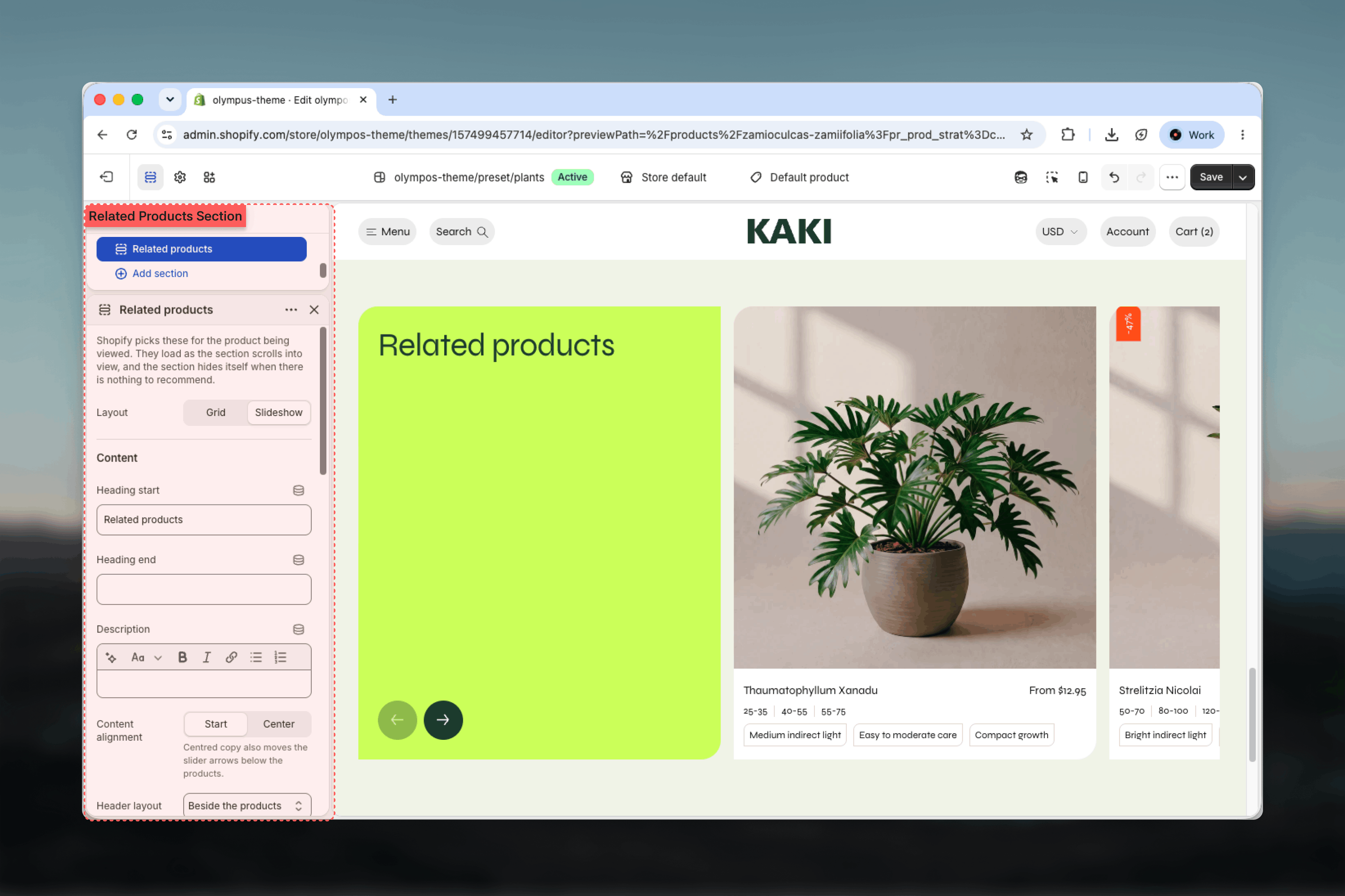
Section settings
Layout
Layout: Grid or Slideshow. Default: Slideshow.- Grid: all products in a static grid, with an optional enlarged third card and a title tile that wears the Text column color scheme.
- Slideshow: a horizontal slider with arrows, the same rail used by Featured products.
Content
Heading start and Heading end
Heading start and Heading end
The heading is split in two so one part can be styled differently. Heading start defaults to Related products; Heading end is empty. Leave one blank for a single-part title.
Description
Description
Optional rich text shown with the heading.
Content alignment
Content alignment
Slideshow only. Start (default) or Center. Centered copy also moves the slider arrows below the products.
Header layout
Header layout
Slideshow only. Default: Above the products.
- Above the products: title and description side by side.
- Above, description under the title: the description moves below the title and the arrows hold the end of the title’s row.
- Beside the products: the copy sits on a rounded panel in its own scheme, one card wide, and the slides run past the page edge. Made for the Full width option.
Text column color scheme
Text column color scheme
Colors the rounded panel the copy sits on: beside the slides in the Slideshow layout, or the title tile in the Grid layout. Default: Scheme 2. Appears for Grid, or for Slideshow with Beside the products.
Product
Products to show
Products to show
From 2 to 10. Default: 8. Shopify returns fewer if it has fewer recommendations.
Aspect ratio
Aspect ratio
Theme default (default), Portrait, Square or Landscape. Theme default follows the Cards theme settings.
Enlarge the third product
Enlarge the third product
Grid only, and only when Products to show is above 3. Makes the third card larger on desktop for a more editorial grid. Enabled by default.
Slides shown on desktop
Slides shown on desktop
Slideshow only. Automatic (default) or 2 to 5.75 cards per row. A fraction leaves the next card peeking in. Automatic keeps four across, or 360px cards beside the copy.
Slides shown on mobile
Slides shown on mobile
Slideshow only. 1, 1.25, 1.5 or 1.75. Default: 1.25.
Slider arrow style
Slider arrow style
Filled (default) or Outline.
Use a separate color scheme for the arrows
Use a separate color scheme for the arrows
Slideshow only. Off by default. When on, Arrow color scheme appears (default: Scheme 1).
Colors
Color scheme: colors the section and the product cards in it. Default: Scheme 1.Common settings
Width
Width
Page, Narrow, Narrower, Fluid or Full width. Default: Page.
Top spacing and Bottom spacing
Top spacing and Bottom spacing
None, Small, Medium, Large or Extra large. Default: Large for both.
Section border
Section border
None, Top, Bottom or Top and bottom. Default: None.
Blocks
This section does not accept blocks. Products come from Shopify’s recommendations and are rendered with the standard product card configured under Product cards.Best practices
Curate your best sellers
Set related products manually in Search & Discovery for the items that drive most traffic; let the algorithm handle the long tail.
Four to eight products
Enough to offer a choice without becoming a second collection page under the product.
Prefer Slideshow on busy pages
A slider keeps the section one row tall. Use Grid when the product page is short and the recommendations deserve space.
Pair Complementary and Related
Use the Complementary products block for items bought together and this section for alternatives, so the two do not overlap.
Use Full width with Beside the products
The side panel layout is designed for the slides to run past the page edge. At Page width it feels cramped.
Check new products
A product with no recommendations shows no section. Give new items collections and tags so Shopify has signals to work with.
Related guides
Complementary products
Products that go with the current item, also from Search & Discovery
Recently viewed products
The visitor’s own browsing history in the same slider
Product Page (PDP)
The template this section belongs to