

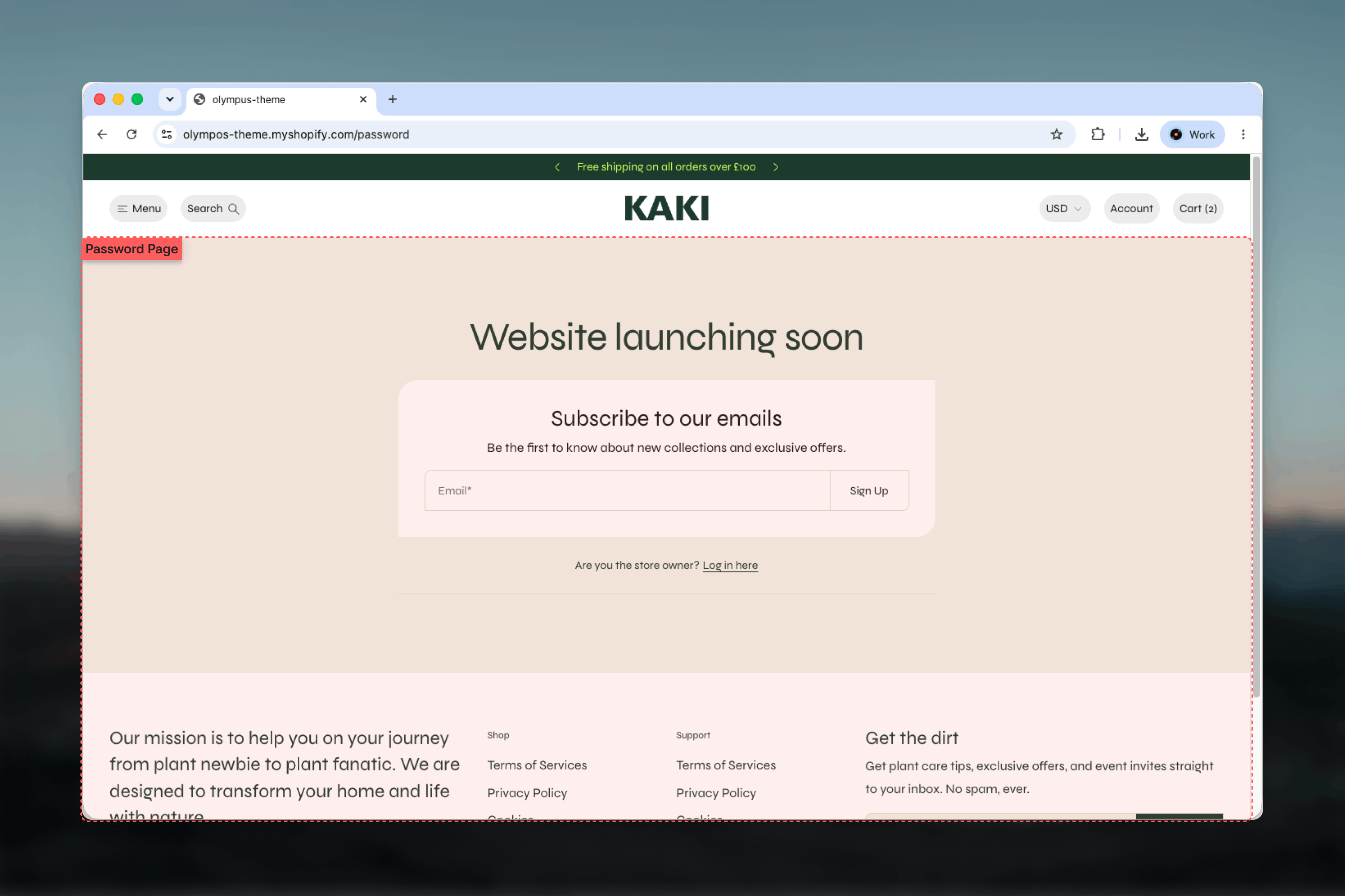
What this template controls
- The heading and message shown to locked-out visitors.
- Whether a newsletter sign-up card appears, and its heading, text and button label.
- The wording of the store owner prompt and its login link.
- The page color scheme and the card color scheme.
- Width and vertical spacing of the column.
Getting started
1
Open the Theme Customizer
From your Shopify admin go to Online Store, then Themes, and click Customize on Olympus.
2
Choose the password template
Use the page selector at the top of the Theme Customizer and pick Password from the Others group.
3
Select the Password section
Click Password in the left sidebar to open its settings.
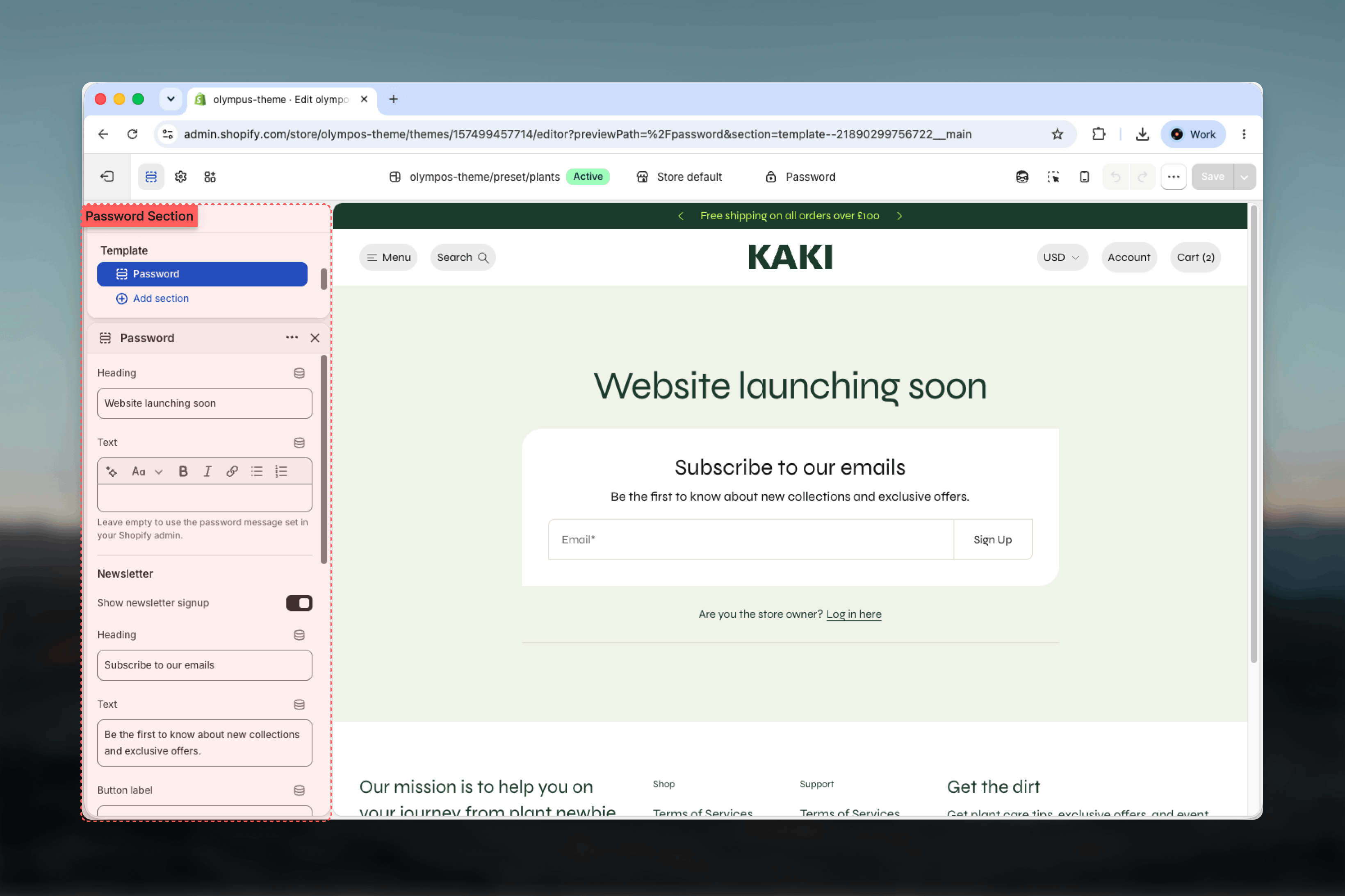
The page is only shown to visitors when password protection is turned on in the Shopify admin under Online Store, then Preferences. The password itself is set there too; the theme only controls how the page looks.
How it works
The section renders a single centered column. At the top are the heading and message; when the Text setting is empty the message set in your Shopify admin preferences is used instead. Below sits the newsletter card with an email field and button, which subscribes the visitor to your customer list with the newsletter tag. The column closes with the store owner prompt. Clicking its link expands a password field without leaving the page, and the field opens on its own after a wrong attempt so the visitor can try again.Settings
Heading
Heading
The page title. Default: Website launching soon. When left empty the store name is shown instead.
Text
Text
Rich text under the heading. Leave it empty to use the password page message from your Shopify admin, or write a theme-specific message here.
Newsletter
Heading
Heading
The card title. Default: Subscribe to our emails. Appears only when the newsletter is shown.
Text
Text
A short line under the card title. Default: “Be the first to know about new collections and exclusive offers.” Appears only when the newsletter is shown.
Store owner
Text: The prompt shown at the bottom of the column. Default: Are you the store owner? Button label: The link that reveals the password field. Default: Log in here.Colors
Page color scheme: The scheme of the page and the heading area. Default: Scheme 1. Card color scheme: Paints the newsletter card. Default: Scheme 5. Appears only when the newsletter is shown.Common settings
Width
Width
Page, Narrow, Narrower, Fluid or Full width. Default: Page. The content column itself stays a fixed reading width inside it.
Top spacing and Bottom spacing
Top spacing and Bottom spacing
None, Small, Medium or Large. Default: Large on both sides. This section has no Section border setting.
Blocks
The Password section does not accept blocks. The template uses its own layout, which still shows the store’s header and footer groups around the section, so the page stays on brand while the column itself remains focused on the message and the sign-up.Best practices
Give a date or reason
“Launching 12 May” or “Back after our stocktake on Monday” tells visitors whether to come back and when.
Collect emails
Keep the newsletter card on before launch. The list you build is the cheapest way to announce the opening.
Keep the owner prompt discreet
The default wording is enough. Visitors do not need instructions for a field that is not meant for them.
Contrast the card
A card scheme that differs from the page draws the eye to the sign-up without extra copy.
Preview before locking
Check the page in the Theme Customizer with password protection on so you see exactly what visitors get.
Turn protection off deliberately
Password protection is a store setting, not a theme setting. Remember to disable it in Preferences on launch day.
Related guides
Newsletter popup
Keep collecting emails after launch with a timed popup
Colors
Define the color schemes used by the page and card