

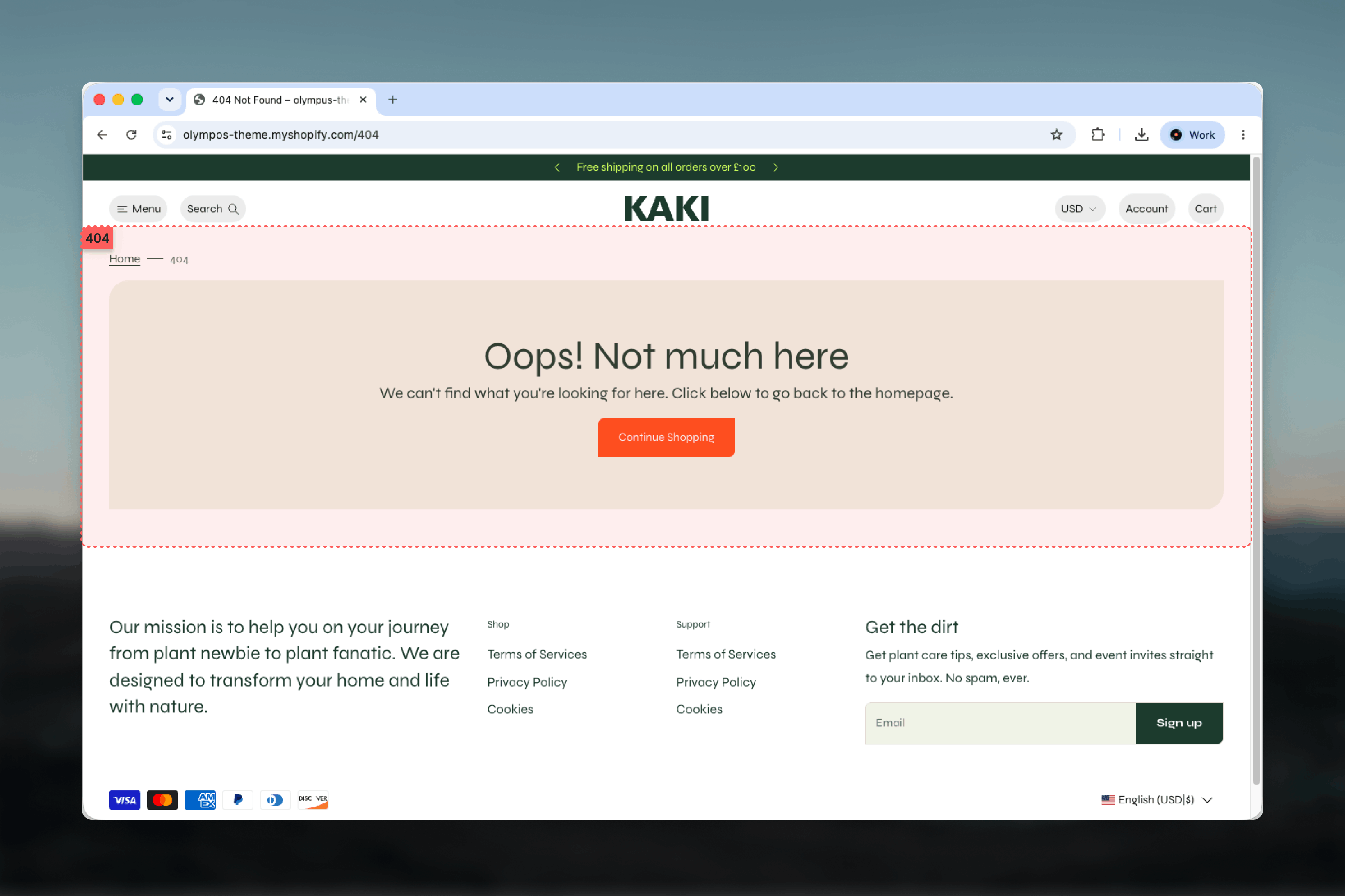
What this template controls
- The heading and rich-text message shown inside the card.
- The label and destination of the recovery button.
- The color scheme of the card, independent from the rest of the page.
- Width, vertical spacing and an optional section border.
- Any additional sections you add above or below the Not found section, such as Featured collections or Featured products.
Getting started
1
Open the Theme Customizer
From your Shopify admin go to Online Store, then Themes, and click Customize on Olympus.
2
Choose the 404 template
Use the page selector at the top of the Theme Customizer and pick 404 page from the Others group.
3
Select the Not found section
Click Not found in the left sidebar to open its settings.
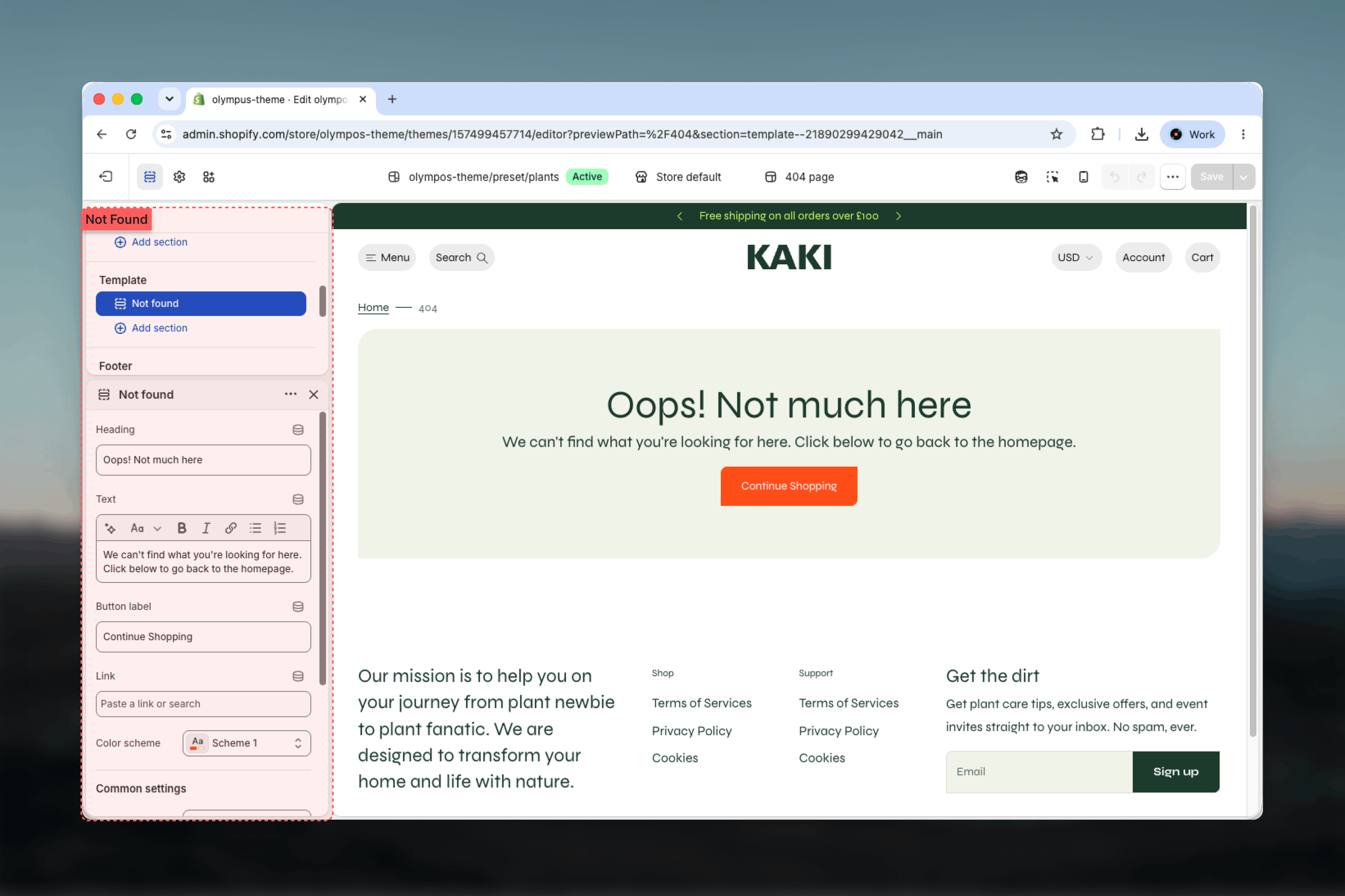
How it works
The section renders three parts in order: a small breadcrumb trail (Home, then 404), a centered card that carries the heading and message, and a primary button below them. On phones the card stretches edge to edge so it reads as a full-width banner. The Heading, Text and Button label settings are all optional; leaving one empty hides that element.Settings
Heading
Heading
The large title inside the card. Default: Oops. Keep it short so it stays on one line on mobile.
Text
Text
Rich text shown under the heading. Default: “We can’t find what you’re looking for here. Click below to go back to the homepage.” Use it to explain what happened and what to do next.
Link
Link
Where the button sends visitors. When left empty it points to the homepage. Pointing it at your best-selling collection or a search page can recover more of the lost visit.
Color scheme
Color scheme
Paints the card only; the breadcrumb and page background keep the theme’s default scheme. Default: Scheme 2. Choose a scheme that contrasts with the page so the message is impossible to miss.
Common settings
Width
Width
Page, Narrow, Narrower, Fluid or Full width. Default: Page. Both the breadcrumb and the card follow this width.
Top spacing and Bottom spacing
Top spacing and Bottom spacing
None, Small, Medium, Large or Extra large. Defaults: None on top and Medium at the bottom, so the breadcrumb sits directly under the header.
Section border
Section border
None, Top, Bottom or Top and bottom. Default: None.
Blocks
The Not found section does not accept blocks. Its heading, text and button are section settings, so the card always keeps the same structure. To add more content to the page, add separate sections to the 404 template instead.Best practices
Say what happened
A plain sentence such as “That page has moved or no longer exists” reassures visitors more than a clever headline alone.
Point to a useful destination
Send the button to a collection or the homepage rather than a generic page. The goal is to get the visitor back into a shopping path in one click.
Add product discovery below
A Featured collections or Featured products section under the card turns the error page into a second chance to browse.
Use a contrasting scheme
A strong card scheme makes the message readable at a glance, which matters when the visitor is already confused.
Keep the copy short
Long explanations are skipped. One heading and one or two sentences are enough.
Check it on mobile
The card goes edge to edge on phones. Preview the page to make sure the heading does not wrap awkwardly.
Related guides
Common settings
Width, spacing, border and color scheme controls shared by every section
Featured collections
Add collection tiles under the error card to keep visitors browsing
Colors
Define the six color schemes used across the theme