

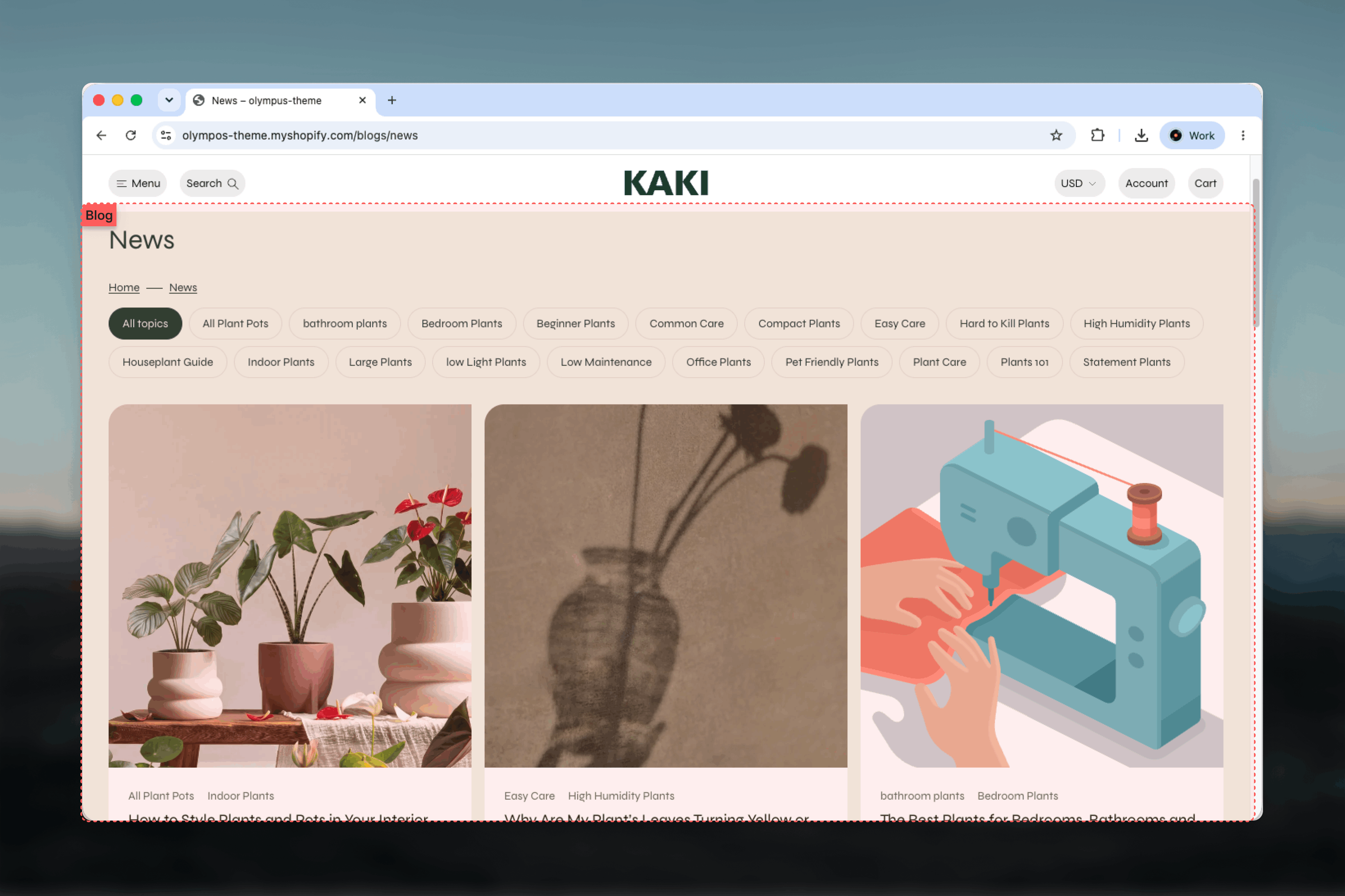
What this template controls
- Whether the blog title is printed above the grid.
- The breadcrumb trail and the tag filter that lets readers narrow the list by topic.
- How many columns the grid uses on desktop and how many posts load per page.
- The article card: heading size, content alignment, and whether the date and author appear.
- The color scheme, width, spacing and border of the section.
Getting started
1
Open the Theme Customizer
From your Shopify admin go to Online Store, then Themes, and click Customize on Olympus.
2
Choose the blog template
Use the page selector at the top of the Theme Customizer, open Blogs and pick Default blog.
3
Select the Blog section
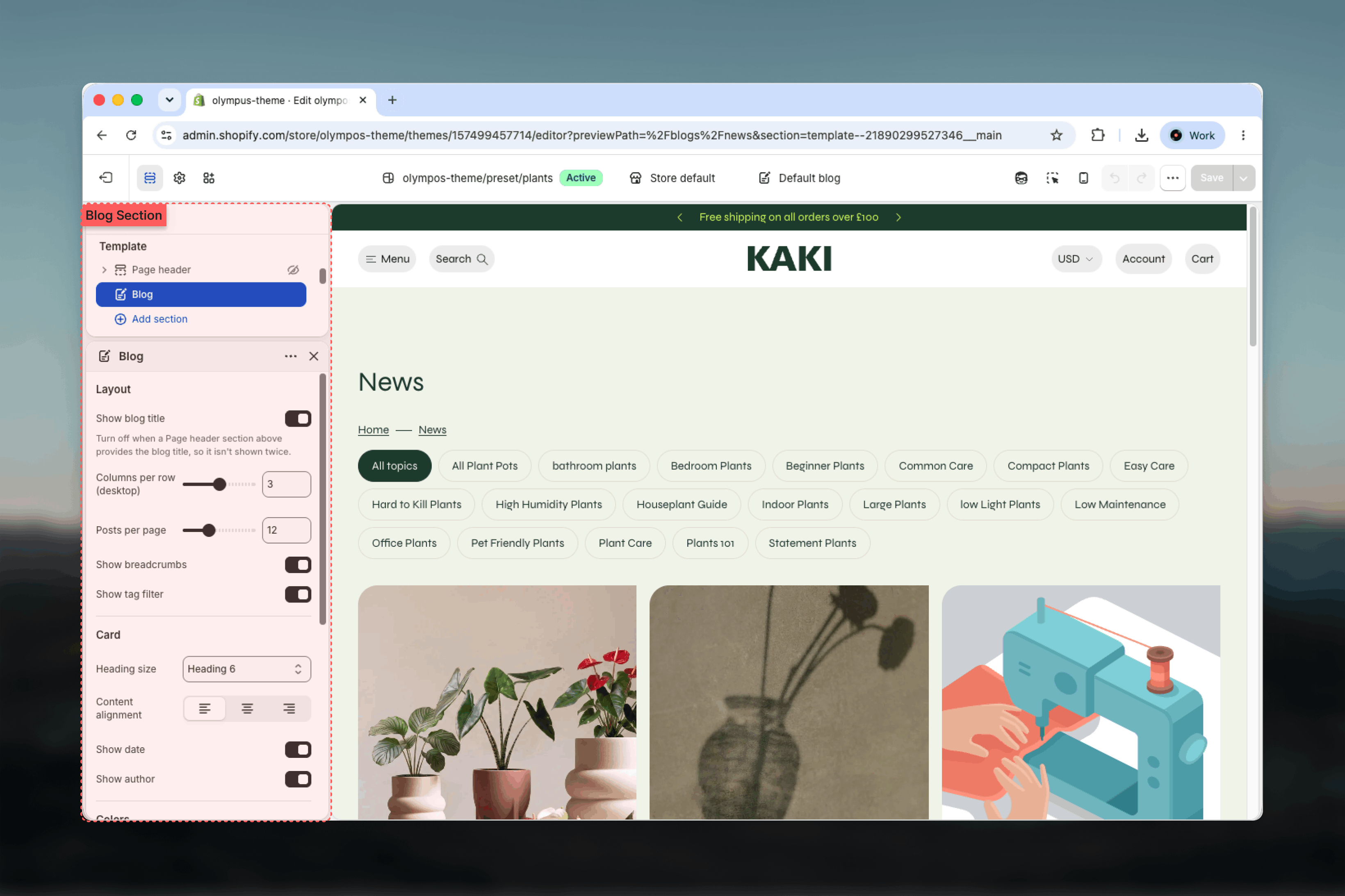
Click Blog in the left sidebar to open its settings.
How it works
The section renders the blog title, then a toolbar with the breadcrumb on one side and the tag filter on the other, followed by the article grid and the pagination controls. Each card links to the post and shows its featured image, up to two tags, the title, a short excerpt and a meta line with the date and author. The card’s image ratio comes from the Media aspect ratio setting in the Cards theme settings, shared with the product and collection grids, so all card types line up. When a blog has no posts, or a tag filter returns nothing, the grid shows a “No articles found” message instead.Template settings
- Listing
- Card
- Layout
Show blog title
Show blog title
Prints the blog’s name as the page heading. Default: on. Turn it off when a Page header or Page banner section above the grid already shows the title, so it is not shown twice.
Columns per row (desktop)
Columns per row (desktop)
Two, three or four cards per row on desktop. Default: 3. Two columns give large images suited to editorial photography; four suit short news-style posts. Mobile always stacks cards in a single column.
Posts per page
Posts per page
6 to 24 posts per page in steps of 6. Default: 12. Pick a multiple of your column count so the last row is full.
Show tag filter
Show tag filter
Adds an All topics link and one link per tag used in the blog. Default: on. The filter only appears when at least one post has a tag, so an untagged blog shows no empty toolbar.
Blocks
The Blog section does not accept blocks. The article card is a fixed layout controlled by the Card settings above, and pagination style is inherited from the Pagination theme settings. To add an introduction or banner, place a Page banner or Page header section above the Blog section in the template.Best practices
Match posts to columns
With three columns choose 12 or 18 posts per page; with four choose 12 or 24. A full last row looks intentional.
Tag consistently
The filter lists every tag in the blog. A handful of well-named topics is more useful than dozens of one-off tags.
Avoid a double title
If you add a Page banner above the grid, turn off Show blog title so the name is not repeated.
Use consistent featured images
Cards crop to the Cards aspect ratio. Upload featured images in similar orientation so the grid stays even.
Write excerpts
Cards show the excerpt, or the first twenty words of the post when none is set. A written excerpt reads far better.
Pick a pagination style
Load more keeps readers scrolling; numbered pages help them find older posts. Set it once in Pagination theme settings.
Related guides
Article Template (main-article)
Configure the individual post layout the cards link to
Pagination
Choose between numbered pages and a Load more button
Cards
Set the media aspect ratio and styling shared by article cards