

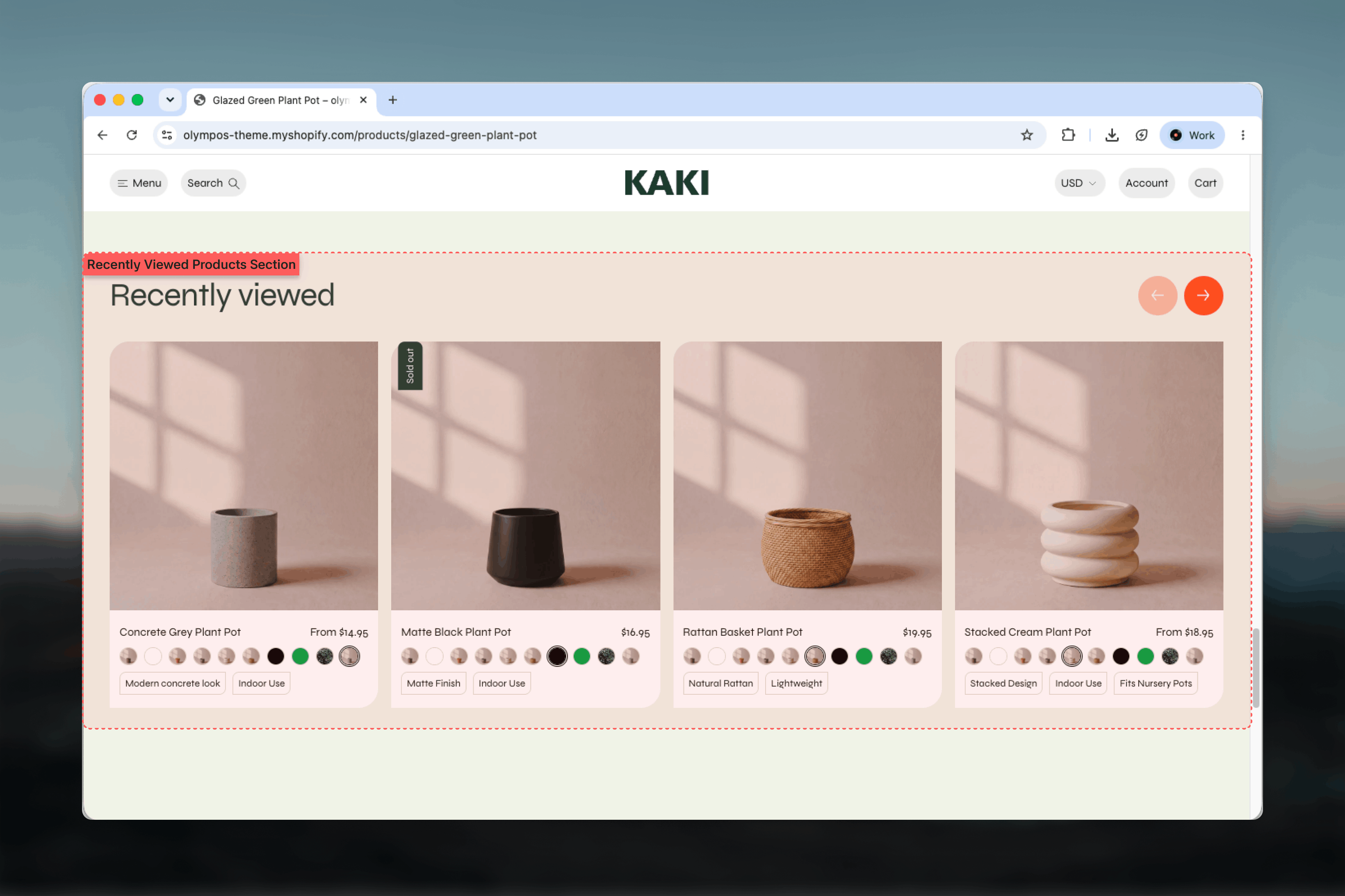
What this section controls
- Heading, description and their alignment
- Where the heading sits: above the products, stacked, or beside them on a panel
- How many of the remembered products appear in the slider
- Card aspect ratio and the number of slides visible on desktop and mobile
- Slider arrow style and an optional separate arrow color scheme
- Color scheme for the section and its cards
How it works
Each time a shopper opens a Product Page (PDP), the theme adds that product to a list stored in their own browser. The list holds the last 12 products, newest first, and nothing is sent to the store. The Products to show setting then decides how many of those 12 appear in the slider. Two things are filtered out automatically: the product whose page the shopper is currently on, so the section never recommends what they are already looking at, and any product that is no longer available, which is dropped from the list as soon as it is found to be missing. If nothing is left to show — on a first visit, for example — the section removes itself, so there is never a heading over an empty rail.The list is per browser and per device. It is not tied to a customer account, so a shopper who logs in on a second device will not see products viewed on the first.
Getting started
1
Open Theme Customizer
From Shopify admin, open the Theme Customizer and choose the template where the section should appear, typically the product or cart template.
2
Add Recently viewed products
Choose Add section and pick Recently viewed products. Place it low on the page, after the main content.
3
Set the heading and count
Edit the Heading, choose a Header layout and set Products to show.
4
Preview with real history
Open a few products in the storefront preview, then return to the page to see the slider filled.
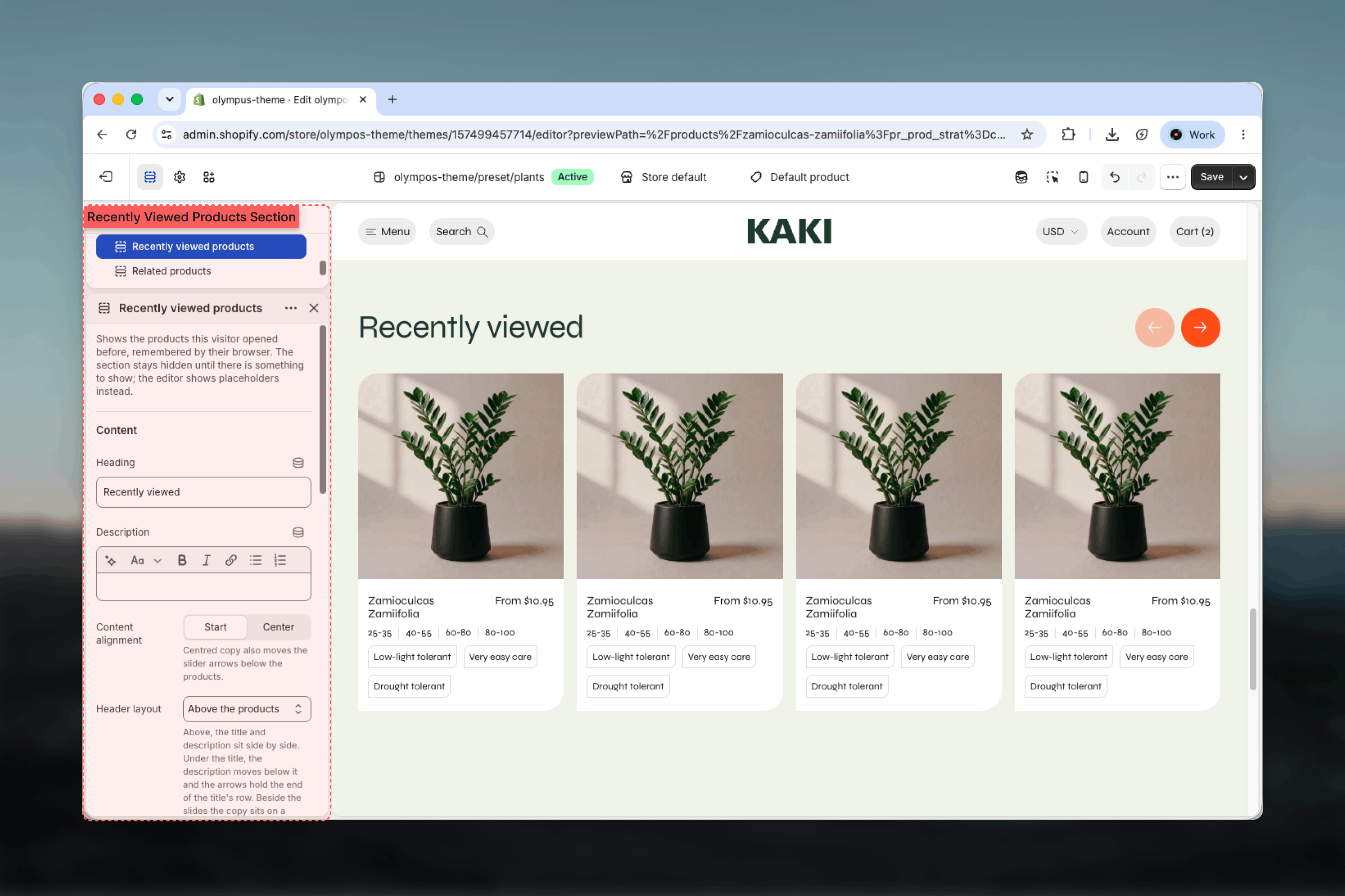
Section settings
Content
Heading and Description
Heading and Description
Heading is a plain text title (default: Recently viewed). Description is optional rich text shown next to or under the heading depending on the Header layout.
Content alignment
Content alignment
Start (default) or Center. Centered copy also moves the slider arrows below the products, so the header stays symmetrical.
Header layout
Header layout
Where the copy sits relative to the slider. Default: Above the products.
- Above the products: title and description side by side, arrows at the end of the row.
- Above, description under the title: the description moves below the title and the arrows hold the end of the title’s row.
- Beside the products: the copy sits on a rounded panel in its own scheme, one card wide, and the slides run past the page edge. Designed for the Full width option.
Text column color scheme
Text column color scheme
Appears only with Beside the products. Colors the rounded panel the copy sits on. Default: Scheme 2.
Product
Products to show
Products to show
How many of the remembered products appear, from 2 to 12. Default: 8. The newest are shown first. The browser always keeps the last 12, so raising this setting can only reach as far back as those 12.
Aspect ratio
Aspect ratio
Theme default (default), Portrait, Square or Landscape. Theme default follows the Media aspect ratio in the Cards theme settings.
Slides shown on desktop
Slides shown on desktop
How many cards fill the row: Automatic, or a value from 2 to 5.75 in quarter and half steps. A fraction leaves the next card peeking in, so the row reads as scrollable. Automatic keeps each layout’s own default: four across, or 360px cards beside the copy. Default: Automatic.
Slides shown on mobile
Slides shown on mobile
1, 1.25, 1.5 or 1.75 slides visible on phones. Default: 1.25, which shows a sliver of the next card as a swipe cue.
Slider arrow style
Slider arrow style
Filled (default) or Outline arrows.
Use a separate color scheme for the arrows
Use a separate color scheme for the arrows
Off by default; the arrows follow the section scheme. Turn it on to reveal Arrow color scheme (default: Scheme 1) and give the arrows more or less contrast than the cards.
Colors
Color scheme: colors the section and the product cards in it. Default: Scheme 1.Common settings
Width
Width
Page, Narrow, Narrower, Fluid or Full width. Default: Page. Use Full width with the Beside the products header layout.
Top spacing and Bottom spacing
Top spacing and Bottom spacing
None, Small, Medium, Large or Extra large. Default: Large for both.
Section border
Section border
None, Top, Bottom or Top and bottom. Default: None.
Blocks
This section does not accept blocks. The heading and description are section settings, and each product is rendered with the theme’s standard product card, which is configured globally under Product cards.Best practices
Place it on product and cart pages
These are the pages where shoppers compare and reconsider. On the homepage the list is often empty for new visitors.
Keep the count moderate
Six to eight products cover a typical session. Twelve makes the slider long without adding much recall value.
Leave a slide peeking
Fractional values on desktop and mobile show that the row scrolls, which increases interaction with later cards.
Do not duplicate Related products
On a product page, pair Recently viewed with Related products only if both stay short. Two long sliders push the footer far down.
Use Theme default aspect ratio
Matching the collection cards keeps images consistent when a shopper moves between pages.
Check the empty state
In a private browsing window the section should be absent, not a lone heading. Placeholders appear only inside the Theme Customizer.
Related guides
Related products
Shopify recommendations for the product being viewed, with the same slider controls
Product cards
Global card settings for swatches, badges and quick add
Cart page
A common home for the Recently viewed products section