

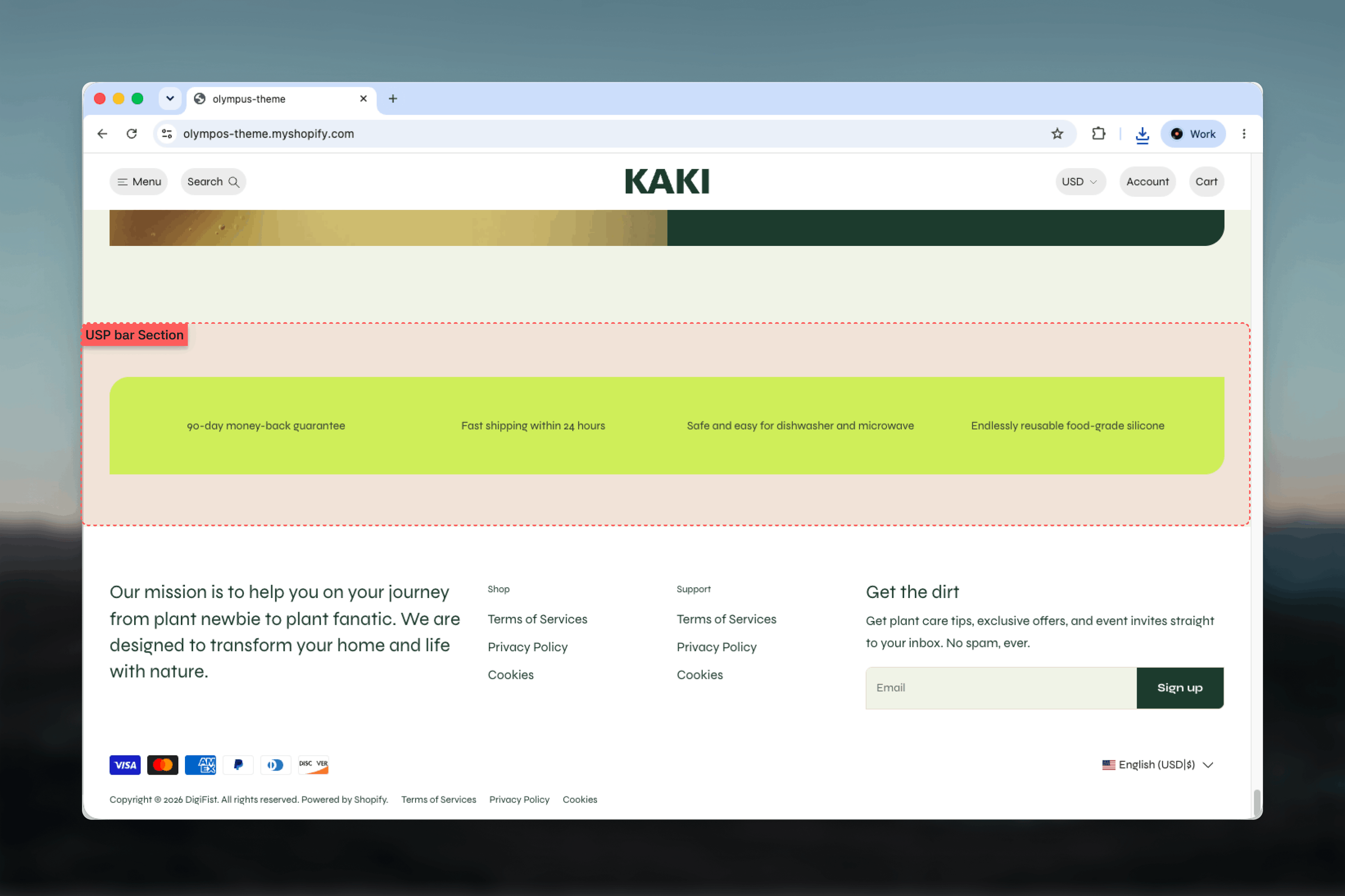
What this section controls
- Icon on top or beside the text
- An optional line between icon and text, icon size and spacing between values
- Slides visible on mobile
- A background scheme for the band and a card scheme for the panel
- Value blocks, each with an icon and Heading or Text blocks
Getting started
1
Open Theme Customizer
From Shopify admin, open the Theme Customizer on the template where the bar should appear.
2
Add USP bar
Choose Add section and pick USP bar. The preset comes with four example values.
3
Edit the values
Select each Value block, upload an Icon or paste Icon SVG code, and edit its Text block.
4
Tune the layout
Choose Item layout, Icon size and Grid spacing, then check the mobile slider in the preview.
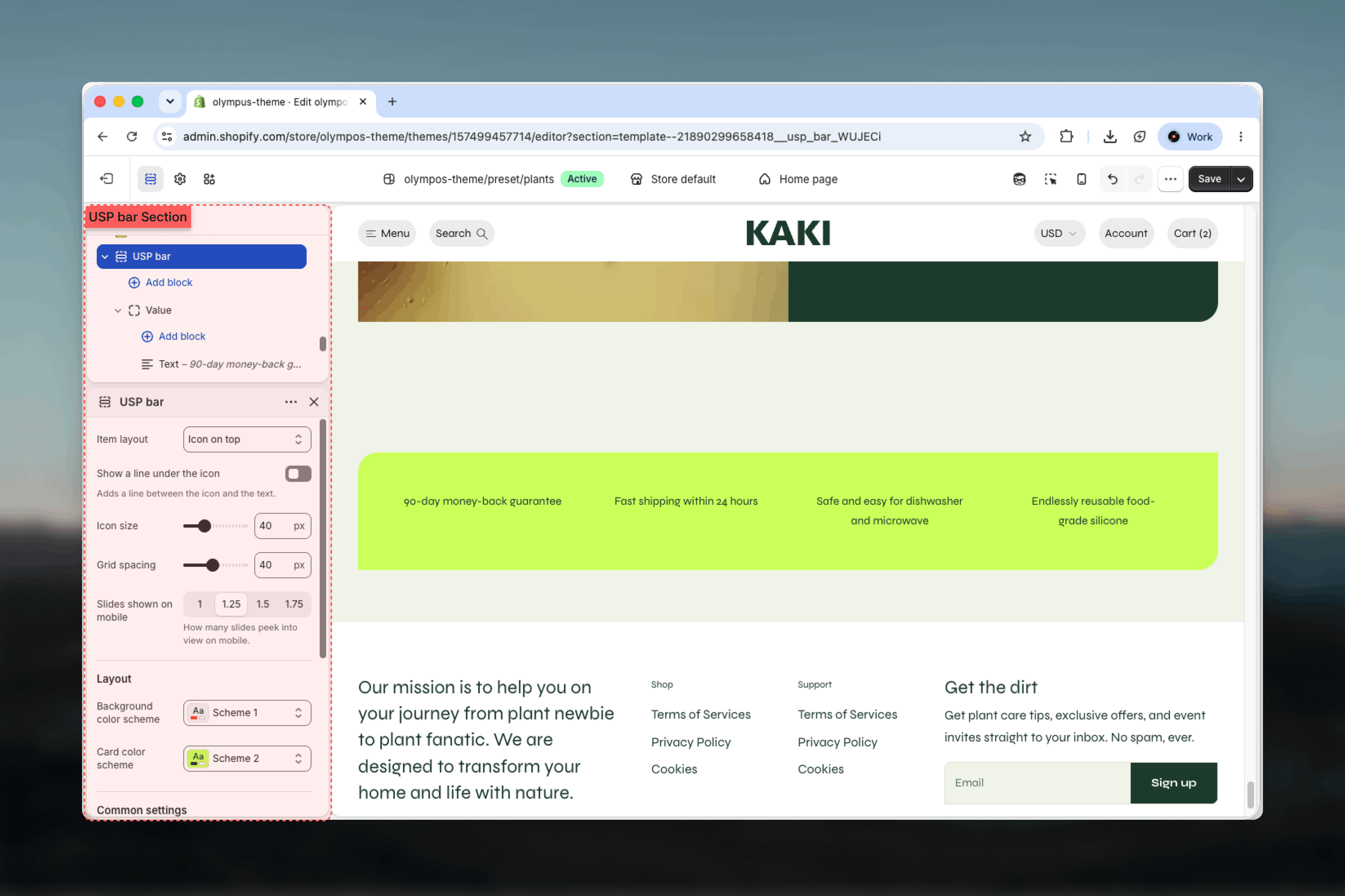
Section settings
Layout
Item layout
Item layout
Icon on top (default) stacks the icon above the text, centered. Icon beside text places the icon to the left of the text in a single line, which is more compact and suits longer statements.
Show a line under the icon
Show a line under the icon
Adds a thin line between the icon and the text of every value. Off by default. Works with Icon on top; it gives the row a more structured, tabular feel.
Icon size
Icon size
From 24px to 80px in steps of 4. Default: 40px. Icons are shown at this size on every value, so pick icons drawn to a consistent visual weight.
Grid spacing
Grid spacing
Space between values, from 8px to 80px in steps of 4. Default: 40px. The same gap applies on desktop and between mobile slides.
Slides shown on mobile
Slides shown on mobile
1, 1.25, 1.5 or 1.75 values visible on phones. Default: 1.25, which shows part of the next value as a swipe cue. On desktop every value fits in one row regardless of this setting.
Colors
- Background color scheme: the full-width band behind the panel. Default: Scheme 1.
- Card color scheme: the panel that holds the values. Default: Scheme 2. With different schemes the bar reads as a card resting on the page; matching them makes it a plain strip.
Common settings
Width
Width
Page, Narrow, Narrower, Fluid or Full width. Default: Page.
Top spacing and Bottom spacing
Top spacing and Bottom spacing
None, Small, Medium, Large or Extra large. Default: Medium for both, tighter than most sections because the bar is meant to sit close to its neighbors.
Section border
Section border
None, Top, Bottom or Top and bottom. Default: None.
Blocks
Value
One selling point. Value is private to the USP bar and is the only block the section accepts. The number of Value blocks decides how many columns the desktop row has, so four values give four equal columns.Icon SVG code
Icon SVG code
Paste the SVG markup of an icon. When set, it is shown instead of the icon image. Vector icons stay sharp at any Icon size and inherit the card scheme’s text color when the SVG uses the current color.
Icon
Icon
Upload an icon image instead. Use a square PNG or SVG file with a transparent background. Ignored when Icon SVG code is filled in.
Best practices
Three to five values
Fewer looks sparse across a wide row; more than five shrinks each column until text wraps.
One line per value
Aim for four to six words. The bar is scanned, not read; details belong on a policy page.
Use one icon set
Mixing outline and filled icons or different stroke weights makes the row look assembled rather than designed.
Prefer SVG code
SVG scales cleanly with Icon size and takes the text color of the card scheme automatically.
Place it where doubts arise
Under the hero, above the footer, or on the product template near the buy buttons are the places shoppers look for reassurance.
Check the mobile slider
With 1.25 slides the second value peeks in. If your values are very short, 1.5 or 1.75 shows more at once.
Related guides
USP tile
A larger tile with a heading panel and multi-line values
Feature highlights
Highlight product features with images and text
Theme blocks reference
Heading and Text block settings used inside values