

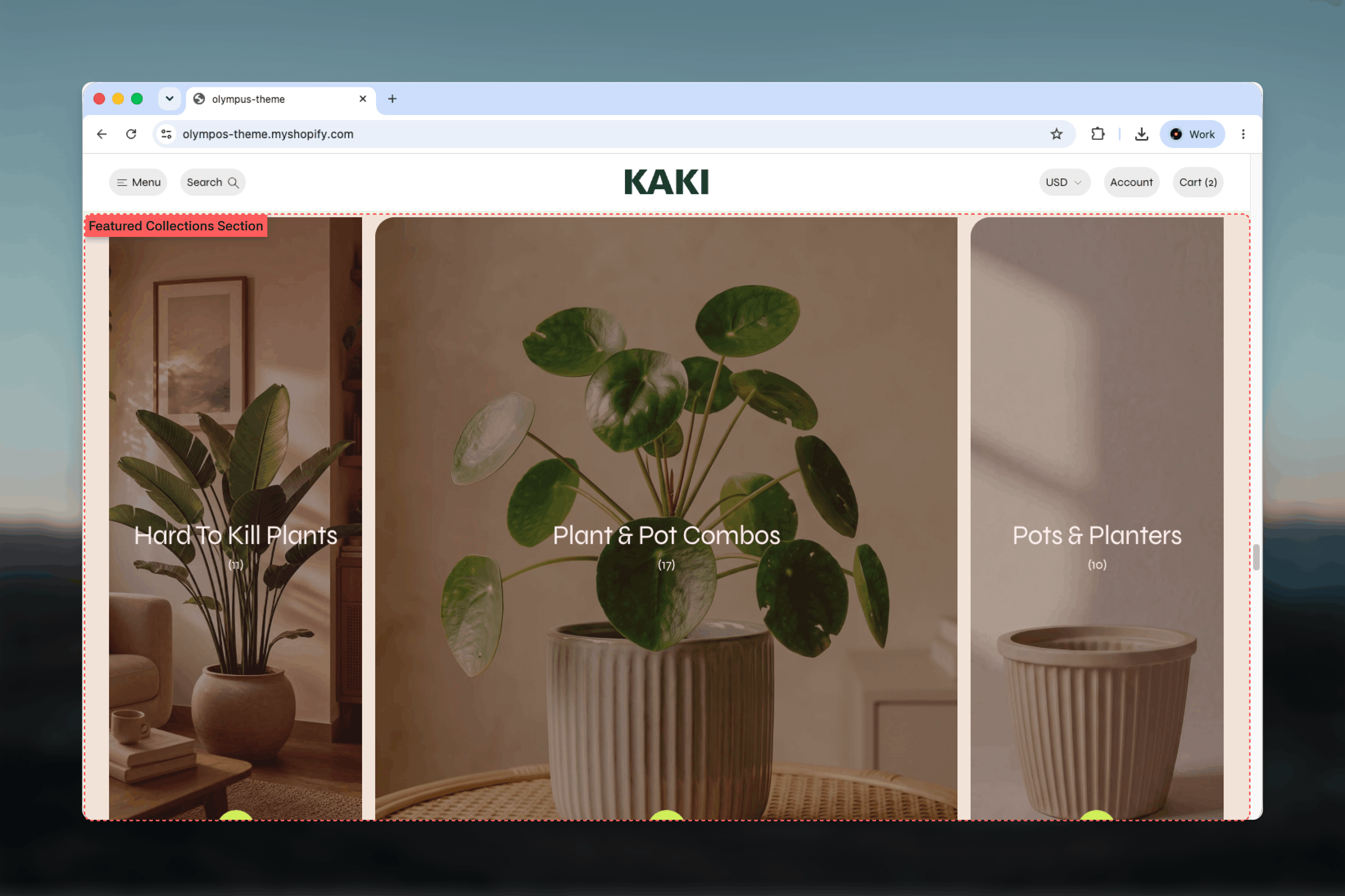
What this section controls
- The layout: Expanding tiles, Scrolling rows, Floating images, Image on hover or Image banner
- Collection names, product counts and their text size on desktop and mobile
- Layout-specific behavior such as tile height, scroll speed, image drift or banner height
- The color scheme for the section and a separate one for text placed over images
- Overlay opacity to keep names readable on busy photos
- Width, spacing and borders
Getting started
1
Open the Theme Customizer
From the Shopify admin, open Online Store, then Themes, and select Customize on Olympus.
2
Add the section
Select Add section on the template you are editing and choose Featured collections. The preset adds three Collection blocks.
3
Assign collections
Select each Collection block and pick a collection. Add or remove blocks to match the set you want to feature.
4
Choose a layout
Set Layout in the section settings and adjust the group that appears for it.
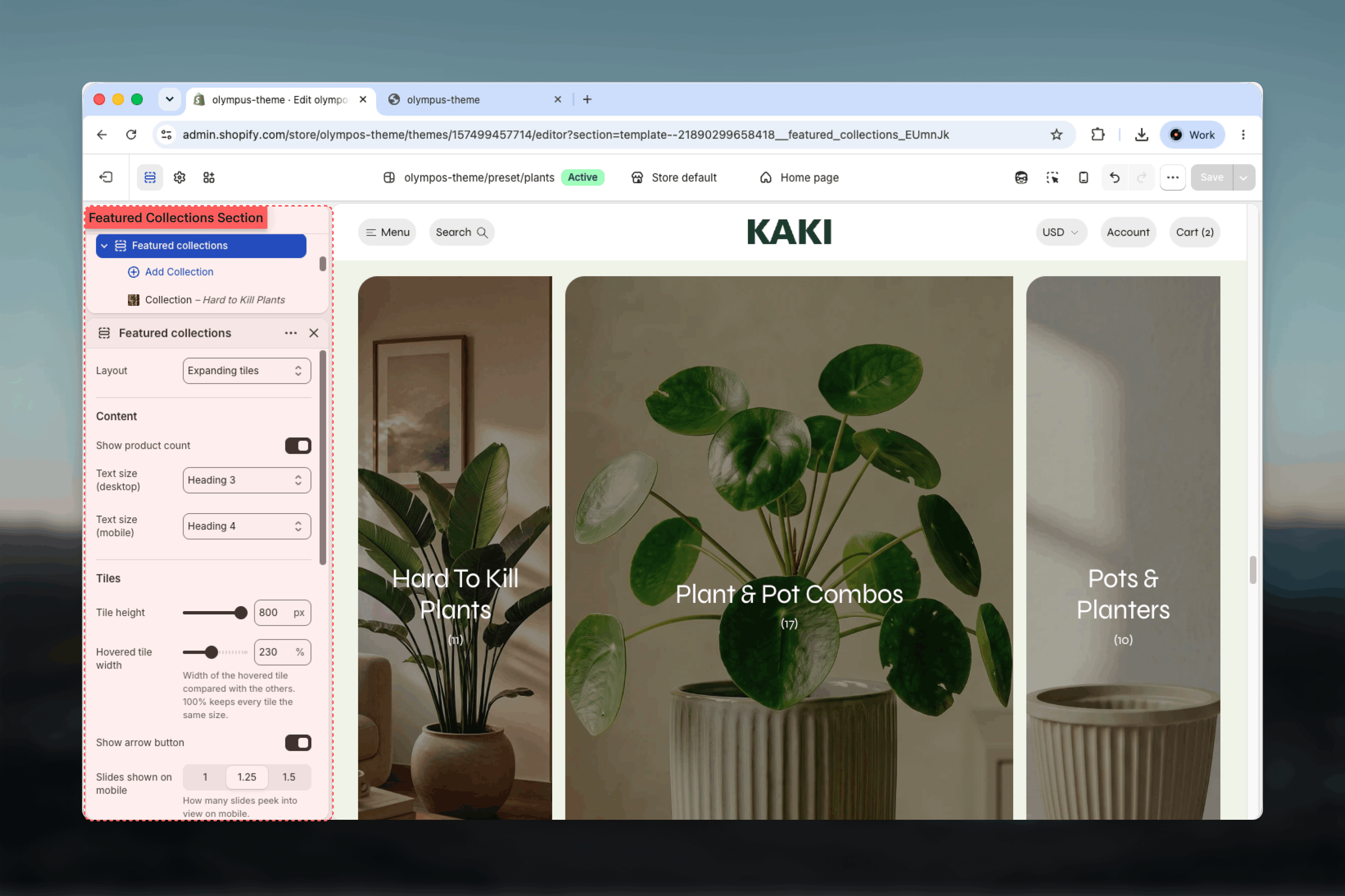
Layout
The Layout setting changes the whole character of the section. Default: Expanding tiles.- Expanding tiles
- Scrolling rows
- Floating images
- Image on hover
Collections sit side by side as tall image tiles. Hovering a tile, or reaching it with the keyboard, widens it while the others shrink, and the collection name and optional arrow button sit over the image. With more than three collections the tiles become a rail: previous and next arrows appear above it, and the rail can also be dragged or swiped sideways. On mobile the tiles are always a swipeable row.Best for four to six collections with strong photography.
Section settings
Content
Show product count
Show product count
Prints the number of products next to each collection name. On by default. Turn it off for small or seasonal collections where a low count would not help.
Text size (desktop) and Text size (mobile)
Text size (desktop) and Text size (mobile)
Set the size of the collection names separately for each device. Desktop offers Heading 5 through Heading 1 plus XXXL, default Heading 2. Mobile offers Heading 6 through Heading 1, default Heading 4. Large text suits the Floating images and Image on hover layouts, where the names are the main visual.
Content alignment
Content alignment
Horizontal position of the collection names: Start, Center or End. Default: Center. Appears only for the Image on hover and Image banner layouts.
Tiles
These settings appear only when Layout is Expanding tiles.Tile height
Tile height
Height of the tile strip on desktop, from 320 to 800 pixels in steps of 20. Default: 800.
Hovered tile width
Hovered tile width
How much the hovered tile grows compared with the others, from 100% to 400%. Default: 230%. At 100% tiles stay equal and only the content responds to hover.
Slides shown on mobile
Slides shown on mobile
How many tiles fit the mobile viewport: 1, 1.25 or 1.5. Default: 1.25. A fraction leaves the next tile peeking in.
Rows
These settings appear only when Layout is Scrolling rows.- Scroll speed: seconds for one full loop, from 10 to 120 in steps of 5. Default: 40. A lower value scrolls faster.
- Row height: 80 to 200 pixels in steps of 4. Default: 128.
- Show images: adds the collection images between the repeated names. On by default.
- Show dividers: draws a hairline between rows. On by default.
Images
These settings appear for the Floating images and Image on hover layouts.Floating images
Floating images
Image size scales the floating images from 60% to 140%. Default: 100%.Scroll movement sets how far the images drift as the page scrolls, from 0 to 160 pixels. Default: 80. Set it to 0 to keep them still.
Only the first five collections receive a floating image, and images are shown on desktop only.
Image on hover
Image on hover
Image width sets the revealed image from 160 to 400 pixels. Default: 250.Image position places the image at the Start or End of the row. Default: End.Image tilt rotates the image between -10 and 10 degrees. Default: 4. Use 0 for a straight image.
Banner
These settings appear only when Layout is Image banner.- Desktop height: 400 to 900 pixels in steps of 20. Default: 640.
- Mobile height: 300 to 700 pixels in steps of 20. Default: 500.
- Content position: places the collection names at the Top, Middle or Bottom of the banner. Default: Bottom.
Colors and overlay
Color scheme
Color scheme
Background and text colors for the section. Default: Scheme 1.
Text color scheme
Text color scheme
A second scheme used for the collection names and overlay that sit on top of the image. Default: Scheme 3. Appears for the Expanding tiles and Image banner layouts. Pick a scheme with light text for dark photography and vice versa.
Image overlay opacity
Image overlay opacity
Darkens the image behind the names, from 0% to 80% in steps of 5. Default: 0%. Appears for the Expanding tiles and Image banner layouts. Add 20 to 40% when names are hard to read.
Common settings
Width
Width
Page (default), Narrow, Narrower, Fluid or Full width.
Top spacing and Bottom spacing
Top spacing and Bottom spacing
None, Small, Medium, Large or Extra large. Default: Large for both.
Section border
Section border
None (default), Top, Bottom or Top and bottom.
Blocks
Collection
Each Collection block adds one collection to the section. The block order is the display order in every layout.- Collection: the collection to feature. The block links to its Collection Page (PLP).
- Collection label: replaces the collection name with your own wording, for example a shorter title that fits a tile.
- Image: overrides the collection image. When left empty the collection’s own image is used, so keeping collection images up to date in the Shopify admin is usually enough.
- Mobile image: a separate image shown on mobile, falling back to the main image when empty. Not offered for the Floating images and Image on hover layouts because those do not show images on mobile.
Best practices
Match the layout to the count
Expanding tiles and Image banner suit four to six collections. Scrolling rows and Image on hover scale to longer lists.
Use short labels
Long collection names wrap in tiles and dominate text-led layouts. Use Collection label to shorten them.
Test hover layouts on mobile
Hover effects do not exist on touch devices. Check that the mobile view still communicates each collection clearly.
Keep overlays light
Add only as much overlay as readability needs. Heavy overlays flatten photography and reduce the pull of the image.
Prefer consistent image crops
Tiles and banners crop to fill. Images with the subject centered survive cropping across screen sizes.
Related guides
Collection Page (PLP)
Configure the pages these tiles link to
Collection list page (CLP)
Show every collection on one page instead of a curated set
Common settings
Width, spacing, borders and color schemes shared across sections