

What these settings control
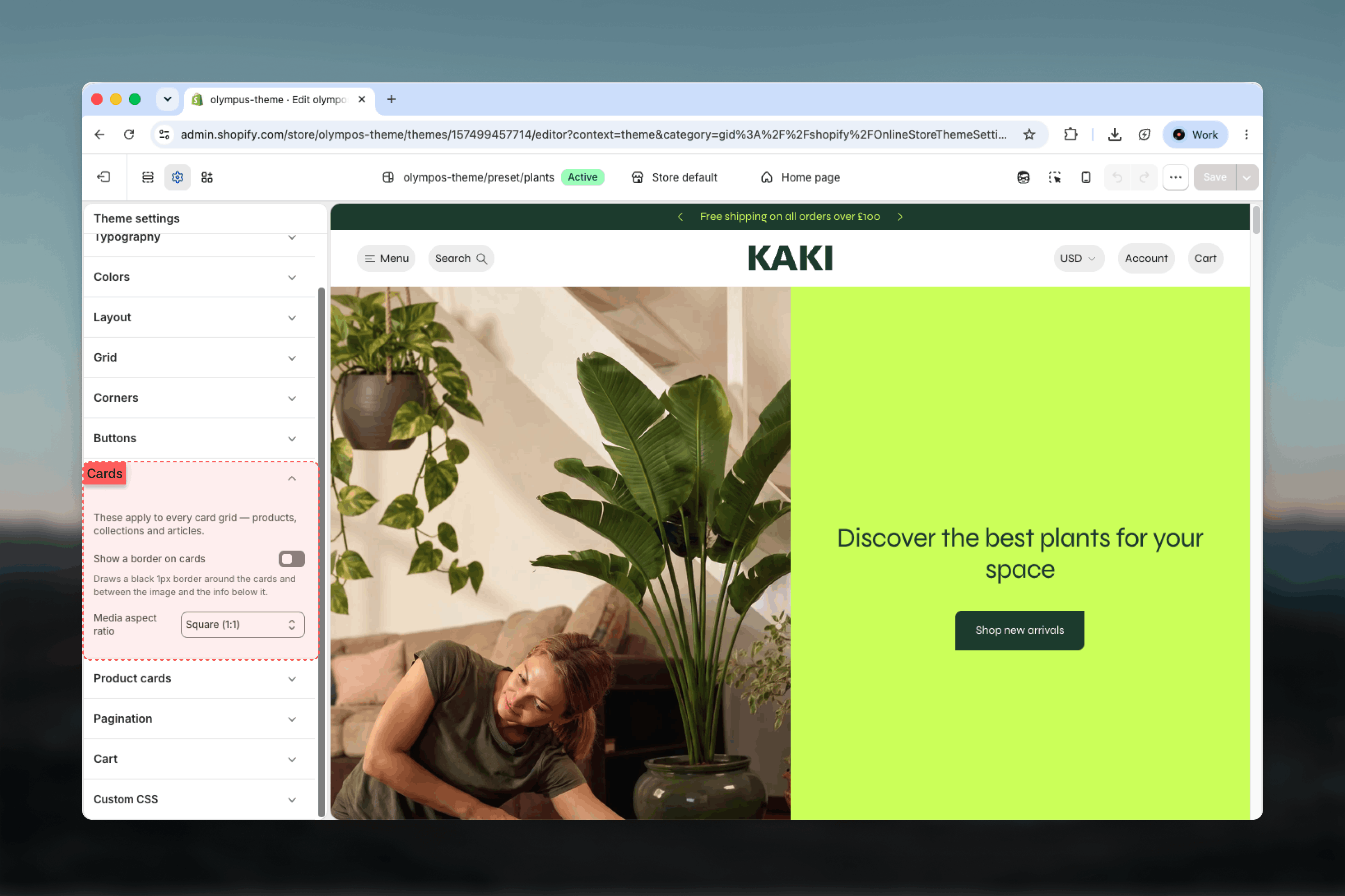
- Whether cards are outlined with a 1 pixel border, including a divider between the image and the text below it
- The aspect ratio of the image area on every card, or whether it adapts to each image
How to access
1
Open the Theme Customizer
From your Shopify admin, go to Online Store, then Themes, and select Customize.
2
Open Theme settings
Select the Theme settings icon at the bottom of the left sidebar.
3
Select Cards
Expand the Cards group to see the border and media aspect ratio settings.
Settings
Show a border on cards: Draws a black 1 pixel border around each card and a matching hairline between the image and the information below it. The border is always black, regardless of the color scheme, so it stays visible on bright and dark backgrounds alike. Default: off.- On: Cards read as framed tiles. Combined with small grid gaps, adjacent cards form a continuous lattice.
- Off: Cards float on the section background and are separated by whitespace only. Default.
- Adapt to image: Each card takes the natural proportions of its image. Rows can become uneven if images differ in shape.
- Square (1:1): A neutral frame that suits mixed catalogs and lifestyle photography.
- Portrait (3:4): A classic fashion and apparel ratio that shows full-length products. Default.
- Landscape (4:3): A wide frame that suits furniture, food and collection or article imagery.
- Tall (4:5): Slightly less elongated than Portrait; a good fit for social-style product photography.
Some sections, such as Featured products, can override the media ratio for their own cards. When a section exposes an aspect ratio setting, it takes precedence there; everywhere else this theme setting applies.
Best practices
- Match the ratio to your photography: Pick the ratio your product images were shot in so Cover cropping removes as little as possible.
- Avoid Adapt to image for mixed catalogs: It is ideal when every image shares one shape, but uneven rows make grids harder to scan.
- Pair borders with tight gaps: If you enable the border, reduce the Grid gaps so cards form a deliberate lattice rather than scattered boxes.
- Check collection and article cards too: The ratio is shared, so a ratio chosen for products also crops collection covers and blog images.
- Consider dark schemes: The border is always black; on very dark card color schemes it may be less visible, so preview with your chosen product card scheme.