

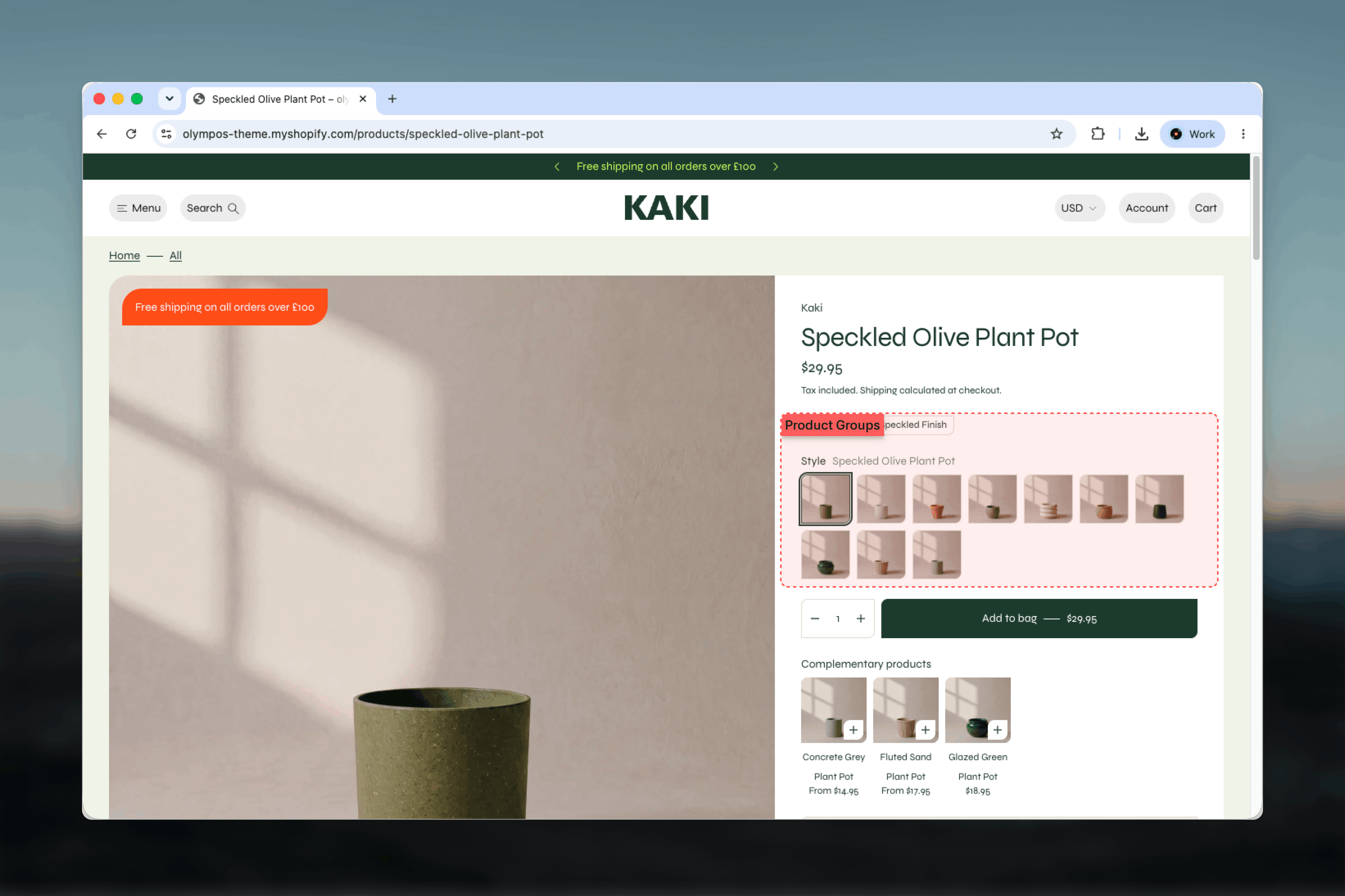
What this feature controls
- Which separate products are presented together as one group
- Whether a group shows as color swatches, image tiles or text links, set separately for cards and for the product page
- The label of the row on the product page and the value shown beside it
- The swatch shape used across the theme (Circle, Square or Rounded)
- Optional images or display text for each option value, and color values from Shopify’s standard Color metaobject
Getting started
1
Create the Product groups metaobject definition
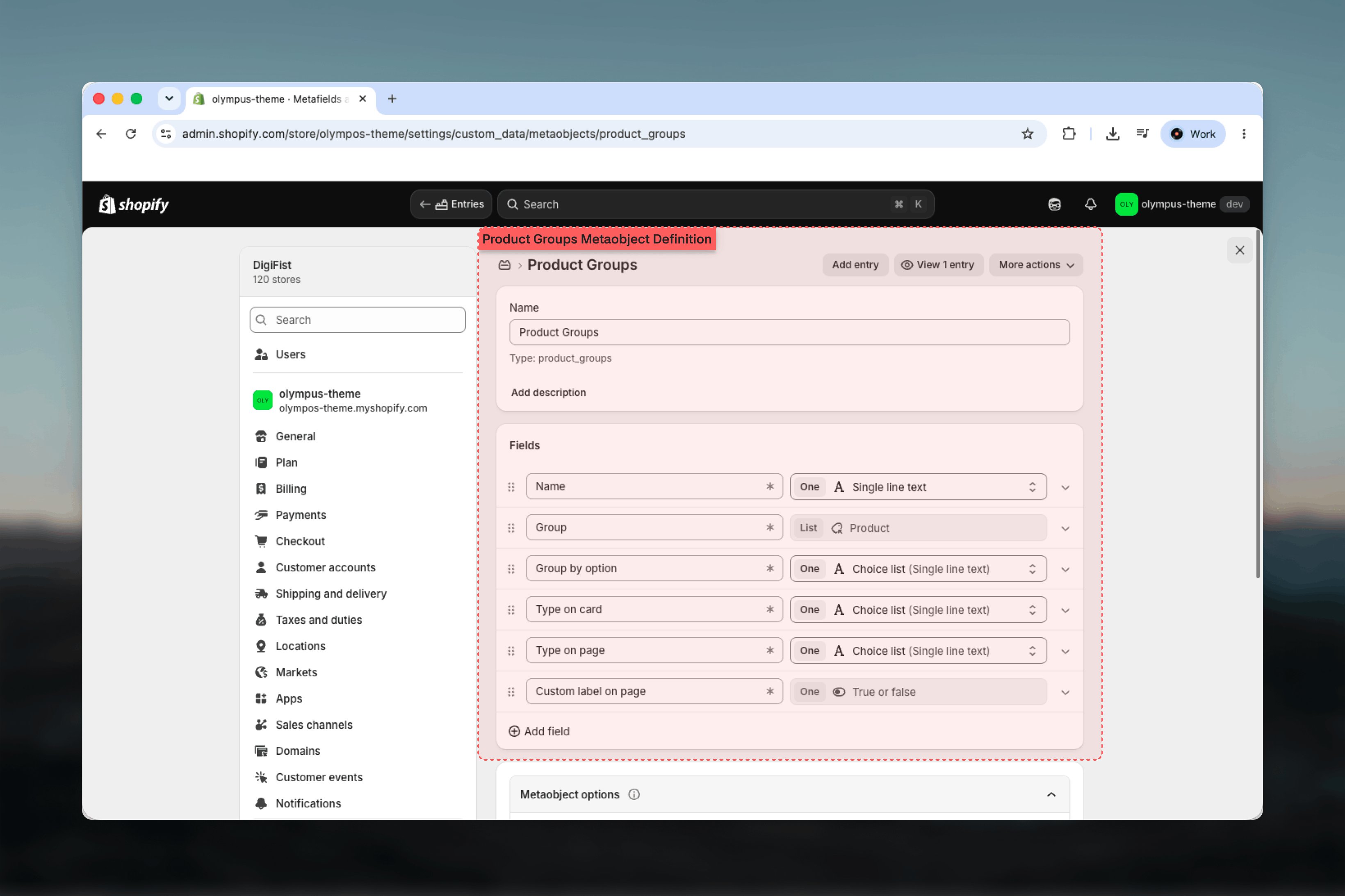
In Shopify admin open Content → Metaobjects and add a definition, for example named Product groups. Note the type it is given (for example product_groups): you will enter it in Theme settings. Add these fields, using exactly these keys:
- Group (key group): a list of products. The members of the group.
- Type on card (key type_on_card): single line text, ideally a choice list with the values Swatch, Image and Text. How the group shows on product cards.
- Type on page (key type_on_page): same values as above. How the group shows in the variant picker.
- Group by option (key group_by_option): single line text such as Color or Material. Used as the row label on the product page; the product type is used when it is empty.
- Custom label on page (key custom_label_on_page): true or false. When true, the matched option value (for example Sand) is shown beside the label instead of the full product title.
2
Create the Option value images metaobject definition (optional)
Add a second definition, for example Product option values, with a Text field (key text; a Name field with key name also works) and an Image field (key image). Each entry pairs a value such as Oak with the image that represents it. You only need this definition for groups shown as Image or Text.
3
Name the definitions in Theme settings
In the Theme Customizer open Theme settings → Product cards and scroll to Product groups (swatches). Enter the type of each definition in Product groups metaobject type and Option value images metaobject type, then choose a Swatch shape. Leaving the first field blank disables product groups entirely.
4
Create a group entry
Under Content → Metaobjects open your Product groups definition and add an entry. Pick the member products in Group, choose a Type on card and a Type on page, and set Group by option to the word customers should read as the label.
5
Check the storefront
Open one of the member products. The group row should list every member with the current product highlighted, and clicking another member should open that product’s page.
How product groups work
Each member of a group is a normal Shopify product with its own page, price, inventory and media. The theme does not merge them; it only draws links between them, so a group behaves like a set of variants for the customer while staying separate products in your admin, in search and in analytics.How values are matched
The theme derives each member’s option value from its product title. For every candidate value it checks whether the title contains the value’s label (case-insensitive) and keeps the longest match. Name your products consistently, for example “Linen Shirt - Sand” and “Linen Shirt - Olive”, so each title contains exactly one value.- Swatch groups look the values up in Shopify’s standard Color metaobject, the one Shopify manages for category color swatches. A matched entry supplies a color, or an image when the entry has one.
- Image and Text groups look the values up in your Option value images definition. The matched entry supplies the display text and, for Image groups, the tile image.
- When nothing matches, Swatch and Image groups fall back to the member’s featured image and Text groups fall back to the product title, so a group never renders empty.
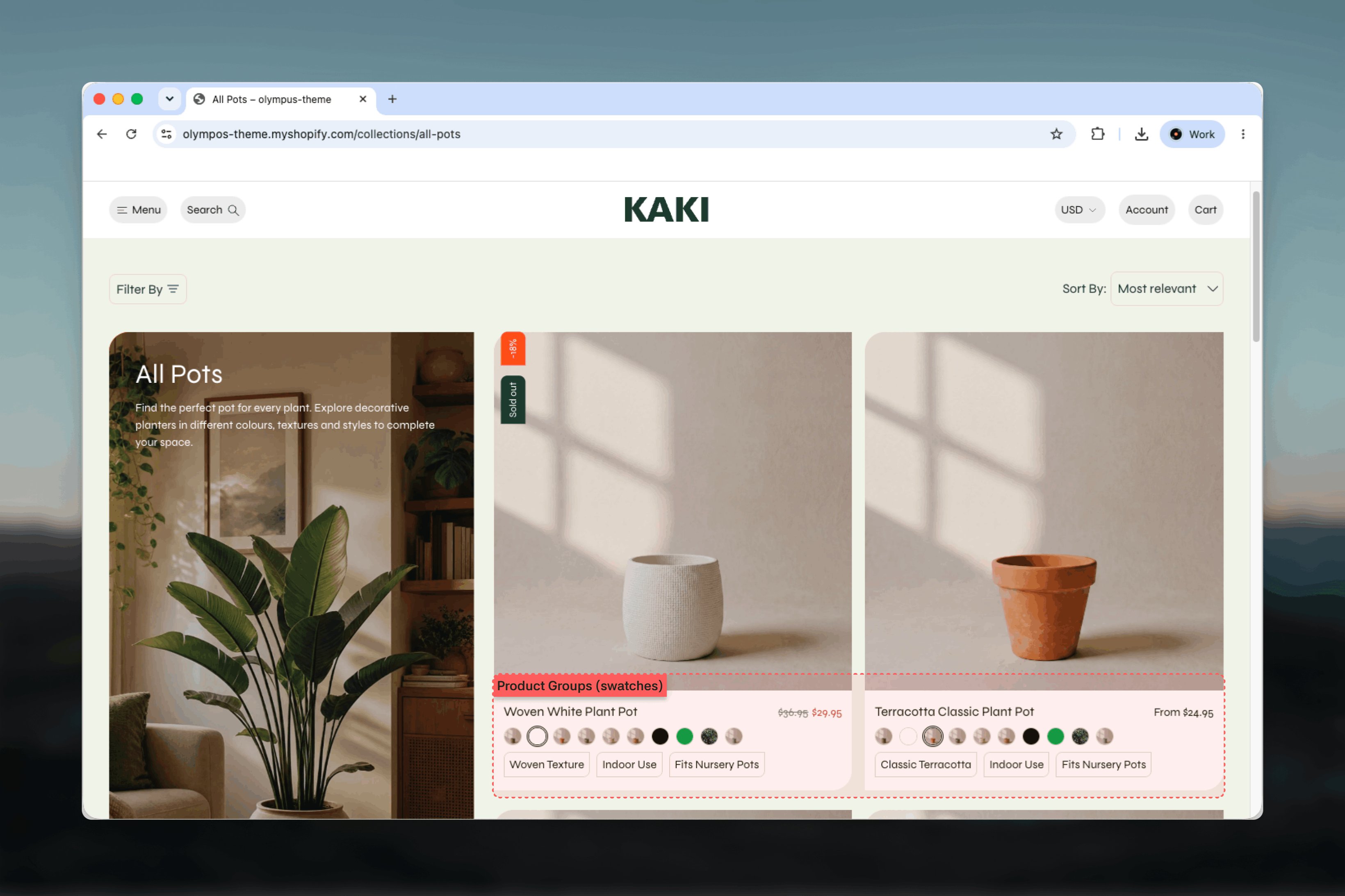
On product cards
On the product page
Display types
- Swatch: a color dot (or a swatch image) in the chosen swatch shape. Best for colors.
- Image: a small image tile per member: the option value image when one exists, otherwise the member’s featured image. Best for materials, patterns and finishes.
- Text: the value’s text, or the product title. Best for sizes, capacities and editions.
Settings

Products that belong to a Shopify combined listing also show no variant row on cards, because each option value already points at its own product in the grid.
Best practices
Name products predictably
Put the distinguishing value in every member’s title and keep the rest identical. Matching is by title, so “Sand” must appear in the title of the Sand product and nowhere else in the group.
Choose one option per group
A group should vary along a single attribute such as color. Sizes and other options stay as regular variants inside each member, where the variant picker handles them.
Prefer Swatch for colors
Color values already exist in Shopify’s standard Color metaobject, so Swatch groups need no extra entries and stay consistent with variant swatches.
Turn on Custom label on page
Showing “Sand” beside the Color label reads better than repeating the full product title, especially with long titles.
Keep groups small
Rows do not paginate. Beyond eight to ten members a card row gets crowded; split very large sets into several groups.
Check card and page separately
Type on card and Type on page are independent. Swatches on cards with text on the page is a common, readable combination.
Related guides
Product Page (PDP)
Variant picker block settings, including swatch style and variant images
Product cards
Card variant row, swatch style and the Product groups (swatches) settings