

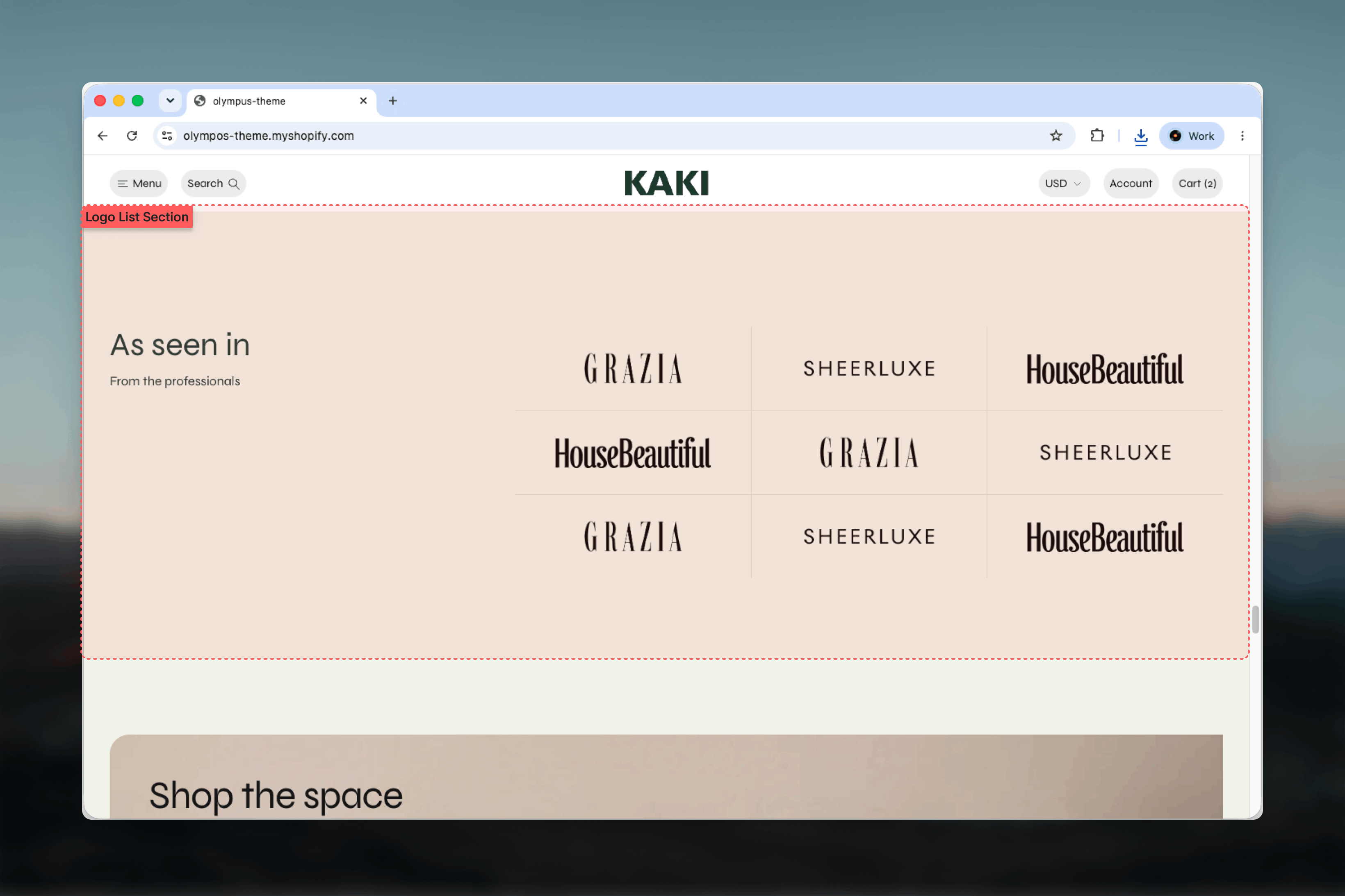
What this section controls
- Whether the heading and text sit above the logos or beside them
- Logos per row and a shared logo height
- Dividers between logos
- Grid or horizontal scroll on mobile
- Color scheme, width, spacing and borders
- Heading, Text and Logo blocks
Getting started
1
Open the Theme Customizer
From the Shopify admin, open Online Store, then Themes, and select Customize on Olympus.
2
Add the section
Select Add section and choose Logo list. The preset adds a Heading, a Text and five Logo blocks.
3
Upload logos
Select each Logo block, upload an image and enter the Brand name. Add a Link if the logo should be clickable.
4
Balance the row
Set Logos per row to match the number of logos, then adjust Logo height until the marks look equal in weight.
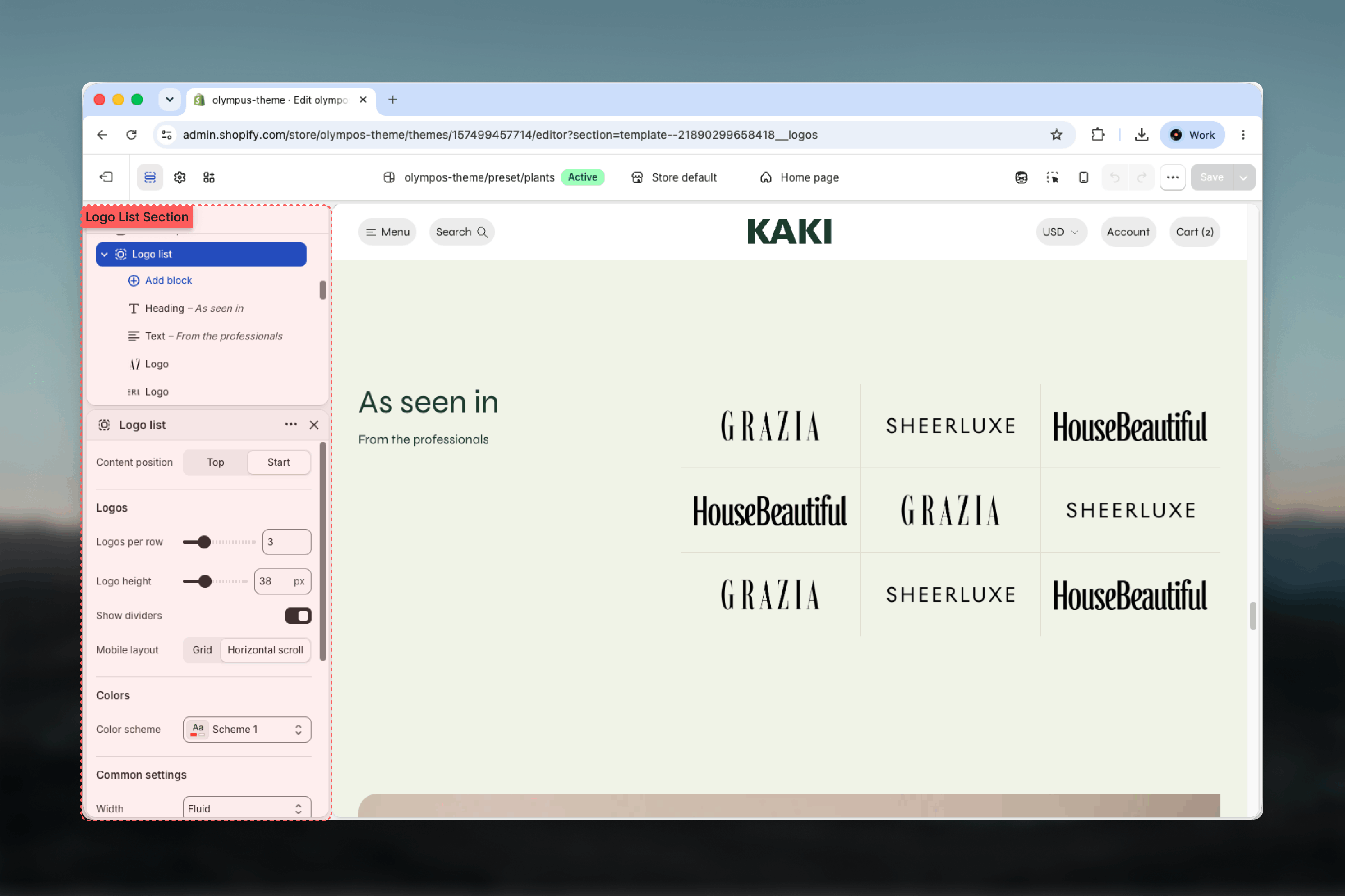
Section settings
Content position
Content position: where the heading and text sit relative to the logos. Default: Top.- Top: heading and text are centered above the logo grid, which spans the full width.
- Start: heading and text occupy a column at the start and the logos fill the remaining two thirds beside it. Suits a short heading and one row of logos.
Logos
Logos per row
Logos per row
Number of columns on desktop, from 2 to 6. Default: 5. Match it to your logo count or a divisor of it so the last row is not half empty.
Logo height
Logo height
Every logo is scaled to this height, from 20 to 80 pixels in steps of 2. Default: 40. Widths vary with each logo’s proportions. Because wordmarks and emblems carry different visual weight at the same height, upload logos pre-trimmed of extra padding so they align.
Show dividers
Show dividers
Draws a hairline between logos. Off by default. Dividers help when logos have very different shapes and the row would otherwise look uneven.
Mobile layout
Mobile layout
- Horizontal scroll (default): logos stay on one line that customers swipe through, preserving their size.
- Grid: logos wrap into a grid, showing all of them at once at a smaller size.
Colors
Color scheme: background and text colors for the section. Default: Scheme 1. Logos are shown as uploaded and are not recolored, so pick a background that works with your logo files.Common settings
Width
Width
Page (default), Narrow, Narrower, Fluid or Full width.
Top spacing and Bottom spacing
Top spacing and Bottom spacing
None, Small, Medium, Large or Extra large. Default: Large for both.
Section border
Section border
None (default), Top, Bottom or Top and bottom.
Blocks
The Logo list uses its own lightweight versions of the Heading and Text blocks, plus a Logo block for each mark.Heading
The line above or beside the logos.- Heading: rich text. Default: As seen in.
- Size: Extra small through Heading 1. Default: Heading 5. Logo lists are supporting content, so a mid-size heading keeps the section quiet.
Text
A short supporting line under the heading.- Text: rich text. Default: From the professionals.
Logo
One logo in the grid. Add as many as you need; the order of blocks is the display order.- Image: the logo file. SVG or a PNG with a transparent background gives the cleanest result at any height.
- Brand name: used as the image’s alt text and as the link label for screen readers. Fill it in for every logo.
- Link: optional destination, such as a press article or brand collection. Without a link the logo is static.
The Heading and Text here are section-specific and offer fewer settings than the shared theme blocks: there is no alignment control because the section positions them through Content position.
Best practices
Normalize the files
Export every logo in one color, trimmed to its edges, on a transparent background. Uniform files make uniform rows.
Five or six logos
One full row is the strongest presentation. If you have more, choose a Logos per row value that fills complete rows.
Fill in every Brand name
It is the only text a screen reader has for the logo and the label for its link.
Keep heights modest
Around 32 to 48 pixels reads as a credibility strip. Larger logos start to compete with your own branding.
Link only when useful
A press logo can link to the article; a stockist to its site. Unlinked logos are fine when there is nowhere helpful to go.
Test the mobile scroll
With Horizontal scroll, confirm the second logo is partly visible so customers know the row continues.
Related guides
Footer
Add a Logo group of payment or partner logos to the footer
Testimonials
Pair logos with customer quotes for stronger social proof
Common settings
Width, spacing, borders and color schemes shared across sections