

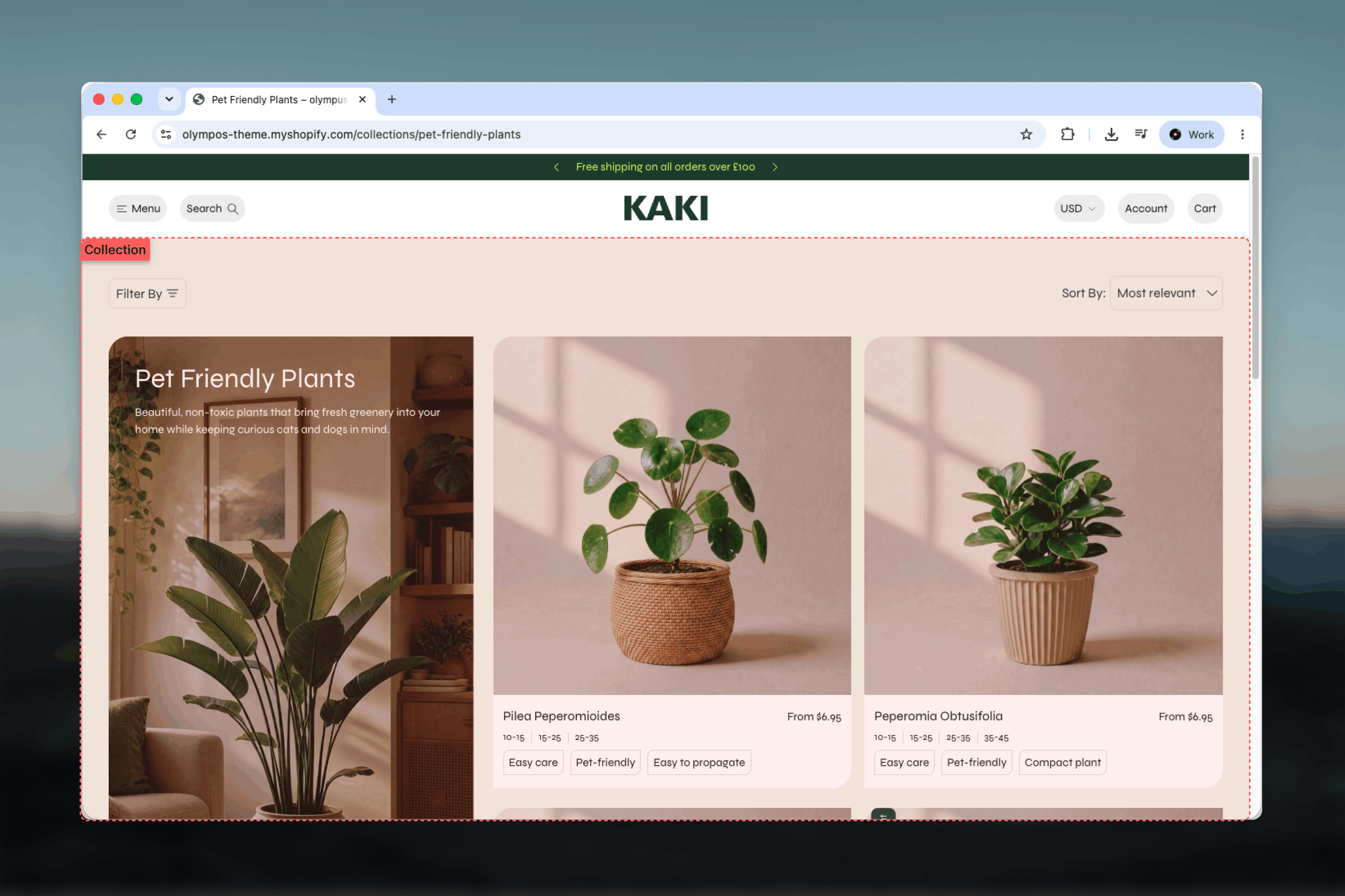
What this template controls
- Collection title, its alignment and the breadcrumb trail
- Filtering (Drawer, Sidebar or Horizontal) and sorting, and the look of the filter bar
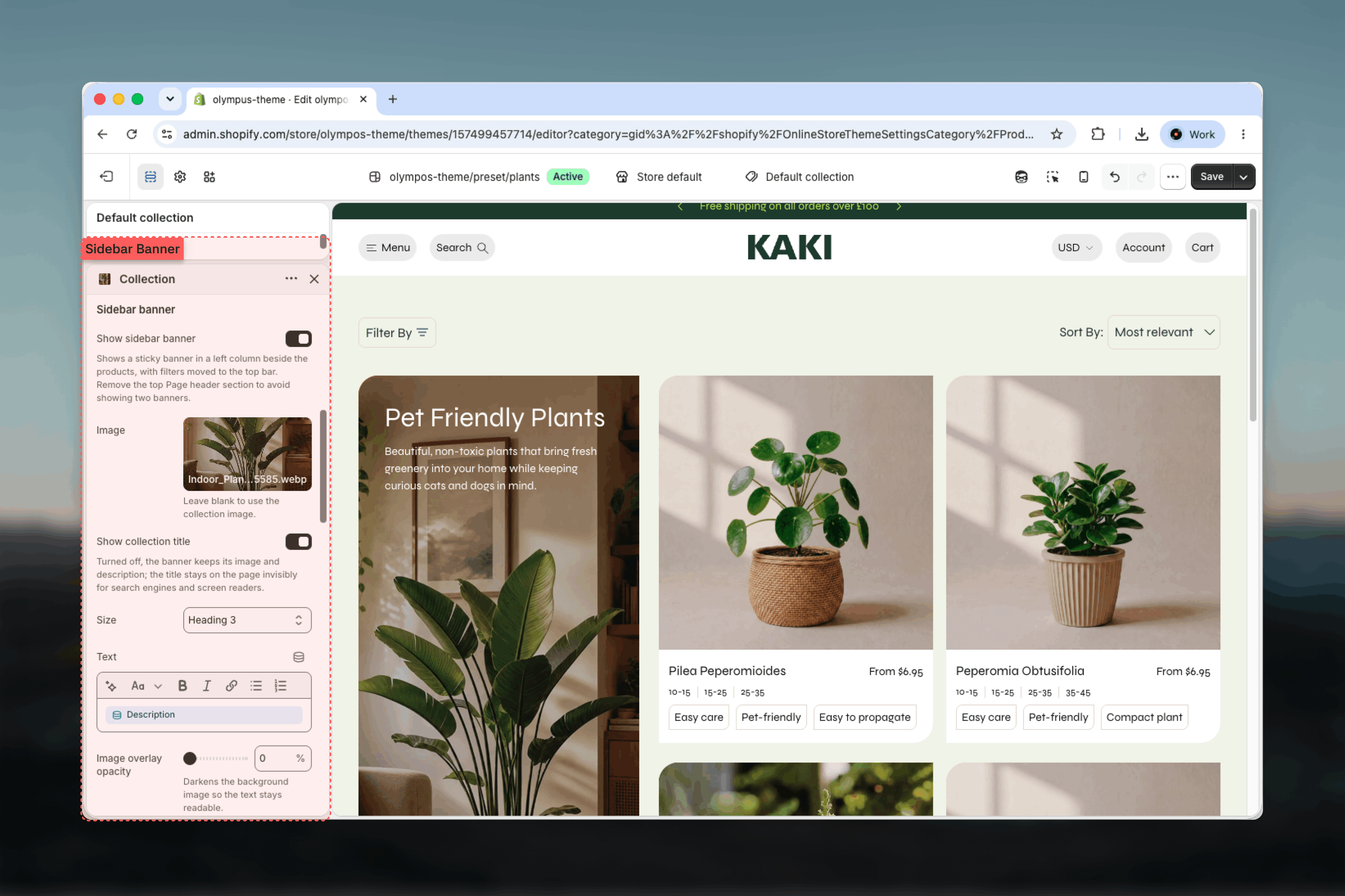
- An optional sticky sidebar banner with the collection image, description and sub-collection links
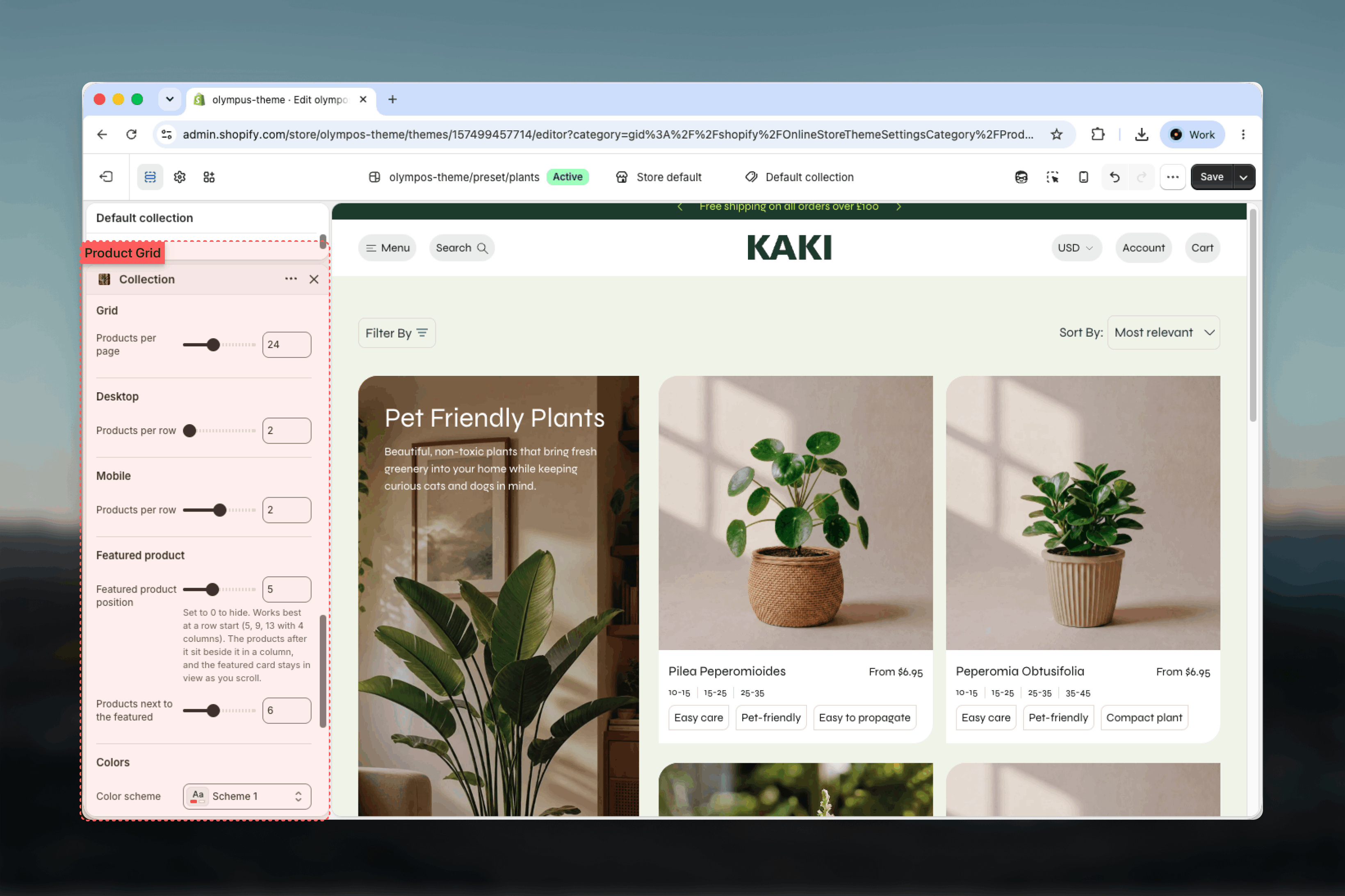
- Products per page, columns on desktop and mobile, and the featured product band
- Content card blocks placed at chosen positions in the grid
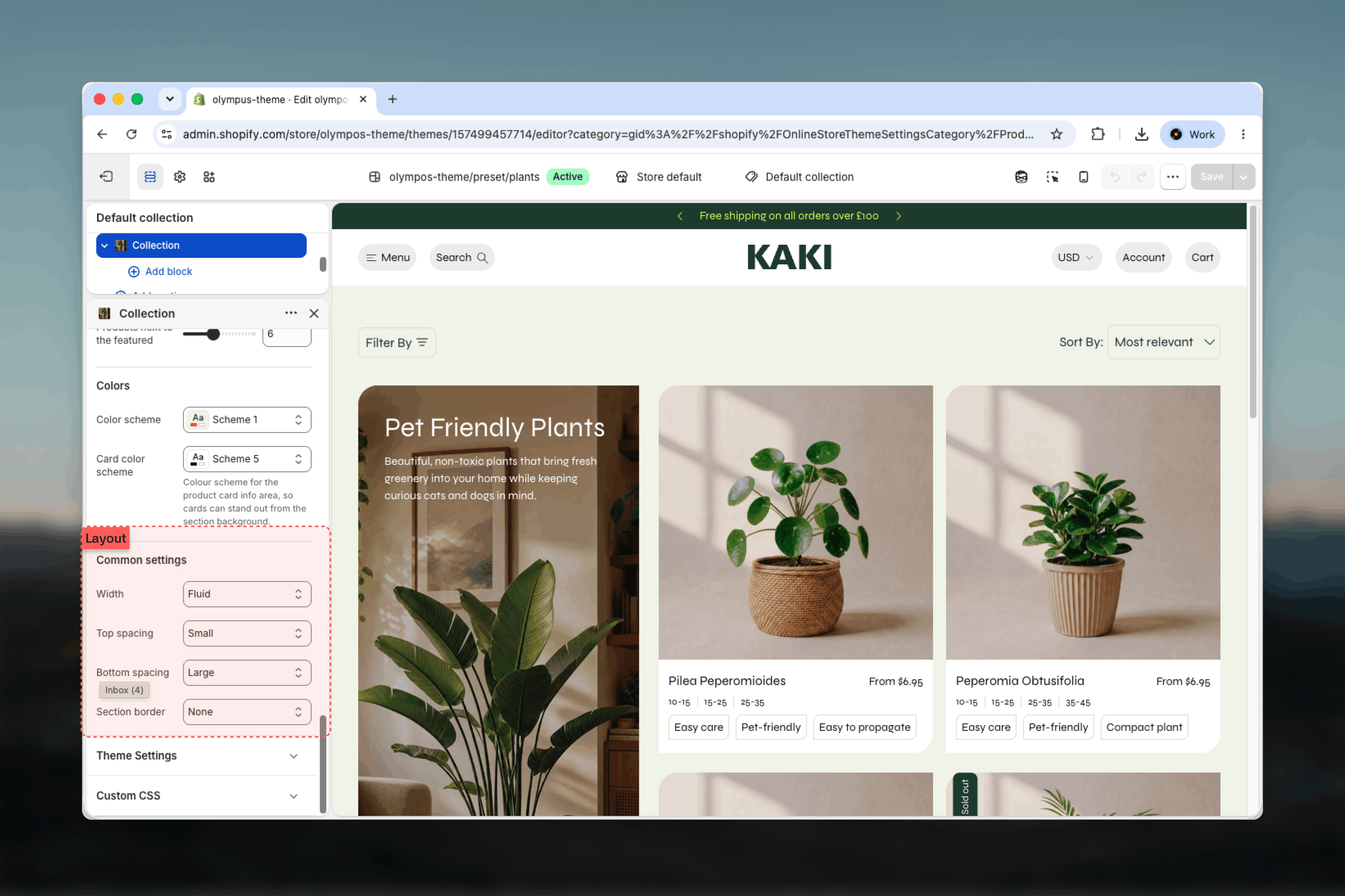
- Color schemes for the section, the cards and the filter sidebar, plus width, spacing and borders
Getting started
1
Open the Theme Customizer
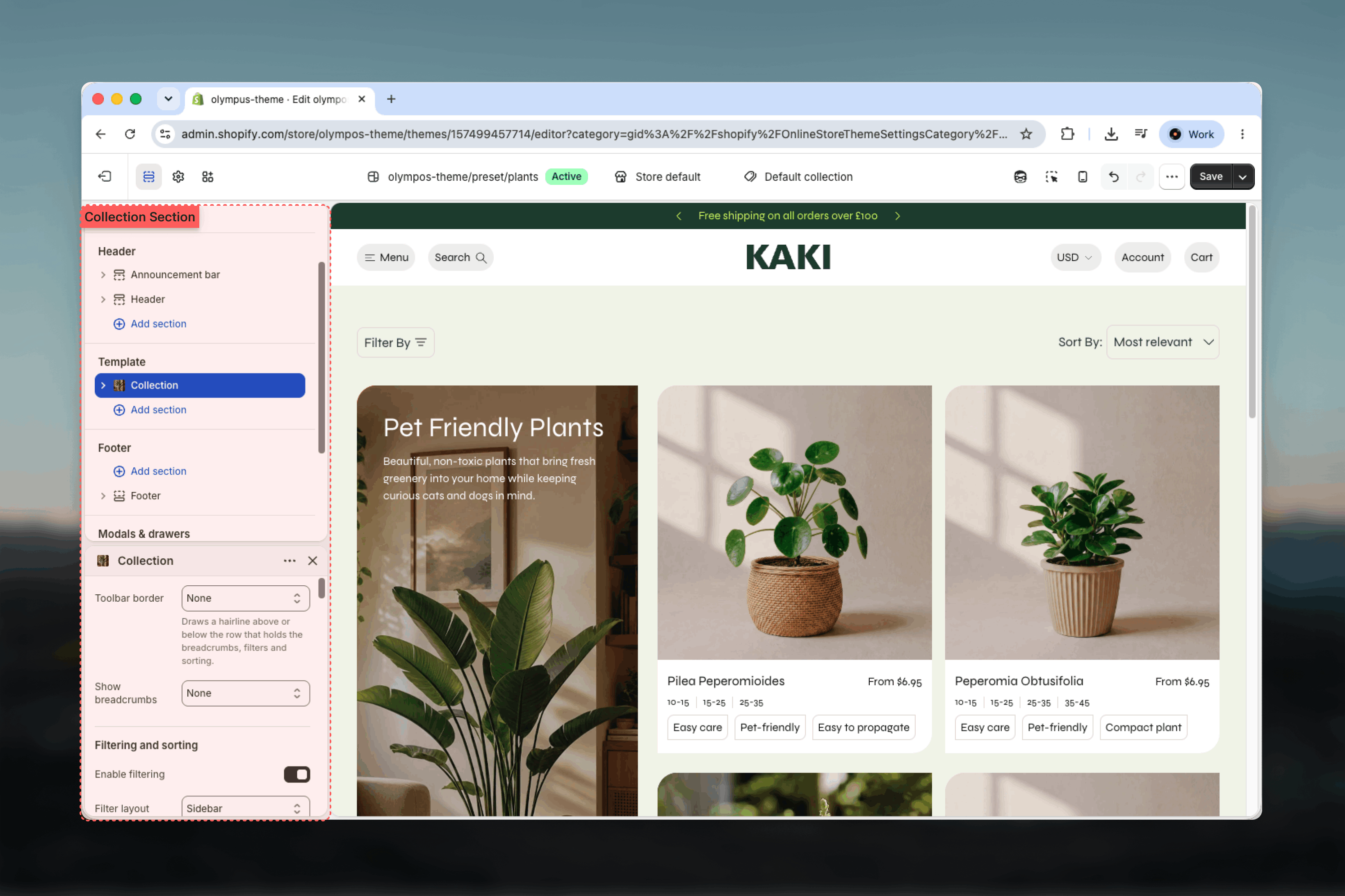
From Shopify admin go to Online Store → Themes and click Customize on Olympus.
2
Choose the collection template
Use the page selector and pick Collections → Default collection. Pick a real collection in the preview to see filters and products.
3
Select the Collection section
Click Collection in the left sidebar to open its settings. Content card blocks are listed under the section.
4
Publish the filters you need
Filters themselves are turned on per collection in the Shopify Search & Discovery app; the theme shows whatever is published there.
Template settings
- Utilities bar
- Product grid
- Layout
The toolbar sits between the title and the grid and holds breadcrumbs, the filter control and the sort control.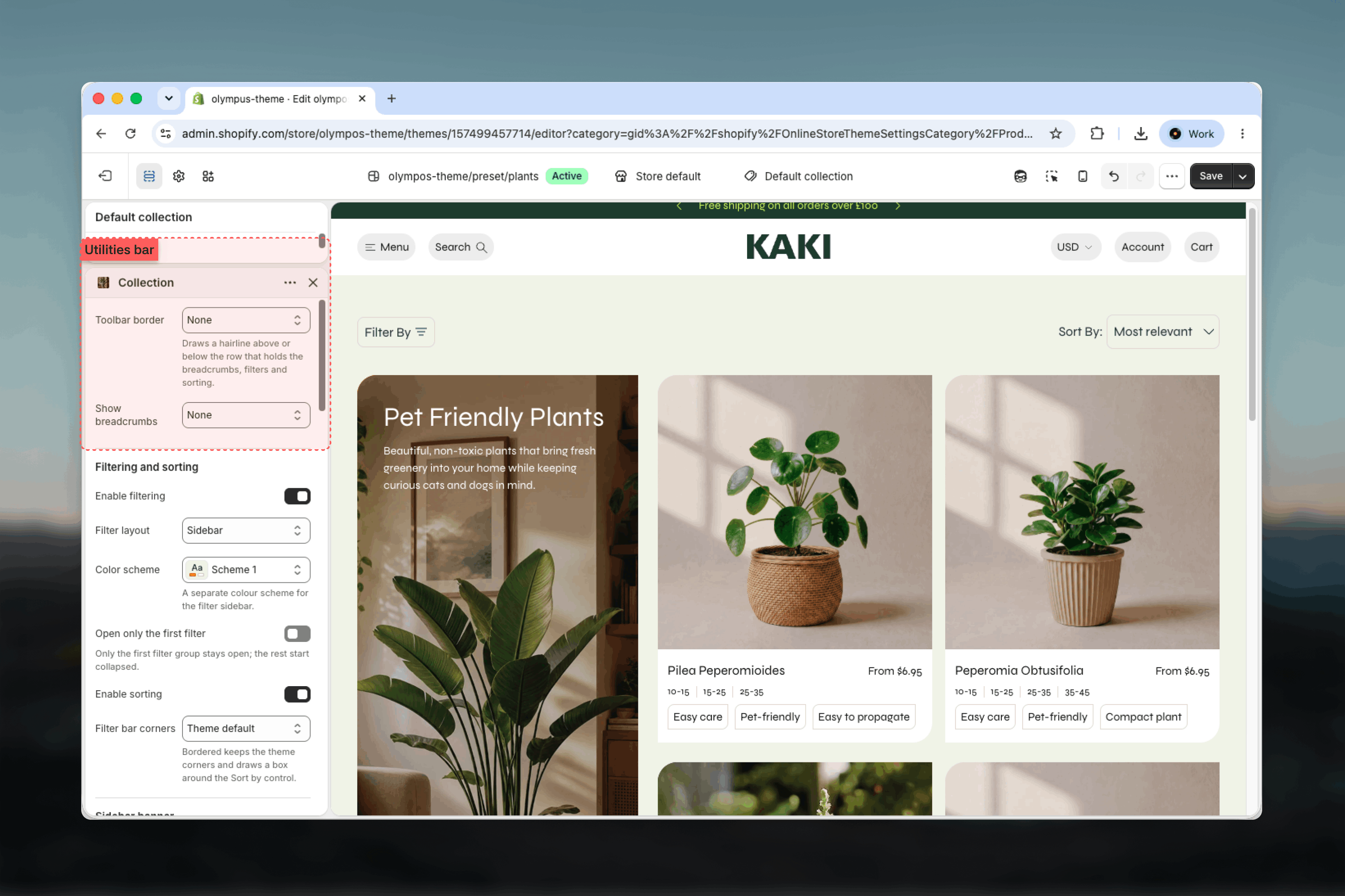
Filter layout
Filter layout
Enable filtering (on by default) shows a Filter by control. Filter layout decides where the filter groups live:
- Drawer (default): a Filter by button opens a slide-in drawer with every filter group, a Clear link and a Show results button that closes the drawer. Works on every screen size and keeps the grid full width.
- Sidebar: filter groups sit in a column beside the grid on desktop, with their own Color scheme; on mobile they move into the drawer.
- Horizontal: filter groups open as dropdowns in the toolbar. Filters shown inline (1 to 3; default 3) sets how many appear before a More filters button collects the rest.
Active filters and price
Active filters and price
Filters and sorting apply automatically about half a second after a change, so there is no Apply button to press; the Show results button in the drawer only closes it. Only the product grid is fetched again, the rest of the page stays put, and the grid dims while the new results load. The address bar is updated with the active filters, so the back and forward buttons step through filter states and a filtered view can be shared or bookmarked.Applied filters appear as removable pills above the grid with a Clear all link. Price filters use From and To fields. When filters leave no products, a No products found message replaces the grid.
Sorting and filter bar corners
Sorting and filter bar corners
Enable sorting (on by default) adds a Sort by dropdown with Shopify’s sort options. Filter bar corners styles the toolbar controls: None (no border), Theme default, Sharp, Rounded or Bordered, which keeps the theme corners and draws a box around the Sort by control.
Blocks
The Collection section accepts one block type, Content card, which you can add several times.Content card
Placement
Placement
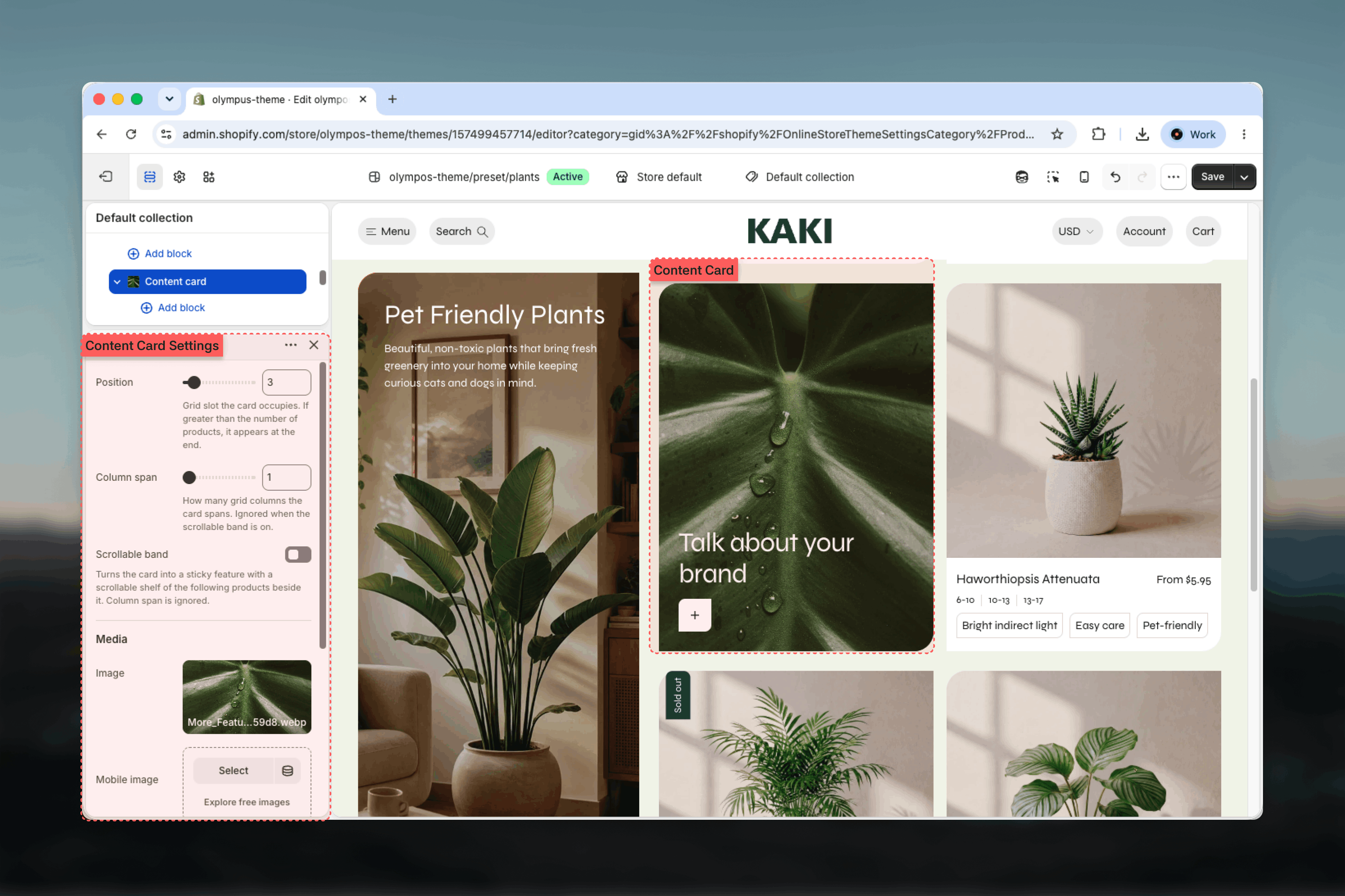
Position (1 to 25; default 5) is the grid slot the card occupies; a position greater than the number of products puts it at the end. Column span (1 to 4; default 2) sets how many columns it covers. The card is placed by position only on the page where that slot exists.
Scrollable band
Scrollable band
Scrollable band turns the card into a sticky feature with a horizontal shelf of the following products beside it, much like the featured product band. Products in the band (2 to 12 in steps of 2; default 6) sets how many products it takes; Column span is ignored while the band is on.
Media and color
Media and color
Image, a separate Mobile image (falls back to the main image) and an optional Video that plays muted and looped and takes priority over the image. Image overlay opacity (0 to 80 percent) improves text contrast and Color scheme colors the text and any fallback background.
Heading and Text blocks
Heading and Text blocks
The card accepts the shared Heading and Text blocks with their usual size, level and alignment settings; see Theme blocks.
Best practices
Pick the filter layout by catalog size
Drawer keeps small catalogs clean; Horizontal suits three or four key filters; Sidebar suits large catalogs where customers filter often.
Publish only useful filters
Every filter published in Search & Discovery appears here. Fewer, well-named filters convert better than every attribute you store.
Align bands with rows
Place the featured product and scrollable content cards at a row start (5, 9, 13 with four columns) so the grid does not leave gaps.
One banner per page
Use either the Page header section or the sidebar banner for the collection title, not both.
Keep mobile at two columns
Two products per row keeps cards readable and quick add tappable; use one column only for very detailed imagery.
Consider Load more for long collections
Load more keeps customers on the page; numbered pagination is easier to share and navigate. Set it in Theme settings → Pagination.
Related guides
Product cards
Swatches, tags, badges and quick add on every product card
Pagination
Numbered pagination or a Load more button for every grid
Page header
The banner section that can sit above the collection grid