

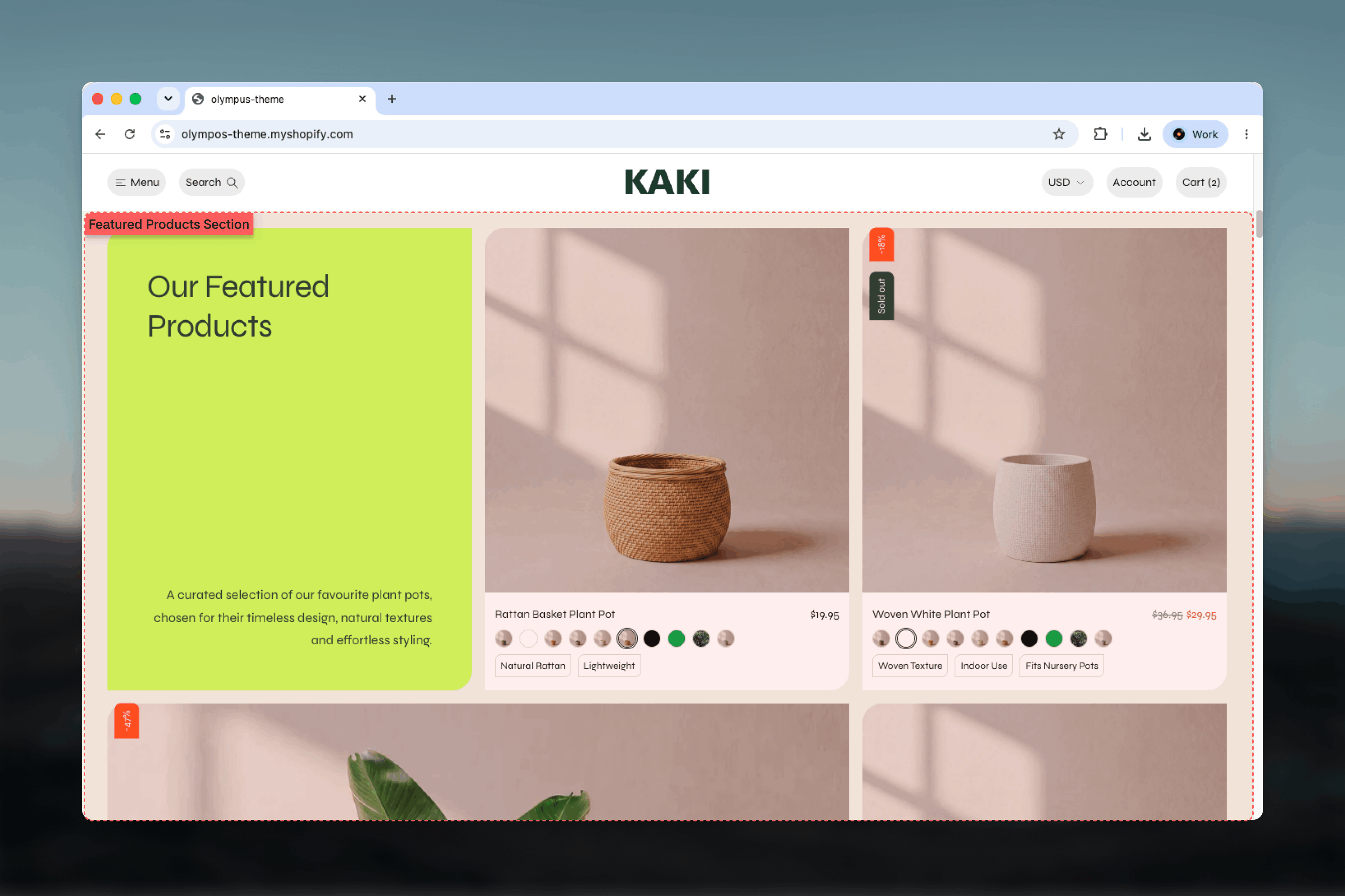
What this section controls
- Slideshow or grid presentation of product cards
- A two-part heading with the category name highlighted in between, plus a description
- Header placement above or beside the products, and content alignment
- Card aspect ratio, number of visible slides on desktop and mobile, and an enlarged third product in the grid
- Slider arrow style and color scheme
- The highlight color of the category name, and the color scheme for the section and its cards
- Width, spacing and borders
Getting started
1
Open the Theme Customizer
From the Shopify admin, open Online Store, then Themes, and select Customize on Olympus.
2
Add the section
Select Add section and choose Featured products. The preset adds one Collection block labeled Bestsellers.
3
Assign products
Select the Collection block and choose a collection, or add a Product list block and pick products by hand.
4
Add more categories
Add further Collection or Product list blocks. With two or more, the heading becomes a dropdown that switches between them.
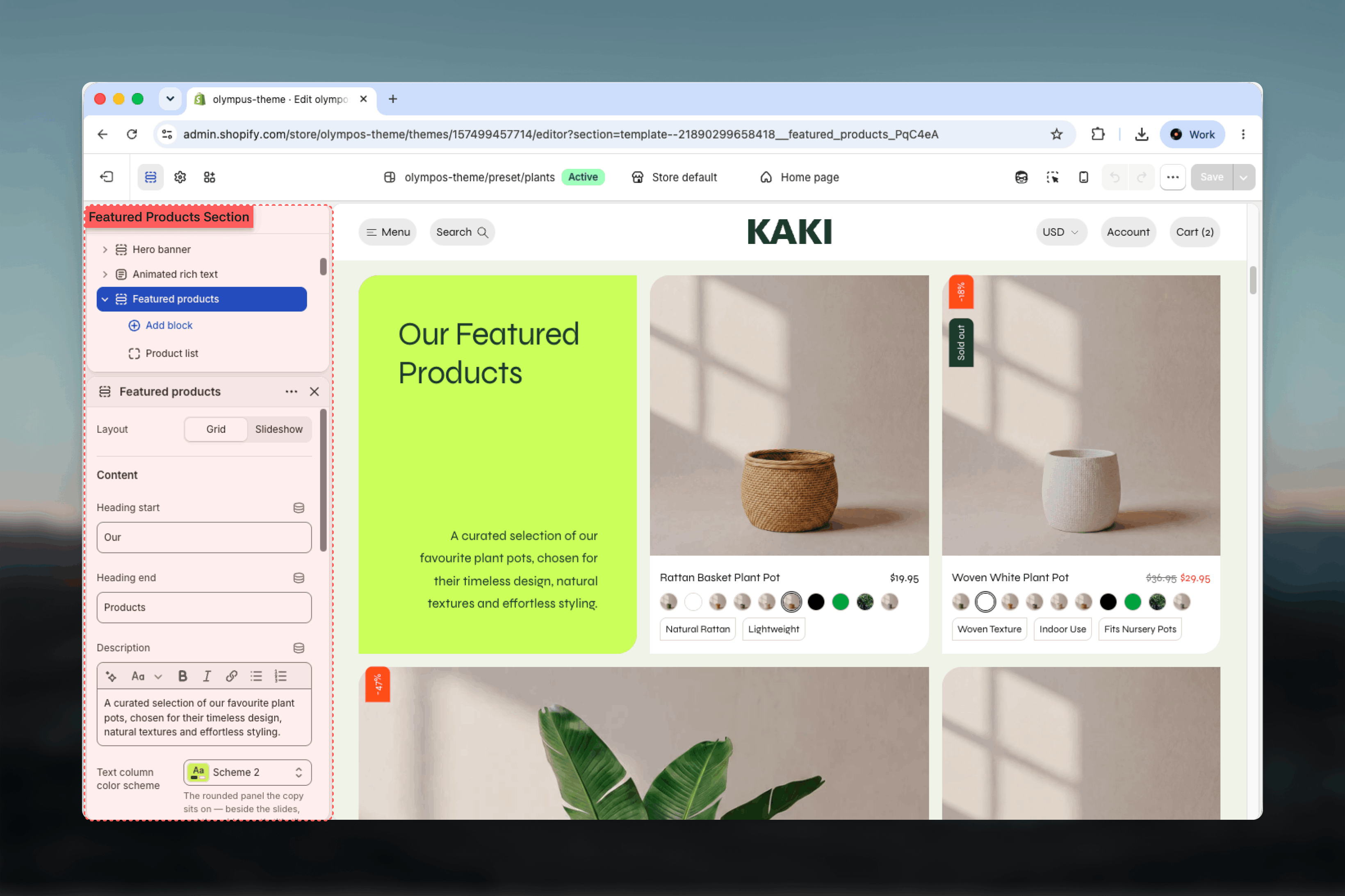
How the heading works
The heading is assembled from three parts: Heading start, the category label of the active block, and Heading end. With the defaults, one Bestsellers block reads “Shop our Bestsellers”. When the section has two or more blocks the category label becomes a dropdown; choosing another category swaps the product cards in place. With a single block the label is plain text and no dropdown is shown.Section settings
Layout
Layout: how the cards are arranged. Default: Slideshow.- Slideshow: cards sit in one row that customers step through with arrows or swipe on mobile. Most settings on this page apply to this layout.
- Grid: cards fill a fixed grid. The heading and description sit on a colored title tile at the start of the grid, and the third product can be enlarged.
Content
Heading start and Heading end
Heading start and Heading end
Text before and after the category label. Default start: Shop our. Default end: empty. Leave both empty to show only the category label.
Description
Description
Rich text under or beside the heading. Default: a short line inviting customers to switch categories. Keep it to one or two sentences.
Content alignment
Content alignment
Start or Center. Default: Start. Centered copy also moves the slider arrows below the products. Slideshow layout only.
Header layout
Header layout
Where the heading and description sit relative to the slides. Slideshow layout only.
- Above the products (default): title and description side by side on one line above the cards.
- Above, description under the title: the description drops beneath the title and the arrows hold the end of the title’s row.
- Beside the products: the copy sits on a rounded panel in its own color scheme, one card wide, and the slides run past the page edge.
Text column color scheme
Text column color scheme
Scheme for the rounded panel the copy sits on: the side panel in the Beside layout and the title tile in the Grid layout. Default: Scheme 2. Appears only when one of those is active.
Product
Aspect ratio
Aspect ratio
Shape of the card image: Theme default, Portrait, Square or Landscape. Default: Theme default, which follows the global Product cards setting so cards match the rest of the store.
Enlarge the third product
Enlarge the third product
In the Grid layout on desktop, the third card spans a larger cell to break up the grid. On by default. Turn it off for a uniform grid.
Slides shown on desktop
Slides shown on desktop
How many cards fill the row, from 2 to 5.75 in quarter steps, or Automatic. Default: Automatic, which keeps each header layout’s own default: four across, or fixed 360-pixel cards beside the copy. A fraction leaves the next card peeking in so the row reads as scrollable.
Slides shown on mobile
Slides shown on mobile
1, 1.25, 1.5 or 1.75 cards across on mobile. Default: 1.25.
Slider arrows
Slider arrows
Slider arrow style switches the arrows between Filled and Outline. Default: Filled.Use a separate color scheme for the arrows reveals Arrow color scheme, so arrows can contrast with the section when the default scheme makes them hard to see. Off by default.
Highlight and colors
Collection highlight
Collection highlight
Colors the category label in the heading so it stands out from the surrounding words.
- Custom color (default): pick any color with Collection highlight color. Left unset, the label follows the section scheme’s button color.
- From a color scheme: choose a Highlight color scheme; its text color becomes the highlight. Useful for keeping the accent tied to your palette.
Color scheme
Color scheme
Colors the section and every product card in it. Default: Scheme 1.
Common settings
Width
Width
Page (default), Narrow, Narrower, Fluid or Full width.
Top spacing and Bottom spacing
Top spacing and Bottom spacing
None, Small, Medium, Large or Extra large. Default: Large for both.
Section border
Section border
None (default), Top, Bottom or Top and bottom.
Blocks
Each block is one category in the picker. Block order is the dropdown order, and the first block is shown when the page loads.Collection
Pulls products automatically from a collection.- Collection: the source collection. Products follow the collection’s own sort order.
- Products to show: 2 to 12 cards. Default: 5.
- Category label: the name shown in the heading and dropdown. Defaults to the collection name; shorten it if the collection title is long.
Product list
Shows products you pick by hand, in the order you pick them.- Products: the product list. Use it for edits that do not map to a collection, such as a gift guide.
- Category label: the name shown in the heading and dropdown. Default: Featured.
Product cards are rendered by the theme’s shared card, so badges, swatches, quick view and hover images come from Theme settings and cannot be changed per section. See Product cards.
Best practices
Two to four categories
A dropdown with a handful of well-named categories invites exploration. Long lists bury the products.
Name categories as customers would
Labels such as New in, Bestsellers or Under $50 read naturally in the “Shop our” sentence.
Keep the heading short
Heading start plus label plus Heading end should fit one line on desktop. Test the longest category name.
Leave the aspect ratio on Theme default
Cards then match the Collection Page (PLP) and search results, which keeps the store consistent.
Use fractions to hint at scrolling
A visible partial card is the clearest signal that the row scrolls, especially on mobile.
Pick a visible highlight
Check the highlight color against every color scheme the section may use. Low contrast makes the dropdown look disabled.
Related guides
Product cards
Global card styling, badges, swatches and quick view
Featured product
Spotlight a single product with a full buy box
Common settings
Width, spacing, borders and color schemes shared across sections