

What this section controls
- The width of the drawer on tablet and desktop
- The color scheme of the drawer panel
- Indirectly, through theme settings: whether the drawer is used and the free shipping threshold shown in its progress bar
How it works
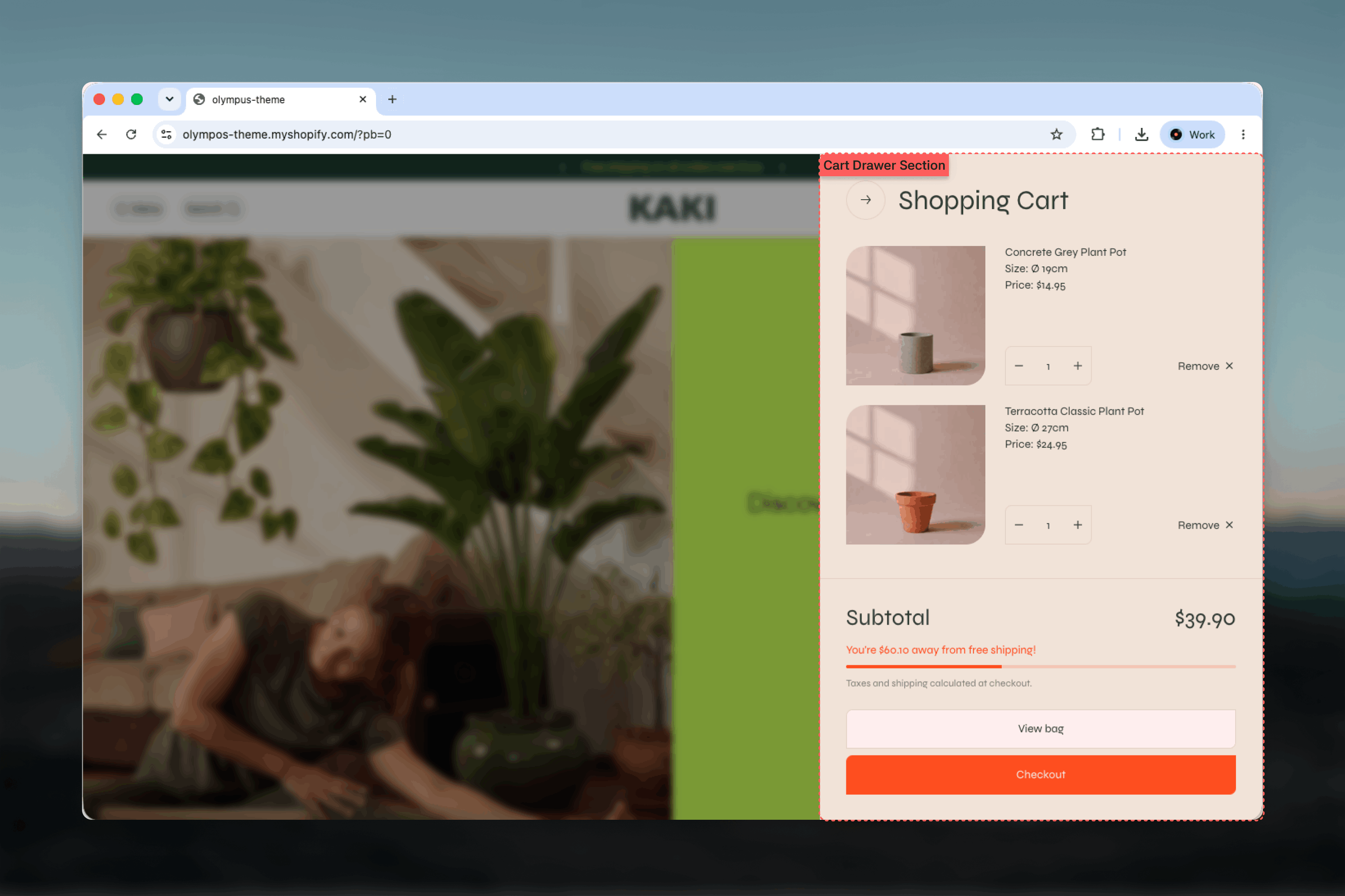
The drawer is part of the Modals & drawers group, so it exists once for the whole store rather than per template. When Cart type in the Cart theme settings is set to Cart drawer, every way of adding a product opens it automatically with the updated contents: the Buy buttons block on the Product Page (PDP), the quick add button on a product card, and Add to cart inside the Quick view drawer. All three add in the background, so the page the customer is on never reloads. The header’s cart icon opens the same drawer. When Cart type is Cart page, the drawer is not used and customers are taken to the cart page instead. Inside, the drawer has three parts:- Header — the “Shopping Cart” title and a close button.
- Line items — one row per product in the cart. Each row shows the product image, title, selected options and any line item properties, the unit price (with the original price struck through when discounted), any applied discounts, the line total, a selling plan name if one applies, a quantity stepper capped at available inventory, and a remove button. Changing a quantity or removing a line updates the cart in place — the row dims and shows a spinner while it saves, and the drawer redraws itself with the new totals without ever reloading the page.
- Summary — the free shipping progress bar, the subtotal, applied cart discounts, a note that taxes and shipping are calculated at checkout, a View bag button to the cart page and a Checkout button.
Getting started
1
Choose the cart type
In the Theme Customizer open Theme settings, then Cart, and set Cart type to Cart drawer.
2
Open the Modals & drawers group
In the left sidebar, scroll past the template’s sections to the Modals & drawers group and select Cart drawer.
3
Set width and colors
Adjust Drawer width and pick a Color scheme that matches the header the drawer opens from.
4
Set the free shipping threshold
Back in Theme settings under Cart, enter a Free shipping threshold to show the progress bar, or leave it empty to hide it.
Section settings
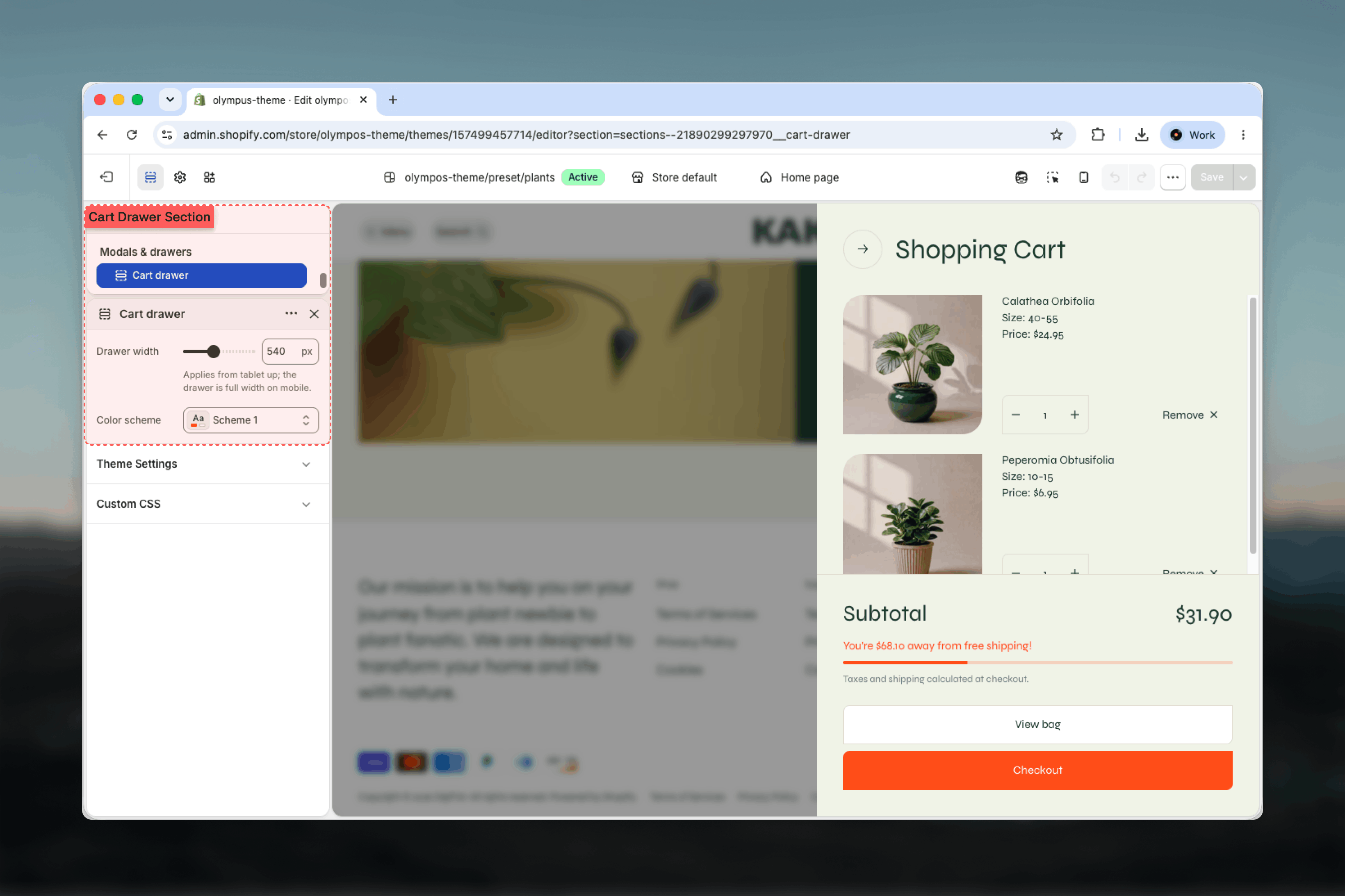
Drawer width
Drawer width
Width of the panel from 360 to 800 pixels in 20-pixel steps. Default: 540. Applies from tablet up; on mobile the drawer always fills the screen width.A narrower drawer keeps more of the page visible behind it; a wider one gives long product titles and option lists more room and lets the shipping bar and buttons breathe.
Color scheme
Color scheme
Background, text and button colors of the drawer panel. Default: Scheme 1. The Checkout button uses the scheme’s primary button style and View bag uses the secondary style.
The Cart drawer has no width, spacing or border settings from the common set — it is an overlay rather than a section in the page flow.
Free shipping bar
The progress bar at the top of the summary is driven by the Free shipping threshold in the Cart theme settings, entered in your store currency. While the cart total is below the threshold, the bar shows how much more the customer needs to add and fills proportionally; once the threshold is reached it shows “You have free shipping!” with a full bar. Leave the threshold empty or zero to hide the bar entirely. The same bar appears on the cart page, so the two stay consistent.Blocks
The Cart drawer does not accept blocks. Line items and the summary are rendered by the theme so that quantity changes, discounts and the shipping bar update reliably as the cart changes.Best practices
Match the header scheme
Use the same color scheme as the header so the drawer reads as an extension of the navigation rather than a separate window.
Keep the default width
540 pixels fits a product image, title, options and stepper on one row. Go wider only if your titles or option lists are unusually long.
Set an honest threshold
Enter the exact amount at which shipping becomes free in your shipping settings. A mismatch shows at checkout and undermines trust.
Prefer the drawer for small catalogs
The drawer keeps customers on the page. Switch to the cart page when carts typically hold many items or need notes and upsells.
Test with discounts
Apply an automatic discount and confirm the struck-through prices, line discounts and cart-level discounts display as expected.
Check the empty state
Open the drawer with an empty cart to make sure the Continue shopping button leads somewhere useful.
Related guides
Cart theme settings
Choose between drawer and page, and set the free shipping threshold
Cart page
The full-page cart used when Cart type is set to Cart page
Header
The cart icon that opens the drawer