

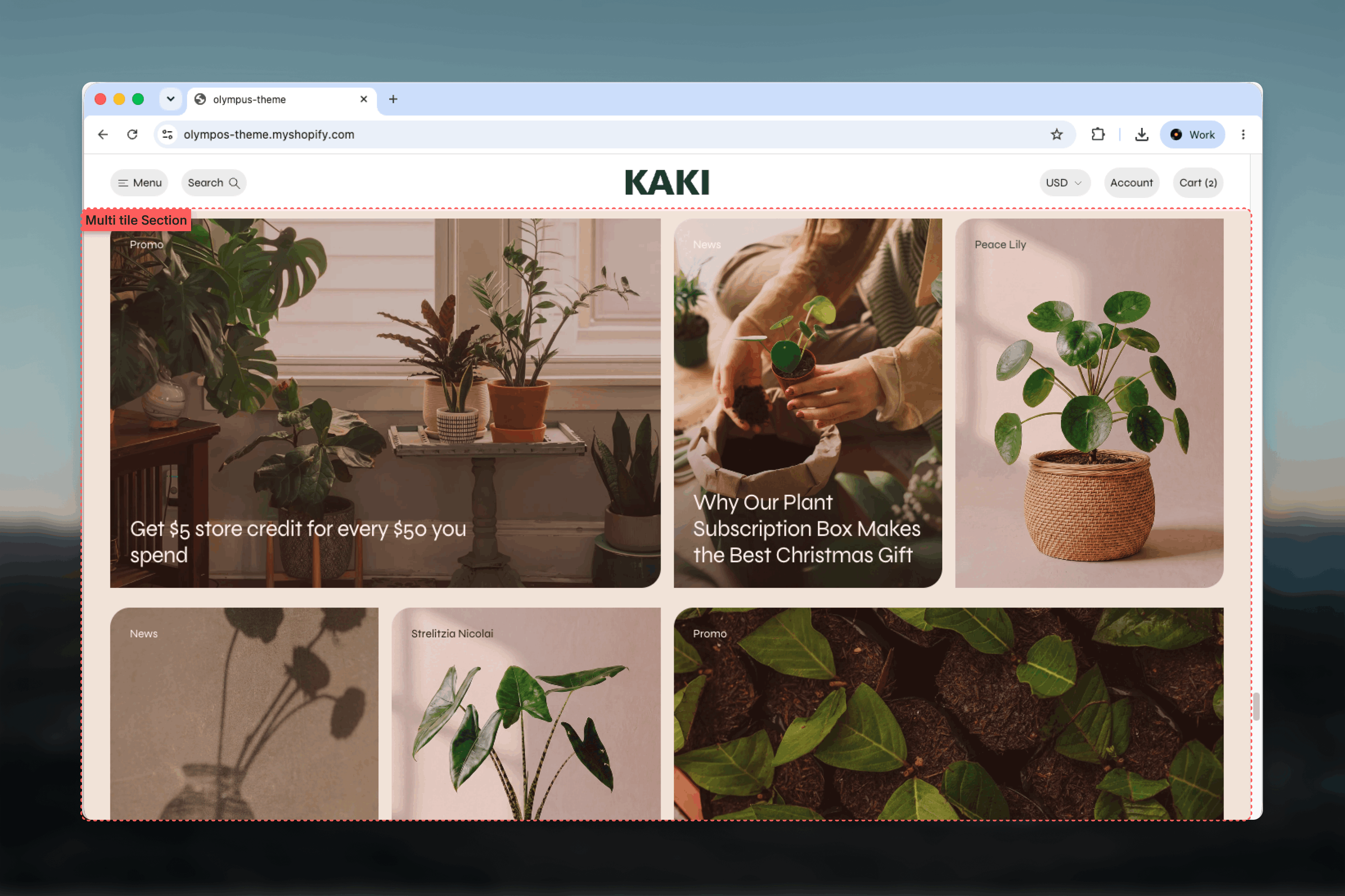
What this section controls
- Whether tiles in a row share the same height
- A section color scheme and an optional hairline around every tile
- Tiles with image, mobile image or background video, media fit and overlay
- Column span, row span and aspect ratio per tile
- Badge, Heading and Button blocks inside each tile
- Width, spacing and borders
Getting started
1
Open the Theme Customizer
From the Shopify admin, open Online Store, then Themes, and select Customize on Olympus.
2
Add the section
Select Add section and choose Multi tile. The preset lays out six tiles: two wide promo tiles and four portrait tiles.
3
Fill the tiles
Select each Tile block, add media and a color scheme, and edit its Badge and Heading blocks. Add a Button block where a tile should link somewhere.
4
Shape the grid
Change Column span, Row span and Aspect ratio on each tile until the mosaic fits your content.

How the grid works
The section is a 12-column grid on desktop. Tiles are placed in block order and wrap to the next row when a row is full: two tiles of 6 columns fill one row, four tiles of 3 columns fill the next. On mobile the grid narrows to 6 columns: tiles that span 6 or more become full width, and smaller spans keep their column count, so a 3-column tile that was a quarter of the desktop row becomes half of the mobile row. Gaps between tiles are taken from Theme settings, Grid, so they match product grids elsewhere in the store. A tile’s height normally comes from its Aspect ratio. A tile with a Row span above 1 ignores its ratio and takes the height of the rows it covers, so it needs tiles beside it to define those rows.Section settings
Grid
Equal tile heights: tiles in the same row take the same height, and images crop to fill. On by default. Turn it off to let tiles with different aspect ratios keep their own height, which produces a staggered bottom edge.Column and row spacing come from Theme settings, Grid, so every grid in the theme keeps one spacing. Adjust them in Grid.
Layout
- Color scheme: background of the section behind the tiles. Default: Scheme 1. Each tile has its own scheme.
- Divider between tiles: outlines every tile with a black hairline, whatever color scheme the tiles use. Off by default. Gaps stay as set in the Grid theme settings. Useful when tiles share the section background color and would otherwise merge.
Common settings
Width
Width
Page (default), Narrow, Narrower, Fluid or Full width.
Top spacing and Bottom spacing
Top spacing and Bottom spacing
None, Small, Medium, Large or Extra large. Default: Large for both.
Section border
Section border
None (default), Top, Bottom or Top and bottom.
Blocks
Tile
Each Tile block is one cell of the mosaic. It carries its own media, colors and grid placement, and nests Badge, Heading and Button blocks for its content.- Media
- Content and colors
- Grid
- Nested blocks
Image and Mobile image
Image and Mobile image
Image fills the tile. Mobile image replaces it on small screens and falls back to the main image when empty. A tile without media shows its color scheme as a solid block, which is a deliberate option for text-only tiles.
Video
Video
A video from your Shopify files. It plays muted and looping behind the content and starts only once the tile scrolls into view. The Image is used as its poster, so the page loads with the image and the video takes over. An uploaded video takes priority over a Background video link.
Background video
Background video
A YouTube or Vimeo link, played muted and looping behind the content. On mobile the Image is shown instead. Appears only when no uploaded Video is set.
Media fit
Media fit
Cover (default) crops the media to fill the tile. Contain shows the whole image inside the tile, leaving the color scheme visible around it. Contain suits product cut-outs and logos.
Image overlay opacity
Image overlay opacity
Darkens the media from 0% to 80% in steps of 5. Default: 0%. Raise it when the heading is hard to read.
Best practices
Plan rows to total 12
Make each row’s column spans add up to 12 so tiles do not wrap unexpectedly. Sketch the grid before setting spans.
Pair ratios with spans
Wide tiles want wide ratios such as 6:5 or 2:1; narrow tiles want tall ratios such as 3:4 or 5:7. Mismatches create very tall or very short tiles.
Keep tile copy short
A badge and one line of heading is the sweet spot. Long text over images becomes unreadable on mobile.
Use color tiles for rhythm
A tile with no media and a contrasting scheme gives the eye a rest between photographs and holds text well.
Check the mobile stack
The 12-column grid becomes 6 on phones. Preview to confirm tiles land in a sensible order and small spans are still readable.
Give every promo tile a button
Tiles do not link on their own. Add a Button block so customers can act on what the tile promotes.
Related guides
Grid
Set the column and row spacing that this section inherits
Theme blocks
Settings for the Badge, Heading and Button blocks
Dual tile
A fixed two-tile layout when you do not need a full mosaic