

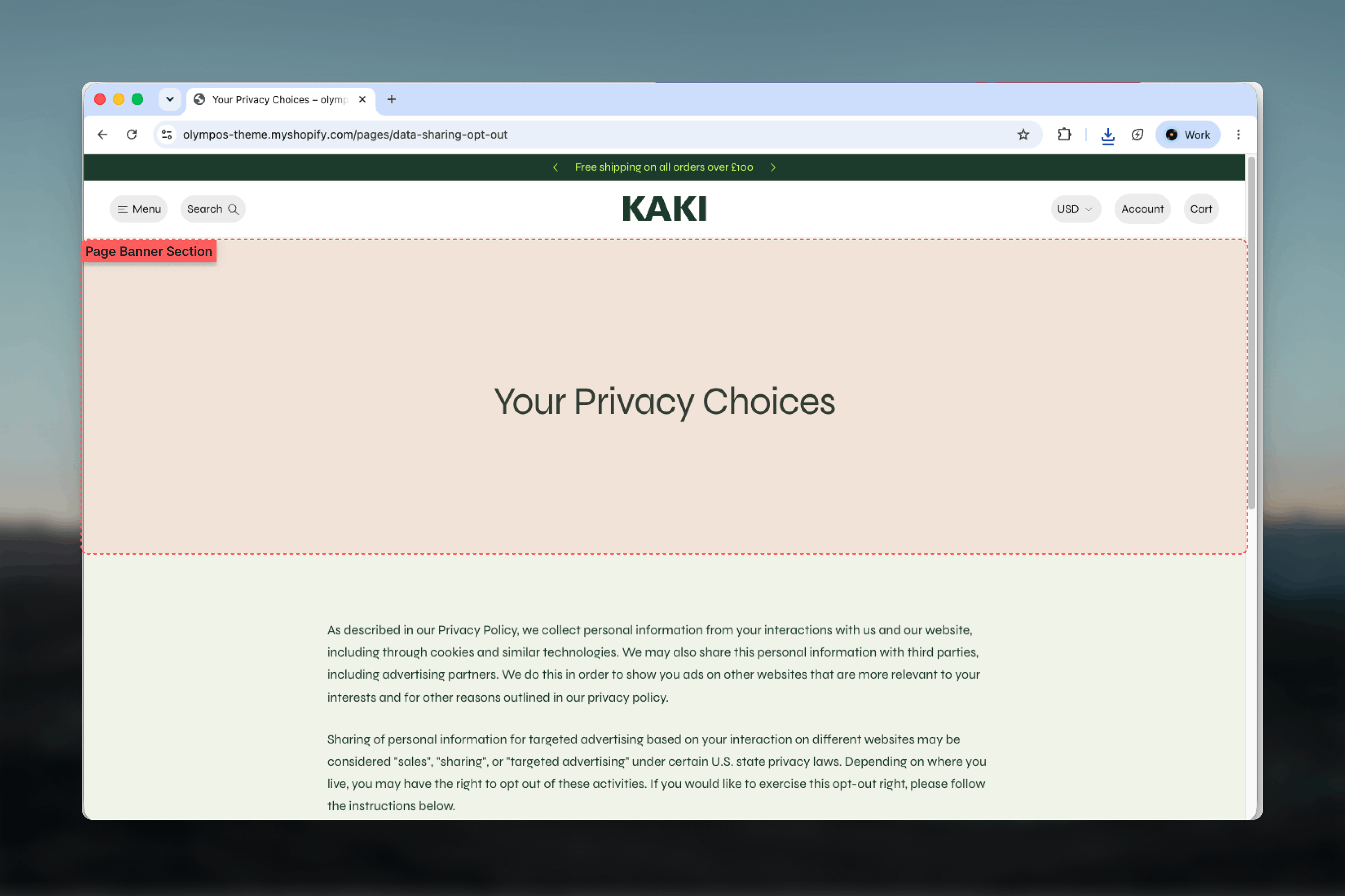
What this section controls
- A desktop image and an optional mobile image
- Whether the image fills the background or sits beside the text
- An overlay that darkens the image so text stays readable
- The banner’s minimum height and where the content sits inside it
- A Home breadcrumb on phones
- Separate color schemes for the banner background and the content card
- Heading and Text blocks for the copy
Getting started
1
Open Theme Customizer
From Shopify admin, open the Theme Customizer and choose the page you want to edit from the page selector. The default Page template already includes a Page banner.
2
Add or select Page banner
Select the existing Page banner in the left sidebar, or choose Add section and pick Page banner.
3
Add an image
Upload an Image and, if the crop needs to differ on phones, a Mobile image.
4
Write the copy
Edit the Heading and Text blocks, then adjust the position and color settings.
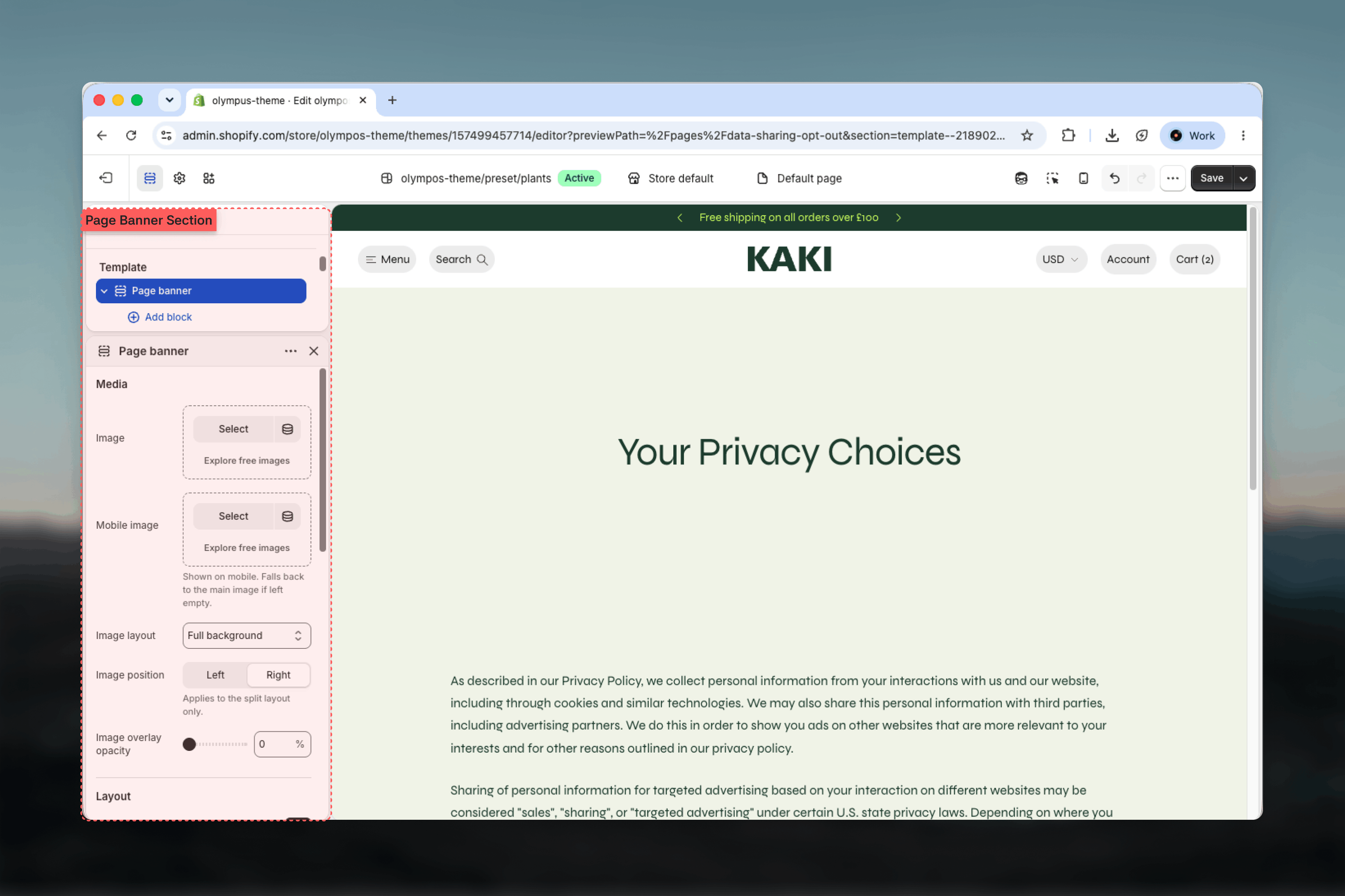
Section settings
Media
Media settings define the image and how it relates to the copy.Image and Mobile image
Image and Mobile image
Image is the main banner picture. Mobile image is shown on phones instead and falls back to the main image when left empty. Use it when the desktop crop cuts off the subject on a narrow screen.
Image layout
Image layout
Decides how the image and the copy share the banner.
- Full background (default): the image fills the whole banner and the content sits on top of it.
- Beside the text: the banner splits into two halves, one for the image and one for the copy.
Image position
Image position
Puts the image on the Left or the Right half. Default: Right. Applies to the Beside the text layout only.
Image overlay opacity
Image overlay opacity
Darkens the image from 0% to 80% in steps of 5. Default: 0. Raise it when a light or busy photo makes the heading hard to read.
Layout
Layout settings size the banner and place the content inside it.Minimum height
Minimum height
The banner is never shorter than this value, from 200px to 720px in steps of 20. Default: 400px. A taller banner gives an image more room; a shorter one brings the page content closer to the top.
Horizontal position
Horizontal position
Aligns the content to the Start, Center or End of the banner on desktop. Default: Center. Horizontal position (mobile) sets the same alignment for phones independently, which is useful when a left-aligned desktop layout reads better centered on a narrow screen.
Vertical position
Vertical position
Places the content at the Top, Center or Bottom of the banner. Default: Center. Bottom works well with tall images where the upper part is the subject.
Colors
Background color scheme: paints the area behind the image, visible when the image does not cover the full banner or while it loads. Default: Scheme 1. Card color scheme: colors the content card that holds the heading and text. Default: Scheme 1. Choose a scheme with a strong background when the copy sits over a photo.Common settings
Width
Width
Page, Narrow, Narrower, Fluid or Full width. Default: Page. Full width lets the image run edge to edge.
Top spacing and Bottom spacing
Top spacing and Bottom spacing
None, Small, Medium, Large or Extra large. Both default to None so the banner meets the header directly.
Section border
Section border
None, Top, Bottom or Top and bottom. Default: None.
Blocks
The Page banner accepts two shared blocks. Their full settings are documented in the Theme blocks reference.Heading
The page title or a short statement. The preset adds an empty heading at Heading 3 size, centered. Pick the semantic heading level separately from the visual size.Text
A one or two sentence introduction under the heading. The preset uses Body size, centered.Both blocks respect the Horizontal position settings of the section, and each block also has its own Alignment. Keep the two consistent so the copy lines up as expected on desktop and mobile.
Best practices
Keep the heading short
One line at Heading 3 or Heading 2 reads well over an image. Long titles wrap and push the text block down on phones.
Use the overlay sparingly
Start at 20-30% and increase only until the text is comfortably readable. Heavy overlays flatten the photo.
Provide a mobile image
Wide desktop photos lose their subject on a phone. A portrait crop keeps the focus where you want it.
Match the minimum height to the content
A banner with only a heading rarely needs more than 400px. Reserve taller values for pages where the image is the point.
Keep breadcrumbs on mobile
The Home link costs almost no space and helps visitors who land on a deep page from search.
Test both color schemes together
The background scheme and the card scheme are independent. Preview with the image removed to make sure the fallback still looks intentional.
Related guides
Page Template (main-page)
Configure the page body that sits under the banner
Page header
The collection-oriented alternative with subcategory links and breadcrumbs
Theme blocks reference
Full settings for the Heading and Text blocks