

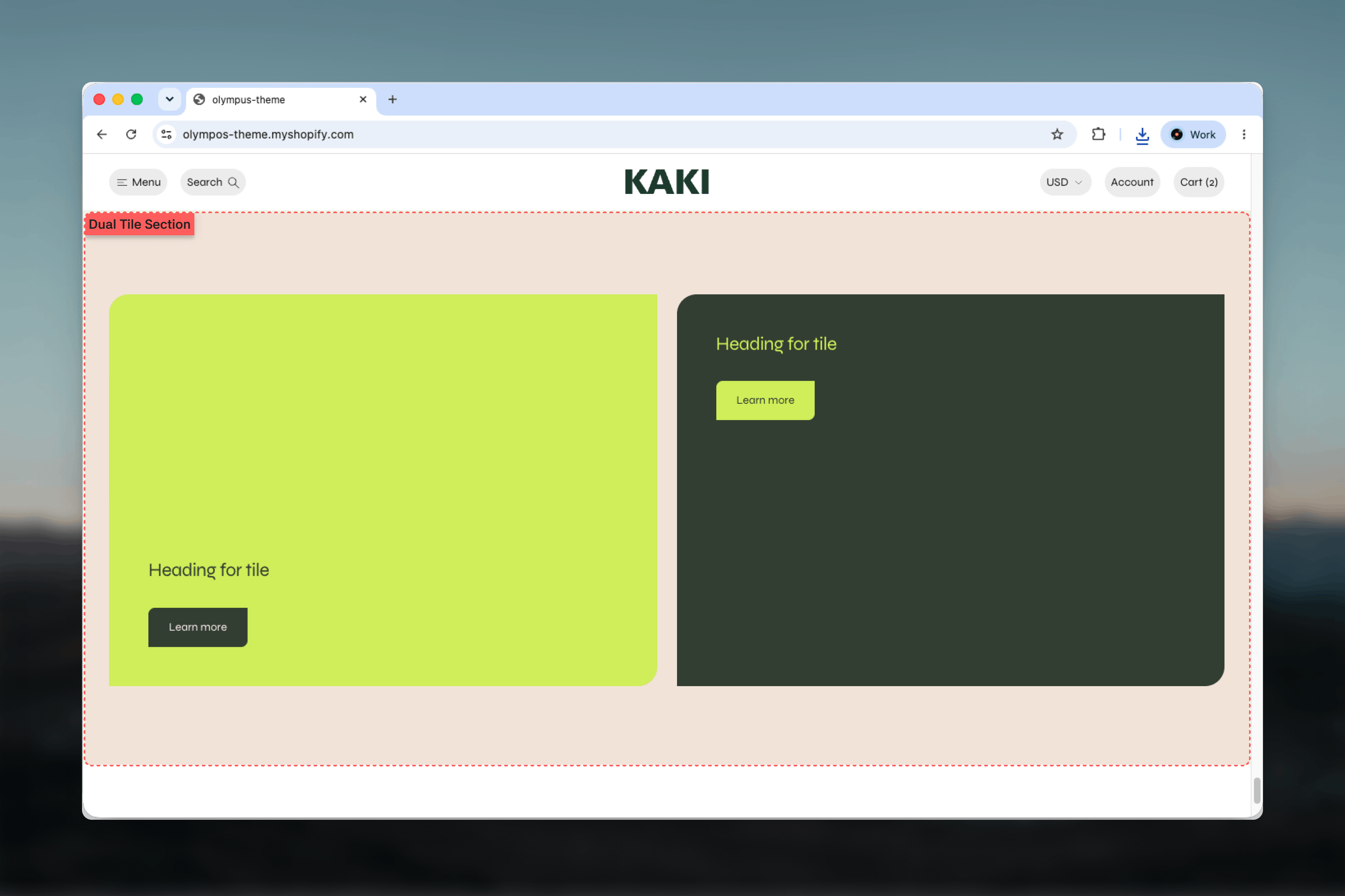
What this section controls
- The minimum height of the tiles
- The gap between the tiles on desktop and on mobile
- Whether the tiles swap order when they stack on mobile
- An optional hairline divider between the tiles
- Color scheme, width, spacing and section border
How it works
The section holds exactly two Tile blocks and gives each half of the available width. On desktop they sit side by side; on mobile they stack, first tile on top unless Reverse order on mobile is enabled. Every tile grows to at least the Minimum height, so both tiles line up regardless of their content. The tiles’ images, videos, headings, buttons and color schemes are all Tile block settings.Getting started
1
Open the Theme Customizer
From Shopify admin, open the Theme Customizer and go to the template where the pair belongs.
2
Add the section
Click Add section and choose Dual tile. The preset adds two tiles with a heading and a “Learn more” button each.
3
Set up each tile
Select a Tile block to add its image or video, choose its color scheme and content position, and edit the nested Heading and Button blocks.
4
Tune the band
Adjust Minimum height and the desktop and mobile spacing, and decide whether to reverse the order on mobile.
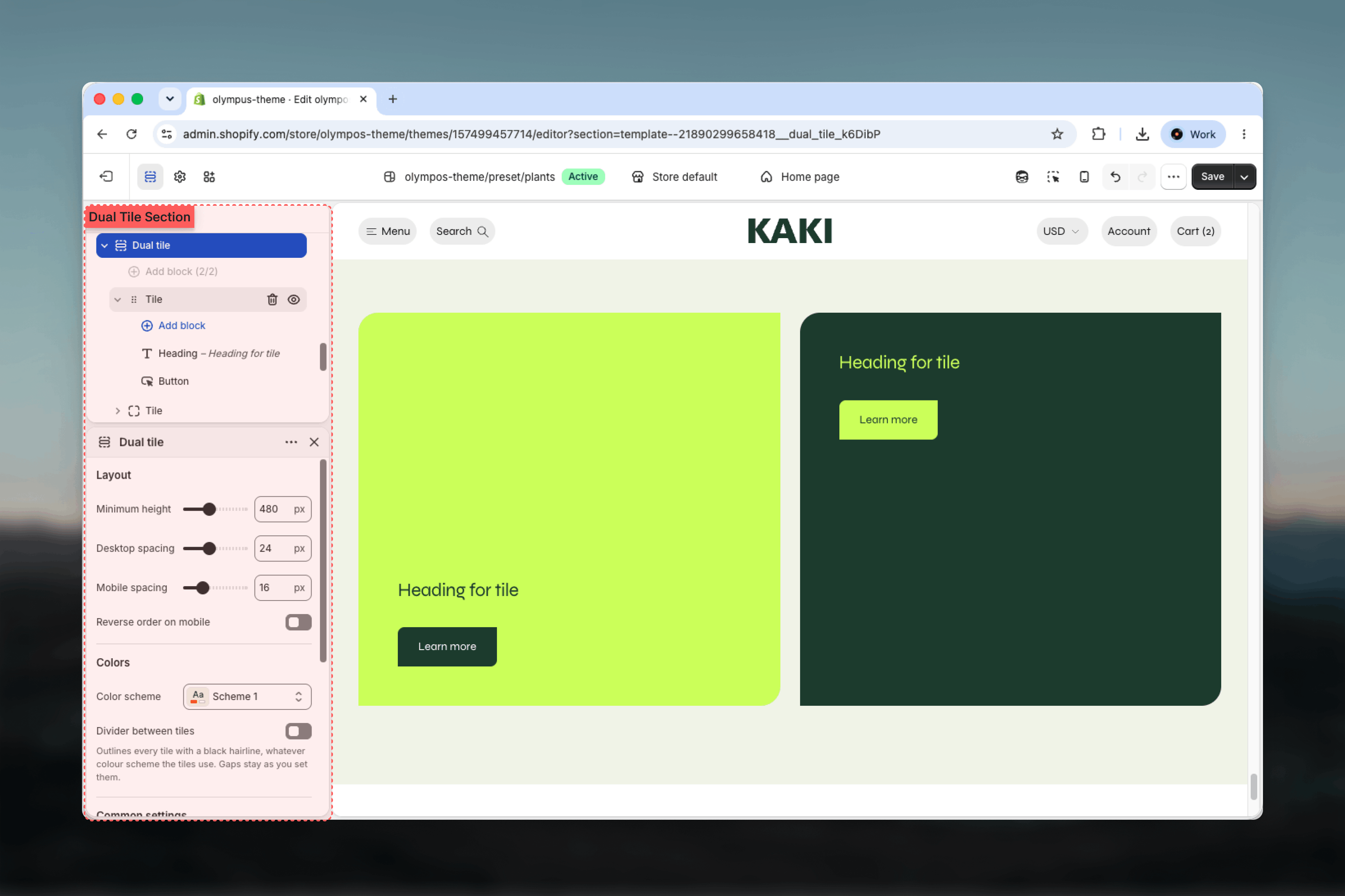
Section settings
Layout
Minimum height
Minimum height
The shortest each tile can be, from 280 to 800 pixels in 20-pixel steps. Default: 480. Tiles grow taller if their content or aspect ratio needs it, so this sets the floor rather than a fixed height.
Desktop spacing
Desktop spacing
The gap between the two tiles on desktop, from 0 to 64 pixels in 2-pixel steps. Default: 24. Set it to 0 for tiles that touch and read as one wide image split in two.
Mobile spacing
Mobile spacing
The gap between the stacked tiles on mobile, from 0 to 64 pixels in 2-pixel steps. Default: 16.
Reverse order on mobile
Reverse order on mobile
Shows the second tile first when the tiles stack on mobile. Disabled by default. Useful when the right-hand tile carries the message you want customers to see first on a phone.
Colors
- Color scheme — background and text colors of the band around the tiles. Default: Scheme 1. Each tile has its own scheme, so this mostly shows in the gap between them and in the top and bottom spacing.
- Divider between tiles — outlines each tile with a hairline in the border color, whichever scheme the tiles use, without changing the gap. Disabled by default. On mobile the line runs horizontally between the stacked tiles.
Common settings
Width
Width
Page, Narrow, Narrower, Fluid or Full width. Default: Page. At Full width the tiles lose their rounded corners so they meet the edges of the screen cleanly.
Top spacing and Bottom spacing
Top spacing and Bottom spacing
None, Small, Medium, Large or Extra large. Default: Large for both.
Section border
Section border
None, Top, Bottom or Top and bottom. Default: None.
Blocks
The section accepts up to two Tile blocks. The Tile is a shared theme block also used by Multi tile and the header’s mega menu; the settings below are the ones that matter here, and the full reference is at Theme blocks.Tile
Image and Mobile image
Image and Mobile image
The tile’s picture. Mobile image is shown on mobile and falls back to the main image when empty. When a video is set, the image doubles as its poster and is what the page loads with.
Video and Background video
Video and Background video
Video is a file from your Shopify files that plays muted and looping behind the content, starting once the tile scrolls into view; it takes priority over a link. Background video is a YouTube or Vimeo link, shown only when no hosted video is set; on mobile the image is shown instead.
Content position and Content alignment
Content position and Content alignment
Content position anchors the heading, badge and button to the Top or Bottom of the tile (default: Bottom). Content alignment sets them to Start, Center or End horizontally (default: Start). The preset uses Bottom on the first tile and Top on the second to give the pair a staggered rhythm.
Media fit and Image overlay opacity
Media fit and Image overlay opacity
Media fit is Cover (default), which crops the media to fill the tile, or Contain, which shows the whole image. Image overlay opacity darkens the media from 0 to 80 percent in 5-percent steps (default: 0) to keep text legible.
Color scheme
Color scheme
Text and button colors of the tile, and its background where the media does not cover. Default: Scheme 4. The preset gives the two tiles different schemes.
Aspect ratio
Aspect ratio
The tile’s shape, from Auto through square, landscape and portrait ratios such as 1:1, 4:3, 16:9, 3:4 and 9:16. Default: 3:4. Minimum height still applies, so a wide ratio on a narrow tile is held open to the minimum. Column span and Row span belong to grid layouts such as Multi tile; in Dual tile both tiles always share the width equally.
- Heading — the tile’s title. The preset uses Heading 5.
- Badge — a short label such as “New” or “Promo”, with optional icon and a corner position over the media.
- Button — the call to action. The preset uses a Filled “Learn more” button.
Best practices
Give both tiles equal weight
The layout promises two equal options. Use images of similar tone and headings of similar length so neither tile looks like an afterthought.
Use one aspect ratio
Set the same Aspect ratio on both tiles. Different ratios make one tile taller and leave the other stretched to match.
Add an overlay for text
Busy photographs need 20 to 40 percent Image overlay opacity before white text becomes reliably readable.
Supply mobile images
Tiles stack to full width on phones. A portrait crop keeps the subject in frame where a landscape desktop image would be cut.
Decide the mobile order
Put the tile with the stronger message first on mobile. If that is the right-hand tile, enable Reverse order on mobile rather than swapping the blocks.
Keep video short and quiet
Background video plays muted and looped. A few seconds of gentle motion works; fast cuts compete with the heading.
Related guides
Multi tile
A grid of Tile blocks with column and row spans for more than two tiles
Theme blocks
Full reference for the Tile block and its nested Heading, Badge and Button
Image with text
One image beside a copy column, for a single message