

What this section controls
- The Liquid or HTML code rendered in the section
- The color scheme behind the rendered content
- Width, spacing and section border around it
How it works
The section renders the contents of its Liquid code field exactly where the section sits in the page. Because it is inside the theme’s page structure, the code inherits the chosen color scheme — text and link colors follow the scheme, and the background is painted behind the content — and is constrained to the selected width. Liquid in the field has access to the same store objects as the rest of the template, so you can output product, collection or customer information as well as static HTML.Getting started
1
Copy the code you need
Get the embed snippet from your app or prepare the HTML or Liquid you want to add. Test it on a duplicate theme first if it is more than a few lines.
2
Open the Theme Customizer
From Shopify admin, open the Theme Customizer and go to the template where the code should run.
3
Add the section
Click Add section and choose Custom Liquid. Position it where the content should appear.
4
Paste and check
Paste the code into the Liquid code field, then preview the page on desktop and mobile before saving.
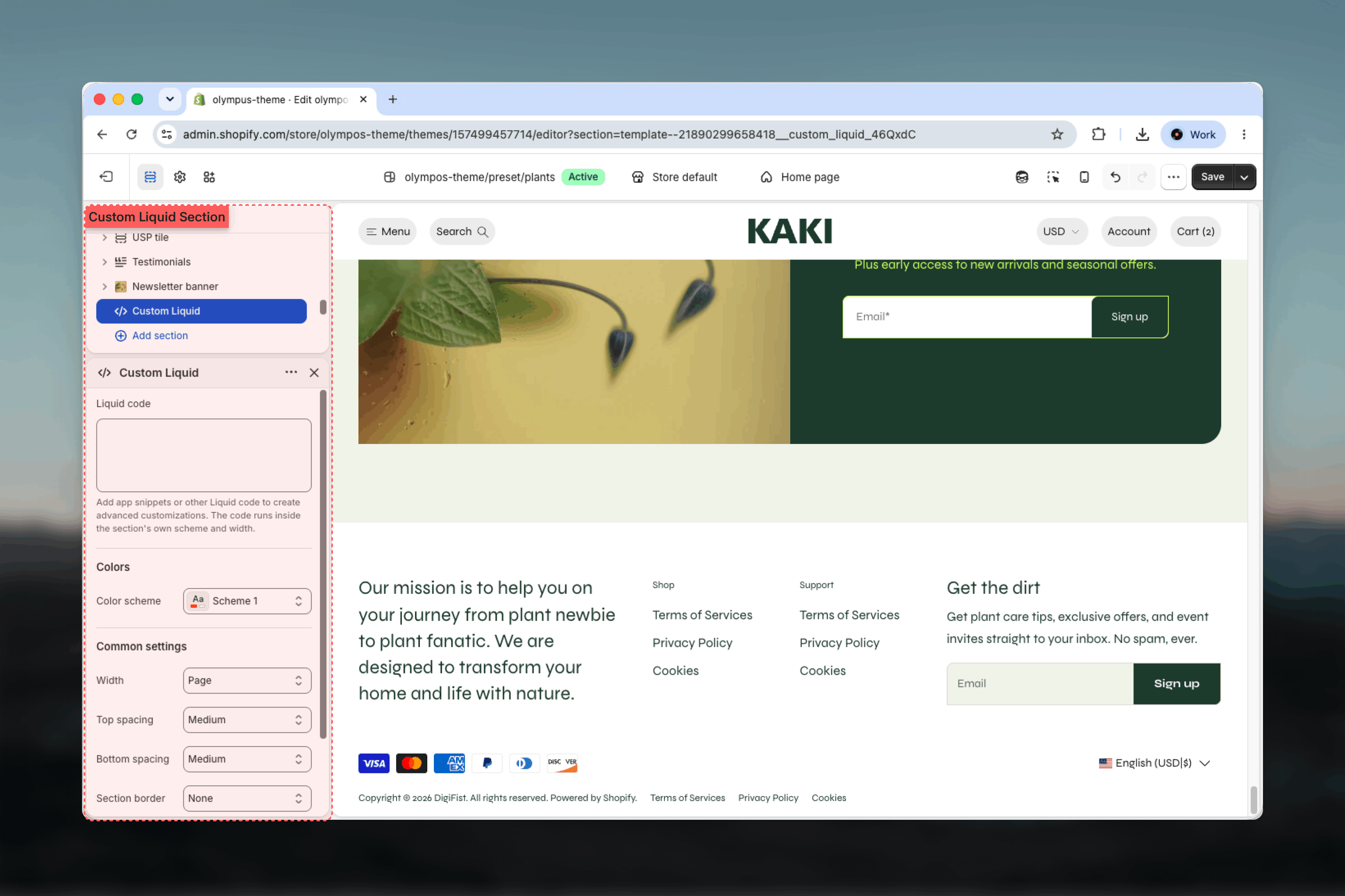
Section settings
Liquid code
The field that holds your code. Add app snippets or other Liquid to create advanced customizations; the code runs inside the section’s own color scheme and width. The field accepts plain HTML as well, so it also serves for a one-off embed, a table or a formatted notice.Errors in Liquid syntax are reported by Shopify when you save and the section will not render until they are fixed. Scripts and styles pasted here load on every visit to that template, so keep them lean.
Colors
Color scheme — background and text colors for the section. Default: Scheme 1. Your content inherits the scheme’s text color unless the pasted code sets its own.Common settings
Width
Width
Page, Narrow, Narrower, Fluid or Full width. Default: Page. Use Narrow for text-heavy content and Full width for embeds that manage their own layout.
Top spacing and Bottom spacing
Top spacing and Bottom spacing
None, Small, Medium, Large or Extra large. Default: Medium for both.
Section border
Section border
None, Top, Bottom or Top and bottom. Default: None.
Blocks
The Custom Liquid section does not accept blocks — everything it shows comes from the Liquid code field. If you want to mix your own code with theme content such as headings, text and buttons, use the Custom Liquid block inside a section that accepts theme blocks, for example the Custom section or the Product Page. The block has the same single code field and follows the color scheme and width of the section it sits in.Common use cases
- App embeds for apps that provide a snippet rather than an app block
- Third-party widgets such as review carousels, booking forms or maps
- Store information output with Liquid, such as opening hours held in a metafield
- Formatted notices in HTML that need a specific structure the Text block cannot produce
- Temporary campaign markup that is easier to remove as one section than to unpick from other content
Best practices
Test on a duplicate theme
Paste anything non-trivial into a duplicated theme first. A Liquid error prevents the section from rendering until fixed.
Prefer app blocks
If an app offers a block, use the Apps section instead. App blocks are configured in the Theme Customizer and update with the app.
Keep one purpose per section
Use a separate Custom Liquid section for each unrelated snippet so you can move, disable or remove them independently.
Inherit the theme's styling
Avoid hard-coding colors and fonts in your HTML where possible; content that follows the color scheme survives a redesign.
Mind performance
External scripts run on every visit. Load only what the page needs and remove snippets from campaigns that have ended.
Document what you added
Keep a note of what each snippet does and where it came from, so whoever maintains the store later can update or remove it.
Related guides
Apps
Place app blocks without writing code
Custom section
Compose a section from any theme blocks, including a Custom Liquid block
Theme blocks
Reference for the Custom Liquid block and the other shared blocks