

What this section controls
- Whether the main menu is shown inline in the bar or behind a drawer button
- Bar style (full width or floating), position (top or bottom), border, and padding
- Logo source, position, and width on desktop and mobile
- Search style and position, plus a Popular searches menu shown before typing
- Sticky behavior and the overlay mode on the homepage
- Mega menu layout and the Tile blocks that turn a dropdown into a mega menu
- Color schemes for the bar, the overlay state, dropdowns, and drawers
Getting started
1
Open the Theme Customizer
From your Shopify admin, open Online Store, then Themes, and click Customize on Olympus.
2
Locate Header
The Header section is pre-added in the Header group at the top of the left sidebar, below the Announcement bar.
3
Choose your menus
Under Navigation, pick the Shopify menu for desktop and the menu for the mobile drawer. Menus are created under Online Store, then Navigation.
4
Set the layout
Choose Desktop navigation, Bar style, Bar position, and the logo position, then preview on desktop and mobile.
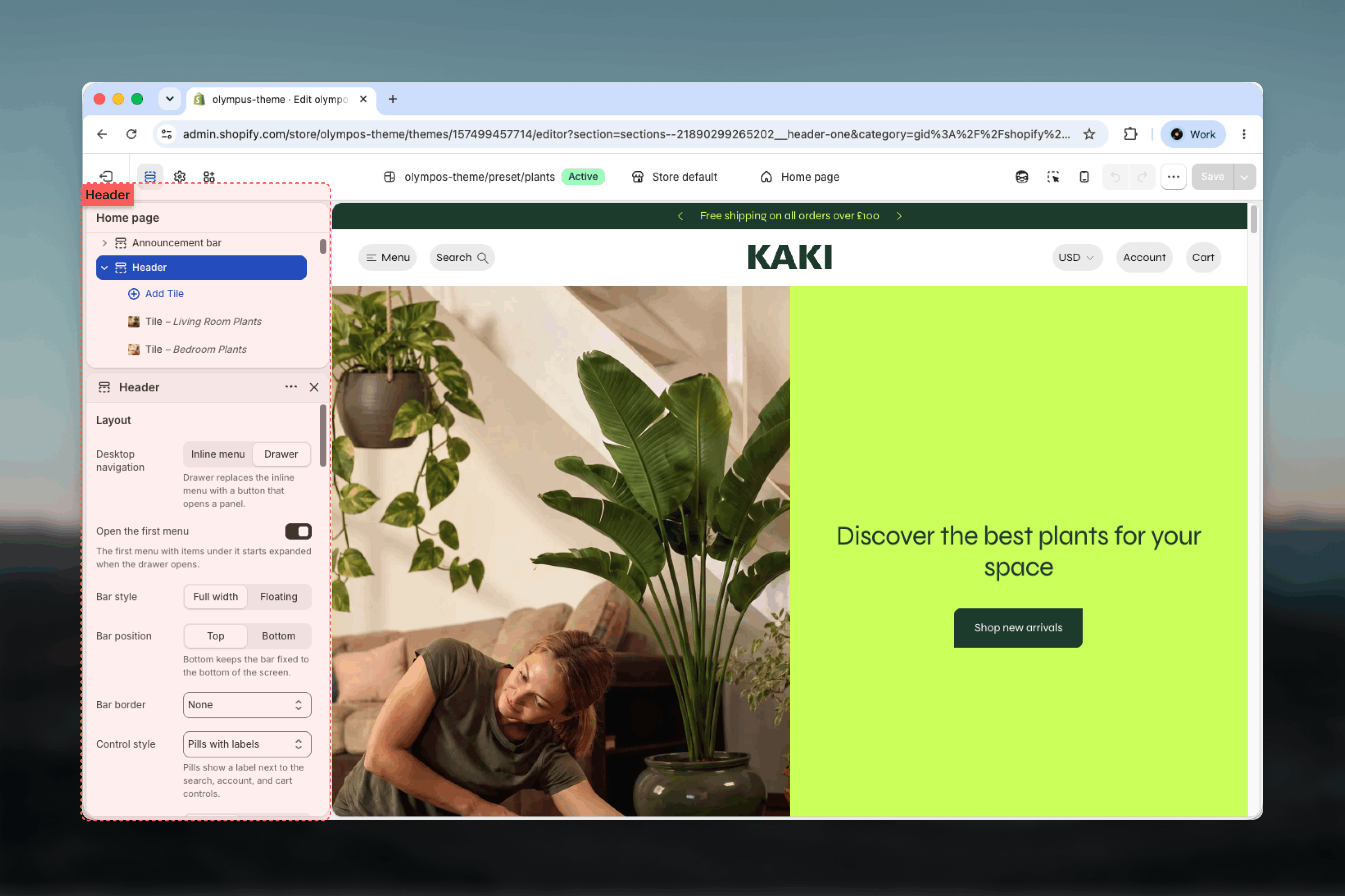
Layout options
- Bar
- Controls and search
- Logo
Navigation settings
Menus come from Shopify. Create and edit them under Online Store, then Navigation, then select them here.- Menu: the main menu used for desktop navigation. Default: Main menu.
- Main menu for mobile: the menu shown in the drawer. Default: Main menu. Keep the same menu to match desktop, or choose a shorter one for small screens.
Sticky and overlay behavior
Both settings apply only when Bar position is Top.Keep header visible when scrolling
Keep header visible when scrolling
Fixes the bar to the top of the viewport so navigation, search, and the cart stay reachable while customers scroll. On by default. The bar’s height is published to the rest of the page, so sticky page content such as the product information column settles below it instead of behind it. A sticky bar takes screen space on mobile, so test it on a phone.
Overlay header on the homepage hero
Overlay header on the homepage hero
On the homepage only, the bar sits on top of the first section with a transparent background, so a hero image or video shows through. Off by default. Its link and icon colors are taken from the first section, and follow the active slide when the hero is a slideshow, so they stay legible as the media changes. When overlay is combined with sticky, the bar slides up with the page as anything above it scrolls away and then pins to the top. Works best when the first section is a full-width Hero banner with an image or video.When enabled with a Full width bar, two extra settings appear: Logo for the overlay header (under Logo) and Color scheme over the homepage hero (under Colors). A floating bar keeps its own background and color scheme in overlay mode.
Colors
The header uses up to four color schemes so the bar, its panels, and its drawers can each match their context.- Color scheme: the bar itself. Default: Scheme 1.
- Color scheme over the homepage hero: used while the bar overlays the hero. Only the text and icon colors are applied; the background stays transparent. Default: Scheme 2. Appears when overlay is enabled with a Full width bar.
- Color scheme for dropdowns: dropdown and mega menu panels. Default: Scheme 1.
- Color scheme for drawers: the navigation drawer, the search dialog, and the country and language drawer. Default: Scheme 1.
Common settings
Width
Width
Page, Fluid, or Full width. Default: Page. Page keeps the bar content in the same column as the rest of the page; Fluid stretches it to the screen while keeping the page margin as a gutter; Full width runs edge to edge. Appears only when Bar style is Full width, since a floating bar keeps its own inset.
Blocks
Tile
The Tile block is the header’s only block. Each tile is a promotional card that attaches to one top-level menu item by position and turns that item’s dropdown into a mega menu. Tiles also appear in a grid at the bottom of the mobile drawer.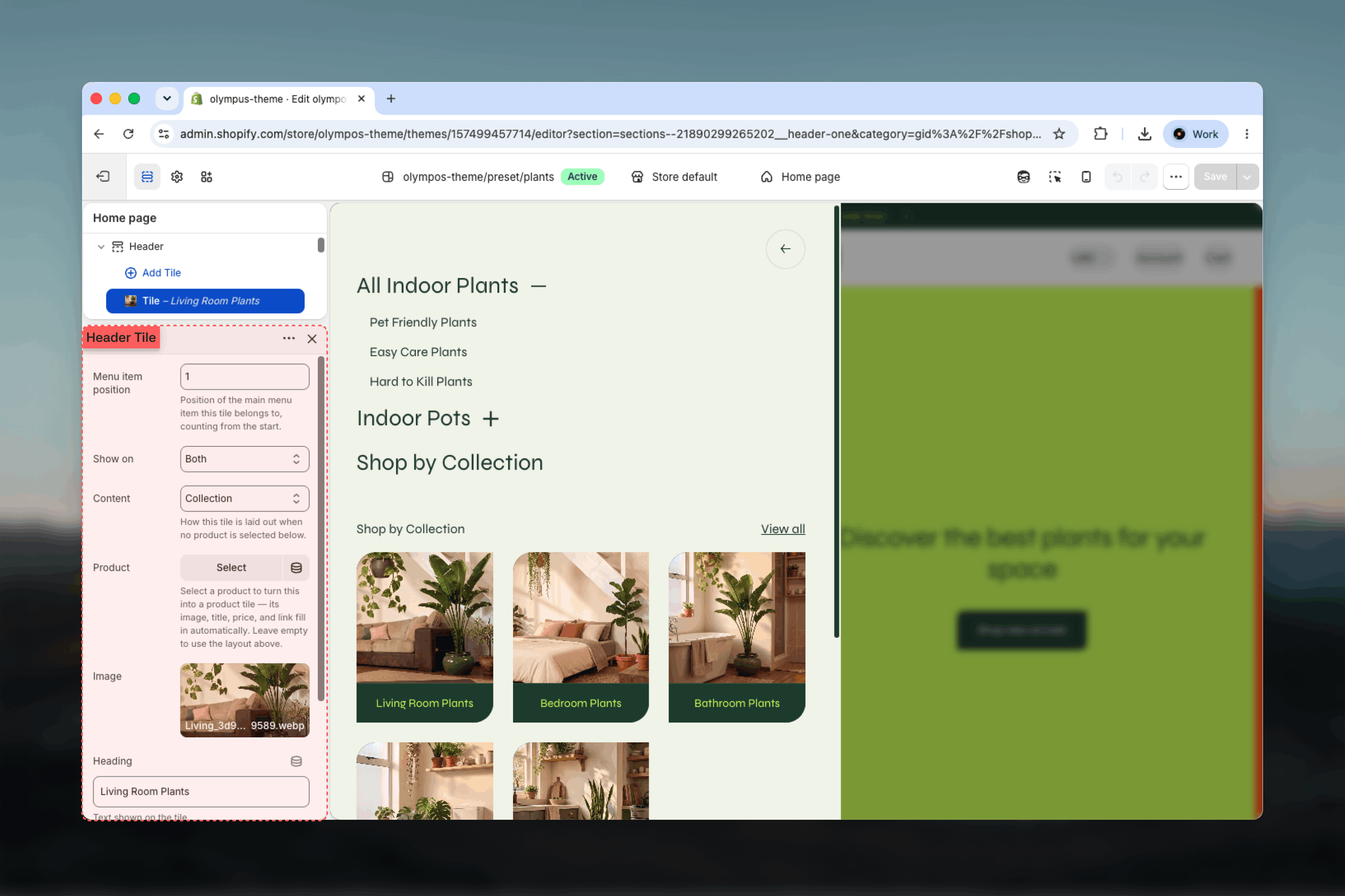
Best practices
Keep top-level items short
Five to seven top-level items fit an inline menu comfortably. Move the rest into dropdowns or switch to the Drawer style.
Match the mobile menu
Use the same menu for desktop and mobile unless the desktop menu is very long. Different structures confuse customers who switch devices.
Test overlay with real media
Enable overlay only after the hero image or video is final, and pick an overlay color scheme that stays legible over every slide.
Prefer SVG for wordmarks
A wordmark logo stays sharp at any width as SVG. For photographic or complex logos, upload a PNG at twice the display size.
Reserve the floating bar
A floating pill suits image-led homepages. Check that it does not cover important content on pages that start with text.
Related guides
Mega menu
Dropdown panels, mega menu spacing, and the Tile block.
Announcement bar
Store-wide messages shown above the header.
Footer
Footer menus, newsletter, and bottom bar.