

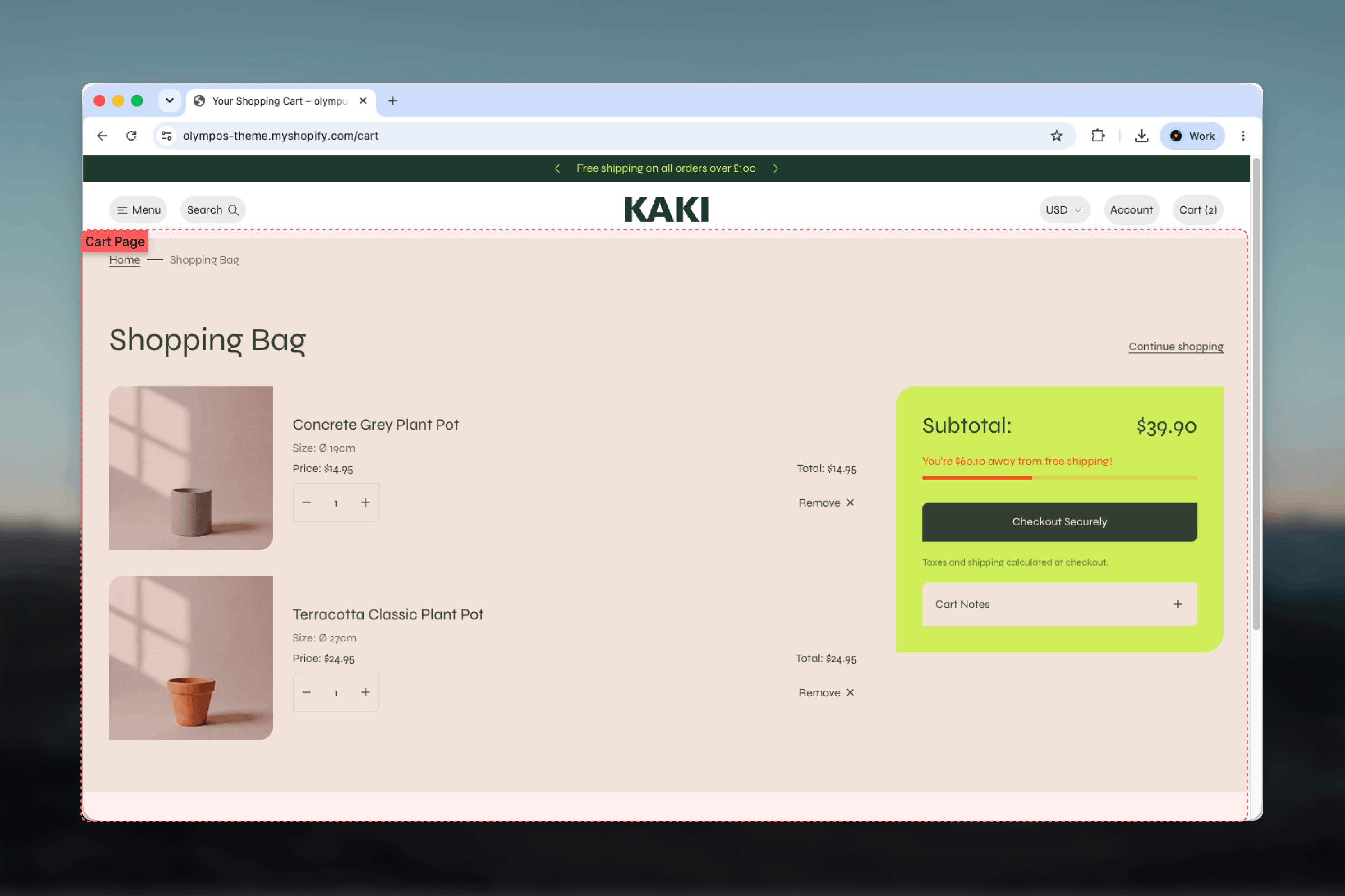
What this template controls
- The page heading, which also appears as the last breadcrumb.
- The checkout button label.
- The aspect ratio of line item thumbnails.
- Whether customers can leave a cart note, and the label and placeholder of that field.
- Separate color schemes for the page and for the summary card.
- Width, spacing and border of the section.
Getting started
1
Open the Theme Customizer
From your Shopify admin go to Online Store, then Themes, and click Customize on Olympus.
2
Choose the cart template
Use the page selector at the top of the Theme Customizer and pick Cart from the Others group.
3
Select the Cart section
Click Cart in the left sidebar to open its settings. Add a product to the cart in the preview to see the full layout instead of the empty state.
How it works
The page opens with a breadcrumb (Home, then the cart heading) that always spans the fluid page width so it stays aligned with the header. Below it, the heading sits on the left and a Continue shopping link on the right, pointing to the all-products collection. Line items. Each item shows its image, title, selected options, any subscription plan name, the unit price, the line total and, where relevant, the price per unit of measure. Discounts applied to the line appear as a small tag badge next to the title. A quantity stepper, a typed quantity field and a Remove link sit underneath. All three update the cart in the background and re-render it in place: the affected row dims and shows a spinner while the update runs, and the totals and free shipping bar refresh with it. The page never reloads. Order summary. The summary card is sticky on desktop and moves under the items on smaller screens. It lists cart-level discounts, the subtotal, the free shipping bar, the checkout button, any dynamic checkout buttons (such as Shop Pay or PayPal) enabled in your payment settings, and a “Taxes and shipping calculated at checkout” note. When cart notes are enabled, a collapsible Cart Notes field closes the card; it opens automatically if the customer has already written a note. Empty state. When the cart is empty the page shows “Your bag is empty” with a Continue shopping button.The free shipping bar is shown only when a Free shipping threshold is set in the Cart theme settings. It reads “You’re [amount] away from free shipping!” until the threshold is reached, then “You have free shipping!”.
Settings
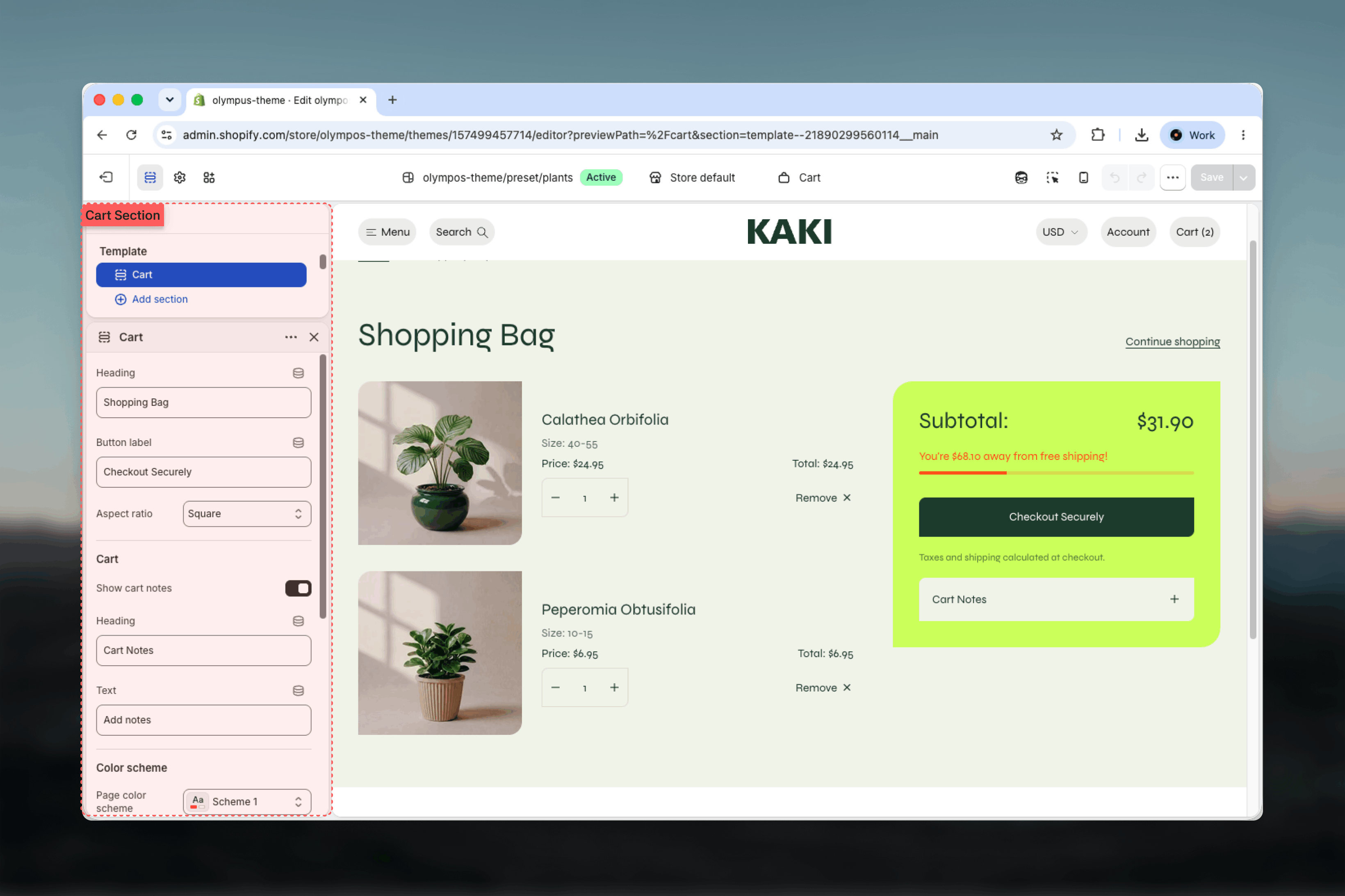
Heading
Heading
The page title and the current breadcrumb item. Default: Shopping Bag.
Aspect ratio
Aspect ratio
Crop applied to line item thumbnails: Adapt to image, Square, Portrait or Landscape. Default: Square. Match it to the ratio used by your product cards so images look familiar.
Cart notes
Show cart notes
Show cart notes
Adds a collapsible text field to the summary where customers can leave instructions or a gift message. Default: on. The note saves itself automatically shortly after the customer stops typing — there is no Save button — and is shown on the order in your admin.
Heading
Heading
The label on the collapsible row. Default: Cart Notes. Appears only when Show cart notes is on.
Text
Text
The placeholder shown inside the empty field. Default: Add notes. Appears only when Show cart notes is on.
Color scheme
Page color scheme: Paints the page, breadcrumb, line items and the cart notes panel. Default: Scheme 1. Summary color scheme: Paints the summary card, including its text and checkout button. Default: Scheme 2. A different scheme from the page makes the checkout area stand out as the next step.Common settings
Width
Width
Page, Narrow, Narrower, Fluid or Full width. Default: Page. Applies to the heading, items and summary; the breadcrumb keeps the fluid width.
Top spacing and Bottom spacing
Top spacing and Bottom spacing
None, Small, Medium or Large. Defaults: None on top and Medium at the bottom.
Section border
Section border
None, Top, Bottom or Top and bottom. Default: None.
Blocks
The Cart section does not accept blocks. Line items and the summary are fixed layouts driven by the settings above. To add recommendations, trust content or a newsletter signup, add separate sections such as Related products or Recently viewed products below the Cart section in the template.Best practices
Set a free shipping threshold
A threshold slightly above your average order value turns the progress bar into a nudge to add one more item.
Contrast the summary
Give the summary a darker or tinted scheme so the subtotal and checkout button read as the focal point of the page.
Match thumbnail ratios
Use the same aspect ratio as your product cards. Mismatched crops make the cart feel like a different store.
Keep notes optional and clear
A placeholder such as “Gift message or delivery instructions” tells customers what the field is for without adding a paragraph.
Add recommendations below
A Related products section under the cart is the natural place for cross-sells; the summary itself stays uncluttered.
Decide page or drawer
Cart type in the Cart theme settings decides whether adding to cart opens the drawer or sends customers here. Configure both; the page remains reachable from the drawer.
Related guides
Cart drawer
Configure the slide-out cart that opens when an item is added
Cart theme settings
Choose between cart page and cart drawer, and set the free shipping threshold
Related products
Add product recommendations below the cart