

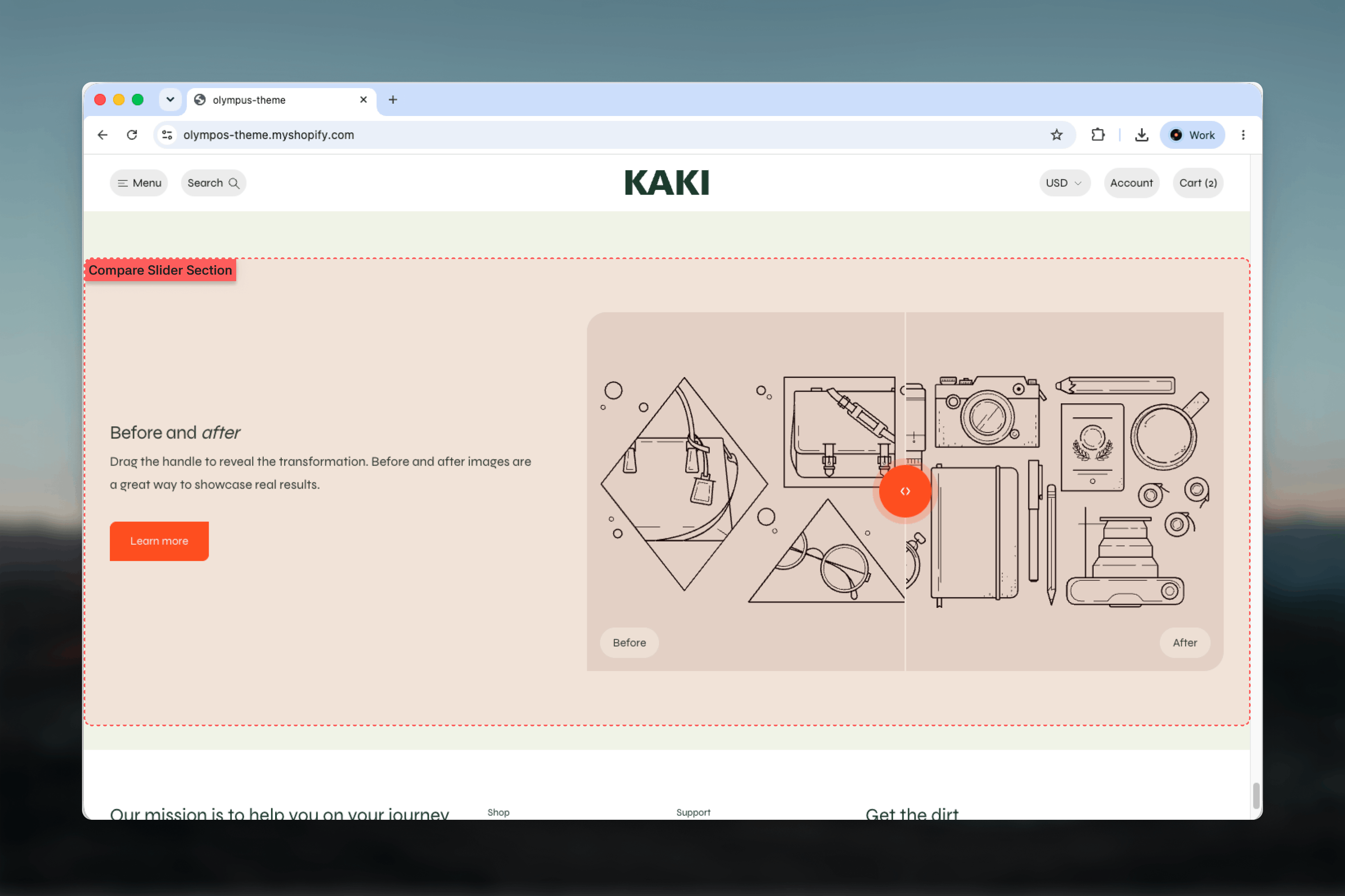
What this section controls
- The before and after images, each with an optional mobile version
- The labels shown over each image
- The aspect ratio of the comparison frame
- Which side of the copy the frame appears on
- Color scheme, width, spacing and section border
How it works
The section is a two-column layout: your blocks in one column and the comparison frame in the other, with Image position deciding which side the frame takes. Inside the frame the after image fills the area and the before image is layered over it, clipped at the handle. The handle works like a slider control: it can be dragged with a pointer or a finger, and once it has keyboard focus the left and right arrow keys move it step by step, so the comparison is reachable without a mouse. Each image can carry a short label in its corner so customers know which state they are looking at. On mobile the columns stack and the frame uses the mobile images when they are set.Getting started
1
Open the Theme Customizer
From Shopify admin, open the Theme Customizer on the template where the comparison belongs.
2
Add the section
Click Add section and choose Compare slider. The preset adds a heading, a text block and a button beside a placeholder frame.
3
Upload the two images
Set the Before image and After image. Use photos taken from the same angle and crop so the subject lines up.
4
Write the copy
Edit the Heading, Text and Button blocks, then choose the frame’s aspect ratio and position.
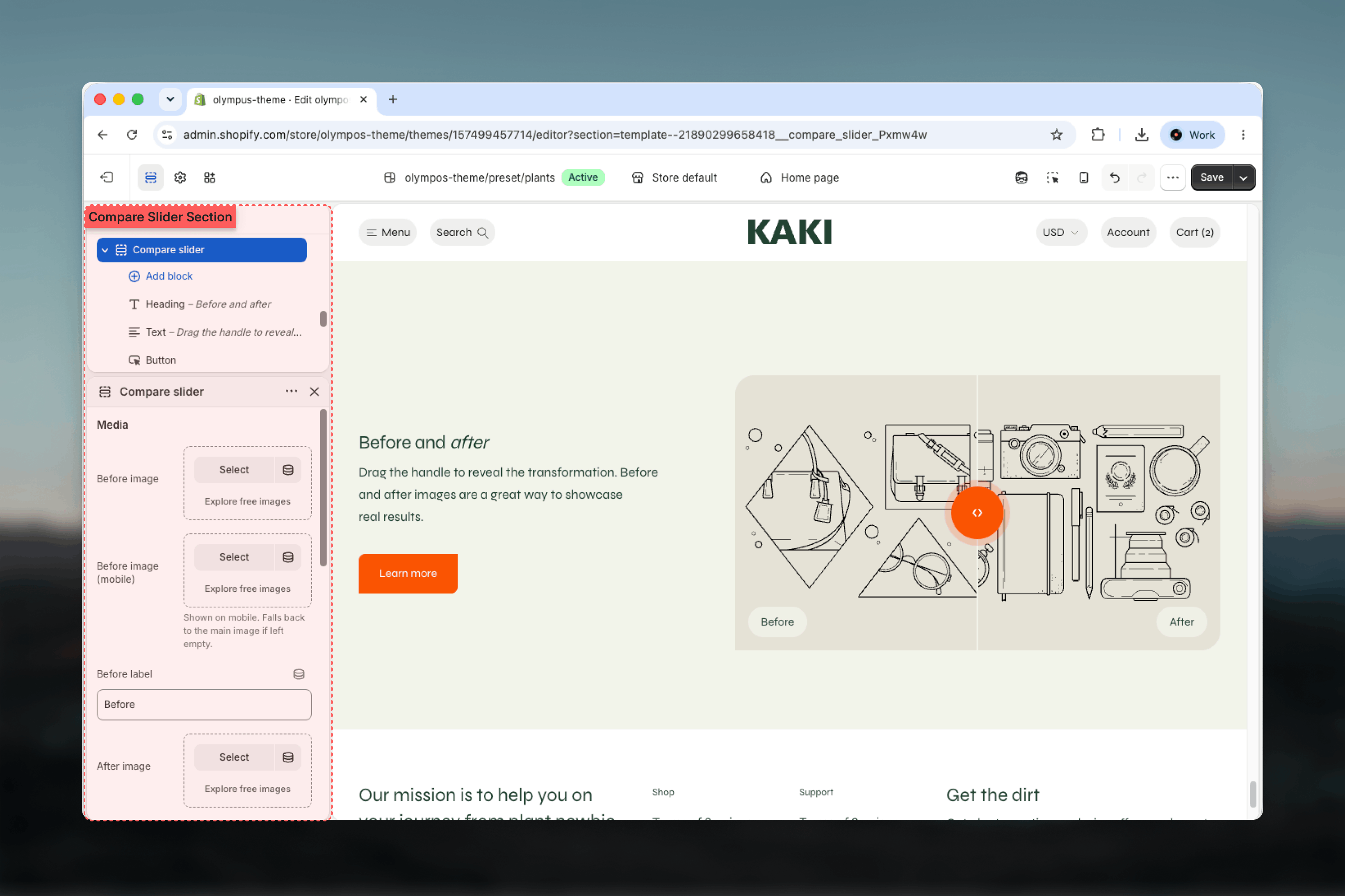
Section settings
Media
Before image and After image
Before image and After image
The two states of the comparison. The after image sits underneath and the before image is revealed over it as the handle moves. Until both are set, the frame shows placeholder illustrations.
Mobile images
Mobile images
Before image (mobile) and After image (mobile) replace their desktop counterparts on small screens and fall back to the desktop image when empty. Use them when the desktop crop loses the subject once the frame narrows.
Before label and After label
Before label and After label
Short captions shown over each image. Defaults: “Before” and “After”. Clear a label to hide it, or rename the pair for your context, such as “Day 1” and “Day 30”.
Aspect ratio
Aspect ratio
Shape of the comparison frame: Square, Landscape, Widescreen (default) or Portrait. Both images are fitted to the same frame, so choose the ratio that suits the subject and crop both photos to match.
Layout
- Image position — places the comparison frame to the Left or Right of the copy. Default: Right.
- Color scheme — background and text colors for the section. Default: Scheme 1.
Common settings
Width
Width
Page, Narrow, Narrower, Fluid or Full width. Default: Page.
Top spacing and Bottom spacing
Top spacing and Bottom spacing
None, Small, Medium, Large or Extra large. Default: Large for both.
Section border
Section border
None, Top, Bottom or Top and bottom. Default: None.
Blocks
The copy column accepts Heading, Text and Button blocks, stacked in the order you arrange them. All three are shared theme blocks; see Theme blocks for full settings.- Heading — the title of the comparison. The preset reads “Before and after” at Heading 5 size, with an italic word for emphasis.
- Text — one or two sentences explaining what changed and how, with Size and Alignment.
- Button — a link to the product, collection or article behind the result, with Button label, Link, Style and Alignment.
Best practices
Shoot from one position
The effect depends on the two images aligning. Use the same camera position, framing and lighting for both shots.
Crop to the frame
Prepare both images at the chosen aspect ratio so neither is cropped differently from the other inside the frame.
Keep labels short
One or two words per label. Long labels cover the image and can collide with the handle at the edges.
Explain the result
Use the Text block to say what was done and over what period, so the comparison is credible rather than just striking.
Check the mobile frame
Widescreen frames become short on phones. Provide portrait mobile images or switch to Square if the subject is lost.
Use real photographs
Rendered or retouched comparisons undermine trust. Show unedited results and let the slider do the work.
Related guides
Theme blocks
Full settings for the Heading, Text and Button blocks
Image with text
A single image beside copy, for cases that do not need a comparison