

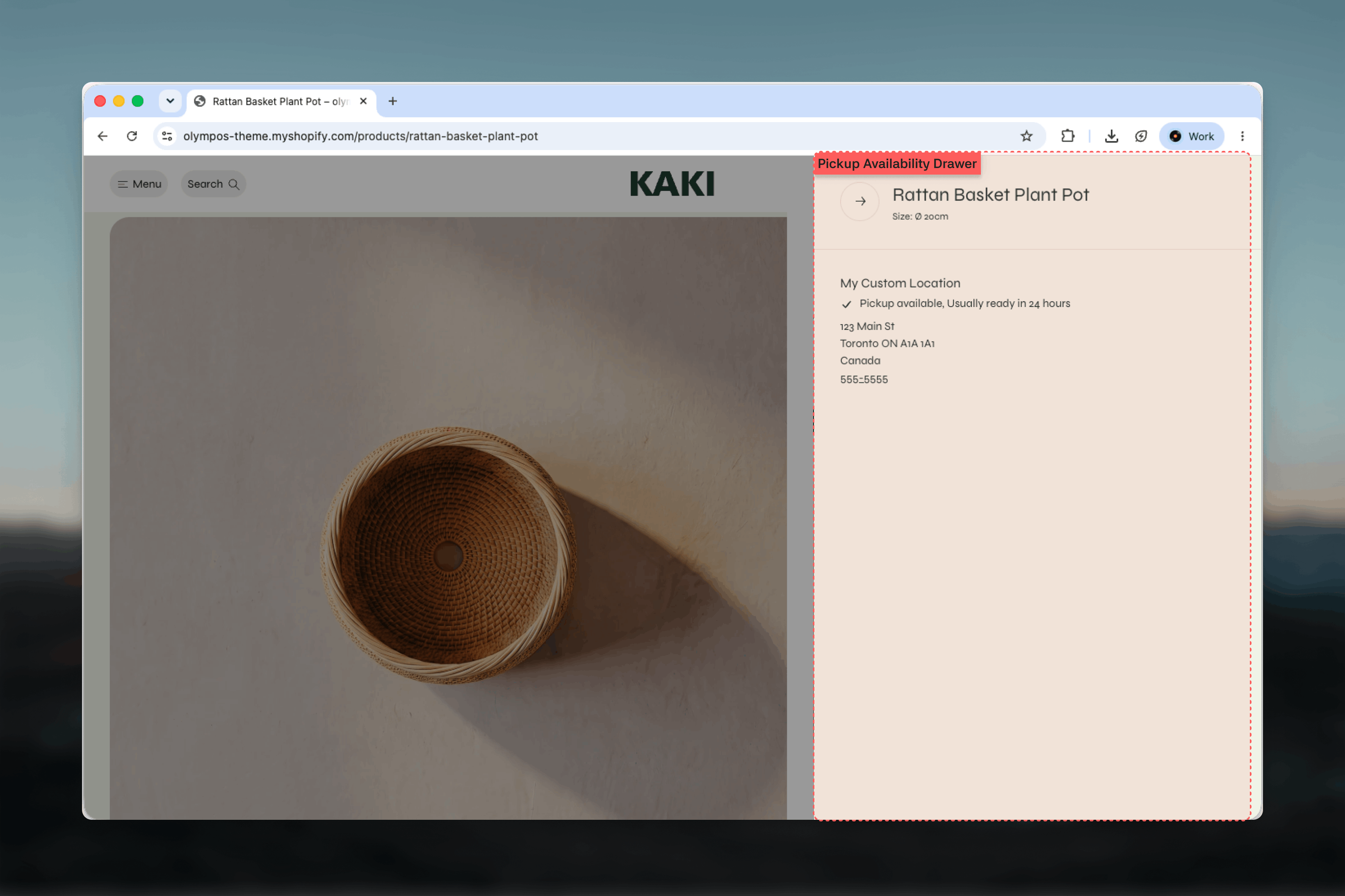
What this section controls
- The “Pick up available at” message for the nearest ready location
- The estimated pickup time reported by Shopify
- A View stores drawer with every pickup-enabled location and its status
- The variant the availability refers to, shown in the drawer heading
- Automatic refresh when a different variant is selected
How it works
Pickup availability has two parts that work together:- The Pickup availability block on the Product Page (PDP) renders the visible card and the drawer. This is where you choose the card background, color schemes and spacing.
- The Pickup availability section is a hidden helper that only exists so the theme can re-fetch the store list when the variant changes. It has no settings and is not added to a page manually.
Pickup availability only appears on product templates and needs local pickup enabled for at least one location in Shopify admin under Settings, then Shipping and delivery.
Getting started
1
Enable local pickup in Shopify
In Shopify admin, open Settings, then Shipping and delivery, and set up local pickup for the locations that hand over orders.
2
Open the product template
In the Theme Customizer, choose Products, then Default product from the page selector.
3
Add the Pickup availability block
Select the Product section, choose Add block and pick Pickup availability. Place it near the Buy buttons, where shoppers decide how to receive the order.
4
Style the card
Choose a Background, optional color schemes and Bottom spacing, then preview with a product stocked at a pickup location.
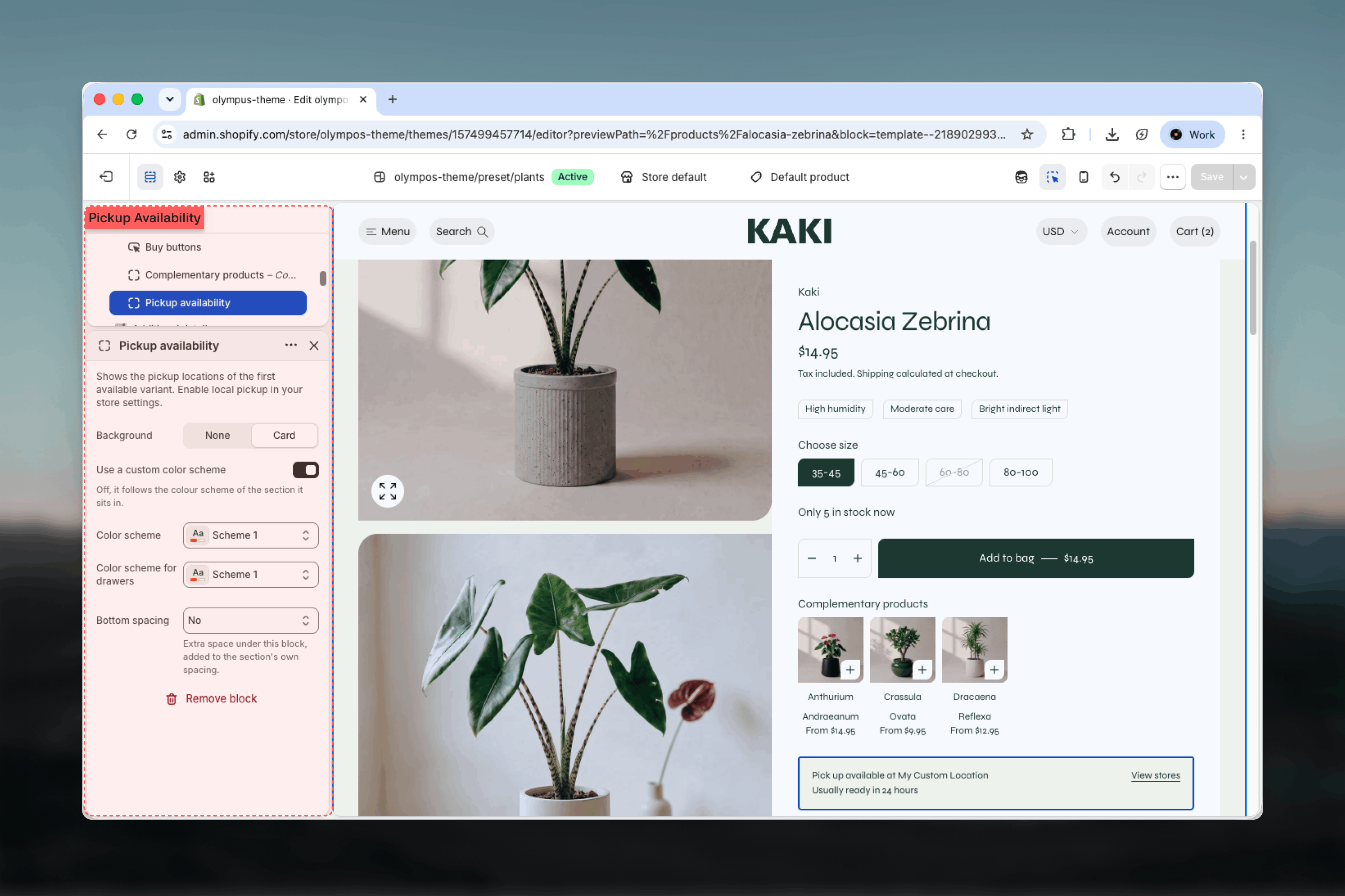
Block settings
The visible card is configured through the Pickup availability block inside the Product section.Background
Background
None shows the message and link on the product page background. Card (default) wraps them in a bordered card so the availability stands out from the description and price.
Use a custom color scheme
Use a custom color scheme
Appears when Background is Card. Off by default, so the card follows the color scheme of the Product section it sits in. Turn it on to reveal Color scheme (default: Scheme 1) and paint the card independently.
Color scheme for drawers
Color scheme for drawers
Colors the View stores drawer. Default: Scheme 1. Pick the same scheme you use for the cart drawer so overlays look consistent.
Bottom spacing
Bottom spacing
Extra space under the block, added to the section’s own spacing: No, S, M, L or XL. Default: No.
What shoppers see
- Card title: “Pick up available at” followed by the nearest location with stock, or “Pick up currently unavailable”.
- Pickup time: the estimate you configured for that location, for example “Usually ready in 24 hours”.
- View stores: opens the drawer. The heading repeats the product title and the selected options, so the shopper knows which variant the list refers to.
- Store rows: each pickup-enabled location with a check mark and “Pickup available” plus the time, or a cross and “Pickup unavailable, contact store”. The address is formatted for the store’s country and the phone number is tappable.
Best practices
Place it near the buy buttons
Shoppers weigh delivery against collection at the moment of purchase. Keep the block within view of Add to cart.
Keep the store list short
The drawer lists every pickup-enabled location. Enable pickup only for stores that genuinely hand over online orders.
Set realistic pickup times
The time comes straight from your location settings. An optimistic estimate that is missed costs more trust than a longer one that is kept.
Add phone numbers to locations
The drawer shows a tappable phone link when the location address includes one, which helps shoppers with the “contact store” case.
Test a multi-variant product
Switch sizes and colors in the preview to confirm the message changes when only some variants are stocked locally.
Match the drawer scheme to the cart
Using the same color scheme for both drawers makes overlays feel like one system rather than separate features.
Related guides
Product Page (PDP)
All blocks available in the Product section, including Buy buttons and Variant picker
Store locator
Present your physical stores with addresses, hours and directions
Cart drawer
Configure the cart overlay whose color scheme the pickup drawer can share