

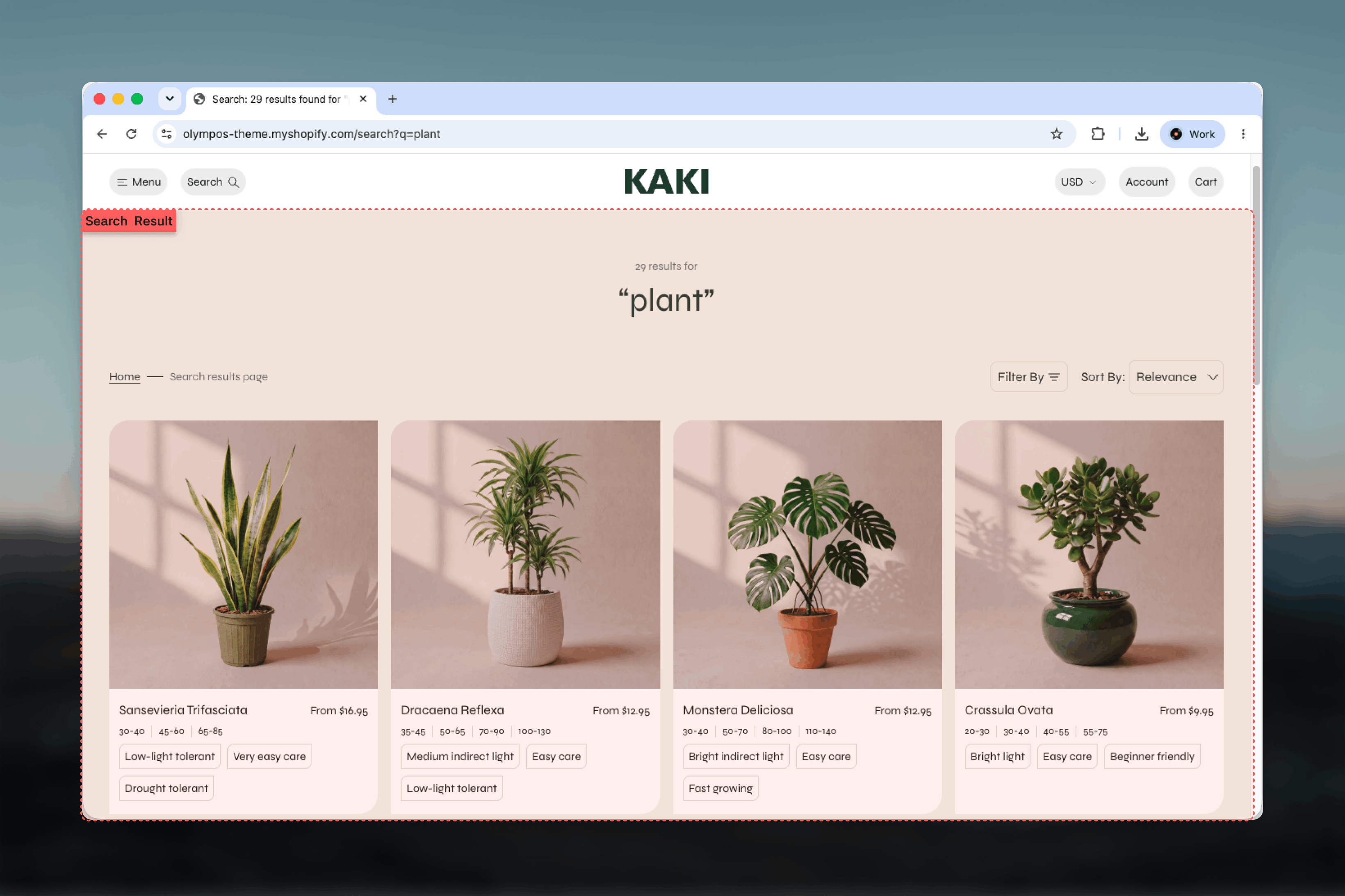
What this template controls
- Results per page and the wording of the result count and breadcrumb
- Filtering (Drawer, Sidebar or Horizontal), sorting and the filter bar corners
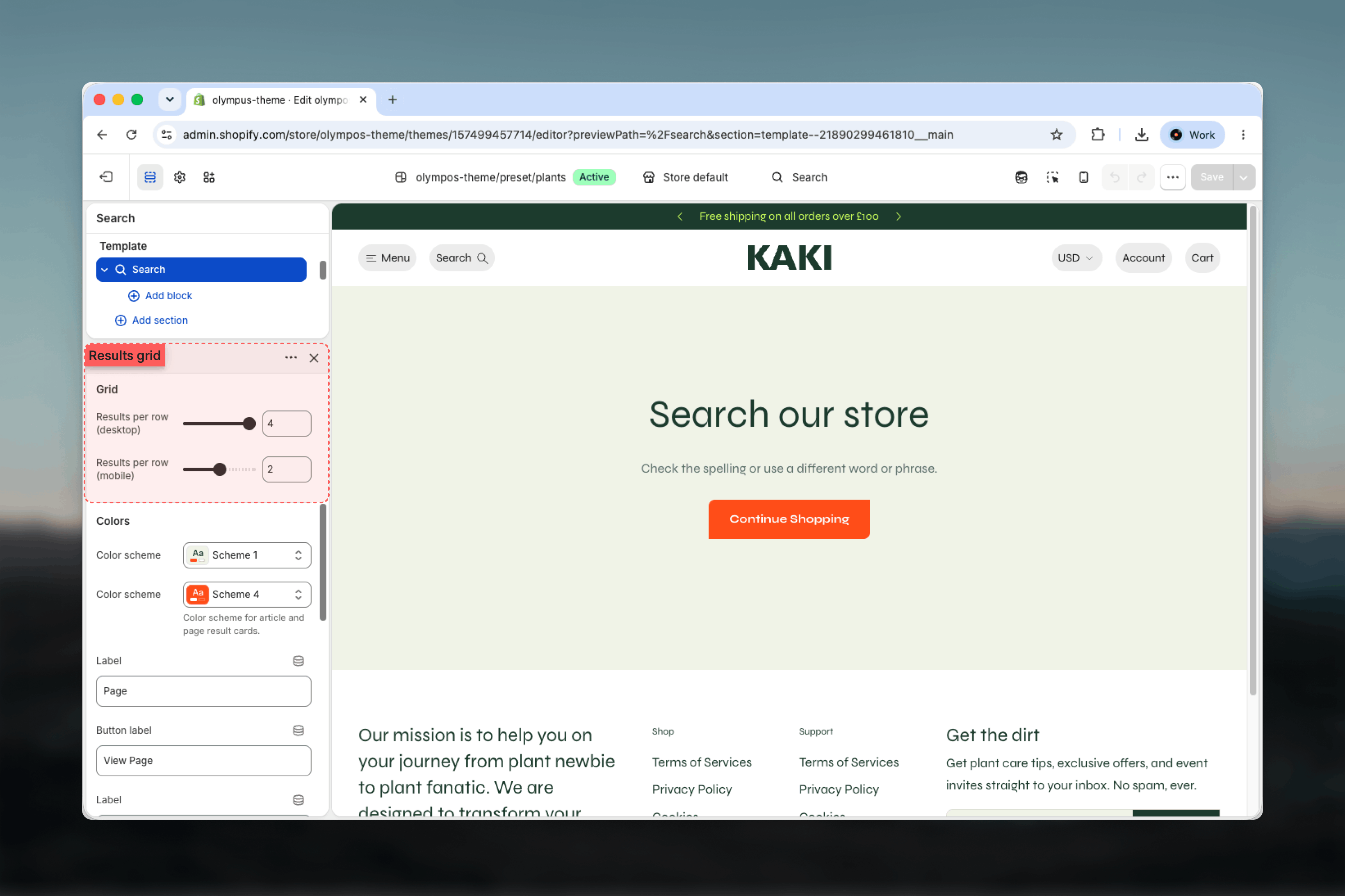
- Results per row on desktop and mobile
- How article and page results are labeled and colored
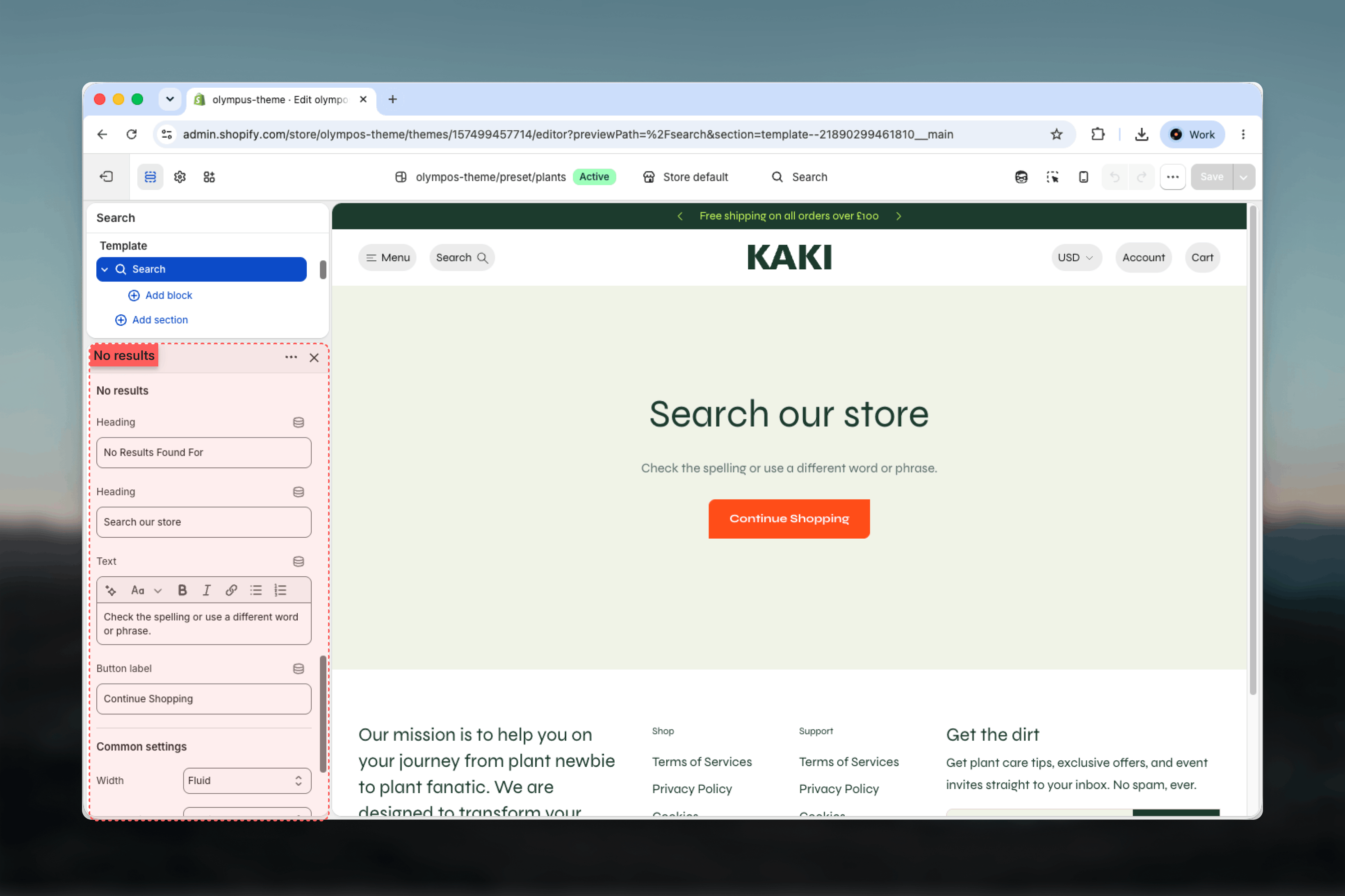
- The heading, text and button of the no-results and empty-query states
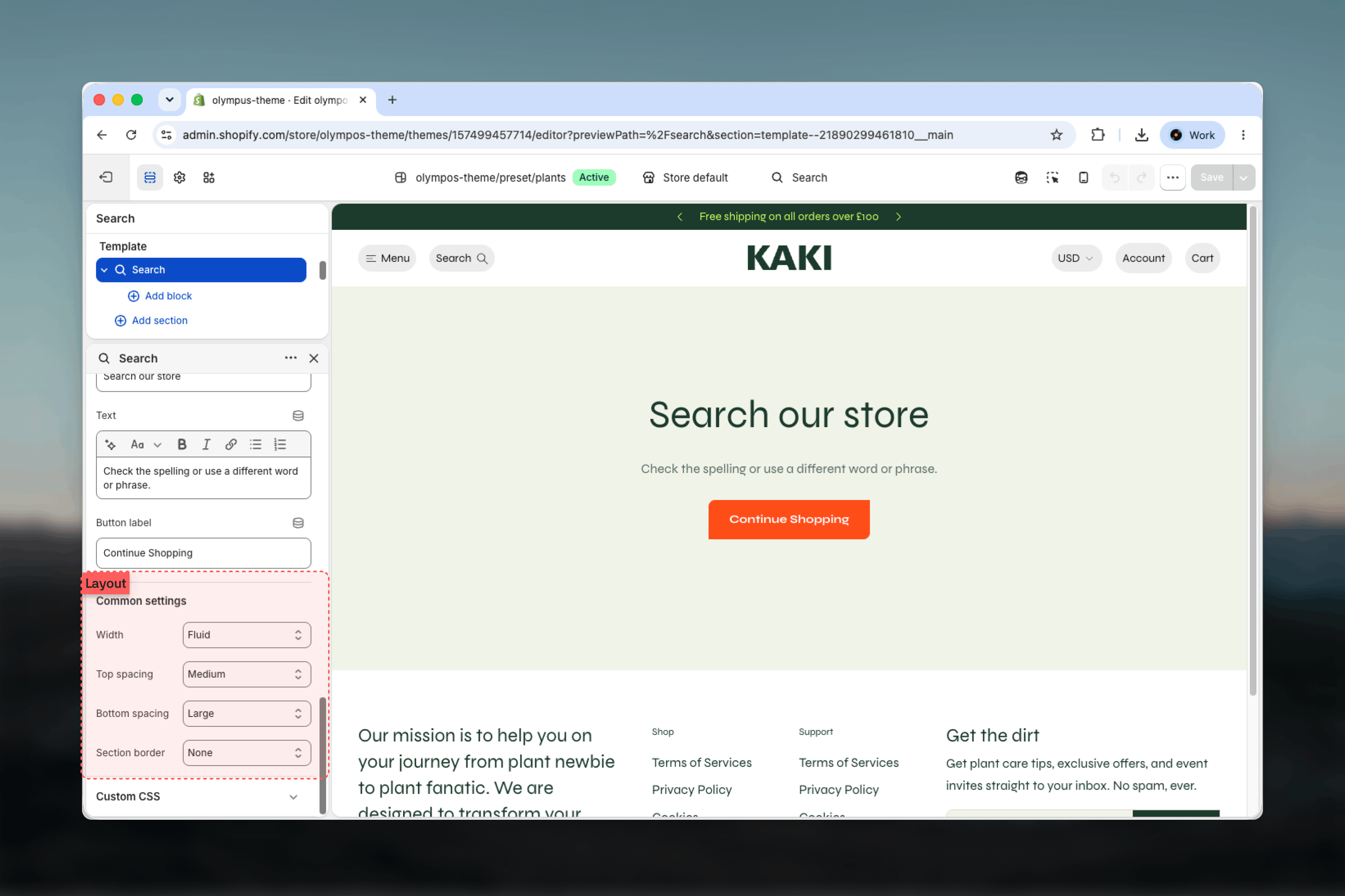
- Color scheme, width, spacing and borders
Getting started
1
Open the Theme Customizer
From Shopify admin go to Online Store → Themes and click Customize on Olympus.
2
Choose the Search template
Use the page selector and pick Search. Run a search in the preview to see results, or leave the query empty to see the prompt state.
3
Select the Search section
Adjust its settings, and add Card blocks under the section to place promo cards in the grid.
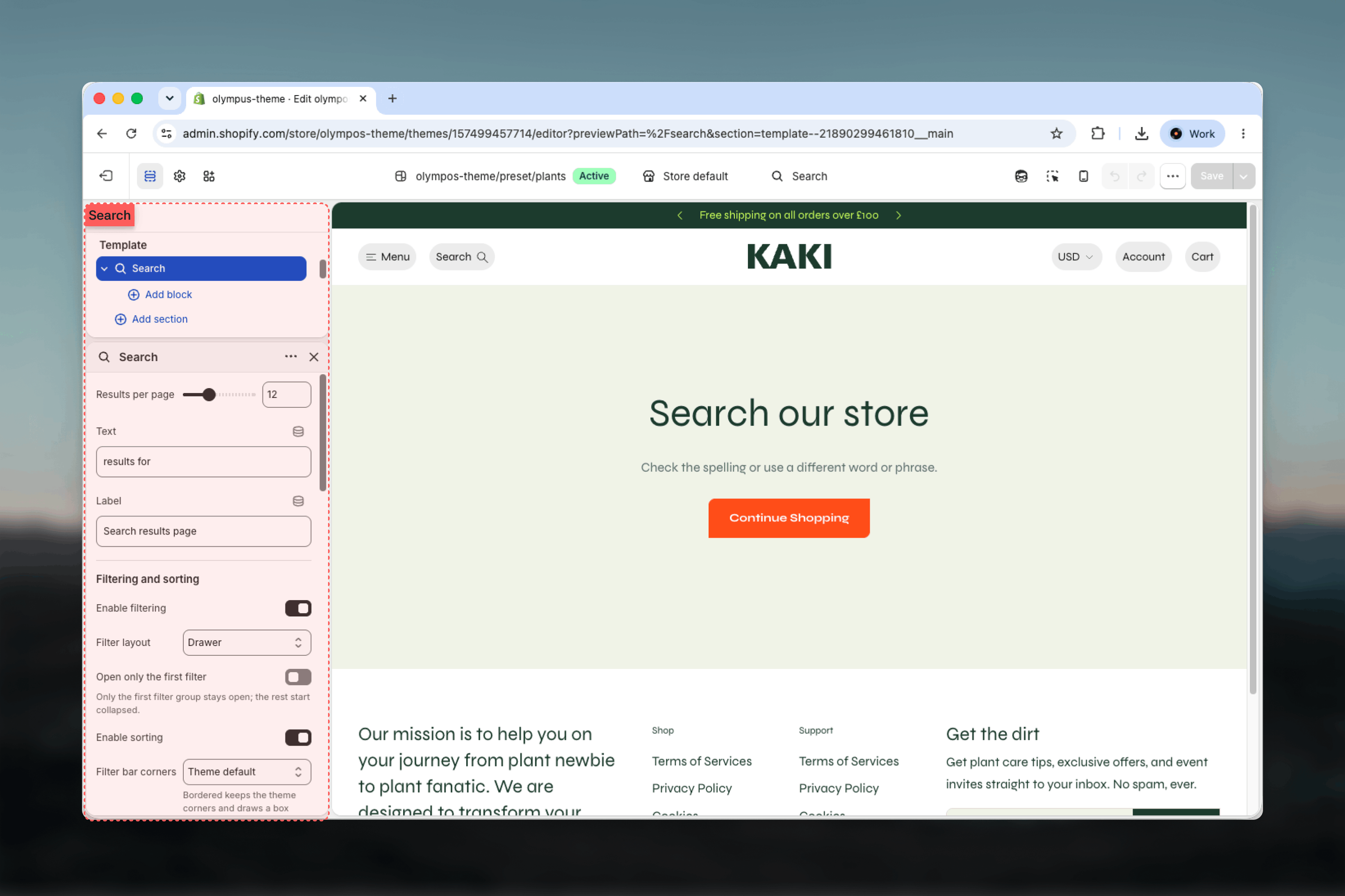
Template settings
- Utilities bar
- Results grid
- No results
- Layout
Filtering
Filtering
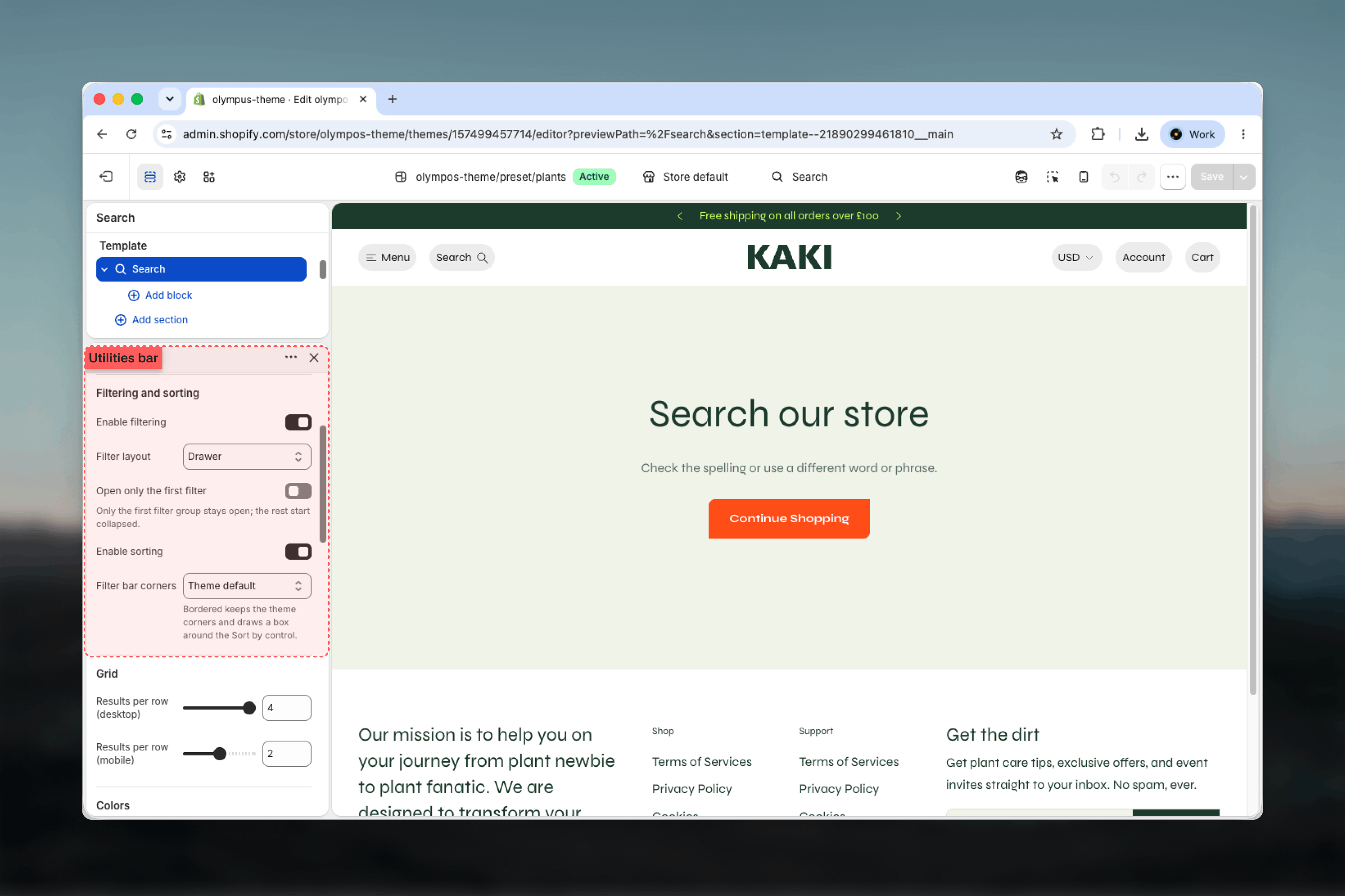
Filters are Shopify’s native storefront filters as published in the Search & Discovery app. Enable filtering (on by default) shows them; Filter layout places them in a Drawer (default), a Sidebar with its own Color scheme, or Horizontal dropdowns in the toolbar with Filters shown inline (1 to 3; default 3) before a More filters button. Open only the first filter collapses every group except the first. On mobile every layout opens the filters in a slide-in drawer. Applied filters appear as removable pills above the grid with a Clear all link.Filters and sorting apply automatically about half a second after a change, with no Apply button to press. Only the results grid is fetched again while the rest of the page stays put, and the grid dims while the new results load. The address bar is updated with the active filters, so the back and forward buttons step through filter states and a filtered search can be shared or bookmarked.
Sorting and filter bar corners
Sorting and filter bar corners
Enable sorting (on by default) adds a Sort by dropdown. Filter bar corners styles the controls: None (no border), Theme default, Sharp, Rounded or Bordered, which keeps the theme corners and draws a box around the Sort by control.
Blocks
The Search section accepts one block type, Card, which can be added several times.Card
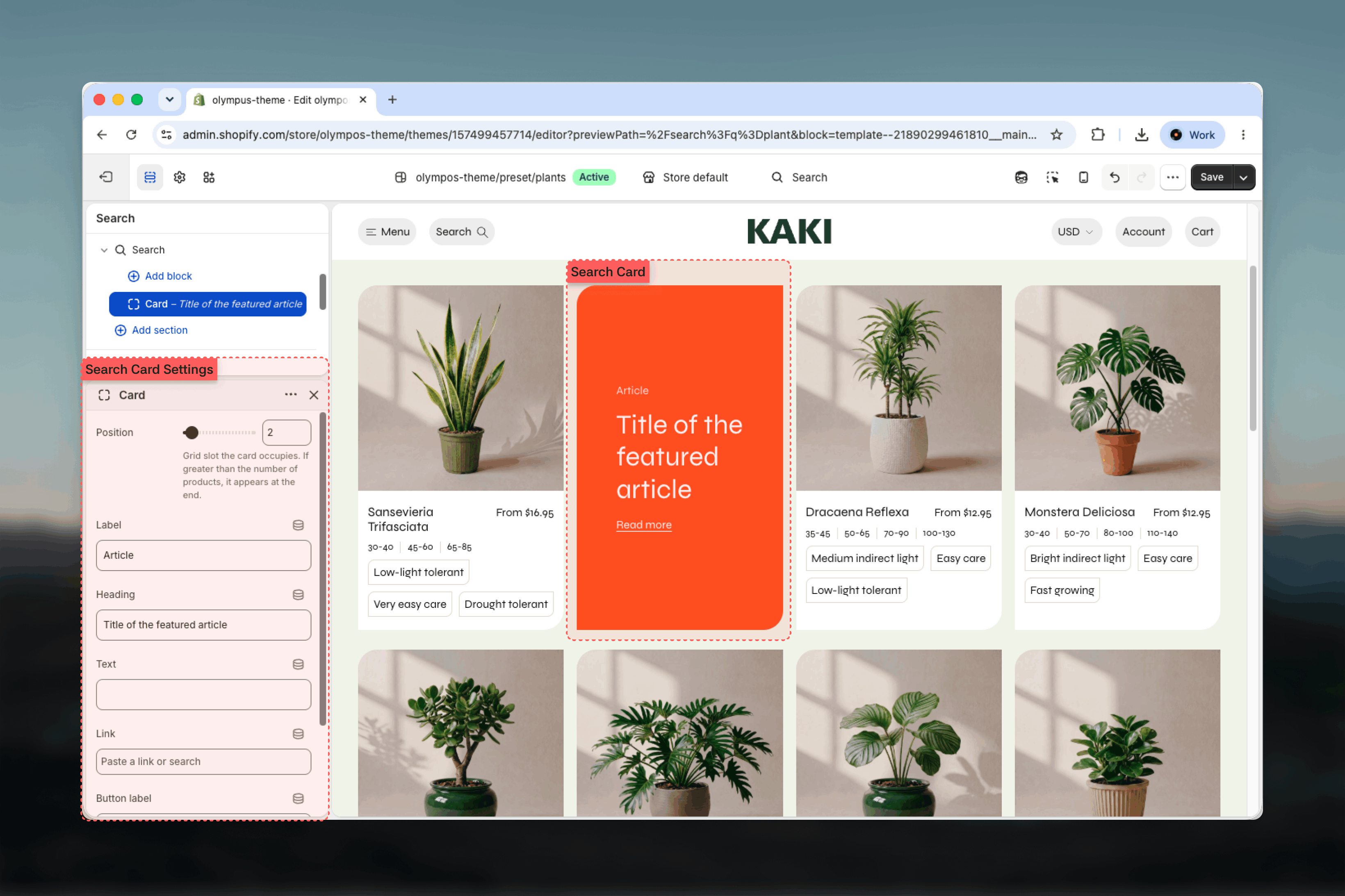
- Position (1 to 24; default 3): the grid slot the card occupies. A position greater than the number of results puts it at the end.
- Label (default “Article”): the small type label above the title.
- Heading (default “Title of the featured article”) and Text: the card’s title and short description.
- Link and Button label (default “Read more”): where the card leads and the action text.
- Color scheme (default scheme 4): the card’s colors, independent from the article and page results.
Cards appear on every results page and every filtered state, because their position refers to the grid rather than to a specific result. Keep them relevant to any query.
Best practices
Match the collection page
Use the same filter layout, columns and filter bar corners as the Collection Page (PLP) so customers move between the two without relearning the controls.
Write the no-results copy carefully
Suggest a next step, such as browsing categories or checking spelling. The Continue Shopping button already leads to all products.
Use Card blocks for help content
A card linking to shipping or sizing answers catches searches that are really support questions.
Differentiate content results
Keep the article and page color scheme visibly different from the product cards so customers can scan for products first.
Publish filters that apply store-wide
Search results span every collection, so filters such as price, availability and product type work better here than collection-specific ones.
Related guides
Predictive search
Instant suggestions shown while the customer types in the header
Collection Page (PLP)
The same filtering and sorting controls on collection pages
Pagination
Numbered pagination or a Load more button for the results grid